Digital Productivity, Online planners, Planners
Event Planning Spreadsheet: Excel Templates & Guide
Mar
Okay so I’ve been using event planning spreadsheets for like five years now and honestly I cannot work without them anymore, which sounds dramatic but last month I tried planning my friend’s baby shower without one and it was a disaster so here we are.
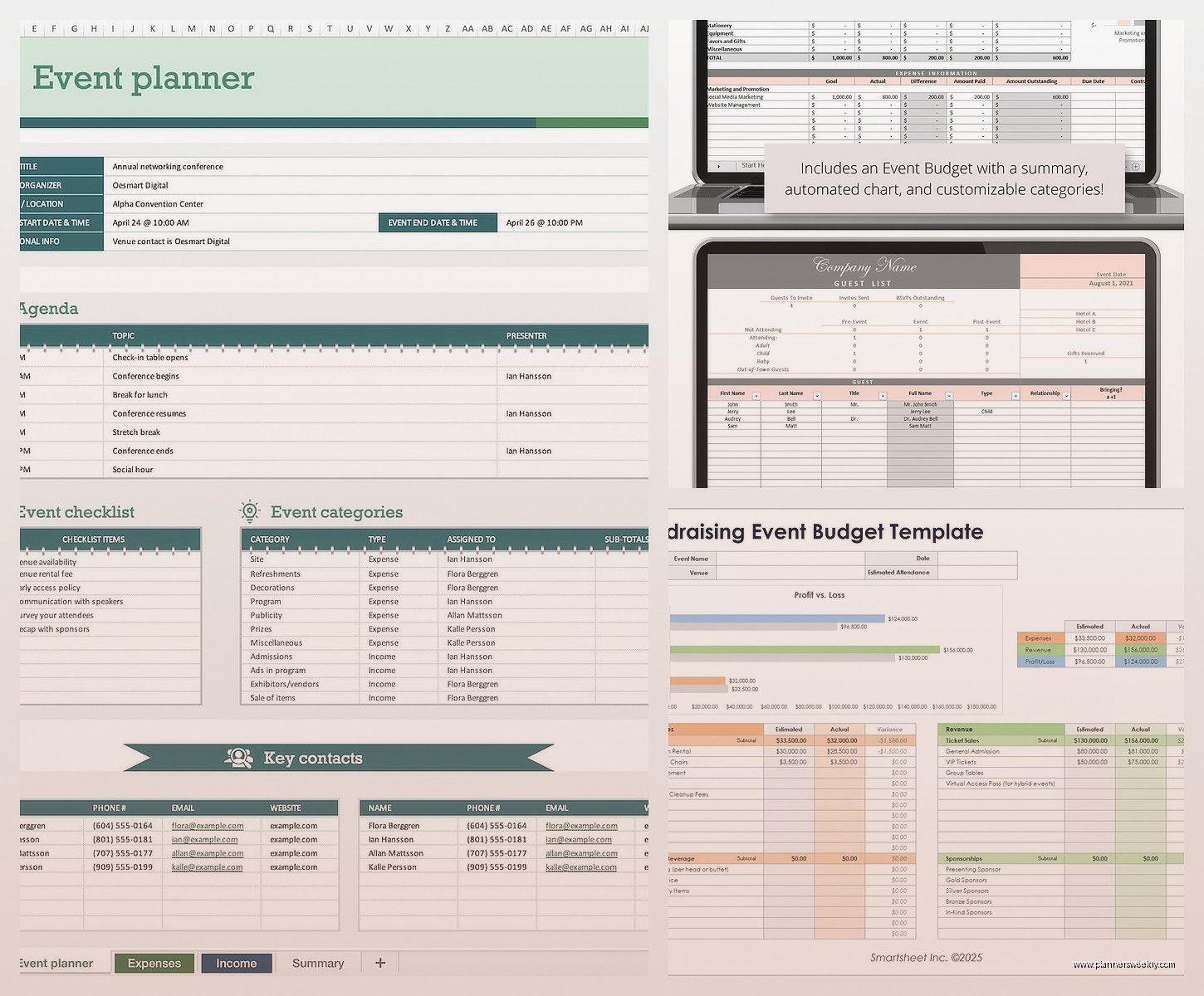
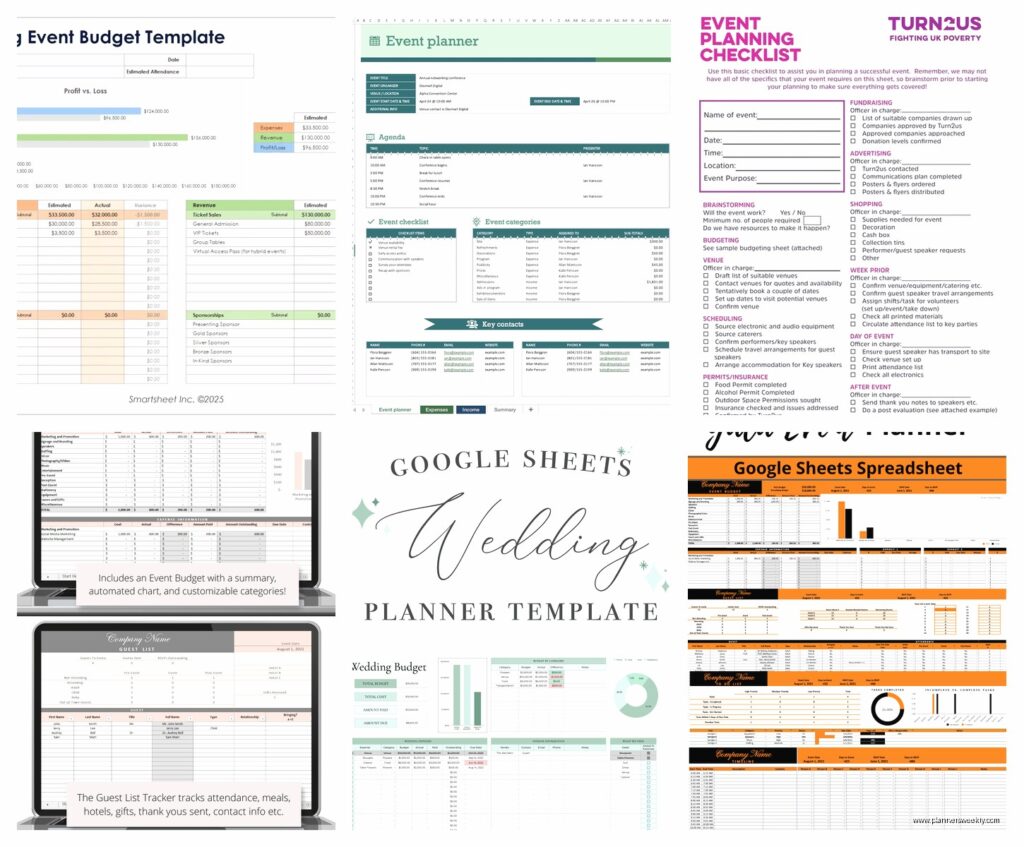
The Basic Budget Tracker Template
Start with this one first because budget is where everything falls apart if you’re not careful. I use a simple Excel template that has columns for: item/service, estimated cost, actual cost, paid status, and notes. The notes column is crucial because you’ll forget WHY you paid $300 for flowers when you budgeted $150 and three months later you’re staring at receipts wondering what happened.
My favorite template setup has conditional formatting so when actual cost exceeds estimated by more than 10%, the cell turns red. Sounds basic but it’s saved me so many times because you don’t notice budget creep until suddenly you’re $800 over and… yeah.
The formula I use is just =IF((C2-B2)/B2>0.1,C2,C2) with the red fill rule applied. You can adjust that 0.1 to whatever percentage makes sense for your tolerance level.
Adding Running Totals That Actually Help
Put a running total at the bottom using =SUM(C:C) for actual costs and another for estimated. Then do a variance calculation =SUM(C:C)-SUM(B:B) so you always know where you stand. I keep this visible at the top of my screen frozen so even when I’m scrolling through 50 line items I can see if I’m gonna blow the budget.
Oh and another thing, add a “payment due date” column because I learned the hard way that some vendors want 50% deposit immediately and final payment 2 weeks before the event and others want it all upfront and tracking this in your head does not work.
Guest List and RSVP Tracker
This is where spreadsheets really shine compared to like, a notebook or whatever. You need these columns minimum: name, email, phone, invitation sent date, RSVP status, number of guests, dietary restrictions, and plus-one status.
The RSVP status column should use data validation with a dropdown. Right-click the column, go to Data Validation, and create a list with: Pending, Yes, No, Maybe. This keeps everything standardized so you’re not trying to remember if “confirmed” and “yes” mean the same thing when you wrote them three weeks apart.
I add a calculated column that counts total attendees using =COUNTIF(E:E,”Yes”)*F:F where E is RSVP status and F is number of guests. This auto-updates your headcount which is essential for catering, seating, favors, all of it.
The Meal Preference Nightmare
Okay so funny story, I was planning a corporate event last year and didn’t track meal preferences properly and ended up with three vegetarian meals for seven vegetarians because I was just keeping mental notes like an idiot. Now I have a separate tab called “Catering Summary” that uses COUNTIF formulas to automatically count how many people selected each option.
The formula looks like =COUNTIF(G:G,”Vegetarian”) where G is your dietary restrictions column. Make one for each option your caterer offers. Then you just send this summary to the caterer instead of forwarding 200 individual emails.
Timeline and Task Management Template
This one took me forever to get right because I kept making it too complicated and then never updating it. The version I actually use now has just: task name, category, due date, assigned to, status, and priority.
Categories matter more than you think. I use: Venue, Catering, Decor, Entertainment, Invitations, Logistics. Then you can filter by category when you’re focusing on one aspect. Like when I’m dealing with venue stuff I don’t wanna see all the invitation tasks cluttering everything up.
For the status column, another dropdown: Not Started, In Progress, Waiting on Others, Complete. That “Waiting on Others” status is SO important because half of event planning is waiting for other people to get back to you and you need to track that separately from stuff you’re actually procrastinating on.
The 12-Week Countdown Structure
I organize tasks by weeks before the event. So 12 weeks out you’re booking venue and major vendors. 8 weeks out you’re sending invitations. 4 weeks out you’re finalizing headcount. 1 week out you’re confirming everything and probably having a mild panic attack but at least your spreadsheet is organized.
Put the event date in cell A1 and then use formulas to calculate your milestone dates. Like if the event is 6/15/2024, then your “8 weeks before” date is =A1-56 in whatever cell you’re working in. This way if the event date changes you’re not manually recalculating everything.
Wait I forgot to mention, add a notes column for every task because “confirm catering” means nothing when you can’t remember if you already asked about the vegetarian count or if that was just on your mental to-do list that doesn’t actually exist.
Vendor Contact and Contract Tracker
This is gonna sound weird but this is actually my most-used tab. You need: vendor name, service type, contact person, phone, email, contract signed (yes/no), deposit paid, deposit amount, balance due, payment due date, and contract terms summary.
The contract terms summary is just a text field where I paste key points like “cancellation policy: 30 days notice” or “includes setup and breakdown” because I’m not gonna reread a 12-page contract every time I have a question.
I use conditional formatting here too so if payment due date is within 7 days the row turns yellow, and if it’s past due it turns red. Formula is something like =AND(TODAY()>J2, K2<>”Paid”) where J is due date and K is payment status.
The Contact Sheet You’ll Actually Email
Make a separate simplified tab that’s just vendor name, service, contact person, and phone number. This is what you print out and bring to the event, or email to your co-planners or the venue coordinator. Nobody needs to see your payment tracking when they’re trying to figure out who to call because the DJ is late.
My dog just knocked over my water bottle so there’s a brief pause in my workflow testing but anyway
Venue Layout and Seating Chart
Excel is not ideal for this visually but you can make it work. I merge cells to create table shapes and use borders to show the layout. Each table gets a number and then I have a linked tab that lists table numbers with guest names assigned.
The trick is using really wide column widths and short row heights so your merged cells look more like actual tables. Set columns to width 3 and rows to height 15 or so. Then merge like 4×4 cells for a table shape.
For the guest assignment tab: table number, seat number (optional), guest name. Then I can sort by table number to see who’s sitting together. Use data validation dropdowns for table numbers so you’re not accidentally putting someone at “Table 7” when you only have 6 tables.
The VIP Tracking Problem
Add a VIP column to your guest list (yes/no dropdown) and then you can filter to see all VIPs at once. This matters for seating arrangements, gift bags, making sure they’re not stuck at the table next to the bathroom. I learned this at a client event where we accidentally put the CEO at the worst table and it was… not great.
Supply and Inventory Checklist
This is for tracking all the physical stuff you need. Columns: item, quantity needed, quantity ordered, quantity received, vendor/store, cost per unit, total cost, notes.
I keep this separate from the budget tracker because these are specific items whereas the budget is more category-level. Like the budget says “$500 for decor” but this tab says “50 centerpieces, 200 napkins, 15 tablecloths” etc.
The quantity received column is important for when stuff arrives in multiple shipments. Use conditional formatting so if received is less than ordered the cell is yellow, if it matches it’s green. Formula: =C2<>D2 for not matching.
Day-Of Emergency Kit List
I have a separate section at the bottom of this tab for emergency supplies: scissors, tape, safety pins, stain remover, phone chargers, bandaids, pain reliever, bobby pins. Sounds paranoid but I’ve needed literally all of these at events. Check them off as you pack them.
Post-Event Debrief Template
This one’s optional but if you’re planning multiple events it’s super helpful. Columns for: what worked, what didn’t, vendor ratings, would use again (yes/no), budget accuracy, attendance accuracy, notes for next time.
I fill this out within 24 hours of the event while everything’s fresh because two weeks later I cannot remember if the caterer was just okay or actually good. Rate vendors on a 1-5 scale for quality, responsiveness, and value.
The budget accuracy and attendance accuracy sections are humbling but educational. I track my estimated vs actual for both and over time you get better at estimating which is the whole point.
The Master Dashboard Tab
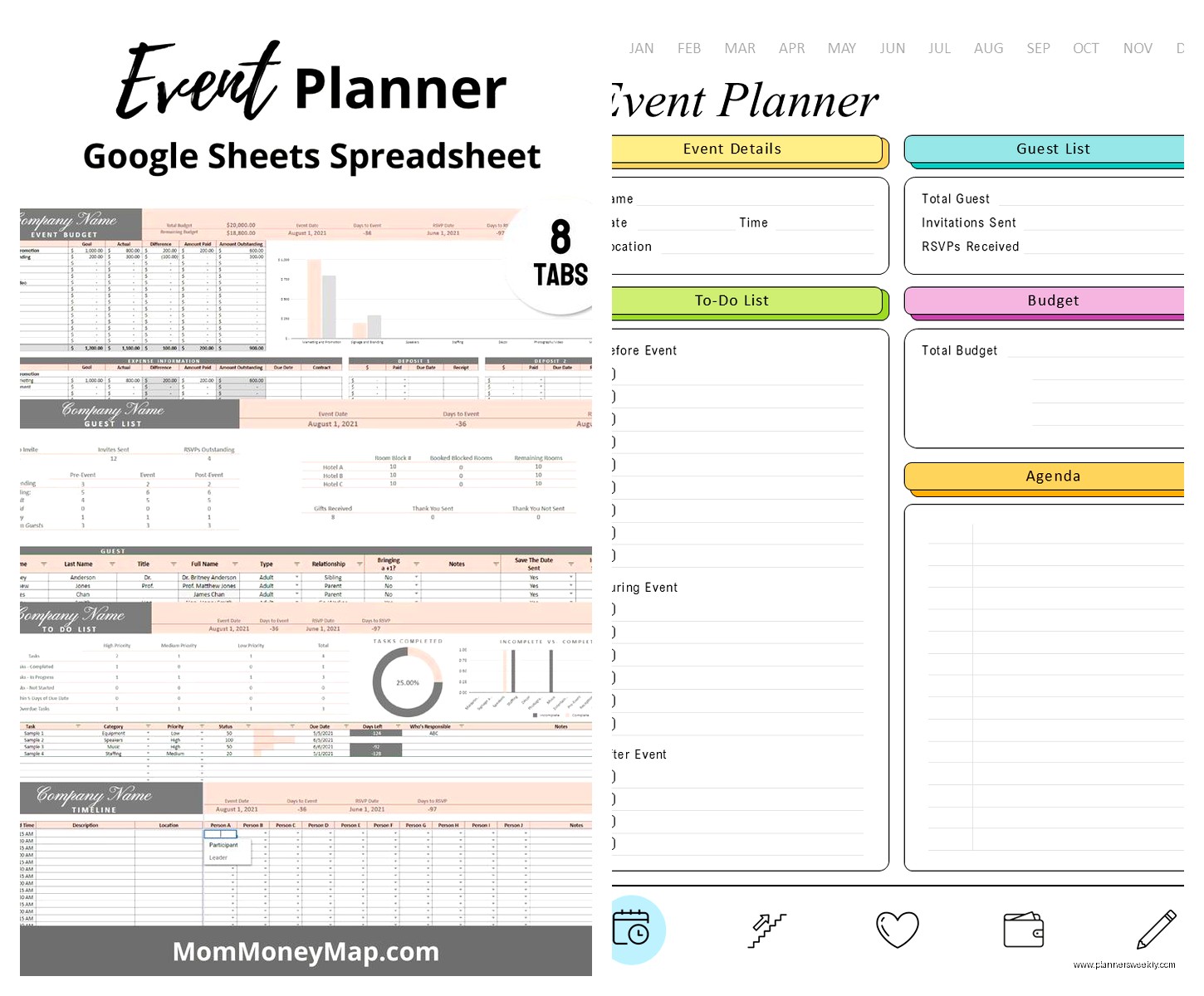
Put this as your first tab and pull in key metrics from all the others. Total budget vs actual spend, RSVP count, tasks completed vs total tasks, days until event, outstanding payments.
Use formulas that reference the other tabs like =’Budget Tracker’!C100 to pull in your total actual cost. Then you have one place to look to see overall status without clicking through six tabs.
I update this dashboard every Monday morning while drinking coffee and it takes maybe 5 minutes but keeps me from forgetting major stuff. Add a notes section for weekly priorities or concerns.
Sharing and Collaboration Settings
If you’re working with a team, save as .xlsx and use OneDrive or Google Sheets instead. Excel online lets multiple people edit simultaneously which is crucial. Give different people access to different tabs if needed, like your caterer doesn’t need to see the budget tab.
Protect cells that have formulas so nobody accidentally deletes your carefully crafted calculations. Go to Review > Protect Sheet and you can allow people to edit certain cells but not others.
Set up a version naming system if you’re not using cloud storage: EventName_Date_Version. So like “JohnsonWedding_2024-03-15_v3.xlsx” because I’ve definitely lost work by saving over the wrong file before.
Actually gotta wrap this up because I have a client call in 10 minutes but the main thing is just start with one template, use it for a real event, see what’s missing, and add columns as you go. Don’t try to build the perfect comprehensive system upfront because you won’t know what you need until you’re in the middle of planning and realize you have no idea which vendor you talked to about linens three weeks ago.