Digital Productivity, Online planners, Planners
Daily Schedule Template Guide: Free Printable & Digital Options
Apr
Okay so I spent like three weeks testing every daily schedule template I could find because honestly my own system was a mess and if I’m gonna recommend stuff to clients I need to actually know what works.
The Google Sheets Thing Everyone Sleeps On
First off, Google Sheets templates are weirdly good for daily schedules and nobody talks about this enough. I found this one in their template gallery – just open Sheets, click Template Gallery, look under Personal – there’s a daily schedule that’s super basic but that’s actually the point. You can color-code by task type, it auto-saves obviously, and here’s the thing… you can access it from your phone when you’re standing in line at the coffee shop trying to figure out if you have time for that 2pm call.
The columns are just Time, Task, Notes. That’s it. I added a Priority column because I’m extra but you don’t have to. What I like is you can duplicate the tab for each day of the week or just keep reusing one template. My client Sarah uses one master template and just clears it each night for the next day which honestly sounds exhausting to me but she swears by it.
The Customization Part Nobody Warns You About
So with Google Sheets you’re gonna spend like 30 minutes making it pretty the first time. Setting up conditional formatting so high-priority tasks turn red, making the time blocks the right size. I did mine in 30-minute increments but my friend uses 15-minute blocks and I don’t know how she doesn’t lose her mind with that level of detail.
Oh and you can share it with your partner or assistant which is actually super helpful. My husband can see when I’m supposed to be done with work so he knows whether to start dinner or wait for me.
Notion Daily Schedule Templates Are Having A Moment
Everyone’s obsessed with Notion right now and okay fine I get it. There’s this free daily planner template that connects to your task database and honestly once you set it up it’s pretty smooth. The learning curve is real though – took me like two hours to figure out how to duplicate it properly and customize the properties.
What’s cool is you can have your schedule view, your task list, and your notes all on one page. Toggle lists for tasks that repeat daily. I have one for “morning routine” that I just check off without thinking. But here’s the annoying part… if you’re not already in the Notion ecosystem it feels like overkill just for a daily schedule. Like why am I learning database relations just to know when my dentist appointment is.
The mobile app is fine but not great for quick edits. I was trying to reschedule something while walking my dog and almost tripped over him because the interface is so fiddly on phone screens.
Best Notion Template I Actually Use
There’s one called “Daily Planner” by Thomas Frank’s team that’s free in the Notion template gallery. It has time blocking, a priorities section, and this gratitude journal thing at the bottom that I ignore but some people love. You can delete sections you don’t need which is nice because most templates have too much going on.
Wait I Forgot To Mention The Printable PDF Situation
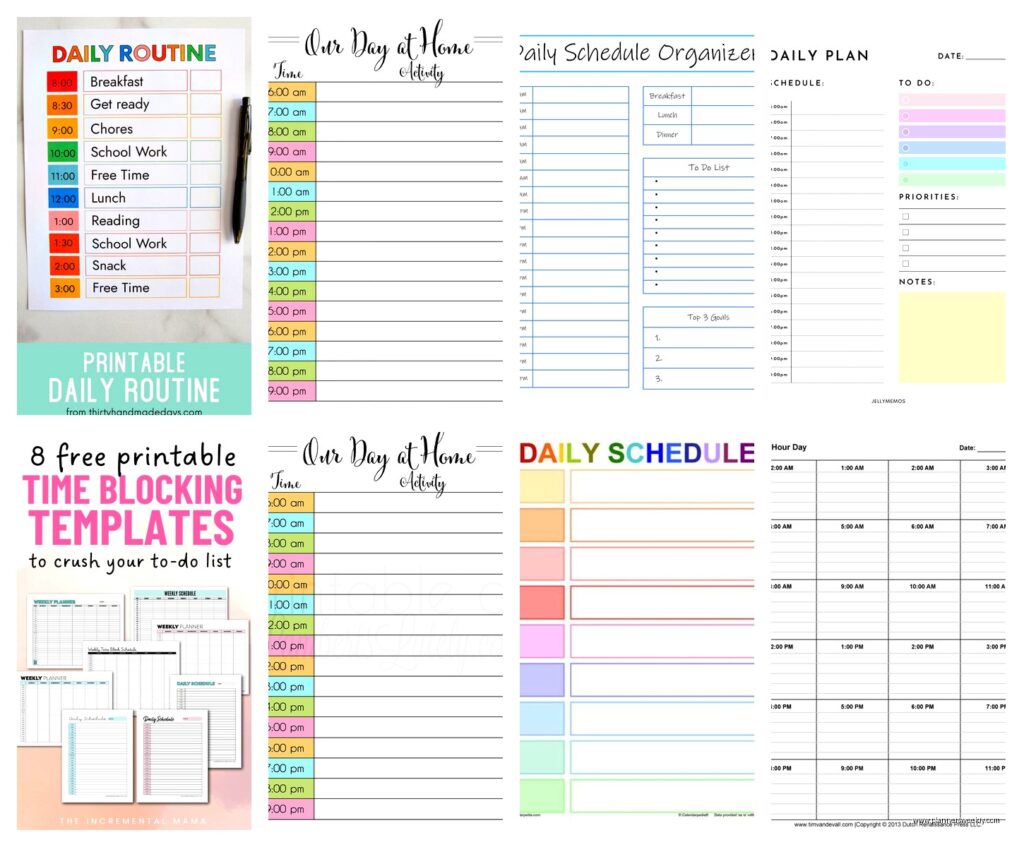
Okay so if you’re a paper person – and like half my clients are despite me trying to drag them into digital – printables are actually great. Canva has a bunch of free daily schedule templates. You need a free Canva account but then you can customize colors, fonts, add your own sections.
I made one with time blocks from 6am to 10pm, a top priorities box, a meal planning section because I kept forgetting to eat lunch, and a notes area. Took maybe 15 minutes. Then you just download as PDF and print. I print a week’s worth every Sunday and keep them in a clipboard.
The Printing Reality Check
Here’s what nobody tells you – printing costs add up. Ink is expensive. I switched to printing in grayscale and honestly it’s fine. Or you can go to Staples and print like 50 copies for pretty cheap and just keep a stack. Some people laminate one and use dry erase markers which is very elementary school but actually kinda smart for repeating schedules.
Target Dollar Spot sometimes has pre-printed daily schedule pads for literally $3. They’re not customizable but if you just need time blocks and don’t care about it being perfect, that works too.
This Is Gonna Sound Weird But Excel Is Still Good
I know Excel feels ancient but it’s actually really solid for daily schedules. Microsoft has templates – open Excel, search “daily schedule” in the template search. There’s one with hourly time slots that’s super clean.
The advantage over Google Sheets is it works offline and if you’re already paying for Microsoft 365 you have the desktop app which is just… faster. Smoother. I keep my template saved in OneDrive so it syncs across devices. Not as elegant as some options but it gets the job done and there’s something satisfying about a good Excel spreadsheet.
You can set up formulas to auto-calculate how much time you’re spending on different task categories. I have mine set up to show me how many hours I’m spending on client work vs admin vs personal stuff. Very eye-opening when you realize you spent 6 hours on email last week.
Phone Apps That Don’t Suck
Okay so for mobile-first people there’s TimeBloc which is free with premium options. It’s literally just for time blocking your day. Very visual, you drag blocks around, color code them. The free version is honestly enough for most people.
I used it for a month and it’s great for the actual scheduling part but there’s no task list integration so you’re kinda just… remembering what needs to go in those blocks. Works better if you use it WITH another app like Todoist or TickTick.
Google Calendar As A Daily Schedule
Wait this is obvious but Google Calendar works as a daily schedule template if you think about it. I have a separate calendar called “Daily Schedule” where I block out my ideal day structure. Like 9-10am is always deep work, 1-2pm is lunch and admin, etc. Then I overlay my actual appointments and tasks.
The trick is creating recurring events for your regular blocks. Takes like 20 minutes to set up but then it just… exists. You can toggle it on and off to see your “template” day vs your actual day. This helped me realize I was scheduling calls during my supposed deep work time and wondering why I never got anything done.
Oh and another thing – you can set different colors for different types of activities. My focus time is blue, meetings are red, personal stuff is green. Very visual, very helpful when you’re glancing at your phone trying to figure out what’s next.
The Hybrid Approach That Actually Works
Here’s what I ended up doing after all this testing – I use a printed weekly overview (just time blocks, very simple) that sits on my desk, and Google Calendar on my phone for the actual appointments and reminders. The paper thing gives me that satisfying feeling of crossing stuff off, the digital thing makes sure I don’t miss anything.
Every Sunday I print a fresh weekly schedule, fill in my time blocks with my ideal structure, and pencil in the big stuff I know about. Then throughout the week I use my phone for the real-time updates and changes. It’s like… the paper is my intention, the digital is my reality.
My friend thinks this is ridiculous and just uses her phone for everything but I need that physical visual reminder or I’ll just scroll Instagram instead of working.
Specialty Options For Specific Situations
If you’re a student there’s this template called My Study Life that’s specifically for class schedules and assignment tracking. It’s free, syncs across devices, has a widget for your phone home screen. My niece uses it and swears by it.
For shift workers or people with rotating schedules, when I work changed shifts every week she used Shifts by Microsoft which is free and made for that exact situation. You can set up different schedule patterns and swap between them.
The ADHD-Friendly Options
Okay so this is super specific but if you have ADHD or just struggle with time blindness, there are visual timer apps that integrate with your schedule. I tested one called Tiimo that shows your schedule as a circle with color-coded segments. It’s like $5/month but there’s a free trial. Very different from a traditional list format.
Some of my clients with ADHD prefer the Forest app method where you schedule focus sessions and grow virtual trees, or they use a simple kitchen timer with a paper schedule. Sometimes the best template is the one that works with your brain, not against it.
What I Actually Tell Clients To Start With
When someone asks me what they should actually use, I say start with Google Calendar or a basic printable PDF. Don’t get fancy. You need to know if you’re even gonna stick with time blocking before you invest time in a complex system.
Use whatever you choose for two weeks. Actually two weeks, not three days. Then evaluate. Are you checking it? Does it feel helpful or annoying? Are you customizing it constantly or is the basic structure working?
Most people need way less than they think they do. Three sections: time blocks, priorities, notes. That’s it. Everything else is just decoration.
The template doesn’t matter as much as the habit of actually using it. I’ve seen people fail with expensive planners and succeed with a google doc. I’ve also seen the opposite. It’s so individual that the best thing is to just pick something free, try it, and adjust.