Digital Productivity, Online planners, Planners
Free Digital Planner Guide: Templates Apps & Downloads
Apr
Okay so I just spent the last three weeks testing basically every free digital planner option because honestly my old system was a mess and I figured if I’m gonna recommend stuff to clients, I should actually know what works.
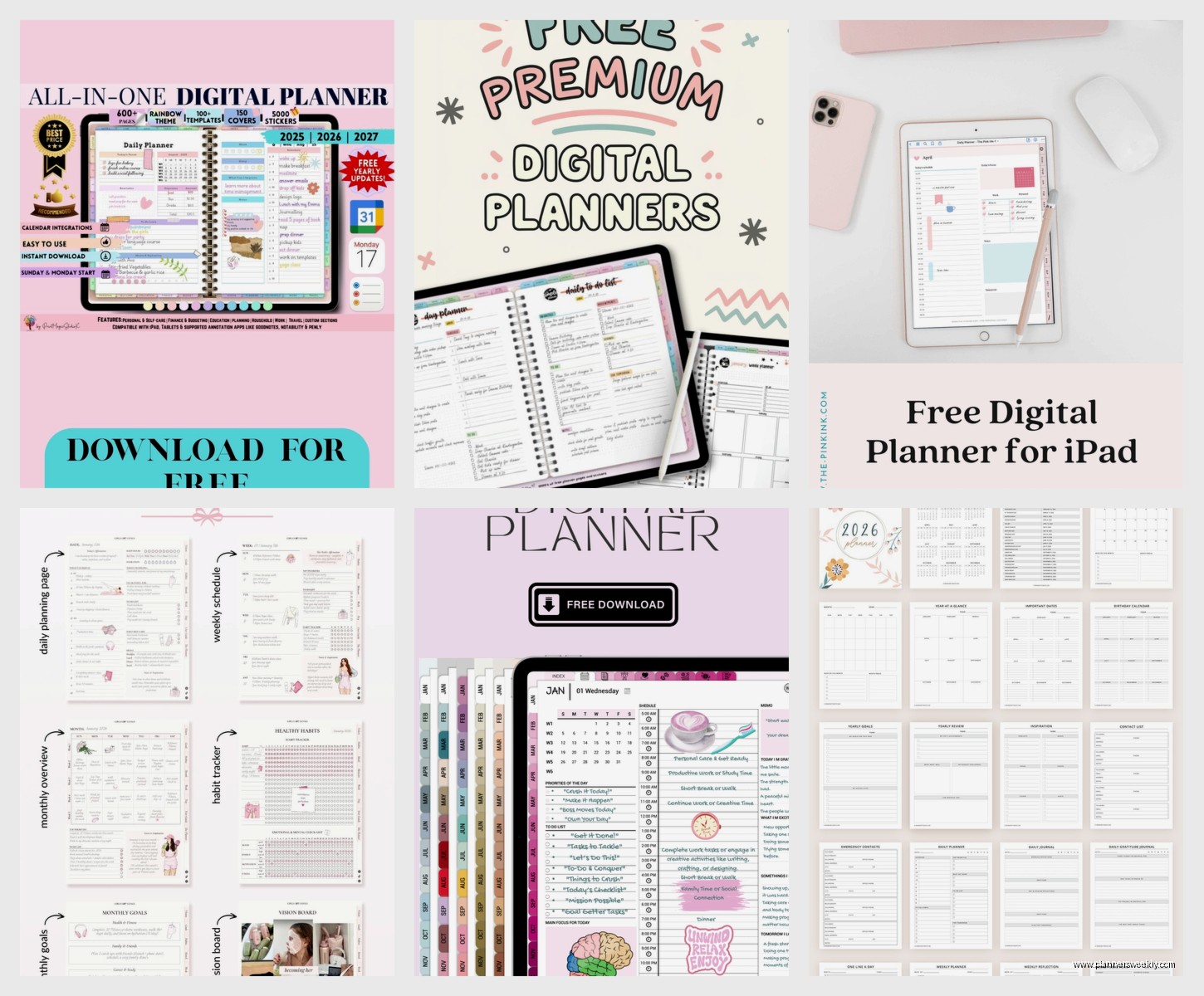
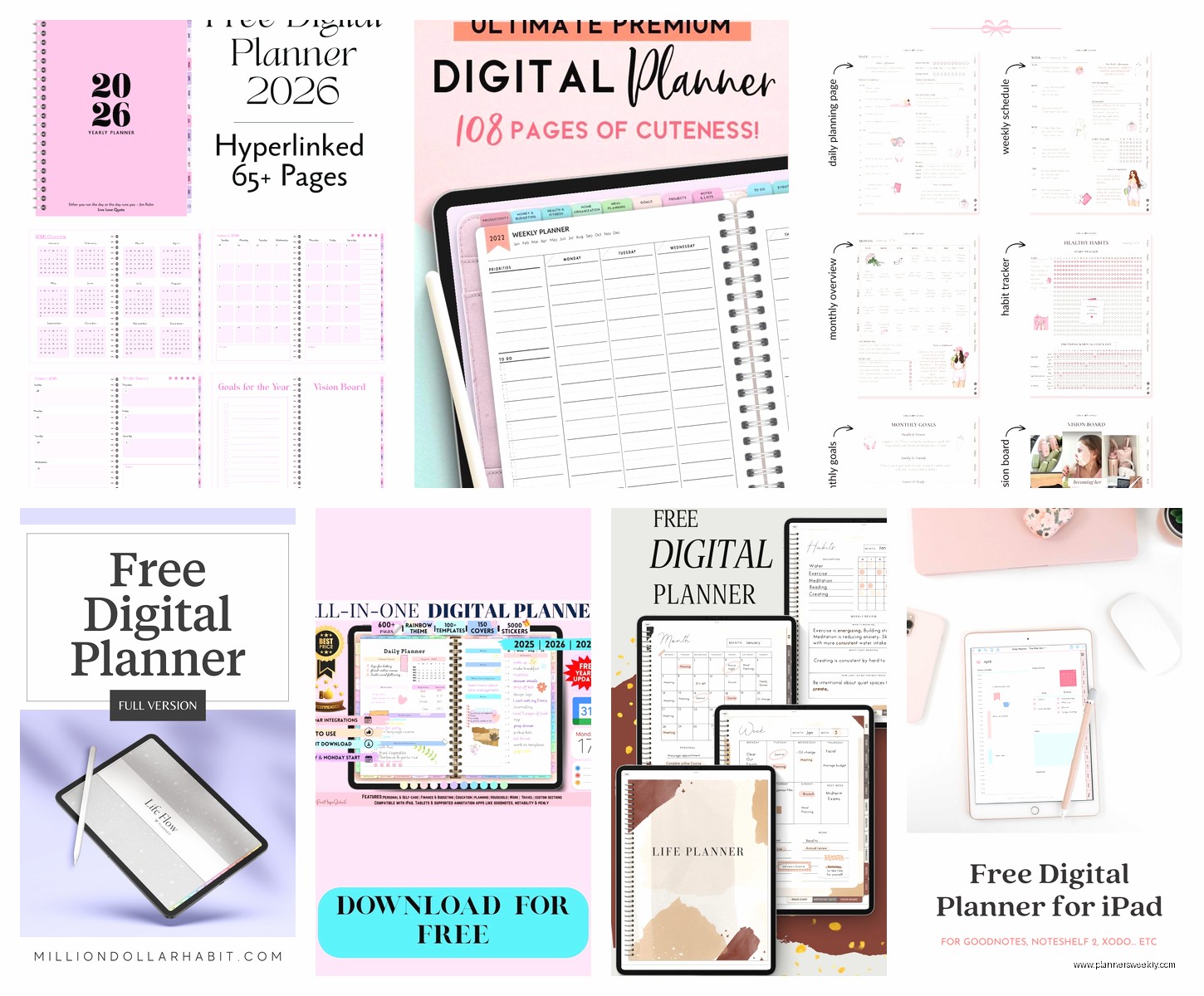
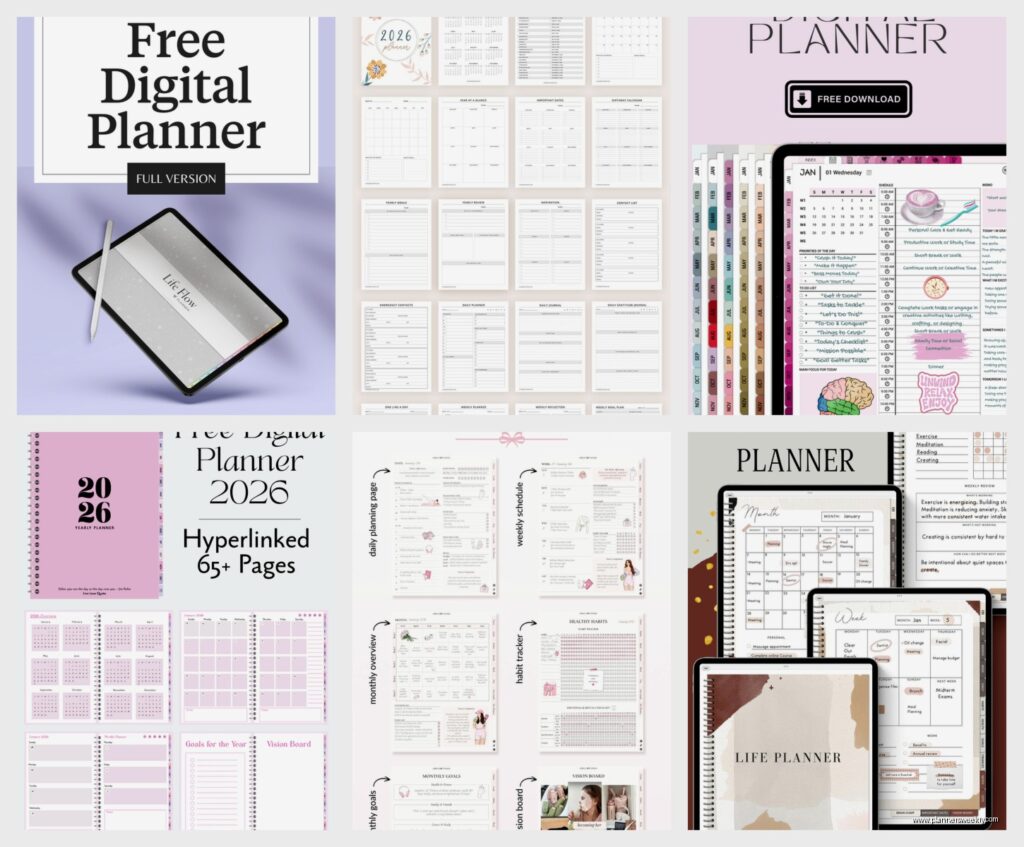
GoodNotes Templates Are Actually Pretty Solid
Starting with GoodNotes because that’s what I use on my iPad. The app itself costs like $8 but the templates you can find for free are genuinely useful. I downloaded probably 30 different ones from Etsy sellers who offer freebies and here’s the thing—most are too complicated. Like why do I need 47 different tracker pages when I can barely remember to check one?
The best free template I found was from this seller called PlannerPerfect or something, they have a basic weekly spread that’s just… clean. No unnecessary decorative elements that make my Apple Pencil lag. You get Sunday through Saturday, a notes section, and that’s it. Sometimes simple is better and I say this as someone who got sucked into buying a $35 planner last year that I used for exactly two weeks.
Oh and another thing about GoodNotes templates—make sure you’re downloading actual GoodNotes files, not just PDFs. The PDFs work fine but you lose the hyperlink functionality which is kinda the whole point of digital planning. I made that mistake initially and was manually scrolling through pages like an idiot.
Notability Versus GoodNotes Real Talk
People always ask me which one to get and honestly? If you’re just starting out, GoodNotes has better free template options available online. Notability switched to a subscription model last year which annoyed everyone including me, though they did grandfather in old users. But for templates, the GoodNotes community is just bigger so more free stuff exists.
I tested Notability’s native planning features though and the auto-sync is smoother if you switch between devices a lot. My cat literally walked across my iPad yesterday while I was testing and somehow created a new page, so that’s the level of sophisticated research happening over here.
Samsung Notes If You’re on Android
Wait I forgot to mention—if you’re on Android or have a Samsung tablet, Samsung Notes is completely free and actually really capable. The templates are more limited but there’s this whole community on Reddit (r/GalaxyTab I think?) where people share free planner templates.
I borrowed my sister’s Galaxy Tab for a weekend to test this and honestly was impressed. The S Pen integration is smooth, the handwriting recognition worked better than expected, and you can set up templates pretty easily. The default monthly and weekly views are basic but functional. No frills, just works.
The downside is exporting. If you ever want to get your notes out of Samsung’s ecosystem it’s kind of annoying. But if you’re committed to Android anyway it doesn’t really matter.
Notion Templates Changed My Whole System
Okay so funny story—I wasn’t even gonna include Notion because I thought of it as a productivity tool not a planner, but then my client canceled last Tuesday so I spent an hour comparing different Notion planner templates and like… this might be the actual answer?
Notion itself is free for personal use. The planner templates people create are also mostly free. And the flexibility is insane compared to static PDF planners. You can create databases that actually link to each other, which sounds complicated but once you get it, it’s a game changer.
I’m currently using a template called “Life OS” or maybe “Ultimate Life Planner”—honestly can’t remember, I downloaded it at 11pm—and it has:
- A dashboard that shows your week, month, and ongoing projects
- A task database that you can filter by priority, date, category
- A notes section that links to specific tasks
- Habit trackers that actually work because they auto-reset
The learning curve is steeper than just downloading a PDF template, not gonna lie. I spent probably three hours just figuring out how databases work. But now I can see all my client meetings, personal appointments, and article deadlines in one view that updates automatically.
This is gonna sound weird but the game-changer feature for me was the templates within templates. Like you can create a meeting notes template that auto-fills with the date, attendees field, action items checklist… and then just duplicate it every time you have a meeting. Sounds small but it eliminated so much friction from my workflow.
OneNote Is Still Hanging On
Microsoft OneNote is completely free and honestly gets overlooked. I’ve been using it since like 2015 on and off. The template situation isn’t as robust as GoodNotes but if you’re already in the Microsoft ecosystem it syncs beautifully with Outlook, Teams, all that stuff.
For free planner templates, you gotta dig a bit more. The Microsoft template gallery has some official ones but they’re pretty corporate-looking. I found better stuff on Pinterest actually—people create custom templates and share them as OneNote files you can import.
The handwriting experience on OneNote is… fine. Not as smooth as GoodNotes or Notability if we’re being honest. There’s a slight lag that bugs me. But the unlimited canvas thing is cool—you can just keep expanding your page in any direction, which is useful for mind mapping or brainstorming sessions that get out of hand.
Xodo and PDF Annotation Apps
If you don’t wanna spend money on GoodNotes or commit to learning Notion, Xodo is a completely free PDF annotator that works on basically everything. iPad, Android, Windows, whatever.
The catch is you need to bring your own planner template. But there are tons of free PDF planners available:
- Passion Planner offers a free PDF version of their full planner
- Clever Fox has free monthly templates on their website
- A bunch of bloggers and Etsy sellers offer free samples
I downloaded the Passion Planner PDF last month and honestly it’s surprisingly complete. You get weekly spreads, monthly calendars, goal-setting pages, even some reflection prompts that I actually found useful. The PDF is huge though—like 200+ pages—so it can be slow to load on older devices.
Xodo lets you add text, highlight, draw, insert images, all the basic stuff. It’s not as elegant as the premium apps but it works. And it’s actually free-free, not freemium with annoying limitations.
Google Keep for the Minimalists
Okay this one’s barely a planner but I gotta mention it because sometimes the simplest solution is the right one. Google Keep is just a notes app but you can use it for basic planning if you don’t need anything fancy.
I have clients who got overwhelmed by elaborate planner systems and switching them to Keep actually improved their consistency. You can create notes with checkboxes for tasks, color-code them by category, set reminders, and that’s kinda it. But sometimes that’s enough?
The widget on Android is especially useful—you can have your to-do list right on your home screen. No opening an app, no navigating through pages. Just… there’s your list.
Canva Templates You Can Customize
Wait I almost forgot about Canva. So Canva has a free tier and they have literally thousands of planner templates you can customize. The catch is you need to print them or use them as static images—they’re not interactive like Notion or GoodNotes templates.
But if you want something that looks really specific to your aesthetic or needs, you can modify these templates super easily. Change colors, fonts, layouts, add your own sections. Then export as PDF and use in whatever annotation app you prefer.
I made a custom weekly planner in Canva last week while watching that new Netflix show (the one with the woman who… anyway doesn’t matter) and it took maybe 20 minutes. Started with their free template, removed the stuff I didn’t need, added a section for article ideas, changed the colors to something less aggressive than their default.
The free version limits you to like 10 exports per month or something? But for personal planning that’s usually enough unless you’re redesigning your whole system constantly.
The Actually Free Planner Apps
There are some apps that are specifically built as digital planners and are actually free:
Structured is free on iOS and it’s this visual day planner that shows your schedule as blocks. Really satisfying if you’re a visual person. Limited customization but the core functionality is free.
TickTick has a free tier that includes basic planning features, calendar view, habit tracking. The premium features are tempting but honestly the free version covers most planning needs.
Notion I already mentioned but worth repeating—the personal plan is completely free and unlimited.
Where to Actually Find Free Templates
Okay so if you’re going the template route, here’s where I actually find good free ones:
Pinterest is obvious but you gotta wade through a lot of junk. Search “free digital planner PDF” or “free GoodNotes template” and filter by recent. Half will be lead magnets trying to get your email but whatever, sometimes they’re actually good.
Reddit communities like r/digitalplanning and r/Notion have regular template sharing threads. People just post their templates for free because they’re nice or whatever.
Etsy sellers often have freebies to showcase their style. I’ve downloaded probably 15 free templates from sellers whose paid versions I ended up buying later.
Gumroad has a bunch of creators who offer free planner templates. You gotta create an account but no credit card needed for the free stuff.
My Current Actual Setup
Since you’re probably wondering what I actually use after all this testing—I’m running a hybrid system that’s probably too complicated but works for my brain.
Notion for big-picture planning, project management, and content calendars. The database features are just too useful for tracking article deadlines and client projects.
GoodNotes for daily planning and handwritten notes during client sessions. There’s something about physically writing that helps me process better, even if it’s digital writing.
Google Calendar for the actual time-blocking because it syncs with everything and my clients can book directly into it.
Is this the most efficient system? Probably not. But I tried doing everything in one app and kept failing, so this weird combo is what stuck.
The Honest Truth About Digital Planning
Here’s what nobody tells you—the planner doesn’t matter as much as actually using it. I’ve tested $50 premium planners and free Google Docs and the one that works is whichever one you’ll actually open daily.
Start with something completely free. Notion or Samsung Notes or even just Google Keep. Use it for two weeks. If you find yourself fighting the system or avoiding it, try something different. If it’s working, cool, you didn’t waste money finding out.
The fancy templates and premium apps are fun (I own way too many) but they don’t magically make you more organized. That sounds preachy but like, I spent $200 on planner apps and templates last year and my free Notion setup is what actually stuck.
Also be realistic about handwriting versus typing. I love the idea of handwritten planning but I type faster and can actually read my typed notes later. If you’re someone who genuinely enjoys handwriting and will do it consistently, GoodNotes or Notability templates are worth it. If you’re gonna abandon it after a week because typing is faster, save yourself the trouble and go with Notion or OneNote.
One last thing—most of these apps have import/export features so you’re not locked in forever. I’ve moved my planning system like six times in three years. It’s annoying but possible, so don’t stress too much about choosing the “perfect” system right away.