Digital Productivity, Online planners, Planners
Weekly Timetable Guide: Templates & Scheduling Tools
Apr
Okay so I’ve been testing weekly timetable platforms for like three months now because honestly my own schedule was a disaster and I figured if I’m gonna recommend stuff to clients I should actually know what works.
Google Calendar Is Still the Default (And That’s Fine Actually)
Look, everyone’s gonna tell you to try fancy apps but Google Calendar is free and it syncs everywhere. I use it for my main weekly structure and here’s what most people don’t do – they just throw events in randomly. You gotta set up recurring blocks. Like every Monday 9-11am is admin time, every Tuesday afternoon is client calls. The color coding actually matters too, I use blue for work blocks, green for personal stuff, red for deadlines. Sounds basic but when you’re looking at the week view you can instantly see if you’re overloaded with red.
The mobile app is better than the desktop version for quick adds. I’ll be at the grocery store and remember I need to block time for meal prep on Sunday and I just voice-type it in. Takes like 5 seconds.
Oh and the “Goals” feature? I tried it for tracking my running schedule and it was weirdly pushy. It kept trying to reschedule my runs at 6am and I’m like absolutely not. Turned that off after a week.
Notion Weekly Templates (If You Like Building Things)
This is gonna sound weird but I spent an entire Saturday building the perfect weekly dashboard in Notion and it was actually… fun? My cat kept walking across my keyboard though so I had to redo a bunch of formulas.
The template gallery has like 50 weekly planner options. I started with the “Weekly Agenda” template and customized it. Here’s what I added:
- A habit tracker that automatically resets every Monday
- Time blocks for each day with dropdown status options
- A “brain dump” section for random thoughts that pop up
- Links to my project databases so I can pull in tasks
The learning curve is real though. Took me probably 3 hours to get everything working the way I wanted. If you’re not into tinkering, this will frustrate you. But once it’s set up? I check it every morning and it’s got everything in one place.
One thing that bugs me – the mobile app is slow. Like noticeably slow when you’re trying to check your schedule quickly. I use it mostly on my laptop and just keep Google Calendar on my phone as a backup.
Wait I forgot to mention – Notion has this toggle feature where you can hide completed days. So by Friday your week looks cleaner because Monday-Thursday are collapsed. Sounds small but it’s actually nice for staying focused on what’s left.
Structured App for the Minimalists
My client canceled last Tuesday so I spent an hour comparing minimalist planning apps and found Structured. It’s iOS only which is annoying if you’re on Android but hear me out.
You build your day in a timeline view. Drag time blocks around, set durations, get notifications when it’s time to switch tasks. The interface is so clean it’s almost too simple? But that’s the point. No features to get lost in, just your schedule.
I tested it for two weeks and here’s what happened – I actually stuck to my time blocks better. Something about the visual timeline with the little progress indicator moving through your day made me more aware of time passing. Usually I’ll be like “oh I’ll just check Instagram real quick” and suddenly 40 minutes are gone. With Structured showing me I’m halfway through my writing block, I stayed on task.
Costs like $10 I think? One-time purchase. Worth it if you’re on iPhone and you want dead simple scheduling.
The downside is it doesn’t sync with other calendars automatically. You can import events but it’s manual. So I kept Google Calendar for shared stuff and used Structured for my personal daily planning.
Sunsama If You’ve Got Budget and Decision Fatigue
Okay so funny story – I signed up for Sunsama’s free trial while watching that Netflix show about organizing (Marie Kondo’s new one? Can’t remember) and ended up using it for like 6 weeks before I realized how much it costs. It’s $20/month which is kinda steep.
But here’s why I kept paying for two months before downgrading – it does this daily planning ritual thing. Every morning it walks you through reviewing your tasks, scheduling them into time blocks, and setting your intention for the day. Sounds cheesy but it actually helps if you’re someone who opens their laptop and immediately feels overwhelmed.
It pulls in tasks from:
- Asana
- Trello
- Gmail
- Slack
- Google Calendar
So everything’s in one place. You drag tasks from your backlog into specific time slots. The weekly review feature on Friday is solid too – shows you what you completed, what rolled over, how much time you spent in meetings versus deep work.
I stopped paying for it because honestly I didn’t need all those integrations. If you’re juggling multiple project management tools for work, this makes sense. For someone like me who mostly works solo, it was overkill.
Physical Planners (Yeah I’m Going There)
Listen I know this is supposed to be about digital tools but I gotta mention physical weekly planners because I’ve tested like 8 different ones and some are genuinely better than apps for certain things.
The Ink+Volt weekly planner has hourly time slots from 6am to 9pm. I use it specifically for blocking out focus time because there’s something about physically writing “deep work – article writing” in a time slot that makes me more committed to it. Can’t just drag it to a different day like in a digital calendar.
Also tested the Full Focus Planner which is popular with the productivity crowd. It’s… fine? Too many sections for my taste. Lots of prompts about big picture goals when I just wanna know what I’m doing Tuesday afternoon.
The Passion Planner has time slots but also a big blank space for each day which I used for sketching out content ideas. That was actually useful. Sometimes when I’m planning my week I need to think visually about how a project flows, not just list tasks.
Real talk though – physical planners only work if you’re disciplined about checking them. I’d forget mine at home and then have no idea what my afternoon looked like. That’s why I went back to digital as primary.
Clockify for Time Tracking (Which Changes How You Schedule)
Oh and another thing – I started using Clockify to track where my time actually goes and it completely changed how I build my weekly schedule. It’s free for basic use.
You create projects and track time against them. After two weeks I realized I was scheduling 6 hours of “admin work” every week but only actually doing like 3 hours. So I was constantly behind because I’d allocated that time elsewhere thinking admin was covered.
Now I look at my Clockify reports from the previous week before planning the next week. If I spent 8 hours on client calls but only scheduled 5, I know to adjust. Sounds obvious but most people just guess at how long things take.
The browser extension is clutch – click a button to start tracking, click again to stop. I’ll have it running in the background while I work and honestly sometimes I forget it’s there which means I’m getting accurate data without thinking about it.
There’s also a weekly report that shows your time distribution. I exported mine to show a client why I needed to adjust my rates and it was way more convincing than just saying “I spent more time on this than expected.”
Fantastical If You’re Deep in the Apple Ecosystem
This one’s gonna be specific but if you use Mac, iPhone, iPad, and Apple Watch, Fantastical is honestly the best calendar app. Costs $5/month or $40/year.
Natural language input is the killer feature. Type “lunch with Sarah next Tuesday at 1pm at that Thai place” and it figures out the date, time, and even suggests locations. Way faster than clicking through dropdown menus.
The week view on Mac is beautiful – shows your events, weather, and you can add task lists that sit alongside your calendar. I keep a “this week” task list in the sidebar so I can see both my scheduled time blocks and my loose to-dos.
Calendar sets integration is seamless. I have my work Google calendar, personal iCloud calendar, and a shared family calendar all in one view with different colors. Can toggle them on/off depending on context.
The iOS widgets are actually useful too. I have one on my home screen showing my next 3 events. Glance at my phone and know if I need to leave for a meeting soon.
Probably not worth it if you’re just using Google Calendar for basic scheduling. But if you’re constantly creating events, managing multiple calendars, and want it to feel fast, it’s worth the money.
Trello for Visual Weekly Planning
Wait I should mention Trello because I use it in a kinda weird way for weekly planning. Most people use it for project management but I made a “Weekly Schedule” board with lists for each day.
Each card is a time block or task. So Monday’s list has cards like “9-10am: emails,” “10-12pm: client workshop,” “2-4pm: content writing.” I move cards between days if stuff shifts, archive them when done.
The visual of seeing all five days laid out horizontally helps me balance my week. If Tuesday’s list is twice as long as everyone else, I know to move stuff around before the week starts.
I also use labels for energy levels – green for creative work, yellow for admin, red for meetings. Try to avoid stacking too many red cards in one day because back-to-back meetings drain me.
The power-ups (Trello’s name for integrations) let you add calendar view, which turns your cards into a weekly calendar layout. It’s free for basic use and you can access it anywhere.
Downside is it doesn’t do notifications well for time-based stuff. I’ll set a due time on a card but the notification comes like 10 minutes before which isn’t enough if I need to prep. So I still use Google Calendar for stuff that needs alerts.
Todoist for Task-Based Weekly Planning
If you’re more task-focused than time-block-focused, Todoist’s weekly view is solid. I’m testing the premium version ($4/month) and it’s pretty much replaced my paper to-do lists.
You create tasks with due dates and it shows them in different views – today, this week, upcoming. The “this week” view groups tasks by day which becomes your weekly plan. You can drag tasks between days if priorities shift.
Labels and filters are where it gets powerful. I have a filter for “this week AND high priority AND not assigned to anyone else” which shows me exactly what I need to focus on. Another filter for “overdue OR today” which is my morning check-in list.
The karma system is… look I know it’s gamified and kinda silly but checking off tasks and watching your productivity score go up does motivate me? Not gonna lie about that.
Integrations with Google Calendar, email, and Alexa mean I can add tasks from anywhere. I’ll be driving and tell Alexa “add write newsletter to my Todoist” and it shows up in my inbox to schedule later.
Template feature is useful for recurring weekly structures. I have a “Weekly Admin” template with all my regular tasks (invoicing, expense tracking, newsletter prep) that I can load every Monday instead of recreating the same list.
Excel or Google Sheets (Seriously Though)
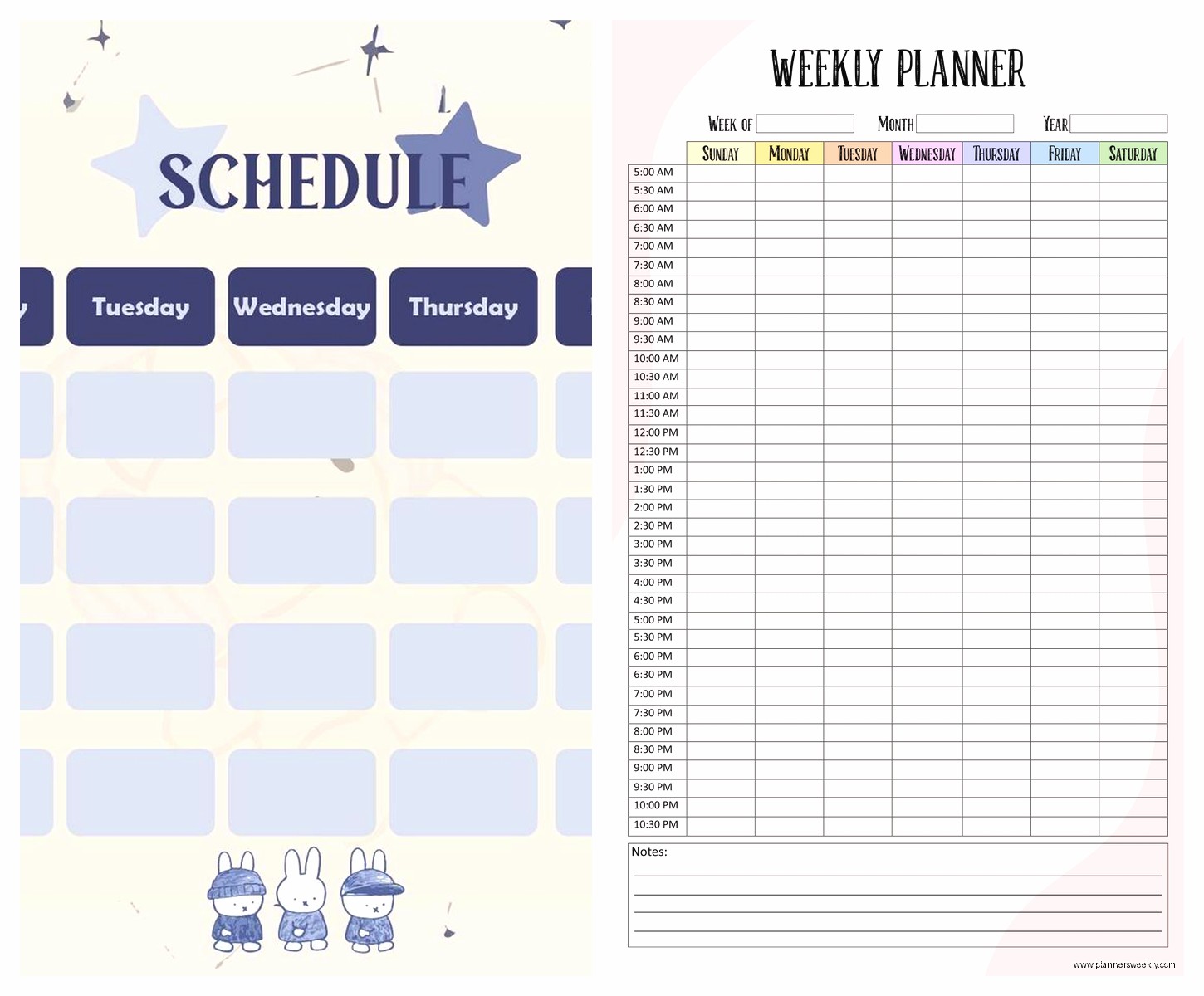
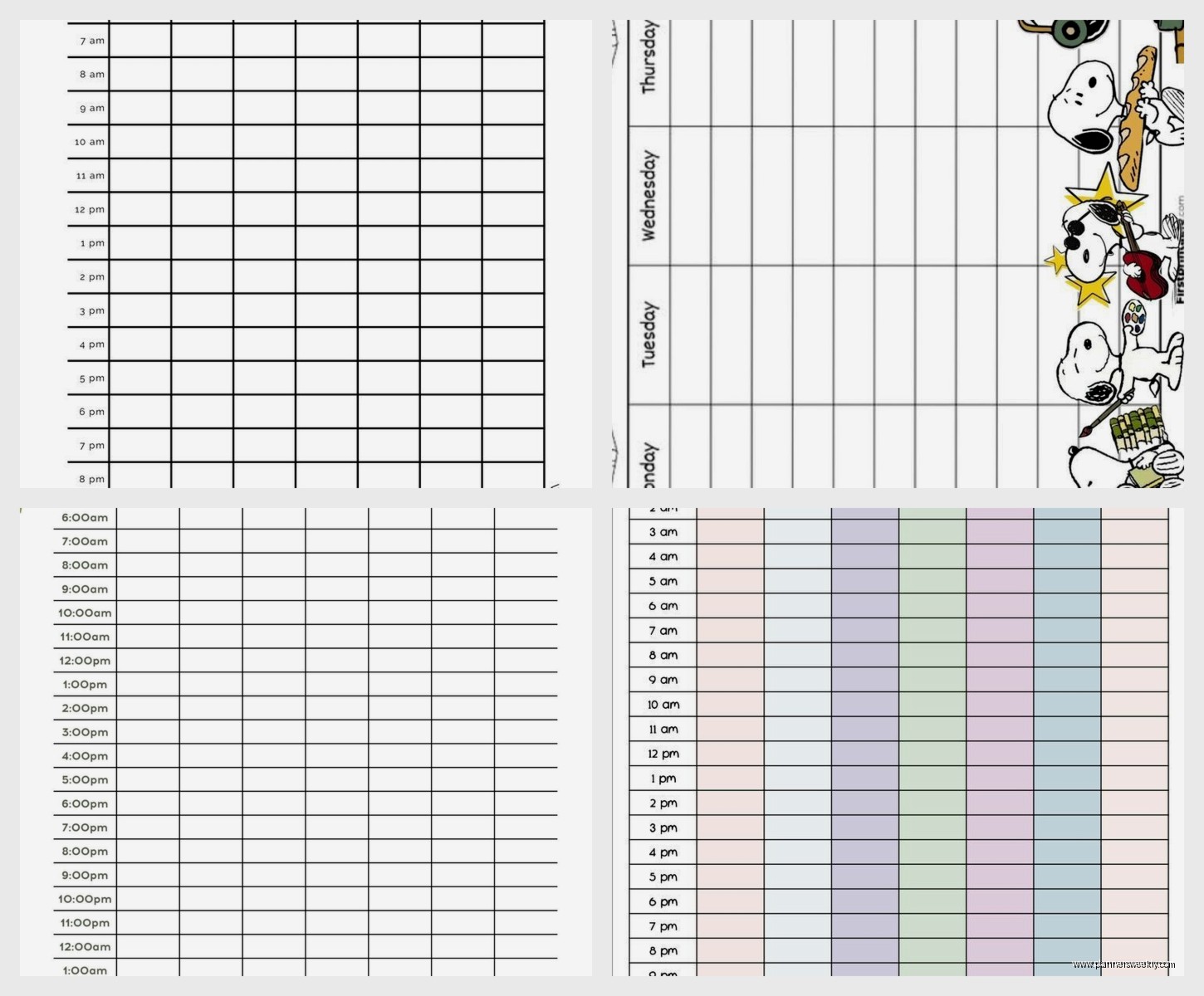
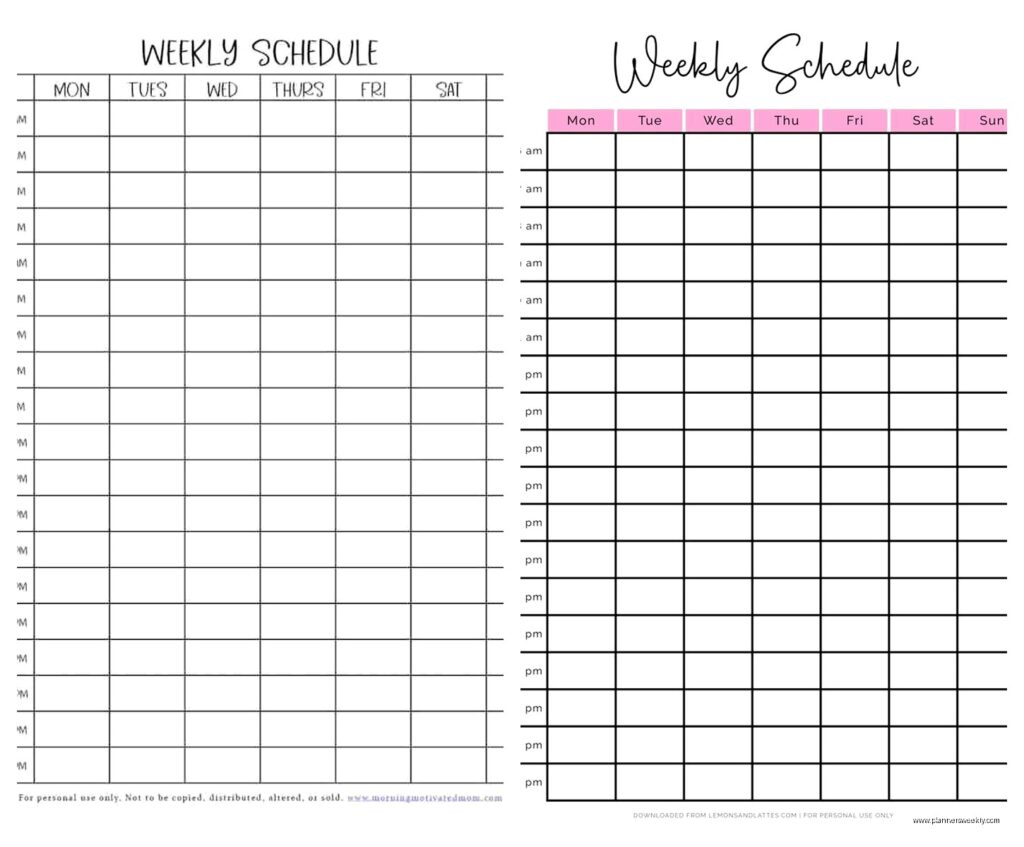
This is gonna sound old school but I made a weekly timetable template in Google Sheets that I still use for quarterly planning. It’s just a grid with days across the top and time blocks down the side. Color-coded cells for different activity types.
The benefit is customization – I can make it exactly what I need. Want to track estimated versus actual time? Add columns. Want to see your weekly themes? Add a row at the top. Need to compare this week to last week? Duplicate the sheet.
I have conditional formatting set up so cells turn red if I’ve scheduled more than 6 hours of meetings in a day. Helps me catch overloaded days during planning.
Also use it for testing different weekly structures. I’ll copy the template and rearrange my time blocks to see what a different schedule would look like before committing to it in my real calendar.
Templates are easy to share too. I send clients a Google Sheets weekly planner template and they can copy it and customize without needing to learn new software.
The obvious downside is no notifications, no mobile app that’s actually good for editing, and you gotta manually update it. But for planning and analysis? Spreadsheets still work great.
What I Actually Use Week to Week
Real answer after testing everything – I use Google Calendar for the actual schedule with notifications, Notion for weekly planning and review on Sunday nights, and Clockify running in the background to reality-check my time estimates.
Physical planner sits on my desk for daily time blocking because writing it down makes me stick to it better. But if I’m away from my desk the digital stuff keeps me on track.
Different tools for different needs honestly. The people who say you only need one system are either lying or their life is way simpler than mine.