Digital Productivity, Online planners, Planners
Schedule Organizer Template: Free Planning Downloads
Apr
Okay so I just spent the last two weeks testing pretty much every free schedule organizer template I could find because honestly my old system was a disaster and I needed something that actually works across different platforms without making me want to throw my laptop out the window.
Google Sheets Templates Are Weirdly the Most Reliable
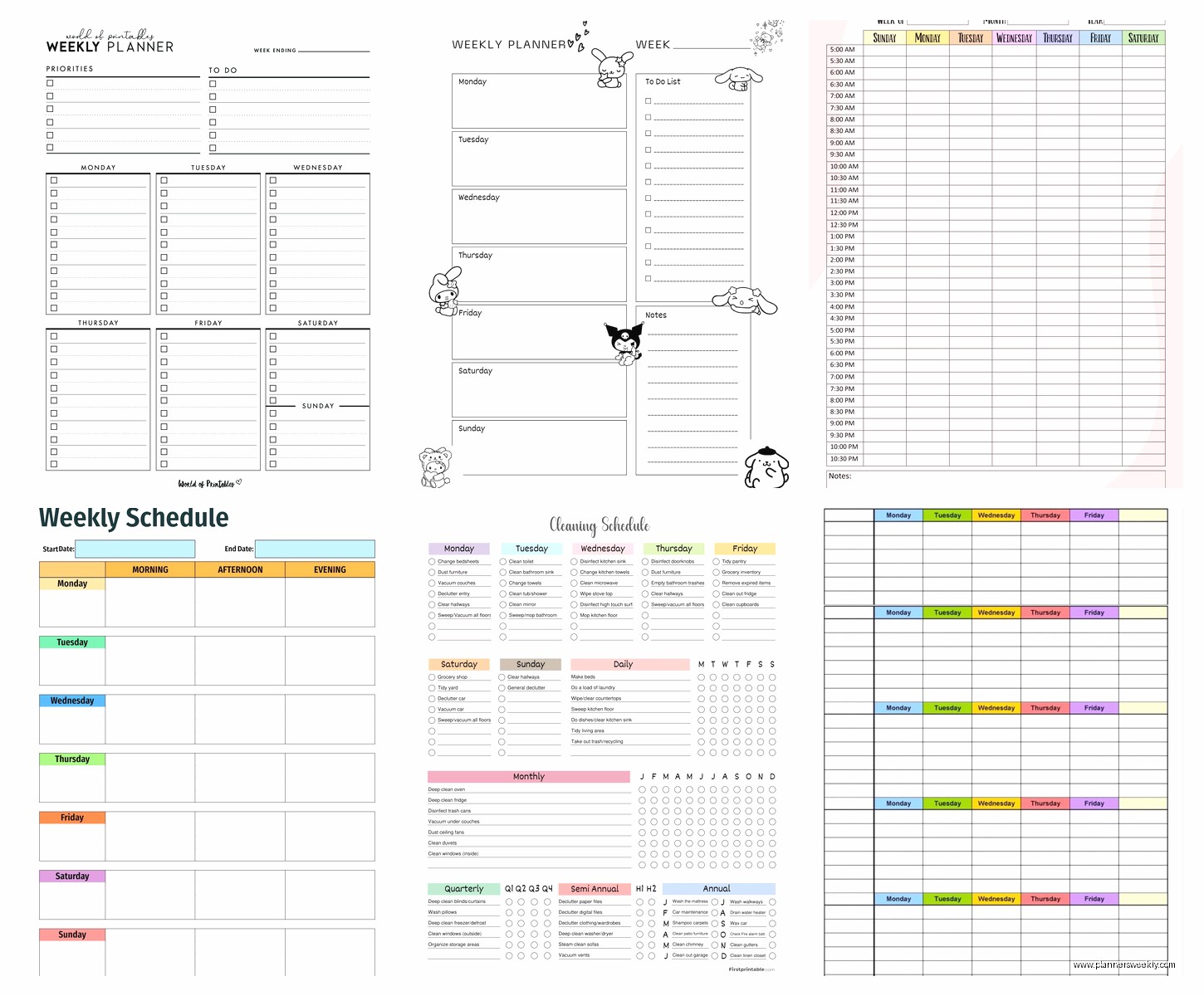
Starting with Google Sheets because that’s where I landed after trying everything else. The thing about Sheets templates is they work on literally any device and you don’t need special software. I found this weekly planner template on Template.net that’s completely free and it’s just… solid. Nothing fancy but it has time blocks from 6am to 10pm which is actually realistic for how I work.
The best part is you can color-code stuff without it looking like a kindergarten art project. I use yellow for client calls, blue for deep work sessions, and red for deadlines that are gonna make me cry if I miss them. You can duplicate the sheet for each week and keep everything in one file which sounds obvious but so many templates don’t let you do this easily.
What actually works: Make a copy of the template first, then create a master tab that you never touch. Every Sunday night I duplicate that master tab and rename it with the week’s date. Takes like 30 seconds and my dog usually interrupts me halfway through but whatever.
Oh and you can share it with other people which I do with my assistant. She can see my schedule without me having to screenshot and text her every time something changes. Game changer honestly.
Notion Templates If You’re Already Living In That Ecosystem
So Notion has a million free schedule templates and they’re either incredibly over-engineered or too simple to be useful. There’s no middle ground. I tested probably 15 different ones and here’s what I learned.
The “Weekly Agenda” template from Notion’s official gallery is actually decent if you’re already using Notion for other stuff. It has a database view which sounds complicated but basically means you can see your tasks in different ways like calendar view, list view, or this timeline thing that I never use but some people love.
Where it gets annoying is the mobile app. I was sitting in a waiting room last week trying to update my schedule and the app kept lagging. Not sure if that’s a Notion problem or a my-phone-is-old problem but it made me want to go back to paper which defeats the whole purpose.
The advantage though is you can link your schedule to other databases. Like I have a content calendar database and a client database and they all talk to each other. So when I schedule a client call it automatically pulls in their notes and previous session info. That’s pretty cool when it works.
Setting It Up Without Losing Your Mind
Start with their basic template and delete like 80% of the properties they include. You don’t need a “priority matrix” and “energy level tracker” and “moon phase indicator” or whatever. Just keep the date, time, and maybe a category tag.
I use three categories: Work, Personal, and Buffer Time. Buffer time is for when I inevitably run late or need to just stare at the wall for 20 minutes between meetings.
Excel Templates for the Old School Folks
Microsoft has a template library and their schedule organizers are actually really good if you’re comfortable with Excel. I’m gonna be honest, I’m not an Excel wizard but even I could figure these out.
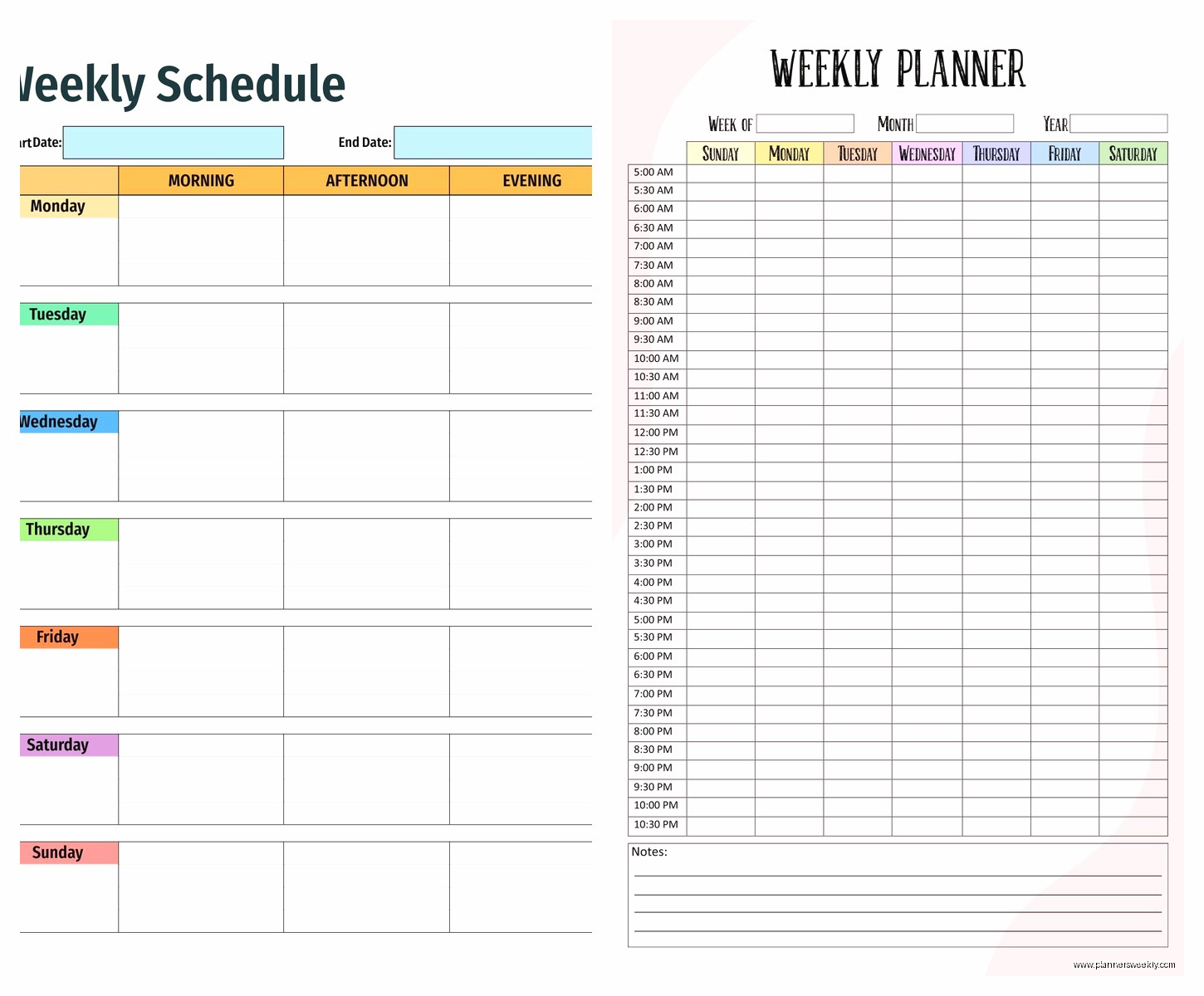
The “Weekly Schedule” template is clean and you can customize it pretty easily. It prints well too which matters if you’re like my mom who needs a physical copy of everything. I tested printing from Google Sheets vs Excel and Excel just handles it better, the margins don’t get weird.
Random tip: If you download an Excel template, immediately save it with a new name so you don’t accidentally overwrite the original. I’ve done this like five times and it’s so annoying to have to re-download.
You can use conditional formatting to make cells change color based on what you type. So if I type “URGENT” anywhere in a cell it turns red automatically. Took me a while to set up but now it’s kind of satisfying.
Canva Has Free Printable Templates That Don’t Look Terrible
Wait I forgot to mention Canva. So if you want something that’s actually pretty to look at, Canva has a bunch of free schedule templates. They’re designed to be printed which is different from the digital-first options.
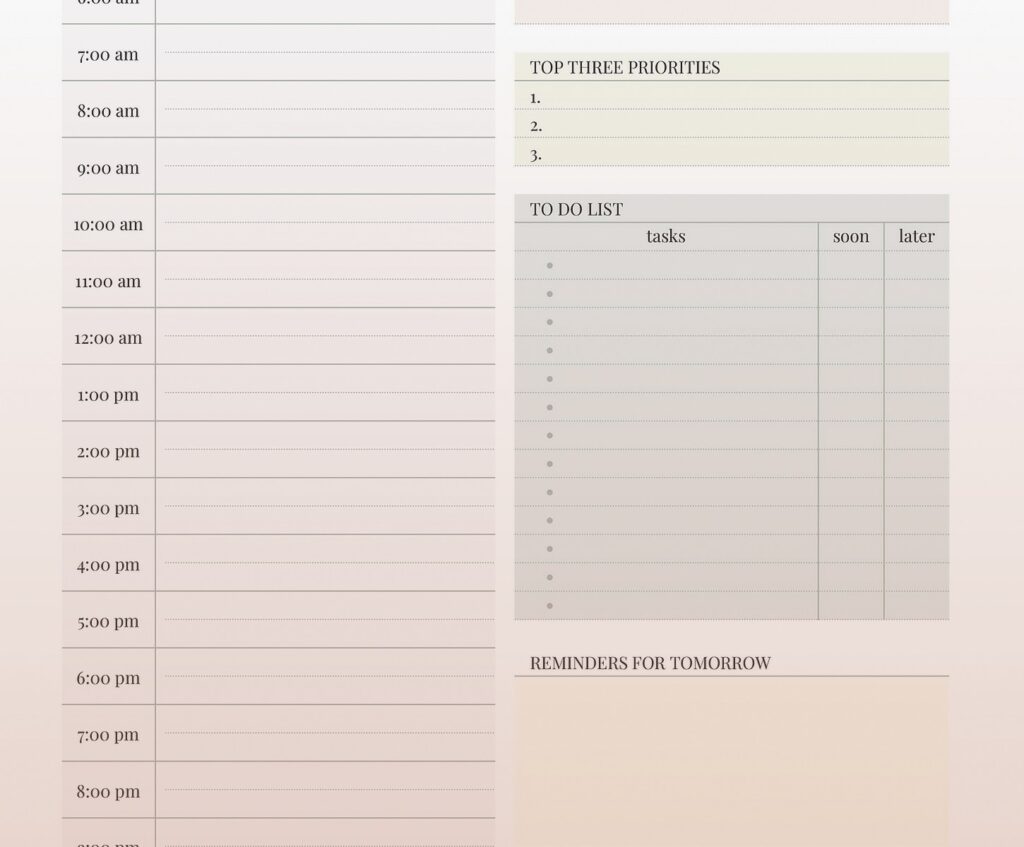
I downloaded their “Weekly Planner” and it’s got this minimalist aesthetic that doesn’t make me feel bad about my life choices. You can edit it in Canva’s free editor, add your own text and colors, then download as a PDF.
The workflow I use: edit the template on Sunday, download the PDF, and either print it or keep it on my iPad. I use the Apple Pencil to check things off throughout the week and there’s something really satisfying about that. My cat knocked my iPad off the table yesterday and I had a mini heart attack but it was fine.
This is gonna sound weird but the physical act of checking things off helps me remember stuff better than just deleting a digital task. Maybe it’s a brain thing, I don’t know.
Customizing Without Getting Sucked Into the Design Rabbit Hole
Canva will try to sell you on premium elements and fancy fonts. Ignore all of that. The free stuff is totally sufficient. I spent an embarrassing amount of time last month trying different font combinations before I realized literally nobody cares what font my personal schedule is in.
Stick with the default template colors or change them to match your vibe but then STOP EDITING. Save it as your personal template and use the same one every week. Consistency matters more than having a Pinterest-perfect planner.
Apple Notes and Reminders If You’re in That Ecosystem
Okay so this isn’t exactly a downloadable template but if you have an iPhone/Mac, the built-in stuff is actually pretty powerful. I created a template in Apple Notes with time blocks for each day and I just duplicate it every week.
The advantage is it syncs instantly across all my Apple devices and I can add stuff with Siri while I’m driving. “Hey Siri, add dentist appointment to my schedule” and it just works. Usually. Sometimes she adds it to the wrong day but whatever.
I also use Reminders for time-sensitive stuff. You can set location-based reminders which is cool in theory but in practice I forget to turn them on. Like “remind me to grab dry cleaning when I leave the office” sounds great until you realize you have to set it up ahead of time.
Trello for Visual People
My assistant convinced me to try using Trello as a schedule organizer and at first I was like this is for project management not scheduling but it actually kinda works. You create lists for each day of the week and cards for each task or appointment.
The free version lets you have unlimited cards and lists which is all you need. I use labels for different types of activities: green for content creation, orange for admin stuff, purple for meetings. You can drag cards around which is satisfying when you need to reschedule something.
The setup: Create a board called “Weekly Schedule” or whatever, make seven lists (Monday through Sunday), and start adding cards. You can add due times to each card, attach files, and write notes. It’s more flexible than a traditional schedule template but also more work to maintain.
I tried this for three weeks and it was fine but I kept forgetting to check it. The mobile app sends notifications but I have so many apps sending notifications that I’ve become blind to them. Currently I use Trello for project management and Google Sheets for scheduling because trying to do both in one tool broke my brain.
Airtable If You Want to Feel Like a Database Expert
Airtable is like if Google Sheets and Notion had a baby that grew up to be really good at organizing information. They have free templates in their universe section including schedule organizers.
I tested their “Content Calendar” template which you can totally repurpose as a schedule organizer. It has calendar view, grid view, and this gallery view that I never figured out how to use properly. The learning curve is real but once you get it, it’s pretty powerful.
You can create different views of the same data which means you could have a daily view, weekly view, and monthly view all pulling from the same information. I set up automations to send me a Slack message every morning with my schedule for the day which worked great until I realized I was just ignoring the Slack messages too.
The free plan limits you to 1,200 records which sounds like a lot but if you’re tracking every 30-minute block it adds up faster than you think. I hit the limit after about four months and had to delete old data.
What Actually Matters When Choosing
After testing all of these I realized the platform doesn’t matter as much as I thought it would. What matters is picking something you’ll actually open and update. Sounds obvious but I wasted so much time finding the “perfect” system when really I just needed to commit to something.
Questions to ask yourself:
- Do you need mobile access or is desktop fine?
- Are you printing this or keeping it digital?
- Do you need to share it with other people?
- How much customization do you actually want versus need?
- Are you already using a platform for other stuff that has scheduling built in?
I ended up with Google Sheets for my main schedule, Canva printables for when I need a physical weekly overview, and Apple Reminders for quick time-sensitive stuff. It’s not the most elegant system but it works for my brain.
Common Mistakes I Made So You Don’t Have To
Over-engineering the template is the biggest one. I spent hours adding color codes and categories and fields that I never used. Start simple and add complexity only if you actually need it.
Not building in buffer time. I used to schedule things back-to-back and then wonder why I was always running late and stressed. Now I automatically add 15-minute buffers between everything. Game changer.
Trying to track too much detail. You don’t need to schedule every single minute of your day. Block out the important stuff and let the rest be flexible. I was watching this show about productivity (can’t remember the name) and they mentioned that over-scheduling actually makes you less productive and I felt very called out.
Not reviewing your schedule regularly. I set a recurring reminder every Sunday evening to plan the week ahead. Takes maybe 20 minutes but it means Monday morning isn’t complete chaos.
The template that works is the one you’ll actually use consistently, not the one that looks the best or has the most features. I know that’s boring advice but it’s true and it took me forever to accept it.