
Digital Productivity, Online planners, Planners
Free Online Timetable Creator: Best Scheduling Tools
Apr
Okay so I’ve been testing like six different free timetable creators over the past couple weeks because honestly my old system was falling apart and a few of my clients kept asking me what I use, and here’s what actually works.
Canva’s Free Timetable Templates Are Better Than You’d Think
Starting with Canva because I literally just made three timetables in it yesterday. You’re probably thinking it’s just for social media graphics but their template library has gotten ridiculous. Search “timetable” or “schedule” and you’ll find hundreds of free options that don’t look like they’re from 2003.
The thing I like is you can actually customize everything without feeling like you need a design degree. Change colors, fonts, add your own blocks of time. I made a weekly schedule for my coaching sessions in maybe 15 minutes while half-watching that new Netflix show about the plane crash, so it’s pretty intuitive.
The drag-and-drop is smooth, and you can duplicate elements which saves SO much time when you’re setting up repetitive time slots. My only complaint is the free version has limited storage, so if you’re making tons of different schedules, you might run out of space. But for most people? Totally fine.
You can download as PDF or PNG, print it, or just keep it digital. I’ve been printing mine on nice paper from this Japanese stationery brand I’m reviewing and it looks professional enough to share with clients.
Google Sheets Is Secretly Amazing for This
Wait I forgot to mention Google Sheets because everyone overlooks it but it’s honestly one of my favorites now. I know it sounds boring but hear me out.
The conditional formatting options mean you can color-code automatically based on what you type. So like, if you type “meeting” it turns blue, “focus time” turns green, whatever you set up. Takes a bit to configure initially but then it’s automatic forever.
Plus it’s collaborative, so if you’re making a family schedule or team timetable, everyone can edit in real-time. My sister and I share one for our mom’s care schedule and it’s been a lifesaver. You can see who changed what and when, which prevents those “I thought YOU were handling Tuesday” arguments.
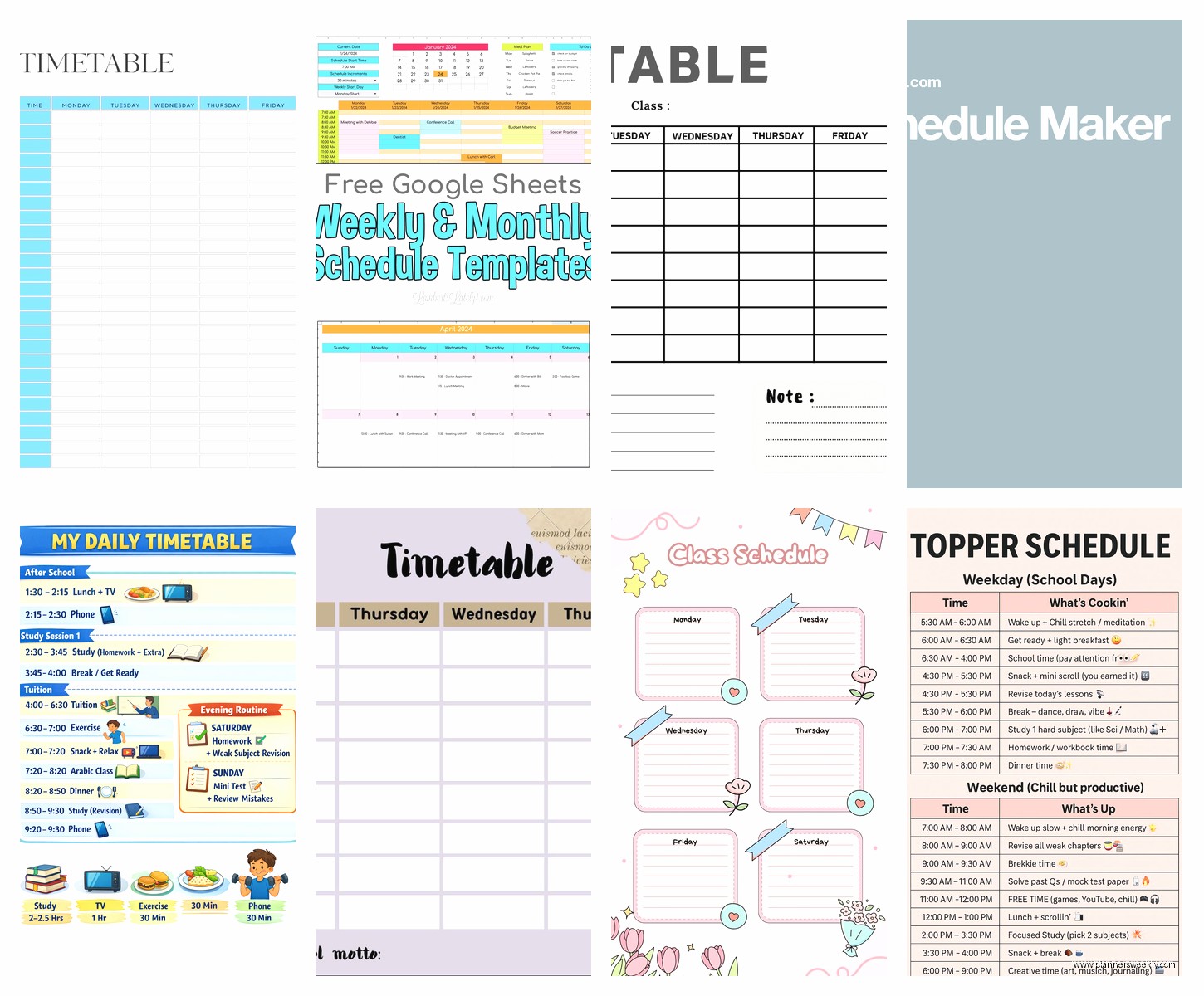
The templates gallery has basic timetable layouts you can start from. They’re not pretty like Canva, but they’re functional and you can access them from literally any device. I’ve edited my schedule from my phone in the grocery store parking lot more times than I’d like to admit.
Oh and another thing, you can set up formulas to calculate total hours spent on different activities. If you’re tracking study time or billable hours, this becomes super useful. I have one that totals my coaching hours automatically each week.
The Mobile App Thing
Google Sheets mobile app is actually usable, unlike some other spreadsheet apps that make you wanna throw your phone. The cells are big enough to tap without zooming, and you can filter views if your timetable gets complicated.
Notion for People Who Want Everything in One Place
Okay so funny story, I resisted Notion for like two years because everyone was SO obsessive about it and that made me suspicious. But I finally caved last month when my planner system and digital system weren’t syncing and I was double-booking myself.
Notion’s database feature lets you create a timetable that’s also connected to your tasks, notes, everything. You can view the same information as a calendar, table, timeline, or board. It’s gonna sound weird but once you set it up, it feels like your schedule is actually smart?
The learning curve is real though. I spent probably three hours watching YouTube tutorials and clicking around before things clicked. But their template gallery has pre-made timetable options you can duplicate and customize, which helps.
What I love is the flexibility. You can add properties to each time block like “energy level needed” or “can be rescheduled” or whatever matters to you. Then filter your view to show only certain types of activities. Like I can hide all my admin time and just see coaching sessions, or vice versa.
The free plan is generous, unlimited blocks for personal use. The only limit is file uploads and version history, but for a timetable that doesn’t really matter.
Visme Has Features I Didn’t Expect
This one surprised me because I’d only used Visme for presentations before. Their timetable maker is actually pretty robust and the free tier gives you more design options than Canva in some ways.
They have these data widgets where you can input your schedule information and it automatically populates the design. So instead of manually typing into each cell, you fill out a form and boom, it’s formatted. Saves time if you’re making multiple versions.
The templates are modern-looking, lots of minimalist options which I appreciate. Some of the Canva ones can be a bit too cutesy depending on what you need. Visme feels more professional by default.
You can also add charts and icons from their library, which is nice if you want to visualize time allocation. Like a pie chart showing how much time goes to different activities alongside your actual schedule.
Download options include PDF and PNG on the free plan. There’s a watermark but it’s small and in the corner, not super intrusive if you’re just using it personally.
Microsoft Excel Online If You’re Already in That Ecosystem
Similar to Google Sheets but if you’re a Microsoft person, Excel Online is free with a Microsoft account and honestly has better formatting tools. The conditional formatting is more powerful, more preset color schemes, better printing options.
I use this when I need to print timetables that look really clean and professional. The print preview actually matches what comes out of the printer, which sounds basic but Google Sheets sometimes surprises me with weird margins.
The template selection is decent, though not as extensive as Google’s. But you can find tons of free Excel timetable templates online and upload them to Excel Online, so that expands your options.
The mobile app is clunky though, I’m not gonna lie. If you need mobile access, Google Sheets wins. But for desktop creation and printing, Excel Online is solid.
Vertex42 Templates Are Old School But Work
This is gonna sound random but Vertex42 is this website that’s been around forever making Excel and Google Sheets templates. Their design aesthetic is very… 2010? But the functionality is there.
They have weekly schedules, daily planners, academic timetables, all free to download. You can use them in Excel, Excel Online, Google Sheets, whatever. I like their academic timetables especially because they account for rotating schedules and different term lengths.
The advantage here is these templates often have built-in formulas and features that would take you ages to set up yourself. Like automatic time calculations, color coding systems, print optimization.
Not pretty, but if you care more about function than form, this is a good resource. I’ve recommended these to several clients who just need something straightforward without a learning curve.
Clickup’s Free Plan Includes Scheduling
Wait I should mention Clickup because it’s technically a project management tool but the free plan includes a calendar view that works perfectly as a timetable. Especially if you want your schedule integrated with tasks and projects.
You can create recurring tasks with specific time blocks, color-code them, and view everything in day, week, or month layouts. The drag-and-drop to reschedule is smooth, and you can set durations so you see exactly how your time is blocked out.
The free plan allows unlimited tasks and members, which is wild. Most free plans are stingy but Clickup gives you a lot. The only limits are on storage and advanced features like time tracking in reports.
My cat just knocked over my coffee which is perfect timing for a break but anyway, Clickup also has a mobile app that’s actually good. You can check and update your schedule on the go, get notifications for upcoming time blocks, all that.
The setup takes some time because there are SO many features and options. It can feel overwhelming at first. But if you’re someone who wants your timetable to also track what you actually accomplished during those time blocks, this integration is valuable.
Figma If You Want Total Design Control
Okay this is probably overkill for most people but I gotta mention Figma because the free plan is generous and if you want a timetable that looks exactly how you envision it, nothing beats Figma’s design tools.
It’s a professional design tool that’s free for personal use with unlimited files. You can create a timetable from scratch or use community templates. The Figma community has tons of free timetable templates people have shared.
The advantage is pixel-perfect control over every element. If you’re particular about spacing, alignment, colors, typography, this is your tool. I use it when I’m creating timetables that I’ll reuse for months and want them to look perfect.
The learning curve is steeper than Canva but less intense than Adobe products. There are tons of YouTube tutorials. Once you learn the basics, you can create really professional-looking schedules.
Export options are excellent, you can download as PDF, PNG, JPG, or SVG. The SVG option is great if you want to resize without losing quality or edit in other programs later.
What I Actually Use Day-to-Day
So after testing all these, I personally use a combination. Google Sheets for my main weekly schedule because it’s accessible everywhere and I can update it quickly. Notion for my monthly overview because I like seeing how my schedule connects to my goals and projects. And Canva when I need to create a timetable to share with clients or print something that looks nice.
The best one really depends on what you need. If you want simple and visual, go Canva. If you want functional and collaborative, Google Sheets. If you want everything integrated, Notion or Clickup. If you’re already using Microsoft stuff, Excel Online makes sense.
I’ve noticed that people who fail at keeping timetables usually picked a tool that was too complicated for their actual needs. Like they set up this elaborate Notion system when they really just needed a printable weekly schedule from Canva. Start simple, you can always upgrade later.
Random Tips That Actually Matter
Color coding is essential but don’t use more than 5-6 colors or it becomes visual chaos. I learned this the hard way after creating a rainbow monstrosity that stressed me out just looking at it.
Build in buffer time between activities. I used to schedule things back-to-back and then wonder why I was always running late. Now I add 15-minute gaps and my life is so much calmer.
Update your timetable weekly, not daily. Daily updates become exhausting and you’ll abandon the system. I review and adjust mine every Sunday evening while watching TV.
Print it if you’re someone who needs physical reminders. I keep a printed version on my desk even though I also have it digitally. Different parts of my brain respond to different formats, I guess.
Don’t make it too rigid. Life happens, things shift, and if your timetable doesn’t have flexibility built in, you’ll feel like you’re constantly failing. I block “flex time” every day for whatever needs attention or just ends up taking longer than expected.
The tool matters less than actually using it consistently. I’ve seen people succeed with basic printed templates and fail with sophisticated digital systems. Pick something you’ll actually open and reference regularly, even if it’s not the “best” option.
