
Digital Productivity, Online planners, Planners
Best Digital Planner for Windows: Apps & Software
Mar
Okay so I just spent the last three weeks testing literally every digital planner app I could find for Windows because my coaching clients kept asking and honestly I was getting tired of not having a solid answer.
OneNote is Probably Where You Should Start
Look, I know OneNote isn’t technically a “planner app” but hear me out. It’s already on your Windows machine, it syncs everywhere, and you can literally make it whatever you want. I’ve been using it for like six years now and the flexibility is insane.
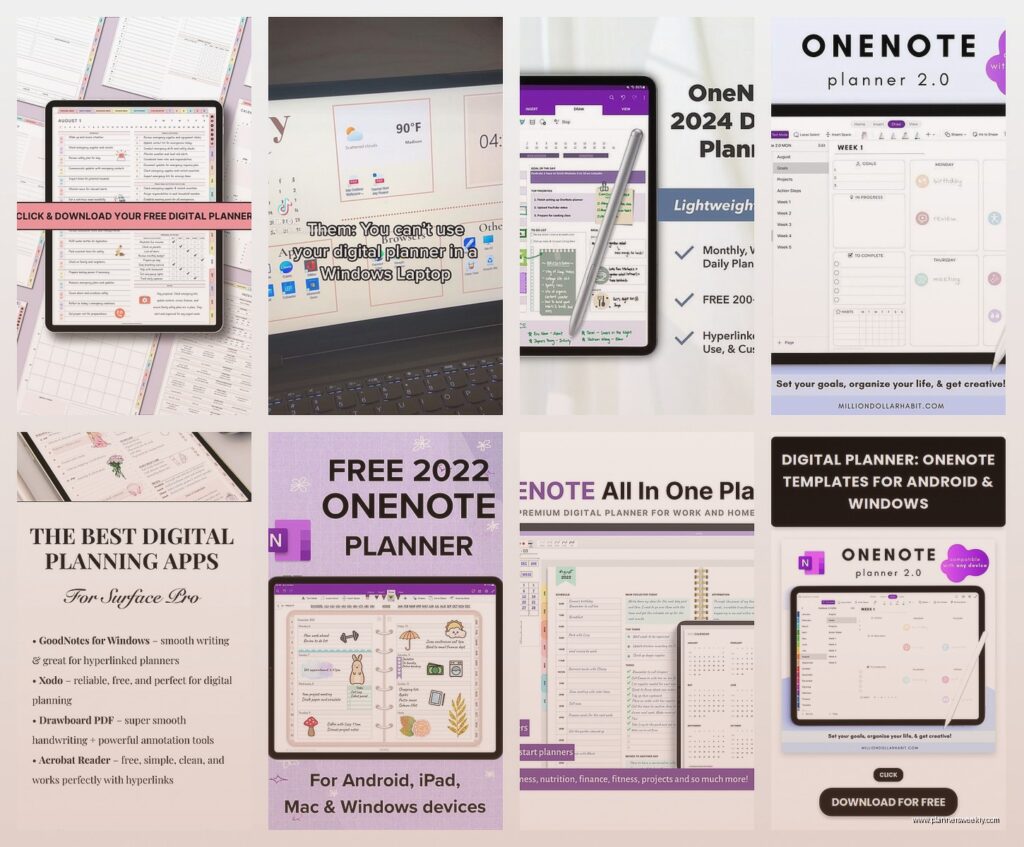
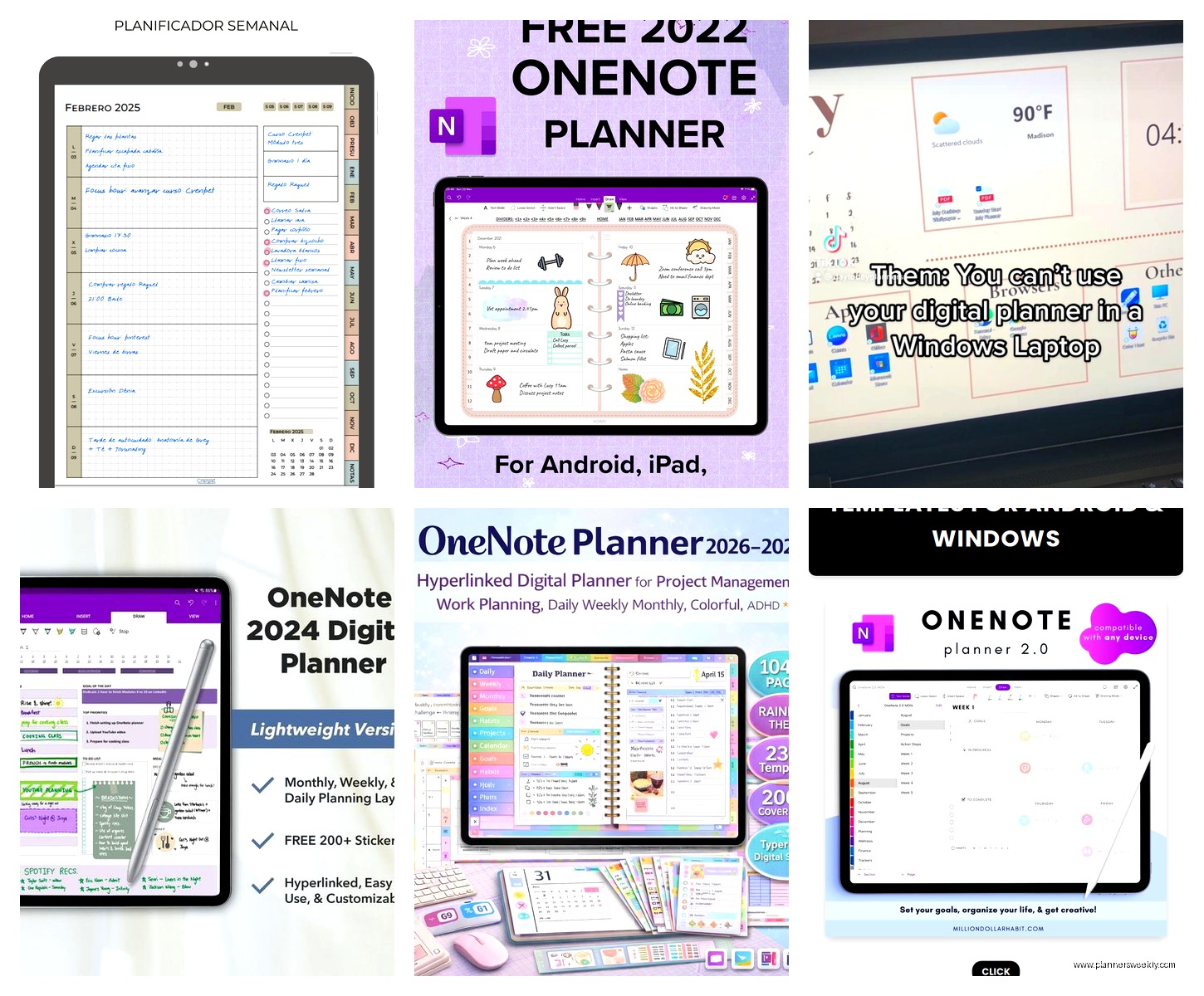
The thing with OneNote is you gotta download templates. Don’t try to build your own from scratch unless you have like a whole weekend to waste (ask me how I know). There are tons of free digital planner templates on Etsy and Gumroad. I grabbed this weekly spread template for like $8 and it’s been perfect. You can use your mouse or if you have a touchscreen laptop or a Surface, the pen integration is really smooth.
What I actually like about it is the infinite canvas thing. You’re not locked into pages like a physical planner. Need more space for Tuesday because meetings exploded? Just keep writing. Your dog knocked over your coffee and you need 10 minutes to clean up before finishing your thought? Everything auto-saves.
The pen situation though
If you’re gonna use OneNote seriously, invest in a decent stylus. I tried using my old bamboo stylus and it was terrible. Got a Surface Pen and wow, completely different experience. The pressure sensitivity actually matters when you’re writing for hours.
Notion for the People Who Want Everything in One Place
Okay so Notion isn’t Windows-specific but the Windows app works really well, and like half my clients have moved their entire lives into Notion at this point. It’s more of a database situation than a planner, which sounds complicated but actually makes sense once you use it for a week.
I set up this whole template system where my daily pages automatically pull in tasks from my project databases, and then I have a weekly review template that aggregates everything. Sounds complex because it is, initially. But once it’s set up? Chef’s kiss.
The learning curve is real though. I’m not gonna lie and say you’ll figure it out in an afternoon. I spent probably 10 hours over two weeks just watching YouTube tutorials and messing around. My cat kept walking across my keyboard during setup which didn’t help, but eventually I got a system that works.
Templates save your life here
Don’t build from scratch. Seriously. There’s this creator called August Bradley who has this whole “Pillars, Pipelines, and Vaults” system and it’s elaborate but it works. Or if that’s too much, there are simpler templates. I modified one called “Life OS” that’s pretty straightforward.
The Windows app is actually better than using it in a browser because it’s faster and you can use it offline, though it gets a little weird with syncing sometimes if you’re editing on multiple devices.
Wait I Forgot to Mention Todoist
This isn’t really a planner in the traditional sense but it integrates so well with everything that I gotta include it. The Windows app is clean, fast, and the natural language input is actually useful. You can type “meeting with Sarah every Tuesday at 2pm starting next week” and it just figures it out.
I use Todoist as my task manager and then OneNote for actual planning and notes. They work together really well. You can copy links from OneNote into Todoist tasks so everything connects.
ClickUp if You’re Kinda Extra
Okay so ClickUp is a lot. Like, a LOT a lot. It’s project management software that some people use as a personal planner and honestly it can work but you’re gonna spend time hiding features you don’t need.
I tested this for about two weeks and my initial reaction was “this is overwhelming and I hate it” but then I turned off like 75% of the features and it became actually usable. The calendar view is solid, you can create recurring tasks with templates, and the Windows desktop app is pretty responsive.
The thing that’s cool about ClickUp is the different views. You can look at your tasks as a list, a board, a calendar, a timeline, whatever makes sense for your brain that day. Some days I need to see everything as a kanban board, other days I just want a simple list.
But real talk, it’s probably overkill if you just want a simple planner. This is more for people who are managing multiple projects or who really like customization. My clients who are freelancers or small business owners love it. My clients who just want to track their daily habits and appointments find it annoying.
Structured App Deserves a Mention
Oh wait, Structured is actually mobile-first but they have a Windows app now through the Microsoft Store. It’s this time-blocking planner that’s really visual and satisfying to use. You drag tasks into time slots and it shows you your day as a vertical timeline.
I’ve been using it for like three days now and it’s really good for people who think in blocks of time rather than just task lists. The Windows version is pretty new so it’s still a little buggy, but the concept is great. Plus it’s just nice to look at, which matters more than people think when you’re opening something 20 times a day.
This Is Gonna Sound Weird But Google Calendar
Sometimes the answer is just… Google Calendar in a browser or the Windows Calendar app that syncs with Google. I know that sounds boring but like, it works? The Windows Calendar app got a big update last year and it’s actually really functional now.
You can see multiple calendars, it integrates with your Microsoft To Do tasks, and it’s fast. No learning curve, no setup time, just start using it. I have one client who tried Notion and ClickUp and all these fancy things and ended up going back to Google Calendar because she just wanted something simple that worked.

The Windows Calendar app also has this focused inbox thing where it only shows you what’s relevant today, which is nice when you don’t want to see your entire month of chaos first thing in the morning.
Microsoft To Do Is Secretly Good Now
Okay so Microsoft bought Wunderlist years ago and turned it into Microsoft To Do and for a while it was kind of bad but now it’s actually good? The Windows app is solid, it syncs with Outlook if you use that for work, and the “My Day” feature is genuinely helpful.
Every morning you pick which tasks from your master list you’re actually gonna do today. It’s this little ritual that takes 2 minutes and helps you focus instead of looking at 847 tasks and panicking. You can also add tasks to My Day throughout the day as stuff comes up.
The integration with Windows is nice too. You can pin it to your taskbar and add tasks without opening the full app. And it works with Cortana if you’re one of the seven people still using Cortana.
Pen and Paper App (Yes Really)
There’s this app called Pen and Paper that’s literally trying to replicate the experience of a physical planner but digital. It’s in the Microsoft Store and it’s specifically designed for stylus use. The whole interface looks like a paper planner with rings and everything.
I tested this on my Surface and it’s incredibly satisfying if you miss the tactile experience of paper planning. You can choose different paper styles, add stickers (yes, digital stickers, it’s adorable), and the handwriting recognition is decent.
It’s not for everyone. If you prefer typing, this isn’t it. But if you’re someone who loved physical planners and just wants the benefits of digital (searchability, backups, not running out of pages), it’s worth the $10 or whatever they charge now.
What About Evernote Though
Honestly Evernote has gotten expensive and clunky. I used it for years, like probably 2013 to 2019, and it was great but then they kept changing things and raising prices. The Windows app works fine but it’s not as smooth as OneNote at this point, and OneNote is free.
Some people still swear by Evernote and if you’re already in that ecosystem with years of notes, probably stay there. But if you’re starting fresh, I’d go with OneNote or Notion instead.
My Actual Setup Right Now
Okay so after testing everything, here’s what I actually use daily: OneNote for my weekly planning and notes, Todoist for task management, and Google Calendar for appointments. I know that’s three apps but they each do one thing really well and they all sync.
Every Sunday I open my OneNote weekly template, look at my calendar, and plan out my week. Throughout the week I’m mostly living in Todoist checking off tasks. Calendar notifications tell me when to be places. It works.
I tried to do everything in one app multiple times and it never stuck. Notion came closest but I kept getting distracted building systems instead of actually working. Which is a whole thing with Notion, you can spend hours making it perfect instead of using it.
What You Should Actually Do
Start with OneNote and a template if you want a traditional planner experience. It’s free, it’s already installed, and there’s basically no learning curve if you can use Word.
Try Notion if you want something more powerful and you don’t mind spending time setting it up. The payoff is worth it if you’re managing a lot of different areas of your life.
Just use Google Calendar and Microsoft To Do if you want simple and fast. Sometimes simple wins.
The real answer is that you’re probably gonna try like four different things before you find what works for your brain. I’ve been doing this productivity coaching thing for 12 years and I still switch systems sometimes when my needs change. Last month I was watching this show about organizing (yes I watch organizing shows, it’s research okay) and got inspired to reorganize my whole Notion setup.
The best planner is genuinely the one you’ll actually open every day. Doesn’t matter if it’s the fanciest or most featured or whatever. If you hate opening it, you won’t use it, and then who cares how good it is.
