Digital Productivity, Online planners, Planners
Word Event Planning Template: Free Downloads

Mar
Okay so I spent like three hours last Tuesday testing every free Word event planning template I could find because my yoga studio client needed something fast and honestly most of them are garbage but there are a few that actually work.
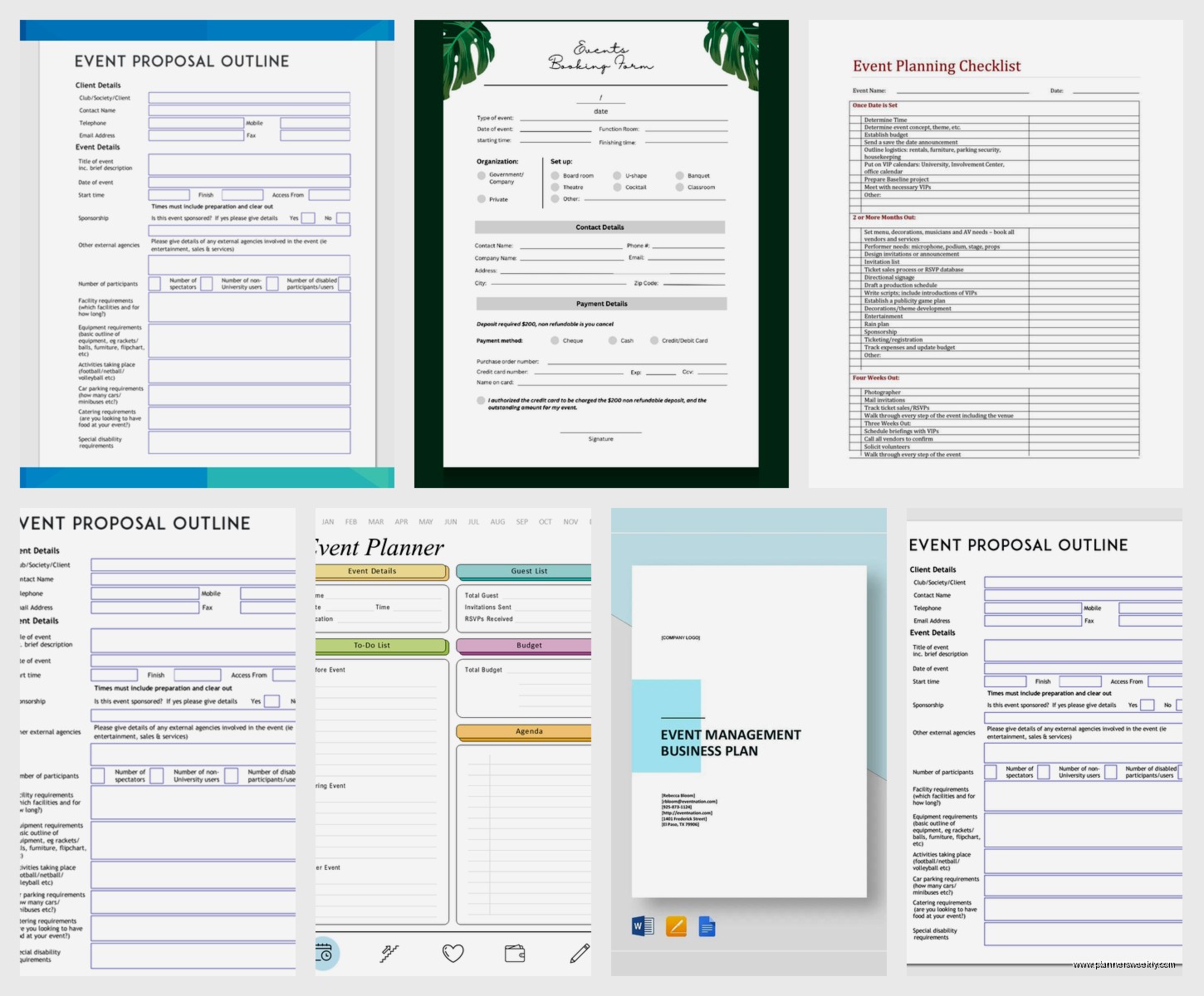
The Microsoft Office built-in templates are where you wanna start because they’re already sitting in your Word installation and you don’t have to deal with sketchy download sites. Go to File, New, then search “event planning” and you’ll get maybe 8-10 options. The one I keep coming back to is called “Event Planning Checklist” which sounds boring but it’s literally the most functional one. It’s got this timeline structure that breaks everything into pre-event, during event, and post-event sections which is how your brain actually works when you’re planning something.
The Templates That Actually Don’t Suck
The Event Planning Checklist template has these little checkbox squares that you can actually click in Word which is weirdly satisfying. I was watching The Bear while testing these and kept clicking them between episodes. It’s set up with columns for task, deadline, status, and assigned to which covers like 90% of what you need. The formatting is clean enough that you can send it to vendors without looking unprofessional but simple enough that you can customize it in ten minutes.
Wait I forgot to mention the “Party Planning Checklist” template which is technically different but honestly it’s better for smaller events. Under 50 people I’d use this one instead. It has budget tracking built in which the other one doesn’t and if you’re planning a corporate lunch or a baby shower or whatever that budget section is gonna save you so much time. My cat knocked over my coffee while I was editing one of these and the formatting held up fine even after I frantically ctrl+z’d through my panic saves.
Template.net Has Some Decent Free Options
So Template.net has this whole section of event planning templates and you gotta be careful because they try to push their premium stuff but the free downloads are actually usable. The “Event Planning Schedule Template” is really good for conferences or all-day events because it breaks things down by hour. I used this for a workshop series last month and it was perfect for coordinating speakers and break times.
The annoying thing about Template.net is they make you sign up with an email but you can use one of those temporary email services if you’re paranoid about spam. I just used my regular email though and they only sent me like two promo emails which I immediately unsubscribed from.
How to Actually Customize These Things
This is gonna sound obvious but so many people don’t do it… the first thing you should do is save the template with a different name immediately. Like “EventName_Planning_v1” or whatever. I’ve watched people edit the original template file and then wonder why their next event has info from the previous one.
The fastest way to customize is to use Find and Replace. Press Ctrl+H and replace all instances of the placeholder text at once. Change “Event Name” to your actual event name throughout the whole document in like five seconds. Same with dates, venue names, whatever appears multiple times.
Color Coding Is Your Friend
Here’s what I do with every template and it’s made my life so much easier. I assign colors to different priority levels or categories. Red highlighting for critical path items that’ll derail everything if they’re late. Yellow for things that need attention soon. Green for completed tasks. You can do this with the highlight tool or by changing the actual cell shading if the template has tables.
My client last week was planning a product launch and we used blue for vendor-related tasks, purple for internal team stuff, and orange for anything involving the venue. When you’re scrolling through a huge checklist this visual system means you can find what you need without reading every single line.
Budget Tracking Templates Are Separate Usually
Oh and another thing, most event planning templates don’t have great budget tracking built in. You’ll probably want to grab a separate budget template and use them together. The “Event Budget Template” from Microsoft’s library is actually pretty solid. It has categories for venue, catering, entertainment, decorations, all that stuff plus a running total that auto-calculates.
I usually keep the budget template in one window and the planning checklist in another and just tile them side by side on my screen. When I’m adding tasks to the checklist I can immediately see if we can actually afford to do something.
Timeline Templates vs Checklist Templates
There’s basically two types of event planning templates and you might need both honestly. Checklist templates are task-oriented, just a big list of everything you gotta do. Timeline templates are date-oriented and show you what needs to happen when.
For complex events I start with a timeline template to map out the big milestones. Like “6 months before: book venue, 4 months before: send save the dates, 2 months before: finalize catering” and all that. Then I use a checklist template for the actual granular tasks under each milestone.
The “Event Timeline Template” on Vertex42 is free and works well for this. It’s technically an Excel template but you can recreate it in Word pretty easily if you’re committed to staying in one program. I’m usually not that committed though so I just use Excel for timelines.
Vendor Management Sections
This is something a lot of templates skip and it drives me crazy. You need a place to track vendor contact info, contract deadlines, payment schedules, all that administrative stuff. The best template I’ve found for this is actually called “Wedding Planning Template” but don’t let that fool you, it works for any event type.
It has this vendor directory section with fields for company name, contact person, phone, email, services provided, cost, deposit paid, balance due, and notes. I’ve used this for corporate conferences, fundraising galas, workshop series, everything. Just ignore the parts about wedding dresses and floral arrangements.
Making Templates Work for Recurring Events
Wait I forgot to mention, if you’re planning the same type of event multiple times like monthly networking meetings or quarterly workshops you should absolutely turn your customized template into a reusable master template. Once you’ve planned one event and refined your template with all the tasks and timelines that actually matter, save it as a .dotx file.
Go to File, Save As, and in the “Save as type” dropdown select “Word Template.” Now it’ll show up in your personal templates section and you can start fresh events from your perfected template instead of the generic Microsoft one. This saved me probably six hours when I was doing a series of four similar workshops last fall because I didn’t have to rebuild the task list each time.
Guest List and RSVP Tracking
Okay so funny story, I used to track RSVPs in the event planning template itself and it was a disaster. The template would get huge and unwieldy and I’d lose track of who confirmed what. Now I keep guest lists in a separate document or honestly just in a Google Sheet because the collaboration features are better.
But if you’re determined to keep everything in Word, the “Party Guest List Template” is decent. It has columns for name, email, phone, invited, attending, plus-one, dietary restrictions, and table assignment. You can filter and sort in Word tables which most people don’t realize. Click anywhere in the table, go to the Table Design tab, and use the sort button.
Day-Of Event Templates
This is different from planning templates but you’re gonna need it. Day-of templates are stripped down versions that just have the schedule and critical contacts. I make these the week before the event and print them out for everyone on the event team.
The template should fit on one page ideally, maybe two pages max. Just the timeline of what happens when, who’s responsible for what, and emergency contacts at the bottom. I use a really simple table format for this, nothing fancy. Big readable font, lots of white space, because people are gonna be stressed and running around and need to find information fast.
My go-to is literally just a Word document with a three-column table. Time in the first column, what happens in the second column, person responsible in the third column. I make the header row a dark color with white text so it stands out and I bold the time column. Takes me maybe 15 minutes to create from scratch.
Post-Event Templates for Wrap-Up
Nobody thinks about this until after the event when you’re exhausted but you should have a post-event template ready. It’s basically a debrief document with sections for what went well, what didn’t, vendor performance, budget actual vs planned, and lessons learned for next time.
I started doing this after a conference where we made the same mistake two years in a row because nobody documented what went wrong the first time. Now I fill out the post-event template within 48 hours while everything is fresh and save it with the planning documents.
The template doesn’t have to be complicated. I use headings for each section and bullet points under each. Takes maybe 30 minutes to complete but it’s so valuable when you’re planning the next event and can’t remember why you stopped using that one caterer.
Mobile-Friendly Considerations
This is gonna sound weird but you should check how your template looks on a phone because you will definitely need to reference it while you’re running around the venue. Word docs don’t always display great on mobile screens. Tables especially can be a nightmare.
If you know you’ll be checking the template on your phone a lot, use a simpler layout with less columnar structure. Single column, clear headings, numbered lists instead of complex tables. I learned this the hard way trying to read a five-column vendor tracking table on my iPhone while standing in a parking lot trying to figure out which food truck was supposed to arrive first.
Where the Free Templates Fall Short
Okay real talk, free templates are gonna be missing some stuff. They’re generic and can’t account for your specific event type or industry. The event planning template that works for a tech conference is different from what you need for a fundraising dinner.
You’ll probably need to add custom sections. For corporate events I always add a section for AV requirements because that’s always complicated. For fundraising events there’s usually a sponsorship tracking section. For workshops I include a materials checklist. None of the free templates have this stuff built in, you just gotta add it yourself.
Also free templates rarely have good instruction or examples. They’ll have placeholder text like “enter task here” which isn’t helpful if you’ve never planned an event before and don’t know what tasks you should be entering. I usually recommend finding a blog post or article about event planning checklists and using that to populate your template with actual tasks.
My Current Setup
Since you’re probably wondering what I actually use now after testing all this stuff, here’s my system. I start with Microsoft’s Event Planning Checklist template as the main hub. I customize it heavily, adding sections and tasks specific to the event type. Then I use a separate Excel budget tracker because Word just isn’t great for calculations. I keep vendor info in the Wedding Planning Template vendor section even though it feels silly. And I create a custom day-of schedule from scratch the week before the event.
It’s not elegant, it’s like three or four documents, but it works and it’s all free. I tried some of the paid event planning software and honestly for most events it’s overkill. Unless you’re planning huge conferences with hundreds of attendees the Word template system is totally sufficient.
The key thing is actually using the template and keeping it updated. I’ve seen so many people download a beautiful template, fill it out partially, then abandon it and go back to sticky notes and scattered email threads. Set a reminder to review and update your planning template at least twice a week. That’s what makes the difference between a template being useful versus just being another file taking up space on your computer.