
Digital Productivity, Online planners, Planners
Budget Calendar Template: Free Financial Planning Tools
Mar
Okay so I spent like three weeks testing every free budget calendar template I could find because honestly my own finances were a mess and I figured if I’m gonna recommend stuff to my clients, I should actually know what works.
The Google Sheets Templates Are Actually Good Now
Started with Google Sheets because it’s free and I already live in there anyway. The built-in budget template they have is surprisingly not terrible? You go to Google Sheets, click the template gallery, and there’s literally one called “Annual Budget.” I tested it for January and February this year and here’s the thing – it auto-calculates everything which sounds obvious but some templates make you do all the math yourself like it’s 1997.
The layout has your income at the top, then breaks expenses into categories. What I actually liked was you can see the whole year at once, which helped me realize I was spending way too much on stationery in months when there were big sales. My dog got sick in March though so that month’s budget went completely sideways, but I could see exactly where to pull money from because the visual layout is really clear.
Customizing Google Sheets Templates
You’re gonna wanna add your own categories though. The default ones are super generic – just “groceries” and “entertainment” and stuff. I added specific lines for:
- Subscription services (they add up SO fast)
- Pet expenses separate from general shopping
- Professional development because I buy a lot of planners for review
- That random Target run category we all need
To customize it, you just click into any cell and type. The formulas usually adjust automatically but double-check the sum formulas aren’t broken. I accidentally deleted a formula once and didn’t notice for two weeks that my totals were wrong.
Microsoft Excel Templates If You’re Already Paying For It
Excel has this family budget planner that’s actually better than Google’s in some ways. You can download it free from their template library even if you just have the online version. The color coding is more intuitive – red for over budget, green for under, yellow for getting close.
What’s cool is it has a dashboard page that shows you charts and graphs of your spending. I’m a visual person so seeing that I spent 40% of my budget on housing versus like 2% on savings was… enlightening and also depressing but mostly helpful?
The calendar view in Excel templates is usually monthly rather than annual. There’s one called “Personal budget planner” that has a calendar grid where you can mark bill due dates. I used colored dots – red for bills, blue for income deposits, green for savings transfers. My client yesterday was asking about this and I showed her my setup and she immediately went and made her own.
The Annoying Thing About Excel Templates
They’re not as easy to access on your phone. Like Google Sheets has a pretty decent mobile app but Excel mobile is kinda clunky for detailed budget work. I tried updating my budget while waiting at the vet (dog is fine btw, just a checkup) and it was frustrating enough that I gave up and waited till I got home.
Wait I Forgot To Mention The Vertex42 Templates
Okay so Vertex42 is this website that has a HUGE collection of free Excel and Google Sheets templates. Their budget calendar is honestly one of the best I’ve tested. It combines a traditional calendar layout with budget tracking which is exactly what you need if you’re trying to match expenses to dates.
The template has an actual calendar grid for each month and you can enter expenses directly on the date you spent them. Then it automatically pulls everything into category totals. This is gonna sound weird but this method totally changed how I think about my spending because I could see that every Friday I was spending money on takeout. Every. Single. Friday.
How To Use The Vertex42 Template
Download it from their website (just google “Vertex42 budget calendar”). You’ll need to enter your email but they don’t spam you, I’ve been on their list for months.
Set up your categories in the first tab. They have defaults but again, customize them. Then in the calendar tabs, just enter amounts on the dates you spend. You can add notes too which I use for tracking what the expense actually was – like “groceries” isn’t helpful but “groceries – had people over for dinner” reminds me that was a special occasion not regular spending.
The yearly overview tab is where the magic happens. You can see trends across months. I noticed my utilities were way higher in summer than I expected – turned out my AC was running constantly and probably needs servicing.
Notion Templates For The Aesthetic People
If you’re already using Notion, there are some really pretty budget calendar templates in their template gallery. I tested like five different ones because I was procrastinating on actual work one afternoon while my cat was being absolutely insane knocking stuff off my desk.
The “Finance Tracker” template has a calendar database view which lets you see all your transactions in a calendar layout. You can filter by category, tag things as essential vs. discretionary, and add as many custom properties as you want.
Why I’m Mixed On Notion For Budgeting
It’s beautiful and customizable but it’s also easy to spend more time setting it up than actually using it. I got sucked into making custom icons and color schemes and then realized I’d spent two hours on aesthetics and hadn’t entered a single transaction.
That said, if you’re already living in Notion for everything else, having your budget there too makes sense. The calendar view is genuinely helpful for seeing spending patterns over time. You can toggle between calendar view, table view, and board view depending on what you need.
The mobile app is actually decent unlike Excel. I can add a transaction while I’m literally still at the store which helps me remember what I actually bought.
Printable PDF Calendar Templates
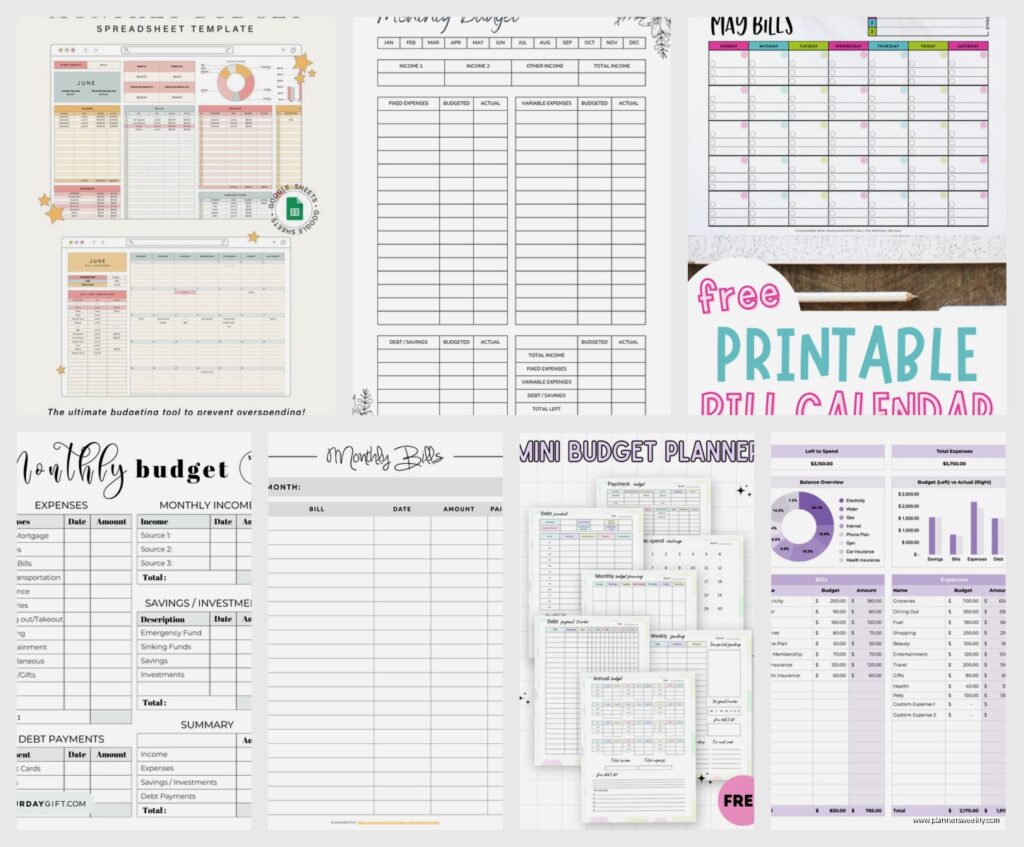
Okay so this is gonna sound old school but hear me out. Sometimes a paper budget calendar just hits different. I found some free printable ones on Canva that you can customize before printing.
The advantage is it sits on your desk and you SEE it. Digital budgets can get ignored because they’re hidden in apps. I printed a monthly budget calendar and stuck it on my wall next to my workspace and I actually stayed more aware of my spending.
Where To Find Good Printable Templates
Canva has tons in their template search – just type “budget calendar.” Most are free with a free Canva account. You can change colors, add your own categories, adjust the layout. Then download as PDF and print.
Pinterest also has a bunch but quality is hit or miss. I downloaded three that looked good and two of them had broken links or required paid subscriptions to actually get the full template.
My favorite is this simple grid style one that has a calendar on top and budget categories below. Each day has a small box for noting expenses and the bottom section totals everything by category. It’s not fancy but it works.
Oh And Another Thing About Tracking Methods
I tested both the “planned budget” method where you set amounts ahead of time versus the “tracking only” method where you just record what you spend and analyze it later.
Planned budgets work better if you have consistent income and expenses. You set your amounts for each category at the start of the month and try to stick to them. The calendar helps you see if you’re gonna hit your limits before month end.
Tracking only works better if your income or expenses are variable. I use this method because my income fluctuates depending on client work. I just record everything and then review patterns quarterly to make adjustments.
Most templates can work for either method but some are specifically designed for one or the other. The Google Sheets annual budget is definitely a planned budget template. The Vertex42 calendar works great for tracking only.
Combining Calendar + Budget In One Tool
This is what I actually do now after testing everything. I use Google Calendar for bill due dates and payment reminders, then Google Sheets for the actual budget tracking with a monthly calendar view.
In Google Calendar, I have a separate calendar layer just for finances. Color coded – red for bills due, green for paydays, blue for savings transfers. I set reminders for 3 days before bills are due.
Then in my Google Sheets budget, I have a tab that’s laid out like a calendar with expense categories down the side. Each day’s column shows what I spent in each category that day, and formulas total everything.
Setting This Up Takes Maybe An Hour
Create a new Google Sheet, make tabs for each month. In each tab, set up columns for each day of the month across the top and rows for your expense categories down the side. Add SUM formulas to total each row (category) and each column (day).
In Google Calendar, create a new calendar called “Budget” or “Money” or whatever. Add recurring events for all your regular bills. Add one-time events for irregular expenses you know are coming.
The two tools talk to each other in your brain even if they’re not technically integrated. You check your calendar to see what’s due, then record it in your sheet when you pay it.
Mobile Apps That Are Actually Free
I tested a bunch of budgeting apps that claim to be free. Most have free versions but they’re super limited. However, a few are genuinely useful without paying.
Mint has a calendar feature that shows your bills and spending by date. It’s actually free and connects to your bank accounts automatically. The calendar view shows upcoming bills, recent transactions, and you can see your cash flow over time.
The interface is kinda cluttered though and there are ads. But it works and it’s free and it has a calendar which is what we’re talking about.
EveryDollar has a free version with a calendar that shows when you budgeted money for different categories. You can’t connect bank accounts in the free version so you manually enter transactions but if you’re gonna do that anyway it’s fine.
What Actually Worked For Me
After testing literally everything, I settled on the Vertex42 budget calendar in Google Sheets with Google Calendar for reminders. It’s free, accessible anywhere, and the calendar format helps me actually see my money flow across time instead of just looking at category totals.
I spend maybe 10 minutes a day updating it – usually at night before bed I just enter whatever I spent that day. Takes less time than scrolling social media and I actually know where my money is going now.
The biggest thing is just pick something and actually use it consistently for like 3 months. I tested all these templates over weeks but the real test is sustained use and most of them work fine if you just stick with them.


