Digital Productivity, Online planners, Planners
Free Daily Planner Guide: Best Templates & Online Tools
Apr
Okay so I just spent like three weeks testing every free daily planner template I could find because honestly my old system was a mess and I needed something that actually worked without paying $30/month for some fancy app.
The Google Sheets Templates That Actually Don’t Suck
So Google Sheets has this template gallery that nobody really talks about, and I found this daily planner one that’s surprisingly solid. You go to Google Sheets, click on Template Gallery at the top, and there’s a “To-Do List” option that’s basically a daily planner in disguise. It’s super bare bones but here’s the thing – you can customize literally everything.
I spent like two hours one night (my dog kept barking at nothing so I couldn’t sleep anyway) just tweaking the colors and adding columns for my client calls versus admin stuff. The best part is it auto-saves and you can access it from your phone, which sounds obvious but half these downloadable PDFs you can’t edit on mobile without wanting to throw your phone.
The downside is it doesn’t really have time blocking built in. You gotta add that yourself. I created a column for time slots in 30-minute increments from 6am to 9pm and just copy-paste it to new tabs for each day. Takes like 10 seconds once you have the template set up.
Notion Templates Everyone Recommends But
Wait I forgot to mention – if you’re already using Notion, their template gallery has probably 50+ daily planner options. The one I actually use is called “Daily Planner 2.0” or something, made by some productivity person whose name I can’t remember right now.
Here’s what’s good about it: you get a database view so you can see your tasks across multiple days, there’s a notes section, and it has this cute little habit tracker thing at the bottom. What’s annoying is that Notion has such a learning curve if you’re new to it. Like my friend Sarah tried to use it and gave up after 20 minutes because she couldn’t figure out how to duplicate the template for the next day.
The trick with Notion templates is you gotta spend like one solid afternoon learning how databases and linked databases work. I know that sounds like a lot but once you get it, you can build basically anything. I have mine set up so my daily planner pulls from my master task database, which sounds fancy but really just means I don’t have to retype the same recurring tasks every single day.
Printable PDF Templates For People Who Like Paper
This is gonna sound weird but I still print stuff out sometimes. There’s something about physically crossing things off that just hits different, you know?
Canva’s Free Daily Planners
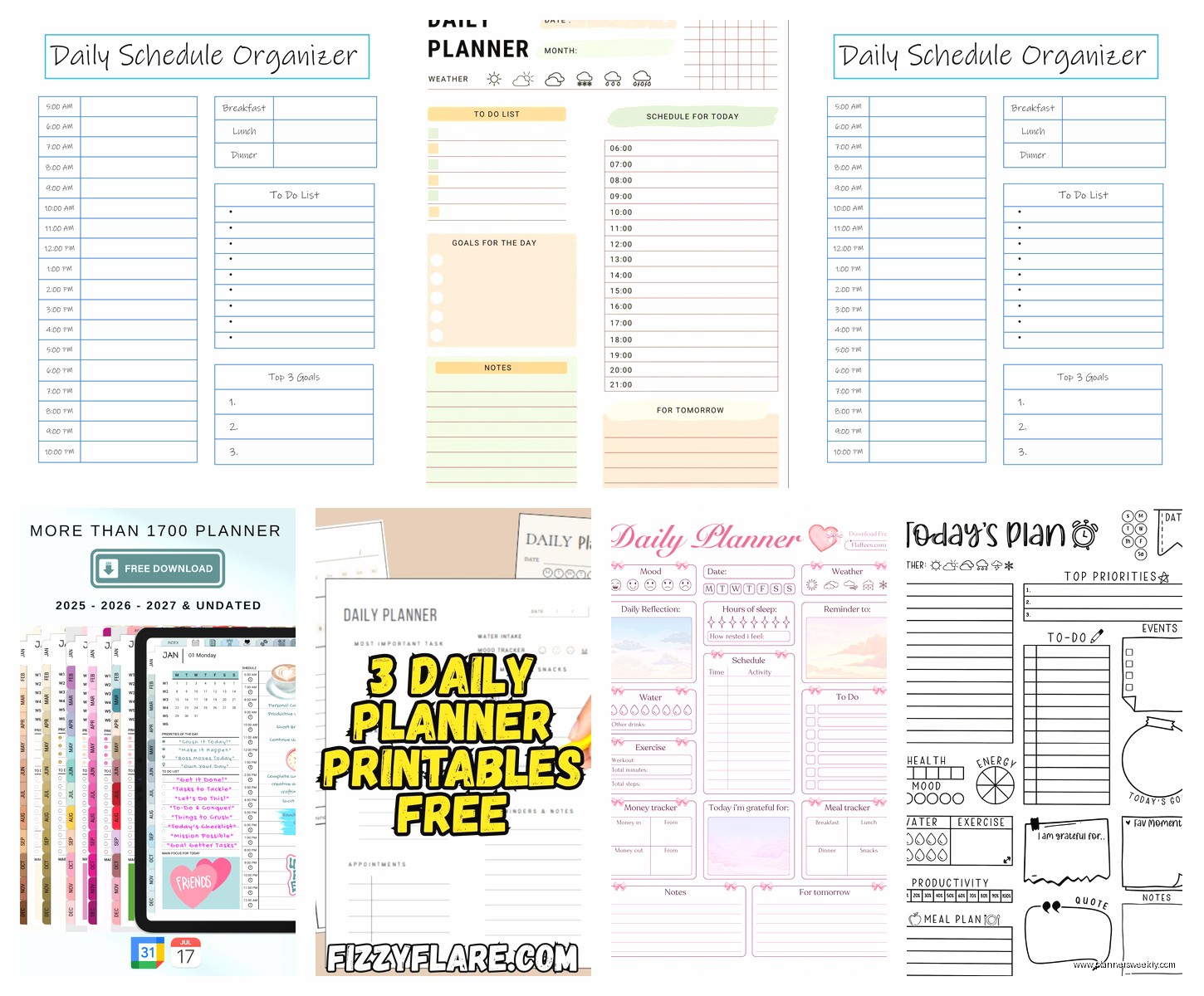
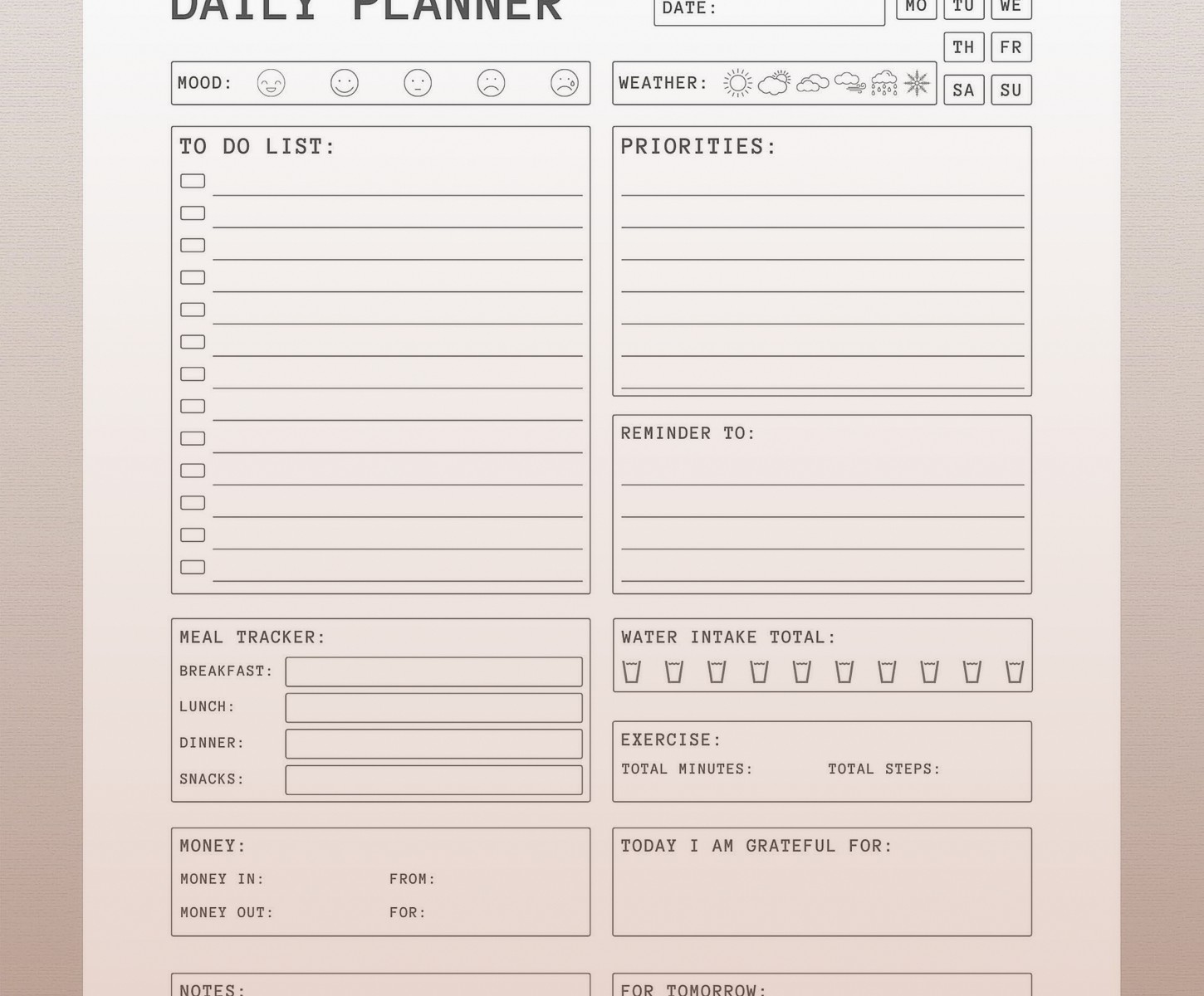
Canva has a whole section of free daily planner templates and they’re actually really pretty? Like way prettier than the basic Word doc templates. You can search “daily planner” in their template section and filter by free ones. The aesthetic ones with the minimalist layouts are my favorite.
I use the one that has sections for priorities, schedule, notes, and water intake tracking. You can edit everything in Canva before downloading, so I changed the fonts to something I can actually read (why does everyone use such tiny script fonts) and adjusted the time slots to start at 7am instead of 6am because let’s be real.
You download it as a PDF and just print it. I print like 5 at a time and keep them in a cheap binder. The only issue is you’re printing every single day which adds up if you’re thinking about ink costs, but honestly I only print Monday through Friday and just wing my weekends.
The Passion Planner Daily Template
Oh and another thing – Passion Planner offers free PDF downloads of their daily layout. You have to give them your email which is slightly annoying but they only send like one email a month so whatever. The template is really good for time blocking because it has hourly slots from 5am to 9pm.
I used this one for like two months straight. It has a morning reflection box and evening reflection box which I literally never filled out because who has time for that, but the actual planning section is solid. There’s also a weekly overview option if you want to see your whole week at once.
Online Tools That Are Actually Free Forever
Okay so most “free” planner apps are free trials that become paid after like 14 days. These ones are actually free to use indefinitely, though some have premium options you can ignore.
Todoist’s Daily View
Todoist isn’t technically a daily planner but if you use the “Today” view it basically functions as one. The free version lets you create up to 5 projects and unlimited tasks, which is plenty unless you’re managing like a whole company or something.
What I do is create projects for different areas (Work, Personal, Blog Stuff, Client Sessions) and then just assign tasks to Today. The interface is super clean and not overwhelming. You can also set recurring tasks which is clutch for things like “review client notes every Monday” or whatever.
The premium version has some features I’d probably use if I wanted to pay but honestly the free version does everything I need. Oh and it syncs across devices which again sounds basic but you’d be surprised how many tools don’t do this well.
Google Calendar As A Daily Planner
This sounds so obvious but hear me out – I started using Google Calendar not just for meetings but for literally blocking out time for specific tasks. Like I’ll create an “event” called “write blog post” from 9am to 11am and treat it like an actual appointment.
The color coding helps too. I have client work in blue, personal stuff in green, admin tasks in orange. At the start of each day I just open the calendar and I can see exactly what I’m supposed to be doing when.
The mobile app is really good too. Better than half these dedicated planner apps honestly. And if you use the Tasks feature in Google Calendar, you can add to-do items that show up in your daily view. I only discovered this like three months ago and it changed everything.
Any.do For The Minimalists
My client canceled last week so I spent like an hour comparing different task apps and Any.do is probably the cleanest one I found. The free version gives you the daily planner view, calendar integration, and basic reminders.
It’s really simple – you just type in what you need to do and assign it to today, tomorrow, or a specific date. There’s a “plan your day” feature that pops up every morning asking you to review your tasks and add new ones, which is kinda nice as a prompt to actually think about your day instead of just reacting to whatever comes up.
The interface doesn’t have a million features which is either a pro or con depending on what you want. For me it’s a pro because I don’t get distracted trying to organize my organization system, if that makes sense.
Microsoft To Do Because Windows People Exist
If you’re in the Microsoft ecosystem already, their To Do app is actually pretty decent for daily planning. It has a “My Day” view where you pull in tasks you want to focus on today, and it integrates with Outlook if you use that for email.
I tested this for like a week when I was writing that comparison post for my blog. It’s not as pretty as some of the other options but it’s functional and it’s free forever. You can create different lists, set due dates, add notes to tasks, all the basic stuff.
The weird thing is it has this suggested tasks feature that pulls from your other lists and recommends what you should do today. Sometimes it’s helpful, sometimes it suggests things that make no sense. Like why would I need to “plan vacation” on a random Tuesday when I have three client deadlines?
Trello’s Daily Board Setup
Okay so funny story – I always thought Trello was just for project management but you can totally use it as a daily planner. You create a board called “Daily Planning” or whatever, then make lists for different parts of your day.
I have mine set up with lists for: Morning Tasks, Afternoon Tasks, Evening Tasks, and Done. Then I just create cards for each thing I need to do and move them across as I go. It’s very visual which helps my brain actually process what needs to happen.
You can also add due dates to cards, attach files, write notes – basically everything you’d want in a planner. The free version is totally sufficient unless you need like advanced automation or something. And you can access it from anywhere which is key.
The mobile app is decent but honestly I mostly use Trello on my laptop because moving cards around on a phone screen is kinda annoying when you have a lot of tasks.
The Template I Actually Made Work
After testing all this stuff, what I actually ended up doing is using a combination. Google Calendar for time blocking my big chunks of work, Todoist for my running task list, and a printed Canva template for daily brain dumps and notes that don’t fit in a digital format.
Is it the most streamlined system? Probably not. But it works for how my brain actually functions, which is more important than having some perfect unified system that looks good but I never actually use.
What To Look For When Choosing
The main thing is gonna be whether you’re a digital person or a paper person. I know everyone says you should go digital but honestly if you’re someone who needs to physically write things down, don’t force yourself to use an app just because it seems more productive or whatever.
For digital planners, make sure it syncs across devices. I cannot stress this enough. If you can only access your planner on your laptop, you’re not gonna use it when you’re out and thinking of something you need to add.
Also think about whether you need time blocking or just task lists. Some people work better with a specific schedule, some people just need to know what tasks exist and they’ll figure out when to do them. Neither is wrong, just different approaches.
The free templates that make you create an account are usually fine if they’re from legit companies like Canva or Notion. The sketchy ones are the random websites offering free downloads that definitely have viruses or whatever. Stick to known platforms.
My Actual Recommendation If You’re Starting From Zero
If you’ve never used a daily planner system before, start with Google Calendar and just block out your time for like a week. See if that structure helps you or makes you feel constrained. If it helps, maybe add Todoist or Any.do for task management alongside it.
If you prefer paper, download the Passion Planner PDF and print out a week’s worth. Use it for a week and see if you actually fill it out each day or if it sits on your desk untouched. That’ll tell you whether paper planning is actually your thing or just sounds nice in theory.
Don’t download 15 different templates and try to figure out which is best. Just pick one that looks reasonable and use it for at least a week before switching. The switching is what kills productivity honestly, not the actual system you choose.
I wasted like a month trying different planners every three days before I realized the problem wasn’t the planner, it was that I wasn’t giving anything enough time to become a habit. Once I committed to using the same setup for a full month, everything clicked better.