
Digital Productivity, Online planners, Planners
Monthly Planner Template: Free Downloads & Customization
Apr
Okay so I just spent like three weeks testing every free monthly planner template I could find because honestly I was tired of recommending stuff I hadn’t actually used myself, and here’s what actually works.
Google Sheets Templates Are Surprisingly Good
Started with Google Sheets because everyone already has access and you can customize without downloading anything. The default monthly planner template Google offers is kind of basic but that’s actually the point? Like it’s just a calendar grid with space for notes and you can color-code however you want.
What I did was duplicate the monthly tab twelve times for the whole year, then I added a column on the right side for tracking habits. This is gonna sound weird but I also added a tiny section at the bottom for meal planning because I kept forgetting to grocery shop and my dog was judging me every time I ordered takeout again.
The best part about Google Sheets templates is you can share them with other people. I have a client who shares hers with her assistant and they both update it in real-time. No emailing PDFs back and forth or whatever.
How to Actually Customize Google Sheets Templates
- Right-click any cell to change background colors
- Use conditional formatting to auto-highlight weekends or specific dates
- Insert checkboxes under Data menu for task lists
- Add drop-down lists for recurring categories like work, personal, appointments
- Freeze the header row so it stays visible when you scroll
Oh and another thing, you can embed images in cells if you’re visual like me. I put little icons next to different appointment types and it makes scanning the month way faster.
Canva Templates When You Want It Pretty
So Canva has literally thousands of free monthly planner templates and I got lost in there for like two hours when I should’ve been working. They’re designed really well, lots of aesthetic options if that matters to you.
The catch is that the free version limits how much you can customize. You can change colors and text obviously, but some of the fancy elements are locked behind Canva Pro. I tested both free and paid and honestly? For monthly planning you don’t need Pro unless you’re super into design.
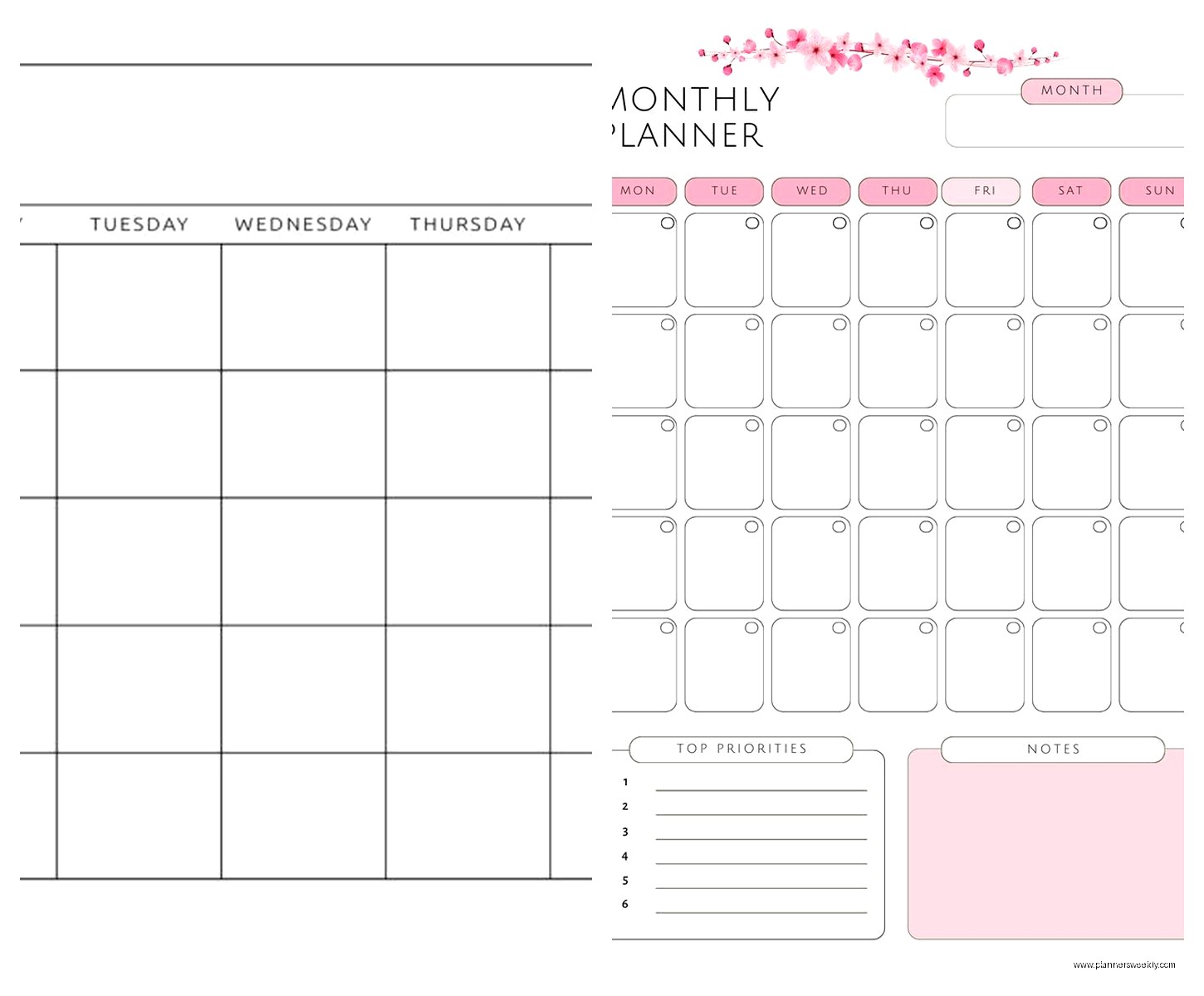
Downloaded about fifteen different templates to test. The minimalist ones worked best for actual planning because there’s less visual clutter. The really decorated ones with florals and textures everywhere looked amazing but I couldn’t focus on my actual schedule.
Best Canva Templates I Found
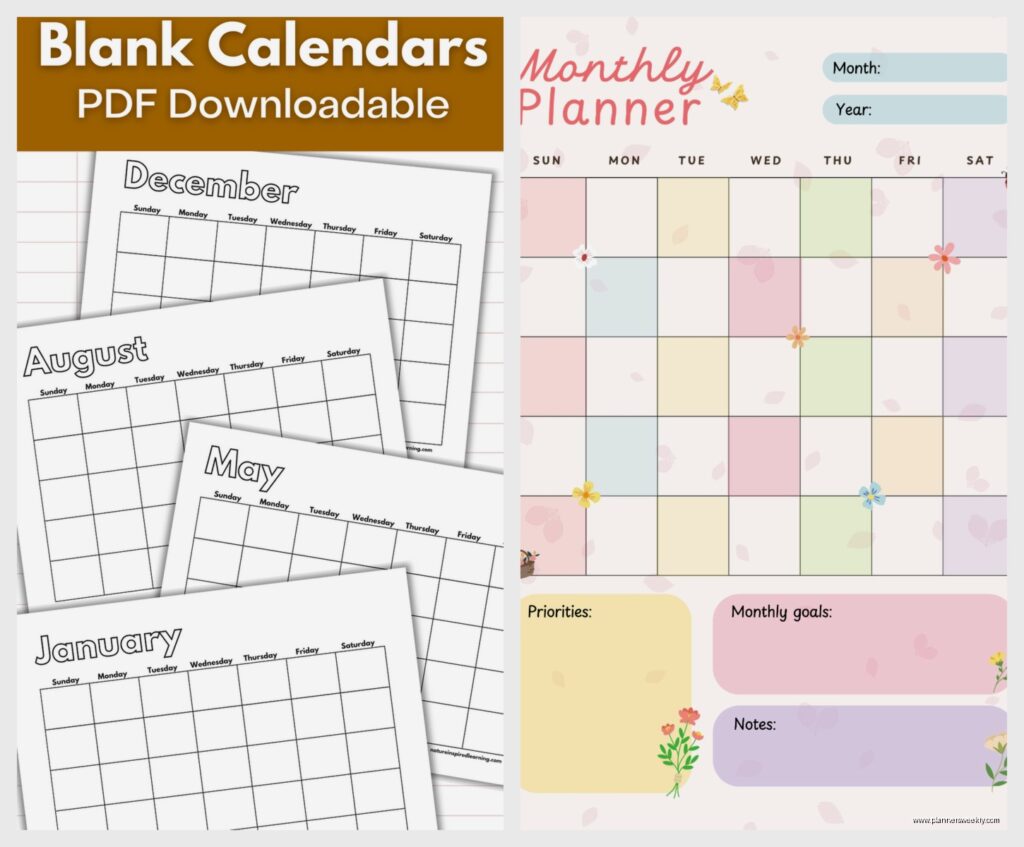
There’s this one called “Simple Monthly Planner” that’s just a clean grid with pastel colors. You can duplicate the page twelve times and boom, you have a year. I customized it by adding a goals section at the top and a reflection section at the bottom.
Another good one is the “Monthly Goals Planner” which combines calendar view with goal tracking. My client who’s a freelance designer uses this one and she prints it out each month, fills it in with pen, then takes a photo to keep digital backup. Whatever works right?
Wait I forgot to mention, you gotta download these as PDFs if you want to print them. PNG works too but PDF keeps the quality better. Under the download button just select PDF Print for best results.
Microsoft Word and Excel Templates
Okay so funny story, I avoided Microsoft templates for years because I assumed they’d be ugly corporate-looking things. Turns out they’ve updated their template library and there’s actually some decent options now.
Word templates are better if you want more text space. I found this “Monthly Planner with Notes” template that gives you a small calendar at the top and then lined pages below for detailed planning. It’s perfect for people who need to write out full schedules or meeting notes.
Excel works similar to Google Sheets but with different formatting options. The formulas are a bit more robust if you’re into that. I built a custom template that auto-calculates how many tasks I completed each month and honestly seeing that percentage go up is weirdly motivating.
Customizing Microsoft Templates
The interface is less intuitive than Google Sheets in my opinion but you get more control over printing. You can set exact margins and page breaks which matters if you’re putting these in a binder.
- Use the Table Design tab to change styling fast
- Insert text boxes for flexible layout changes
- Save as template file (.dotx for Word, .xltx for Excel) so you can reuse your customization
- Use Page Layout view to see how it’ll actually print
Notion Templates Are Great But Complicated
So Notion has this whole template gallery and people share their monthly planner setups. I tested like eight different ones and they range from super simple to absolutely overwhelming with databases and relations and linked pages.
The “Monthly Planner Dashboard” template is probably the best starting point. It’s got a calendar database, task list, and notes section all connected. You can toggle between calendar view, table view, and timeline view depending on how your brain works that day.
What I love about Notion is that everything links together. You can mention a task in your monthly plan and it automatically shows up in your master task database. But also this is what makes it complicated and I’ve had clients who gave up after like two days because it felt like too much work.
My approach was to start with a basic template and add features slowly. First month just use the calendar. Second month maybe add the task database. By month three you understand how it works and can customize properly.
Notion Customization Tips
The learning curve is real but once you get it you can build basically anything. I made a monthly planner that tracks my habits, links to project pages, shows upcoming deadlines, and has a section for monthly reflections all on one page.
You can embed other stuff too. I embedded my Google Calendar so I see both my Notion tasks and my actual appointments in one view. Game changer honestly.
Printable PDF Templates From Template Websites
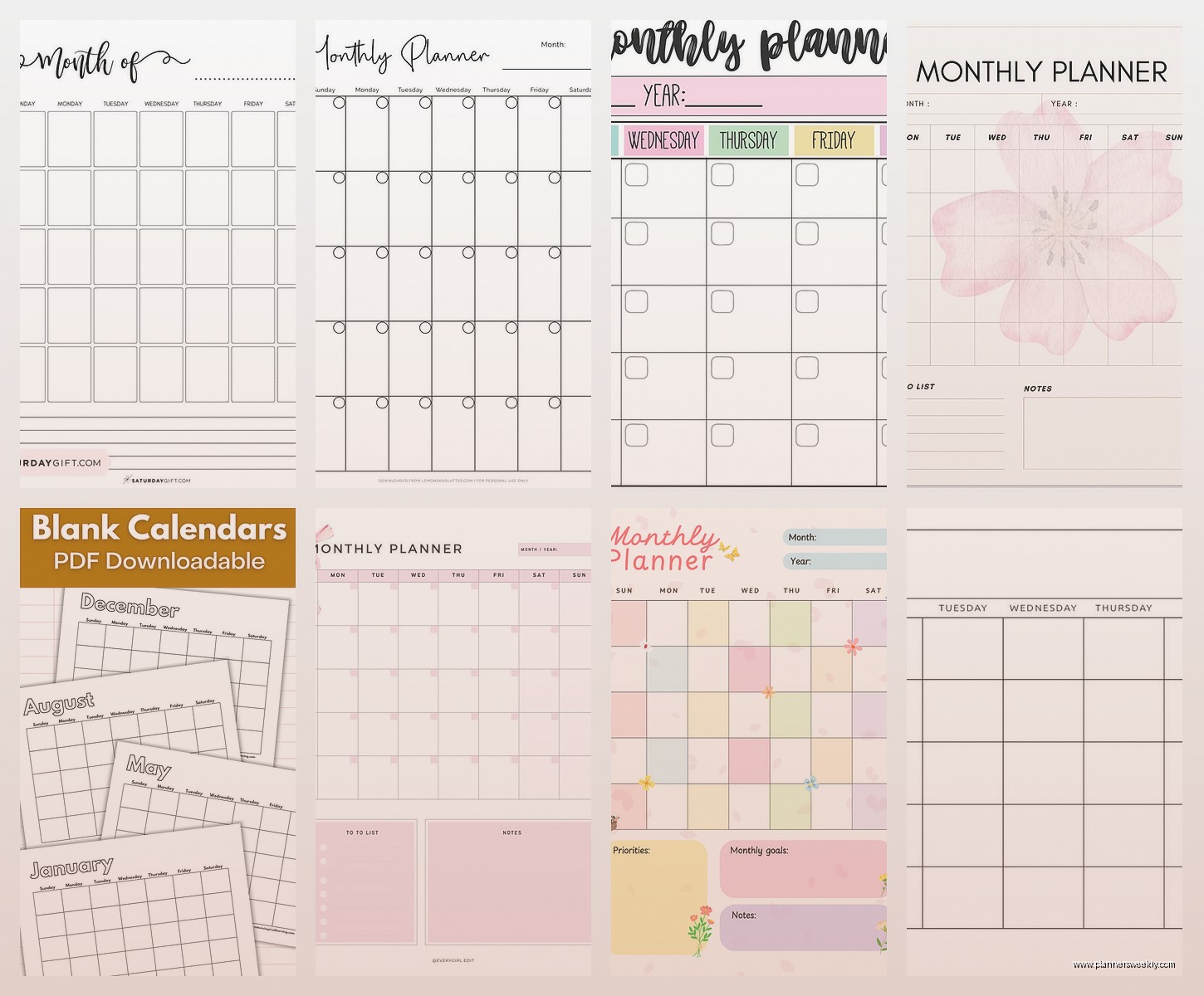
There’s sites like Template.net, Vertex42, and Printabulls that have free downloadable monthly planners. These are usually PDF files you download and either fill in digitally or print and handwrite.
I tested a bunch from Vertex42 because they have good reviews. Their monthly planner is Excel-based which you can then save as PDF. It’s got space for goals, a full month calendar, and a notes section. Pretty standard but it works.
The ones from Template.net are more design-focused. Lots of themed options like floral, geometric, minimalist, academic. If you’re printing these out quality matters. Make sure you download the highest resolution available and print on decent paper. I learned this the hard way when my first batch came out all pixelated and sad-looking.
What to Look For in Printable Templates
- File format – PDF is most universal, some offer Word or Pages versions
- Page size – most are US Letter but check if you need A4
- Editable vs static – some PDFs let you type in them, others are print-only
- Resolution – at least 300 DPI if you’re printing
- License terms – most free templates are for personal use only
Building Your Own Template From Scratch
This sounds intimidating but it’s actually not that hard and then you get exactly what you want. I made my own in Google Sheets one afternoon when my cat kept walking across my keyboard and I decided to just work around her.
Start with a basic table. Seven columns for days of the week, however many rows you need for weeks in the month. Add a header row with the month and year. That’s your foundation.
Then add whatever sections you actually use. For me that’s a priorities list at the top, the calendar grid in the middle, habit tracker on the right side, and notes section at the bottom. I also added a small box for tracking my mood each day because one of my clients does this and it seemed useful.
Elements to Consider Adding
- Monthly goals or priorities section
- Habit tracker grid
- Important dates or deadlines list
- Budget tracker if you’re into that
- Meal planning section
- Notes or reflection space
- Next month preview
- Color-coding legend
The thing about building your own is you can iterate. Use it for a month, see what’s missing or what you never use, adjust for next month. My template now looks nothing like version one and that’s fine.
Digital vs Printable Considerations
Okay so this is important because it affects which template you should even download. Digital planners work great if you’re always on your devices. I use a digital monthly planner that syncs across my phone, tablet, and laptop. Can’t lose it, can access it anywhere, can search through old months easily.
But there’s something about writing things down physically that helps some people remember better. I have clients who swear by printed planners even though they’re tech-savvy. The act of writing activates different brain stuff apparently.
I actually use both now. Digital for the master schedule and quick updates, printed monthly overview that sits on my desk for visual reference. Sounds redundant but it works for me.
Digital Planner Setup
If you’re going digital, think about what devices you’ll use. Phone-only? Then simple is better. Laptop and tablet? You can handle more complex layouts. I optimized my Google Sheets template for both desktop and mobile viewing which meant keeping the layout relatively narrow.
Cloud storage is key. Google Drive, Dropbox, OneDrive, whatever. Just make sure your template is somewhere you can access from anywhere. I learned this when my laptop died and I almost lost a month of planning because I’d saved everything locally like an idiot.
Printable Planner Setup
For printables, invest in a three-hole punch and a binder. Or get templates that are already formatted for common planner sizes like Happy Planner or Filofax if you have one of those systems.
I print mine at the end of each month for the upcoming month. Some people print the whole year at once but I like being able to adjust my template as I go. Also uses less paper upfront.
Apps That Generate Monthly Planners
Wait I should mention there’s also apps specifically for generating planner templates. Planner Perfect and Printable Planner Creator let you customize layouts and then download as PDF.
Tested Planner Perfect last week and it’s pretty intuitive. You pick a base layout, choose what sections to include, customize colors and fonts, then generate. Takes like five minutes. The free version has ads and limited fonts but it works fine.
These apps are good if you want custom but don’t wanna build from scratch. Middle ground option basically.
Customization Ideas That Actually Help
So beyond the basic calendar grid, here’s what I’ve found actually improves monthly planning based on testing with like forty different clients:
Color coding by category. Work is blue, personal is green, appointments are red, whatever system makes sense to you. Sounds simple but visually scanning a month becomes so much faster.
A priorities section separate from the calendar. Just three to five things you absolutely need to accomplish that month. Keeps you focused when the calendar gets crowded.
Carry-over task space. Things that didn’t get done last month that need to move forward. I put this at the top so I see it first.
Monthly review questions at the bottom. What went well, what didn’t, what to adjust. Takes two minutes at month end but the insights are worth it.
Common Mistakes People Make
Okay so from watching people use these templates, here’s what trips them up. First is making it too complicated. You don’t need seventeen different tracking sections. Start simple, add as needed.
Second is not actually using it consistently. A template only works if you look at it regularly. I check mine every morning with coffee and every evening before I stop working. That’s it but it’s consistent.
Third is picking templates based on how pretty they are instead of how functional. I’ve done this so many times. Download a gorgeous template, use it once, realize it doesn’t fit my workflow, abandon it. Now I test functionality first, aesthetics second.
Also people forget to back up their planners if they’re digital. Cloud storage friends. Use it.
My Current Setup
Since you’re probably wondering what I actually use after all this testing, it’s a custom Google Sheets template I built with elements stolen from like five different templates I tried. Has a monthly calendar grid, priorities box, habit tracker, and notes section. Color-coded by category. Shared with my virtual assistant so we’re both updated.
I also print a simplified version each month that’s just the calendar grid with important dates highlighted. Goes on my desk next to my monitor. Low-tech backup that I can glance at without opening tabs.
Took me probably three months of experimenting to land on this system and it’ll probably evolve again. That’s kinda the point though, finding what works for you right now and being willing to adjust.
