
Digital Productivity, Online planners, Planners
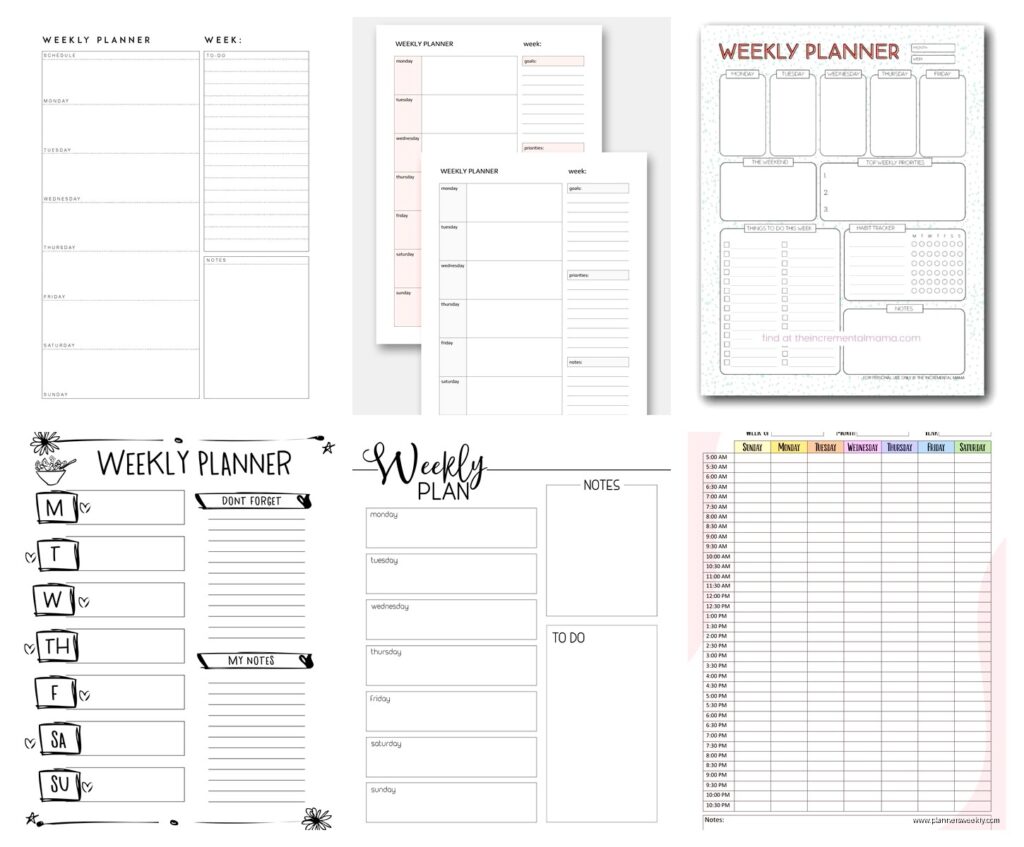
Free Weekly Planner: Best Templates & Online Tools
Apr
Okay so I’ve been testing weekly planners for like three months now because honestly my old system was a disaster and I had this client who kept asking what I use and I was too embarrassed to say “sticky notes everywhere and panic.”
Google Calendar’s Weekly View Is Actually Pretty Decent
Starting with the obvious one because you probably already have it. Google Calendar‘s week view is genuinely useful if you just need time blocking without all the fancy stuff. I’ve been using it for client appointments and it syncs across everything which is huge when you’re running between your phone and laptop all day.
The thing nobody tells you is you can color-code by calendar type, not just individual events. So I have one calendar for client work (blue), one for content creation (green), and one for personal stuff (that ugly purple I can’t figure out how to change). Makes the week view actually scannable instead of just a blob of commitments.
But here’s where it falls apart – there’s no real task management. You can add tasks in Google Tasks but they don’t integrate well with the calendar view and honestly who wants to switch between two different Google things constantly.
Notion Weekly Templates That Don’t Suck
Wait I need to talk about Notion because I resisted it for SO long thinking it was just for tech bros and then I actually tried their weekly planner templates last month. The free templates in their gallery are genuinely good, specifically the one called “Weekly Agenda” which sounds boring but it’s not.
You get this setup where your tasks, appointments, and notes all live on one page. The learning curve is real though – I spent like two hours just figuring out how to duplicate the template for the next week without breaking everything. My cat knocked over my coffee during this process which did not help my mood.
The toggle lists are actually genius for weekly planning. You can hide completed tasks but they’re still there if you need to reference what you did. I use this for tracking client sessions because sometimes someone will say “wait what did we decide last Tuesday” and I can actually find it.
Downsides: it’s slow if you have crappy internet, and the mobile app is kinda clunky for quick entry. Like if you’re in line at the grocery store and remember something, typing it into Notion takes more taps than it should.
The templates worth grabbing
- Weekly Agenda – clean, simple, has everything you need
- Student Dashboard – don’t let the name fool you, works great for project-based work
- Life Wiki – this is overkill for most people but if you want your weekly planner connected to literally everything else in your life, this is it
Printable PDF Templates If You’re Old School
Okay so funny story, I thought I was completely digital until I tried going back to paper for one week just to see. Turns out writing things down actually helps me remember them better which is annoying because I’d rather just type everything.
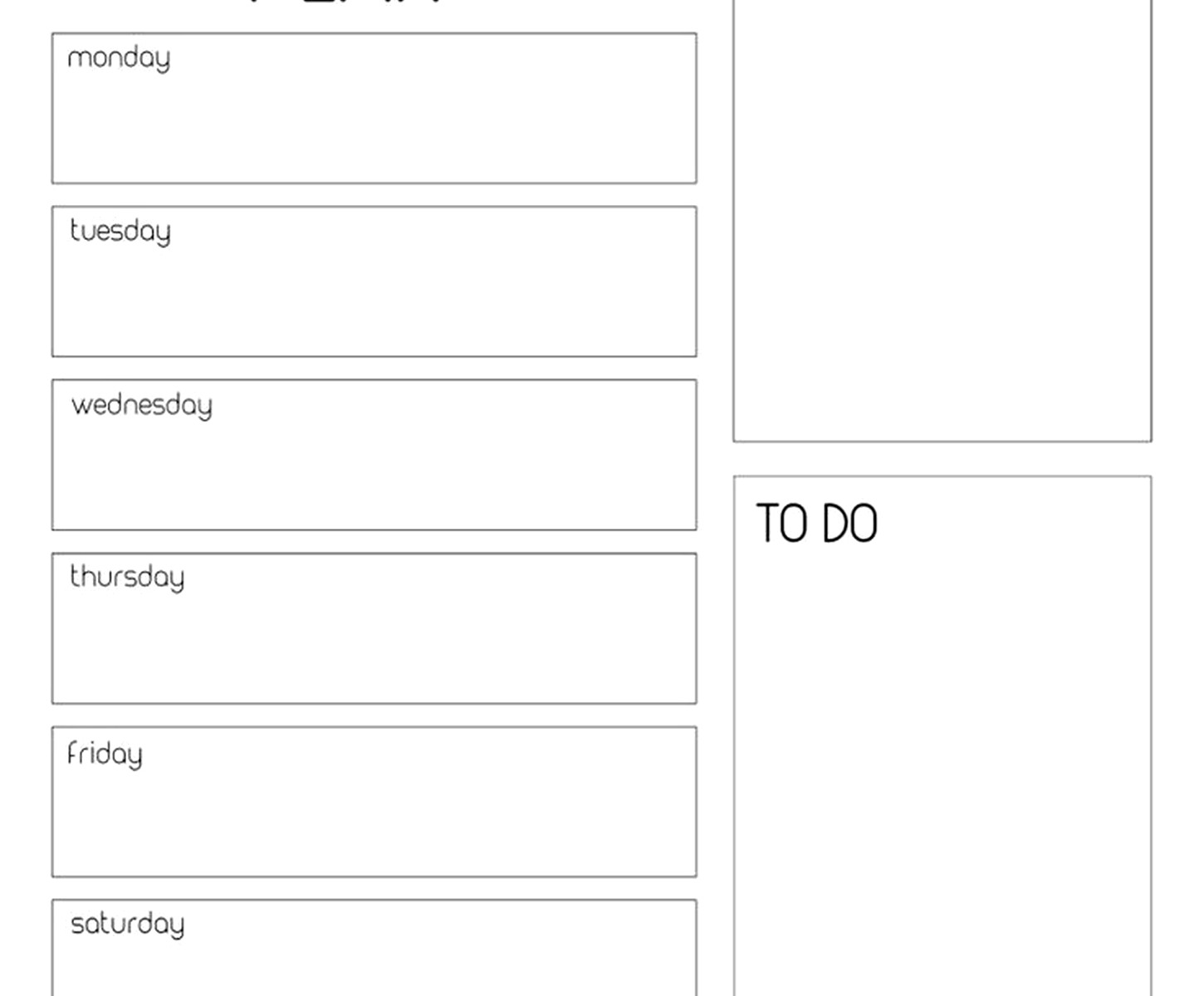
Canva has free weekly planner templates that you can customize and print. I use the minimalist ones because the cutesy ones with flowers and motivational quotes make me irrationally angry. You can change the colors, add your own headers, whatever.
The best part is you can save your customized version and just reprint it every week. I have mine set up with time blocks from 7am to 7pm because I do not work past 7pm anymore, that was a boundary I set after burning out last year.
Template.net also has a bunch but honestly the free ones are pretty limited. You can download them without signing up though which is nice. I grabbed their hourly weekly planner when I was trying to track where my time was actually going – turned out I was spending like six hours a week just on email which was horrifying.
Todoist’s Weekly Planning Feature
This is gonna sound weird but Todoist isn’t technically a weekly planner, it’s a task manager, but the way I use it basically turns it into one. The free version lets you create projects and set due dates, and if you look at the “Next 7 Days” view, boom, you’ve got a weekly planner.
I have it set up with projects for different areas – Client Work, Content, Admin Stuff, Personal. Then I just assign tasks to days throughout the week. The recurring tasks feature is clutch for things like “send newsletter” every Wednesday or “review finances” every Friday.
What I like is the natural language input. You can type “client call Tuesday 2pm” and it figures out what you mean. Works like 85% of the time which is good enough honestly.
The free version limits you to 5 projects which sounds like enough until you realize you need separate projects for different clients or different types of content. I hit that limit in week two. Haven’t upgraded yet because I’m stubborn but I probably will.
Trello Board Method
Oh and another thing – Trello’s free version works surprisingly well as a weekly planner if you set it up right. I learned this from another productivity coach who uses it for everything and I was skeptical but it actually makes sense.
Create a board called Weekly Planning. Make seven lists – Monday through Sunday. Add cards for tasks and appointments. Drag them around as things change. That’s it.
The benefit over other systems is the visual drag-and-drop thing. When Wednesday gets overwhelming you can just move stuff to Thursday and it feels satisfying in a way that retyping dates doesn’t. Also you can add checklists within cards so like if “prepare workshop” is the card, you can have sub-tasks listed inside it.
I use labels for priority – red for urgent, yellow for important, green for whenever. The free version gives you unlimited cards and lists which is all you need for this.
Downside is there’s no calendar view in the free version so you can’t see your week alongside actual calendar appointments unless you have those in another app. Which I do because I’m apparently incapable of consolidating my tools.
Microsoft To Do Weekly Planner
If you’re already in the Microsoft ecosystem this one’s actually solid and nobody talks about it. It’s free, syncs with Outlook if you use that, and has a “My Day” feature that I use as a daily subset of my weekly plan.
Every Monday I sit down and plan out the week in different lists – one for each day basically. Then each morning I pull tasks from that day’s list into “My Day” which is like your focused list for just today. Helps when your weekly plan is overwhelming and you need to just see today’s stuff.
The steps feature lets you break down tasks which is helpful for bigger projects. Like “write blog post” becomes steps: research, outline, draft, edit, format, publish. Checking off each step feels good even when the whole task isn’t done yet.
ClickUp Free Version
Wait I forgot to mention ClickUp even though I literally tested it for two weeks straight last month. It’s almost too powerful for just weekly planning but the free version includes calendar view and task management and it’s all in one place.
I set up a workspace with a list called “This Week” and just add tasks with due dates. The calendar view shows everything spread across the week. You can switch between list view, board view (like Trello), and calendar view which is nice when your brain needs different perspectives.
The free version limits you to 100MB storage and some of the fancier features are locked but for weekly planning you don’t need any of that. I’ve been using it for three clients and haven’t hit the storage limit.
Learning curve is steeper than Google Calendar or Todoist. I watched probably five YouTube tutorials before I understood how spaces and folders and lists all work together. But once you get it, it’s powerful.
Plain Old Google Sheets Template
Okay this is low-tech but sometimes that’s what works. I have a Google Sheets template that’s literally just a table – days of the week across the top, time blocks down the side, type in what you’re doing in each cell.
Why would anyone use this when fancier options exist? Because it’s fast, it never crashes, you can access it anywhere, and you can customize it exactly how you want without learning a new system. I shared it with a client who’s not tech-savvy at all and she actually uses it consistently which never happened with the apps I suggested.
I have mine set up with conditional formatting so cells turn green when I type “done” in them. Took me ten minutes to set up and now I get little hits of dopamine throughout the week.
You can also use it for time tracking if you note start and end times. I did this for a week to see where my time was going and discovered I spend way too long on social media “for work” which was a wake-up call.
Any.do Weekly Planning Mode
This app has a specific “Plan Your Week” feature that walks you through your tasks every Monday morning. It’s kinda hand-holdy but honestly sometimes I need that. Shows you all your tasks and asks you to assign them to specific days.
The free version includes this feature plus calendar integration plus the ability to share lists. I use the shared lists feature with my assistant – we have a shared weekly plan so she knows what I’m working on and can schedule around it.
The interface is cleaner than Todoist in my opinion. Less overwhelming when you open it. But it’s also less powerful so if you need complex project management this won’t cut it.
One feature I actually use – the “Someday” list. Tasks you wanna do but not this week go there. Keeps your weekly view focused without losing track of ideas. I have like forty things in my Someday list which probably means I need to just delete half of them but whatever.
What Actually Works For Me Right Now
Real talk – I’m currently using Google Calendar for time-blocked appointments, Notion for project notes and weekly reviews, and Todoist for daily tasks. Is this too many tools? Yes. Am I gonna consolidate? Probably not because each one does its specific thing well and I’ve tried combining everything into one system multiple times and it always falls apart.
If you’re just starting out though, pick one. Seriously just pick one and stick with it for a month. I wasted so much time switching between systems trying to find the perfect one when really I just needed to commit to something and build the habit.
Google Calendar if you’re mostly scheduling appointments and time blocks. Notion if you like customization and don’t mind a learning curve. Todoist if tasks are your main thing. Trello if you’re visual and like dragging stuff around.
The printable templates are good if you genuinely focus better on paper and you’re not constantly mobile. I thought I was a paper person until I left my planner at home three days in a row and missed stuff because it wasn’t in my phone.
Actually Setting Up Your Weekly Planning Routine
Whatever tool you pick, you gotta actually use it which sounds obvious but I’ve downloaded probably twenty planning apps that I used for three days and abandoned. What works for me is planning time – Sunday evenings around 7pm, I sit down with tea and plan the next week.
I look at my calendar first to see what’s already scheduled. Then I list out projects that need to move forward. Then I assign specific tasks to specific days based on energy levels – creative work early week, admin stuff Friday afternoon when my brain is mush anyway.
The weekly review is just as important. Friday afternoons I look at what got done, what didn’t, what’s rolling over to next week. Takes maybe fifteen minutes but it keeps me from starting each week blind.
Also gonna mention – none of these tools matter if you overcommit. I learned this the hard way by planning sixty hours of work into a forty-hour week and then feeling like a failure when I didn’t finish everything. Now I plan for like thirty hours of actual work and leave buffer time for the random stuff that always comes up.
