Digital Productivity, Online planners, Planners
Free Weekly Schedule Maker: Best Online Tools
May
Okay so I’ve been testing like seven different free weekly schedule makers because honestly my paper planner system was falling apart and I needed something I could access from my phone when I’m out. Here’s what actually works.
Google Calendar but Make It Weekly
I know this sounds boring but hear me out. Google Calendar has this week view that most people don’t use properly. You can create multiple calendars for different areas of your life and color-code them, which sounds basic but it’s actually really effective when you’re staring at your week on Monday morning trying to figure out where you put that dentist appointment.
The thing is you gotta set it to default to week view instead of month view. Go into settings and change it because otherwise you’ll keep opening it to that useless month grid that doesn’t show you any detail. I spent like three weeks being annoyed at Google Calendar before I realized I was just using it wrong.
What I actually like is you can set repeating events with exceptions. So if you have a standing meeting every Tuesday but not on the third Tuesday of the month, you can set that up. My old paper system required me to remember to skip weeks and I literally never remembered.
Notion Calendar Integration Thing
Wait I should mention Notion’s calendar database situation. It’s not technically a schedule maker but you can build one and honestly once you get past the learning curve it’s really flexible. I made a weekly template that has my time blocks on the left and then columns for each day.
The problem is it took me like two hours to set up and my cat knocked over my coffee right in the middle of figuring out the database relations so I had to start over. But now that it’s done I can see my whole week, add tasks that aren’t time-specific, and link things to other pages in my Notion workspace.
It’s free for personal use which is nice. The mobile app is kinda clunky though. Like if you’re gonna be updating your schedule on your phone a lot maybe skip this one.
How I Actually Set It Up
Create a database, set the view to calendar, then duplicate it and change the second view to table grouped by day of the week. That gives you the weekly layout. Add properties for time, category, priority, whatever you track. I have one for energy level required because scheduling hard stuff when I’m tired is a recipe for disaster.
Any.do Has This Weekly Planning Feature
So Any.do is technically a task manager but they have this “Plan My Day” feature that pops up every morning and asks you to schedule your tasks. It’s not quite the same as a traditional weekly schedule maker but it works if you’re someone who needs that daily prompt.
I tested this for about three weeks and the thing I noticed is it’s really good for people who think in terms of tasks rather than appointments. Like if your week is mostly “things I need to do” rather than “places I need to be” this might click better for you than a traditional calendar.
The free version is pretty robust. You get the calendar view, repeating tasks, and the daily planning thing. They try to upsell you to premium but honestly unless you need location reminders you probably don’t need it.
Canva Weekly Schedule Templates
Okay this is gonna sound weird but if you want something visual that you can print or use as a desktop background, Canva has free weekly schedule templates that are actually really nice. I use these for clients who are visual thinners and need to see their week laid out in a pretty format.
You customize them in the browser, add your recurring commitments, and then you can either print them or save them as a PNG. I have one as my laptop wallpaper right now and I just glance at it to remember what’s happening each day.
The downside is it’s not dynamic. You gotta remake it each week or at least update it. But if you have a pretty consistent schedule with just a few variables this works great. Plus it’s satisfying to design? Like I spent way too long picking fonts last Sunday but now I have a template I can reuse.
Best Templates to Start With
Search “weekly schedule” in Canva and filter by free. The minimalist ones are easier to customize than the really decorated ones. I like the ones that have time slots on the left from like 6am to 10pm because then you can block out your actual schedule not just list tasks.
TimeBloc Is Specifically for Time Blocking
Oh and another thing, if you’re into time blocking there’s this app called TimeBloc that’s free and really straightforward. You just drag blocks onto your weekly calendar and assign them colors and labels. That’s literally it.
I found this one because a client mentioned it and I was skeptical because the website looks kinda basic but actually the simplicity is the point. You’re not fighting with a million features. You just block your time and move on with your life.
It syncs across devices which is huge. I block out my week on my laptop Sunday evening and then I can see it on my phone throughout the week. The free version limits you to I think two calendars but for most people that’s enough.
Structured App for iPhone Users
Wait I forgot to mention Structured. If you have an iPhone this app is beautiful and the free version is totally usable. It’s designed for daily planning but you can swipe between days to see your whole week. Very visual, very satisfying to use.
The way it works is you add tasks and appointments with start times and durations, and it shows you a timeline of your day. You can set recurring items for your regular weekly commitments. The interface is really intuitive, like I didn’t need to watch any tutorials I just started using it.
My only complaint is it’s iOS only so if you switch phones or use Android you’re out of luck. Also the free version has ads but they’re not intrusive, just like a banner at the bottom.
Microsoft To Do Weekly View
Microsoft To Do added a calendar integration recently and honestly it’s pretty solid for a free tool. If you already use Outlook calendar it pulls those appointments in and you can see them alongside your tasks in a weekly view.
The thing that surprised me is how clean it is. Microsoft stuff used to be so cluttered but this is actually pleasant to look at. You can create different lists for work, personal, errands, whatever, and then see tasks from all lists in the calendar view.
I’ve been using this for like a month now and the main advantage is it’s really good at handling both scheduled appointments and floating tasks that just need to happen sometime this week. You can drag tasks onto specific days without giving them a specific time.
The Paper Hybrid Approach
Okay so funny story, after testing all these digital tools I actually went back to using a paper weekly layout but I use Google Calendar for appointments and just transfer the important stuff to paper each Sunday. I know that sounds backwards but hear me out.
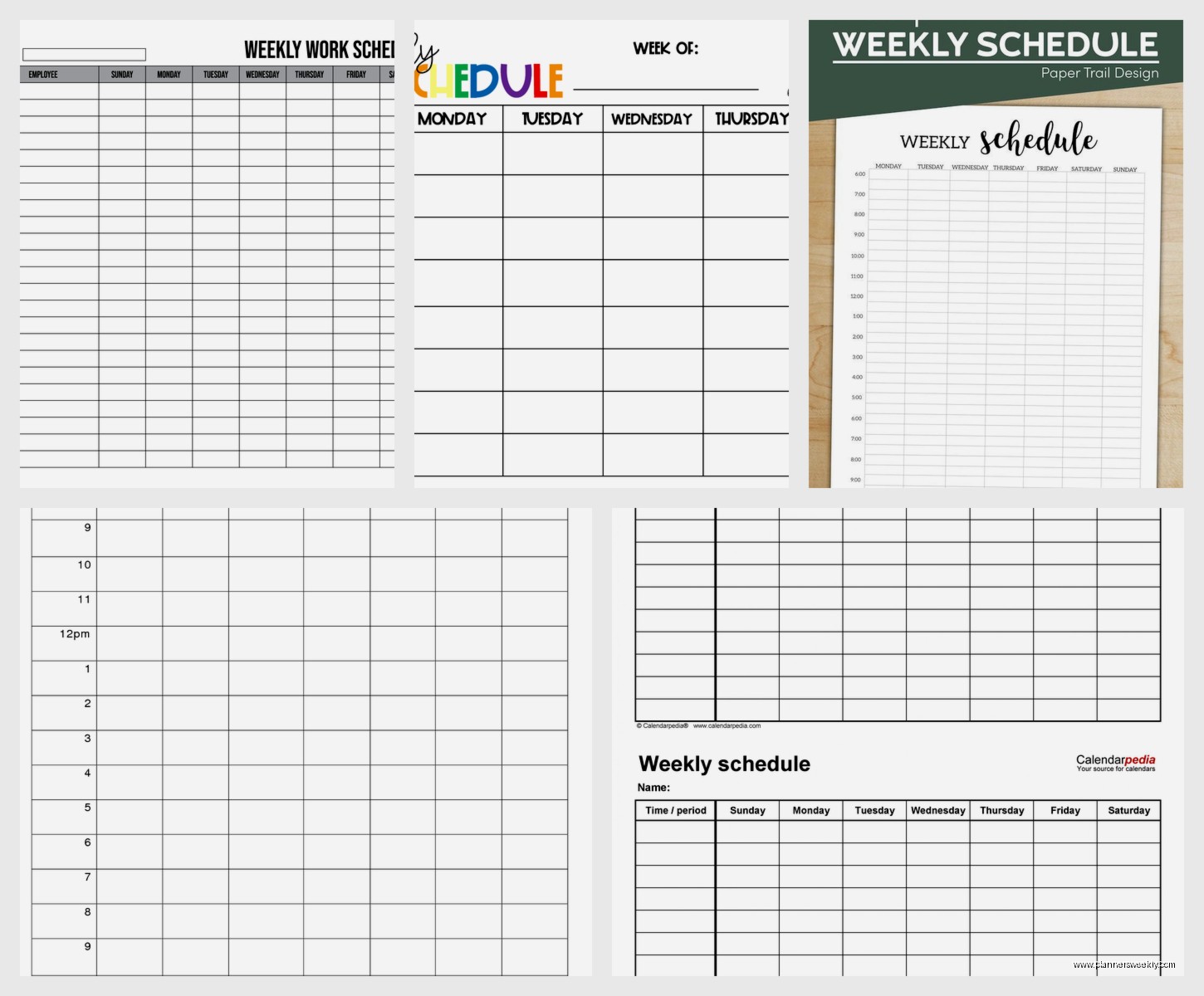
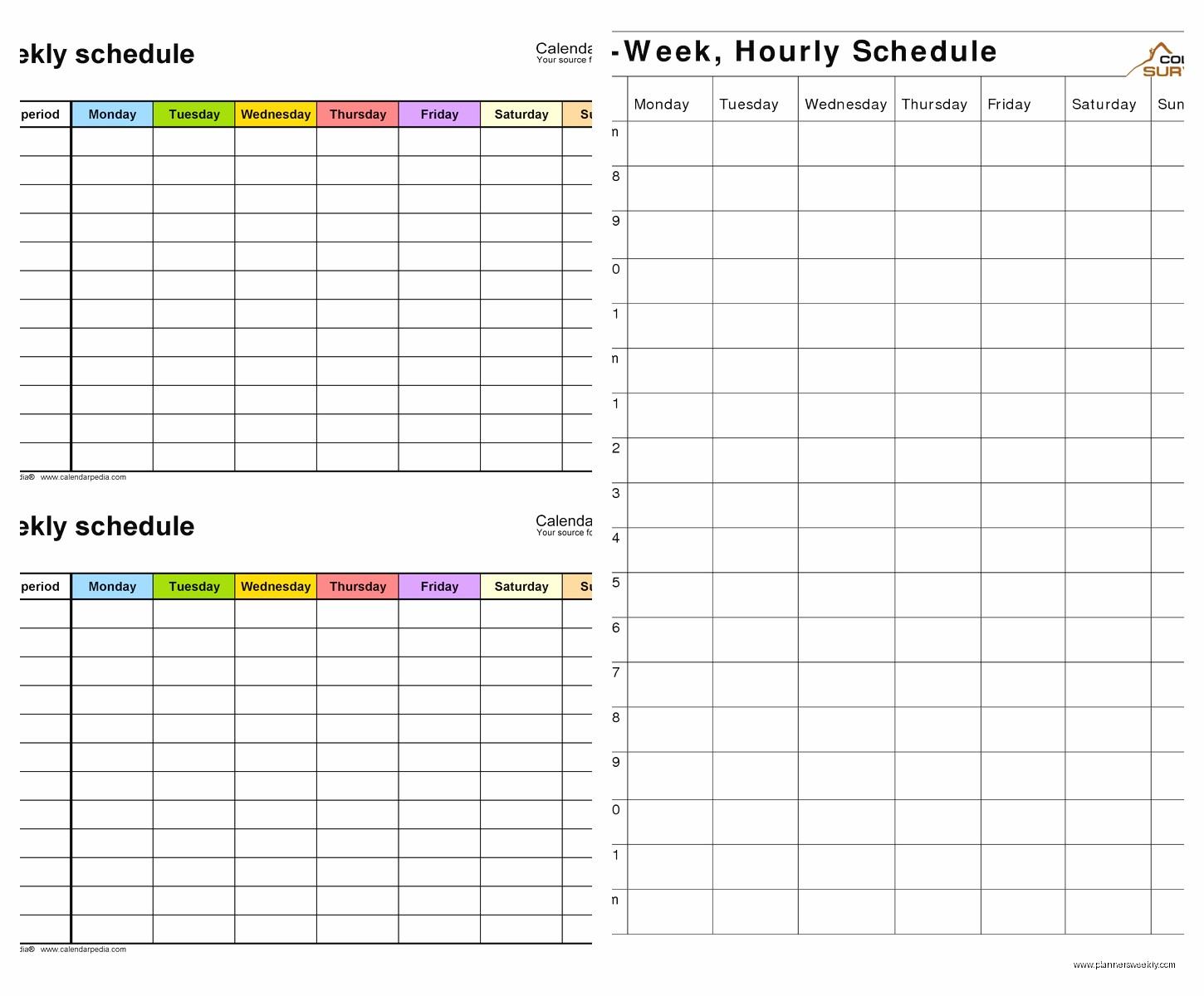
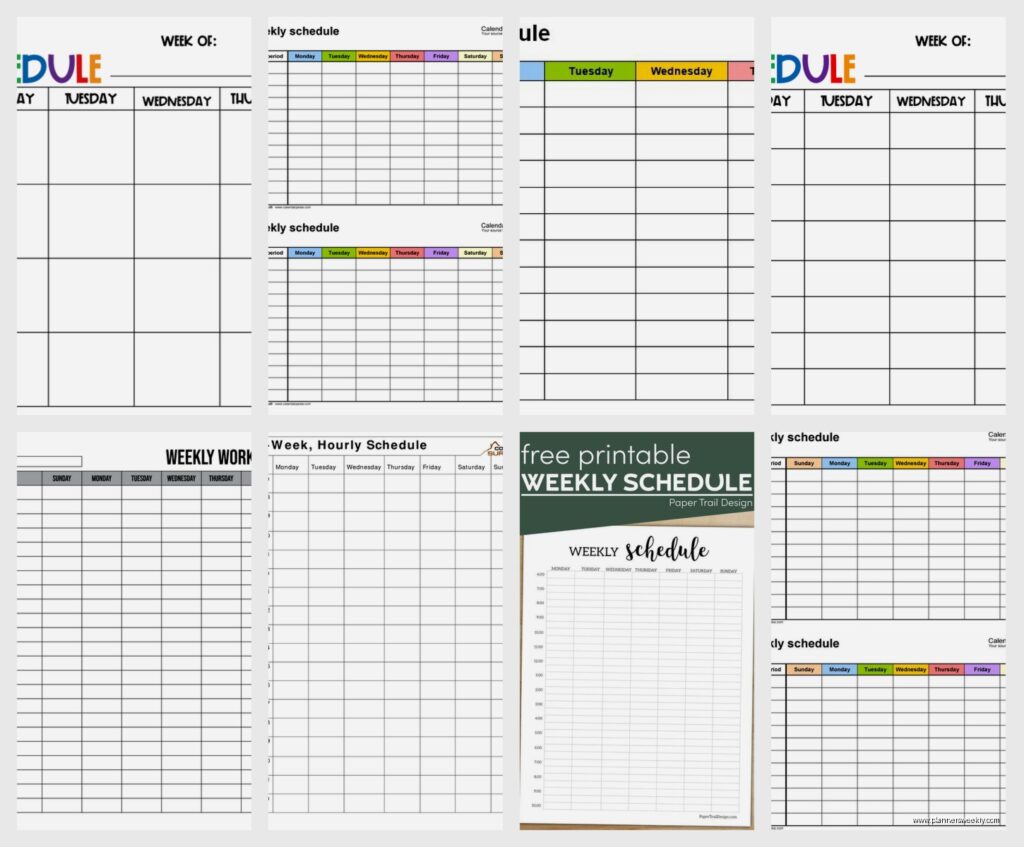
I print a blank weekly schedule template from Canva, fill it in by hand with my fixed commitments from Google Calendar, and then add my flexible tasks and goals in pencil so I can adjust. This gives me the digital reliability for appointments and the flexibility of paper for everything else.
Sometimes the best system isn’t the most high-tech one. It’s whatever you’ll actually use consistently. I spent three years trying to go fully digital and I was missing stuff constantly because I wasn’t opening the apps. Having a paper version on my desk that I see all day works better for my brain.
Trello Calendar Power-Up
Oh I almost forgot about Trello. If you enable the Calendar Power-Up on a free Trello board you can create cards with due dates and see them in a calendar view. Not exactly a traditional weekly schedule maker but it works surprisingly well.
I have a board called “This Week” with lists for each day Monday through Sunday. Cards are things I need to do, and I can drag them between days if stuff changes. The calendar view shows everything with dates so I can see the week at a glance.
This is really good if you’re already using Trello for project management. Keeps everything in one place. The free version of Trello is generous, you get unlimited cards and boards, just limited Power-Ups per board but the calendar is probably the only one you need for this purpose.
What Actually Matters When Choosing
After testing all these the real question is what you’re actually scheduling. If your week is mostly appointments with specific times, you need a real calendar app. Google Calendar or Outlook or even Apple Calendar is gonna work better than task-manager-calendar hybrids.
If your week is mostly tasks that need to happen but don’t have specific times, something like Any.do or Microsoft To Do with calendar views works better. You can see your week without committing everything to a specific time slot.
And if you need something visual that you can see without opening an app, either print templates or desktop wallpaper schedules or a physical planner is probably your answer. I know we’re talking about online tools but honestly sometimes you need that passive visual reminder.
The Setup I’m Using Right Now
Currently I’m using Google Calendar for appointments and time-specific stuff, Microsoft To Do for tasks, and I print a Canva weekly template every Sunday to have on my desk. This feels like overkill when I type it out but it’s actually working better than any single tool did alone.
The Google Calendar is the source of truth for “I need to be somewhere at this time.” Microsoft To Do handles my task list and shows me calendar appointments so I can plan tasks around them. The printed weekly schedule is just a quick reference that sits next to my laptop.
I tried doing everything in one tool for like six months and it never stuck. Apparently my brain needs different tools for different types of commitments and that’s okay.
Free vs Paid Consideration
All of these have paid versions that add features but honestly the free versions are totally usable for most people. The main things you get with paid are usually stuff like more integrations, team features, or removing ads. Unless you’re scheduling for a team or need specific integrations you probably don’t need to pay.
I’ve been productivity coaching for years now and most people who buy premium versions of schedule apps don’t use the premium features. They just assume they need them. Start with free, use it for at least a month, and only upgrade if you’re actually hitting limitations.
The best schedule maker is the one you’ll check every day. Doesn’t matter if it has fancy features if you never open it. Pick something simple that fits into your existing workflow rather than trying to change your whole system around a new tool.