
Digital Productivity, Online planners, Planners
Daily Calendar Template: Free Printable & Digital Options
Apr
Okay so I just spent like three weeks testing every daily calendar template I could find because honestly my old system was a disaster and I had a client ask me which one actually works, and here’s what I figured out.
The Google Calendar Template Situation
Google Calendar is probably where you’re gonna start because it’s free and you already have it. The daily view is actually pretty solid if you’re not trying to do anything fancy. What I do is set it to display just one day at a time, and then I screenshot it every morning and print it if I need a physical copy. Sounds ridiculous but it works when you just need something fast.
The thing nobody tells you though is that Google Calendar templates from their template gallery are kinda useless for daily planning. They’re more for like, event schedules and stuff. So what actually works better is creating your own template by blocking out your ideal day once, then just copying those blocks forward. I have mine set up with 30-minute increments from 6am to 9pm because apparently I’m delusional about when I actually wake up.
Making Google Calendar Actually Useful for Daily Planning
- Turn on Tasks integration so your to-do list sits right there in the sidebar
- Use different calendars for different life areas and color-code them
- Set up recurring “template” events for your routine stuff
- Enable the World Clock if you work with people in different time zones
The mobile app is honestly better than desktop for quick daily views. I was watching The Bear the other night and realized I check my phone calendar like every twenty minutes but barely open it on my laptop.
Printable PDF Templates That Don’t Suck
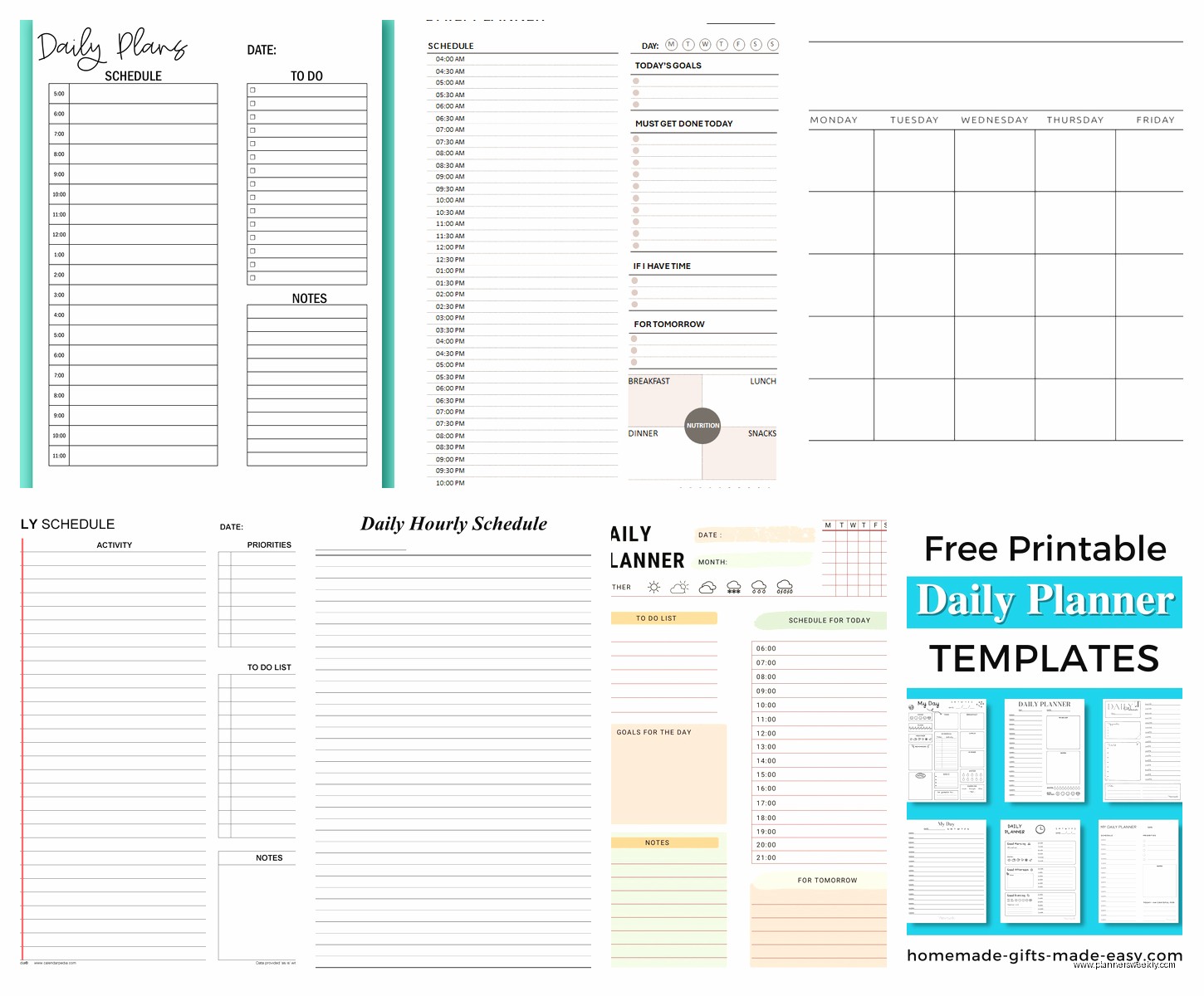
So Canva has free daily planner templates and this is where I spent way too much time. They have literally hundreds of them. The minimalist ones are usually the best because you can actually write on them without running out of space. I found this one called “Simple Daily Schedule” that’s just hourly blocks from 7am to 7pm with a notes section at the bottom.
What’s cool about Canva is you can customize before downloading. Like I added an extra section for “top 3 priorities” at the top because I kept forgetting what I was supposed to focus on. You can change colors too which sounds dumb but when you’re printing 30 copies for the month, having them not look depressing actually matters.
The download as PDF thing is free but print quality can be weird depending on your printer. I have this ancient HP printer and the margins were all wonky until I figured out you gotta select “fit to page” in the print dialog. Took me like five wasted sheets to figure that out.
Other Printable Sources I Actually Use
Vertex42 has Excel templates that you can convert to PDF. They’re super basic looking but functional. The daily schedule template there has 15-minute increments which is either perfect or complete overkill depending on your situation. I use it on days when I have back-to-back coaching calls and need to track everything precisely.
Oh and another thing, Template.net has both free and premium daily calendar templates. The free ones are fine honestly. I downloaded their “Daily Appointment Calendar” and it’s just a simple table format. Nothing fancy but you can print a whole month’s worth in like two minutes.
The Notion Daily Template Rabbit Hole
Okay so funny story, I fell into Notion templates at like 11pm one night and didn’t emerge until 2am. There are SO many daily calendar templates and most of them are free if you just duplicate them into your workspace.
The one I actually stuck with is called “Daily Dashboard” by some creator whose name I forget. It has sections for schedule, tasks, notes, and this habit tracker thing that I ignore half the time but it’s there. What makes it work is you can create a template button that generates a new daily page with all the formatting already done.
Setting Up Notion for Daily Planning
- Use a database with a date property so you can filter to today
- Create a gallery view to see your week at a glance
- Add a template button for quick daily page creation
- Link to other databases like your project tracker or client list
The learning curve is real though. My dog knocked over my coffee while I was trying to figure out database relations and I almost gave up entirely. But once you get it, having everything connected is pretty useful. Like I can link today’s calendar to specific client notes or project tasks.
Wait I forgot to mention, Notion works offline now which was a dealbreaker for me before. I travel sometimes and hotel wifi is always garbage, so being able to access my daily calendar without internet actually matters.
Microsoft Excel and Google Sheets Templates
If you’re a spreadsheet person, there are tons of daily calendar templates that are basically just formatted tables. I grabbed one from Google Sheets template gallery called “Daily Planner” and it’s honestly perfect for people who think in blocks.
What I like about spreadsheet templates is you can do math on them. Like I have one where I track time spent on different activities and it auto-calculates how many hours I worked that day. Super helpful when you’re trying to figure out where all your time actually goes.
You can also print these really easily. Just set your print area and you’re done. The formatting stays consistent unlike some PDF situations where things get weird.
Customizing Spreadsheet Templates
Add drop-down lists for recurring tasks so you just select instead of typing. I have mine set up with my common activities like “client calls,” “admin work,” “content creation” and it saves so much time.
Conditional formatting is your friend too. I have cells turn red if I schedule more than 8 hours of work in a day because I’m terrible at overcommitting. It’s a visual reminder that I’m being unrealistic again.
The Trello Daily Board Thing
This is gonna sound weird but I use Trello as a daily calendar sometimes. You create lists for each hour or time block, then cards are your tasks or appointments. It’s super visual and you can drag things around when your day inevitably falls apart.
There’s a Power-Up called Calendar that connects to your Google Calendar too. So you can see everything in one place. I had a client who swore by this method and I thought she was weird but then I tried it and it’s actually kinda brilliant for certain types of work.
The free version limits Power-Ups but the calendar one is included. You can also set due dates on cards and they’ll show up in the calendar view automatically.
Apple Calendar and Numbers Templates
If you’re in the Apple ecosystem, the built-in Calendar app is honestly underrated for daily planning. The day view is clean and you can color-code like crazy. What I do is export my day as a PDF using the print function, then I have a physical copy if I need it.
Numbers has daily planner templates too but they’re kinda hidden. You gotta search for “daily” in the template chooser. I found one that’s basically an hourly schedule with a notes section. Nothing groundbreaking but it works and syncs across devices through iCloud.
The Widget Situation
Apple’s calendar widgets are actually useful for seeing your day at a glance. I have the medium-sized one on my iPhone home screen showing my next three events. Saves me from opening the app constantly.
Printable Options from Blogs and Creators
Scattered Squirrel has free printable daily planners that are actually cute without being overly designed. I printed their hourly schedule template and used it for like two months straight. The paper size is standard letter so no weird formatting issues.
Oh and Passion Planner offers free PDF downloads of their daily layout. It has this “passion roadmap” section that I ignore but the actual scheduling part is solid. Time blocks from 5am to 12am which is excessive but you can just cross out what you don’t need.
I Am Busy Being Awesome has minimalist daily templates that are just clean lines and boxes. Perfect if you don’t want any distracting design elements. Just download, print, done.
Digital Apps with Built-In Daily Templates
Any.do has this daily planner view that’s super simple. Your tasks and calendar events show up together in a timeline format. The free version is totally usable, you don’t need premium unless you want themes or whatever.
Structured app for iOS is specifically designed for daily planning. You build your day by adding time blocks and tasks. It’s like $5 or something but there’s a free version with limited features. The interface is really intuitive, took me like two minutes to figure out.
The Todoist Calendar Integration
Todoist connects to Google Calendar now and shows your tasks alongside events. I use this every single day. You can drag tasks onto specific times and they become scheduled. It’s not exactly a template situation but it functions like a daily calendar that updates automatically.
The free tier lets you connect one calendar which is usually enough. I have my main Google Calendar synced and that covers like 90% of my scheduling needs.
Creating Your Own Template From Scratch
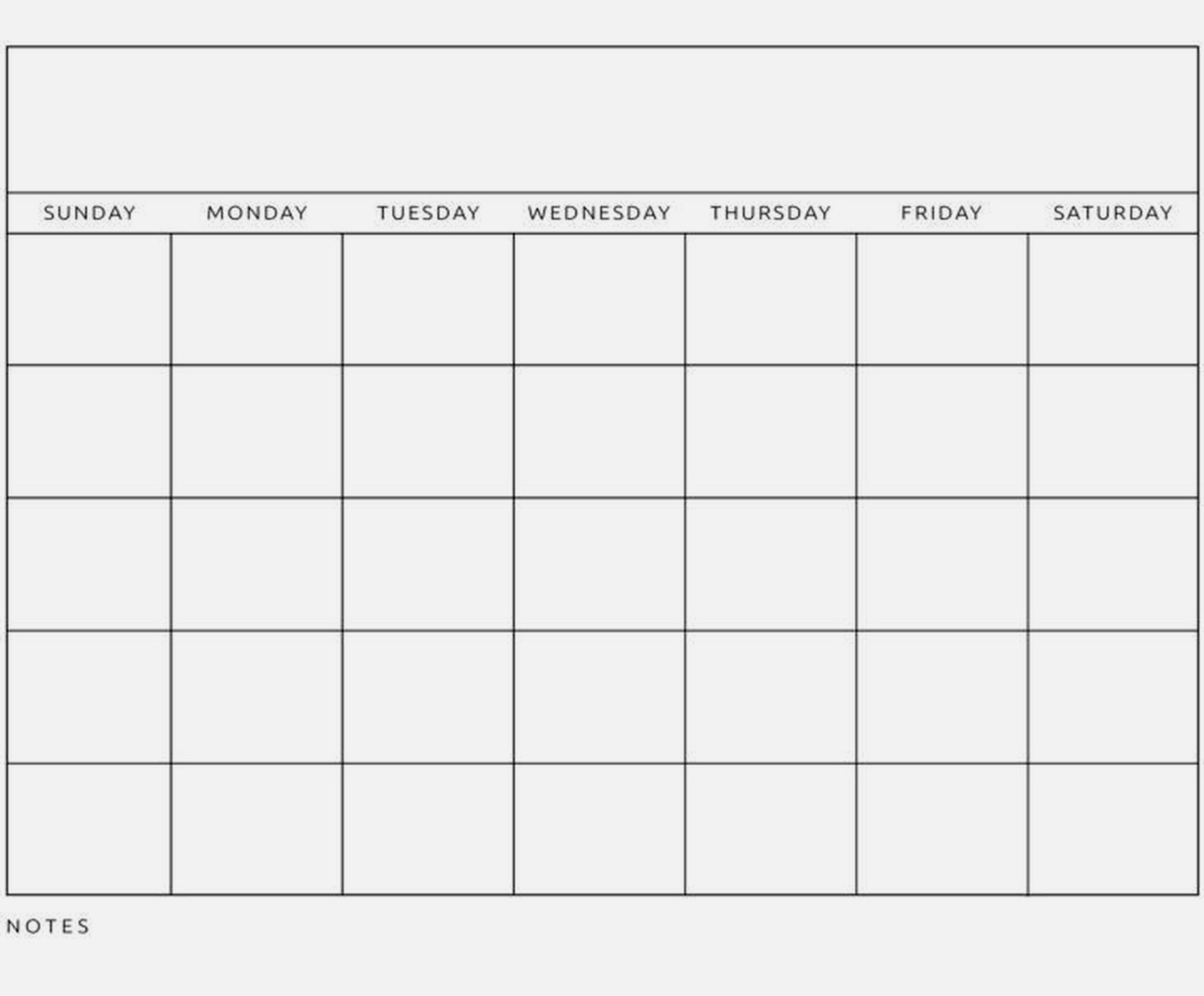
Sometimes the easiest thing is just making your own in Word or Google Docs. I have a template that’s literally just a table with time slots in one column and a big space for notes in the other column. Took me five minutes to make and I’ve used it for years.
The trick is saving it as an actual template file so you can reuse it. In Word that’s a .dotx file. In Google Docs you just make a copy each time you need it. Not fancy but it works and you control exactly what sections you want.
I added sections for:
- Top 3 priorities
- Hourly schedule from 8am to 6pm
- Evening routine checklist
- Notes and random thoughts
- Tomorrow’s prep section
Hybrid Approach That Actually Works
Okay so what I actually do after testing all this stuff is use Google Calendar for appointments and time-blocking, then print or screenshot my day each morning and write on it throughout the day. Physical notes just stick better in my brain somehow.
Then at the end of the day I update any changes back into Google Calendar so my digital version stays current. It’s extra steps but it combines the flexibility of digital with the focus of paper.
I keep a folder of printed daily pages and sometimes flip back through them to see patterns. Like I noticed I always schedule too much on Tuesdays for some reason. That kind of insight only happened because I had physical records to review.
What Actually Matters
After testing like twenty different options, here’s what I figured out matters most. The template needs to match how you actually think about time. If you’re a visual person, Trello or color-coded calendars work better. If you like lists, a simple spreadsheet or doc template is fine.
Time increments matter too. I thought I needed 15-minute blocks but that’s too granular for my actual life. 30-minute or even hour-long blocks work better unless you’re scheduling super detailed stuff.
Having a notes section is non-negotiable. Your day never goes exactly as planned and you need somewhere to capture what actually happened or random thoughts that pop up.
The best template is honestly the one you’ll actually use consistently. I know that sounds like a cop-out but I’ve watched so many people including myself get excited about elaborate systems that last three days. Simple and consistent beats perfect and abandoned.
Also just pick one and commit for at least two weeks before switching. You gotta give your brain time to adapt to any new system. I kept switching every few days at first and learned absolutely nothing about what worked.
The free options are genuinely good enough for most people. I haven’t found anything in paid templates that justifies the cost unless you want really specific features or aesthetic stuff. Start free, see what you actually use, then maybe upgrade if you find limitations.
