Digital Productivity, Online planners, Planners
Excel Timetable Template: Free Downloads & Guide
Mar
Okay so I’ve been testing Excel timetable templates for like three weeks now because honestly half my clients keep asking me which ones actually work and I got tired of giving the same wishy-washy answer. Here’s what I figured out.
The Free Templates Microsoft Actually Gives You
First thing, if you have Excel already just go to File > New and type “timetable” or “schedule” in the search box. Microsoft has like maybe 15 decent ones built right in and most people don’t even know they’re there. I literally spent money on Etsy templates before realizing this which… yeah.
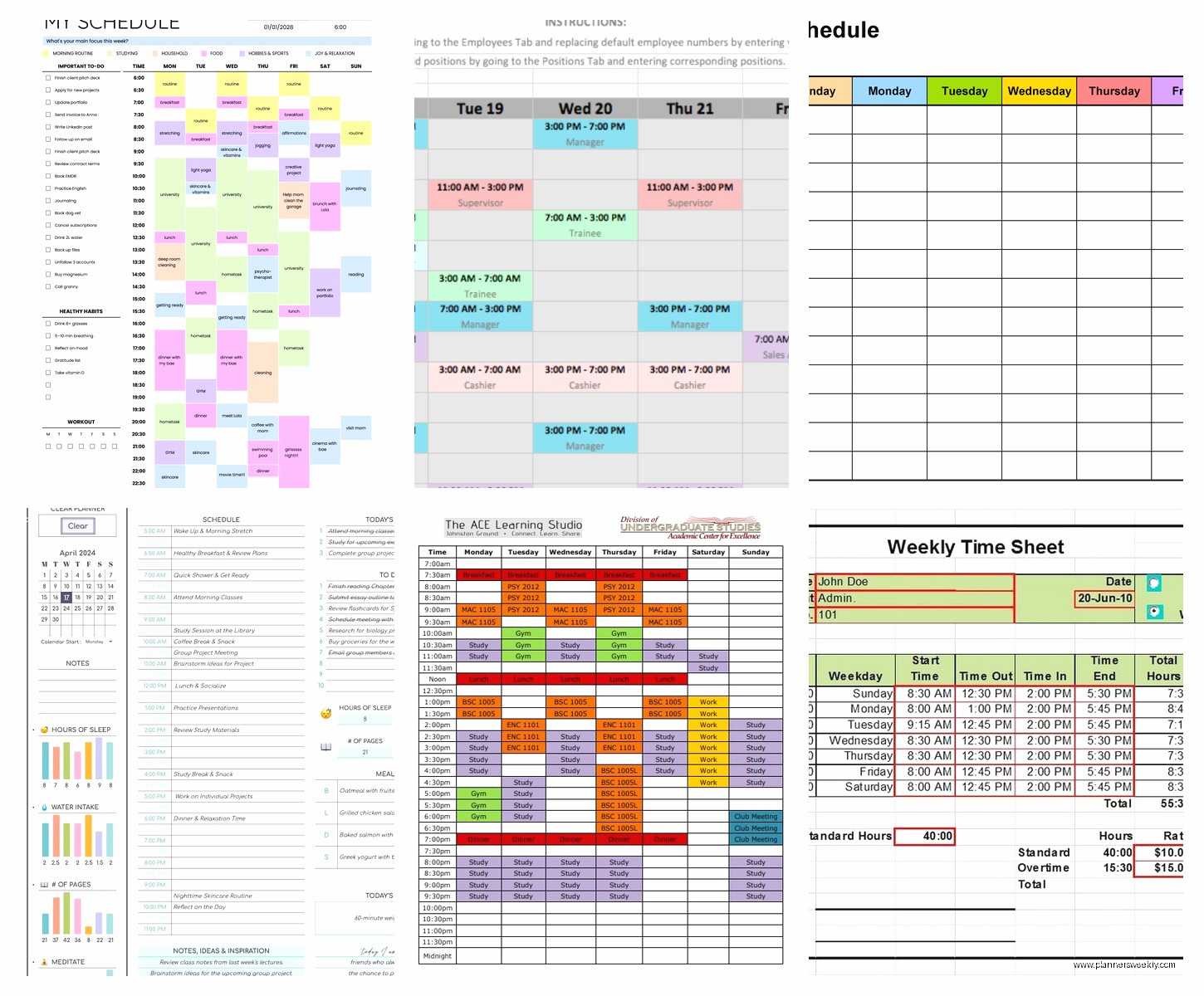
The student class schedule one is surprisingly good even if you’re not a student. It’s got this clean weekly layout with color coding already set up and the cells auto-resize when you type longer text. I used it for my coaching sessions last month and it worked fine. The only annoying thing is it defaults to Monday through Friday so if you need weekends you gotta add columns manually.
There’s also a weekly appointment calendar that’s more time-block focused. Has slots from like 8am to 6pm in 30-minute increments. Good if you’re scheduling meetings or classes but honestly the time slots felt cramped when I tried fitting in task names. My cat stepped on my keyboard while I was testing this one and somehow made all the cells bright yellow so that was fun to undo.
The Hidden Gem Template Nobody Talks About
Wait I forgot to mention – there’s this “Family Schedule” template that’s actually perfect for work timetables. I know it sounds weird but hear me out. It’s set up for multiple people across a week, right? So each row is a different person but you can just change those to different projects or different types of tasks.
I used it to track my blogging schedule, coaching calls, and admin time. Each “family member” became a different work category. It’s color-coded by default with this pastel situation going on that’s actually really easy on the eyes when you’re staring at it all day.
Download Sites That Don’t Suck
Okay so if the built-in ones aren’t doing it for you, here’s where I actually found decent free downloads:
Vertex42 – This site looks like it’s from 2005 but don’t let that fool you. Their Excel templates are legitimately good. They have a weekly schedule template with hourly time slots that you can customize down to 15-minute increments if you’re that person. Which sometimes I am, not gonna lie.
The best part is their templates have instructions right on a separate sheet tab. Like actual helpful instructions not just “enter your data here” obvious stuff. They explain the formulas they used so if you wanna modify things you’re not just guessing.
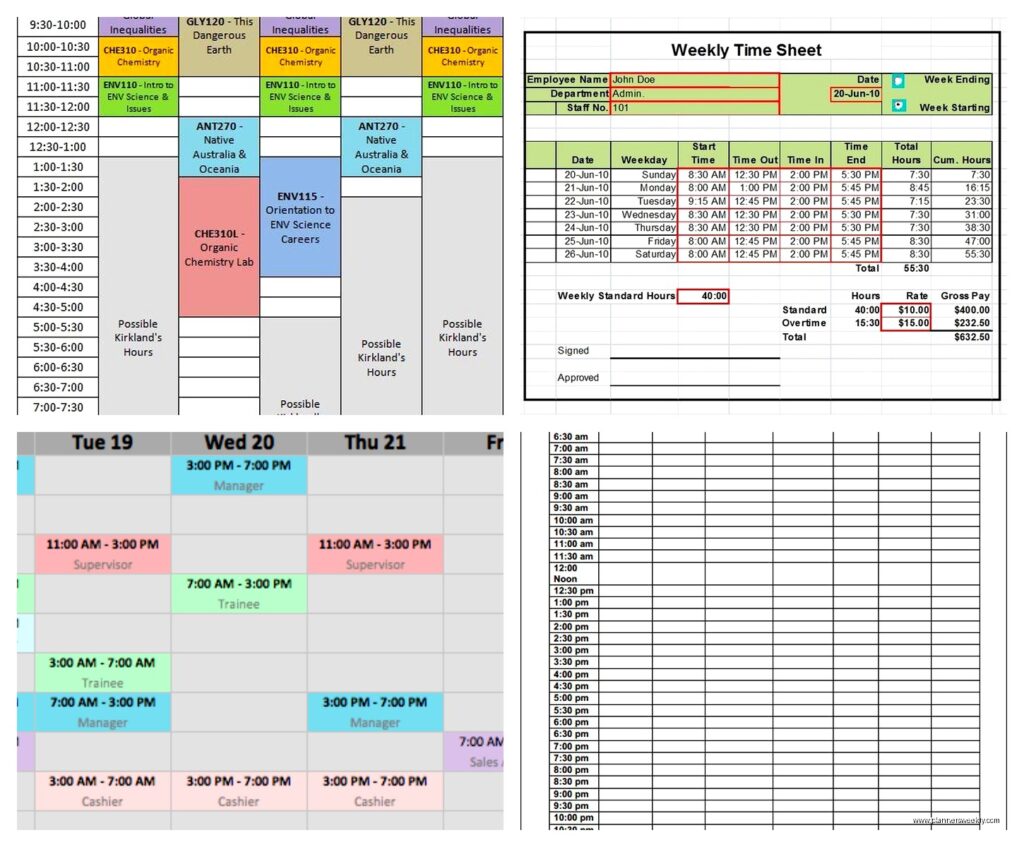
Template.net – They have a mix of free and premium but the free timetable templates are solid. I downloaded their “Work Week Schedule” and it’s got this nice setup where you can track tasks AND time spent on each one. There’s a little section for notes too which I actually use for tracking if a task took longer than expected.
One thing though – some of their downloads make you sign up with an email. I used my spam email account for this because yeah, they will send you newsletters. Not excessively annoying but still.
Microsoft’s Template Gallery Online – This is different from the built-in Excel templates. If you go to templates.office.com they have way more options. I found a shift schedule template there that I modified for content batching days. It was originally for like retail shifts but it works perfectly for blocking out “writing day” versus “client calls day” versus “I’m not doing anything productive day.”
What Makes a Timetable Template Actually Usable
Okay so after testing like 20 different templates here’s what separates the ones you’ll actually use from the ones you download and forget about:
Easy color coding – If you have to manually select cells and change colors every single time, you’re not gonna keep using it. The good templates have either dropdown menus that auto-color things or they use conditional formatting so colors change based on what you type.
Print-friendly layout – Even if you’re mostly digital, sometimes you need a printed version. My client last week wanted a wall schedule for her home office and we spent forever finding one that didn’t cut off half the text when printed. Look for templates that specifically mention print optimization.
Mobile viewing that doesn’t make you squint – If you use Excel on your phone at all, some templates are just impossible to read on a small screen. The simpler layouts work better for this. That fancy template with merged cells and diagonal headers? Looks cool on your laptop, absolute nightmare on mobile.
The Customization Thing Nobody Tells You
This is gonna sound weird but the best template is usually the most boring-looking one because it’s easier to customize. I downloaded this really beautiful template from Etsy once (okay so not free but whatever) with all these decorative elements and gradient fills and it looked amazing. But when I tried to add an extra column or change the time slots everything broke. The formatting was so complex that moving one thing messed up five other things.
The plain templates with basic borders and simple fonts? You can actually make them your own without everything falling apart. I usually start with a basic one and then add my own colors and formatting once I know it works.
Specific Templates for Different Needs
If you’re a student or teacher – The “Class Schedule” template on Vertex42 is perfect. Has spots for room numbers, teacher names, all that. You can hide the columns you don’t need. I helped my friend who teaches high school set this up and she added a column for tracking which lessons she’d actually finished versus planned which was smart.
If you’re tracking multiple projects – Use a Gantt chart style template but modify it. I know that sounds complicated but stay with me. The Gantt templates show tasks across time with these bar things. If you delete the bars and just use the grid, you get a really good multi-project timetable structure. I discovered this by accident when I was watching that show about the chess player and not really paying attention to what I was doing in Excel.
If you need hourly tracking – The “Daily Schedule” templates work better than weekly ones for this. There’s one on Template.net that breaks down 6am to 10pm in one-hour blocks. I use it on days when I’m time-blocking everything super specifically. You can copy the sheet for each day of the week if you want.
If you’re doing shift work or rotation schedules – Microsoft has a couple employee shift schedule templates that are actually really robust. They calculate total hours automatically which is nice. Even if you’re not doing employee scheduling, the rotation structure works great for tracking rotating tasks or habits.
How to Actually Set These Up Without Losing Your Mind
Okay so you’ve downloaded a template, now what. Here’s my actual process:
Save it with a new name immediately. Like before you change anything. I cannot tell you how many times I’ve messed up a template and couldn’t remember what the original looked like.
Delete everything you don’t need first. All those example entries and placeholder text? Gone. Start with a clean slate. It’s easier to see the actual structure this way.
Test it for a week before going all in. Just put in your actual schedule for one week and see if it works. I learned this the hard way after spending two hours setting up a whole semester schedule only to realize the template didn’t actually fit my needs.
The Formula Situation
Most templates have some formulas built in for totaling hours or counting tasks or whatever. My advice is leave them alone unless you know what you’re doing. I broke a perfectly good template once trying to “improve” a formula and had to redownload the whole thing.
But if you wanna learn – click on cells that look like they’re calculating something and look at the formula bar at the top. That’s how I figured out most of the Excel stuff I know now. YouTube has good tutorials if you get stuck.
Making It Actually Work Long-Term
The real problem with timetable templates isn’t finding them, it’s actually using them consistently. I’ve got like 47 templates saved on my computer and I regularly use maybe 3.
Put it somewhere you’ll see it – I keep mine pinned in Excel’s recent files and also have a shortcut on my desktop. Out of sight equals forgotten.
Update it the same time every day or week – I do mine Sunday evening for the week ahead and then adjust daily in the morning. Having a routine around it helps.
Don’t make it too complicated – This is my biggest thing. You don’t need color coding for 15 different categories and conditional formatting and drop-down menus and tracking of every possible metric. Just track what actually matters.
Oh and another thing – share it if you need accountability. I send my weekly timetable to my accountability partner every Monday. Knowing someone else sees it makes me actually fill it out properly.
The Templates I Actually Use Regularly
Since you’re probably wondering what I landed on after all this testing:
For weekly planning I use a modified version of Microsoft’s “Weekly Schedule” template. I added a column for energy level because I finally accepted I’m useless after 3pm and should stop pretending otherwise.
For daily time-blocking I use a simple hourly template from Vertex42. Nothing fancy, just time slots and what I’m doing.
For project tracking across weeks I honestly just made my own at this point using a basic table structure. Sometimes the best template is the one you build yourself once you understand what you actually need.
The monthly overview one from Template.net gets used for content planning. It’s got enough space in each day cell to jot down post ideas and deadlines without feeling cramped.
Common Mistakes I See People Make
Downloading like 10 different templates and then never actually picking one. Just choose something and commit for at least two weeks.
Making the timetable too detailed. You don’t need to schedule “check email 9:17-9:23am” – that’s insane and you’ll burn out.
Not leaving buffer time. Every template I use now has built-in buffer slots because things always take longer than expected or something random comes up.
Forgetting to save. Excel auto-saves if you’re using OneDrive but if you’re working locally, gotta remember to hit save. I lost a whole week’s schedule once because Excel crashed and I hadn’t saved in like an hour.
Trying to make one template do everything. It’s okay to have a different template for different purposes. I tried combining my daily schedule with my monthly overview once and it was just cluttered and confusing.
The truth is most free Excel timetable templates are pretty decent. The differences are usually just aesthetic or minor layout stuff. Pick one that looks clean to you, test it for a bit, and adjust as needed. You’ll probably end up customizing whatever you choose anyway because everyone’s schedule needs are slightly different.