
Digital Productivity, Online planners, Planners
Word Weekly Schedule Template: Free Downloads
Mar
Okay so I just spent like three days downloading every free Word weekly schedule template I could find because honestly my planning system was a disaster and I needed something that actually works. Here’s what I figured out.
The Default Microsoft Templates Are Actually Pretty Good
First thing you gotta do is just open Word and click on File then New. Type “weekly schedule” in the search box and you’ll get like dozens of options. I know everyone ignores these but wait because some are genuinely useful.
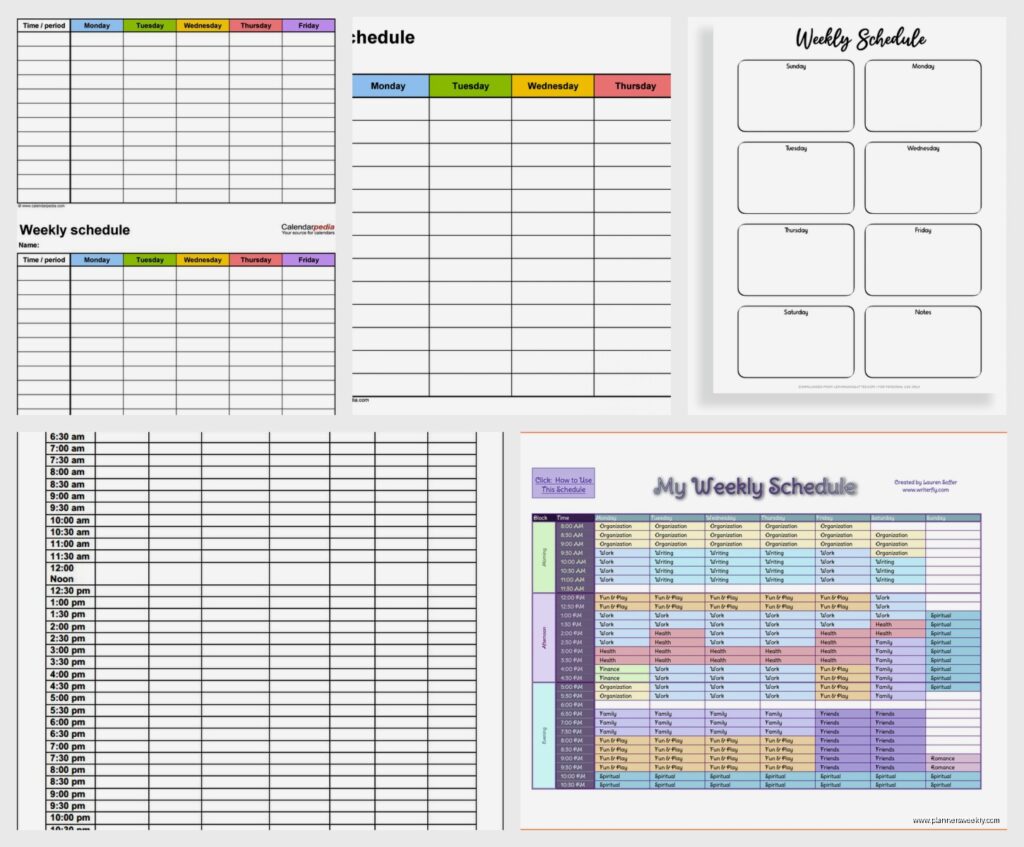
The “Weekly schedule (color)” template is the one I keep coming back to. It’s got this clean layout with time slots from 6am to 9pm in 30-minute increments. Super basic but that’s kinda the point? You can color-code different activities and it doesn’t look like a kindergarten craft project. I use blue for client meetings, green for admin work, and yellow for writing time.
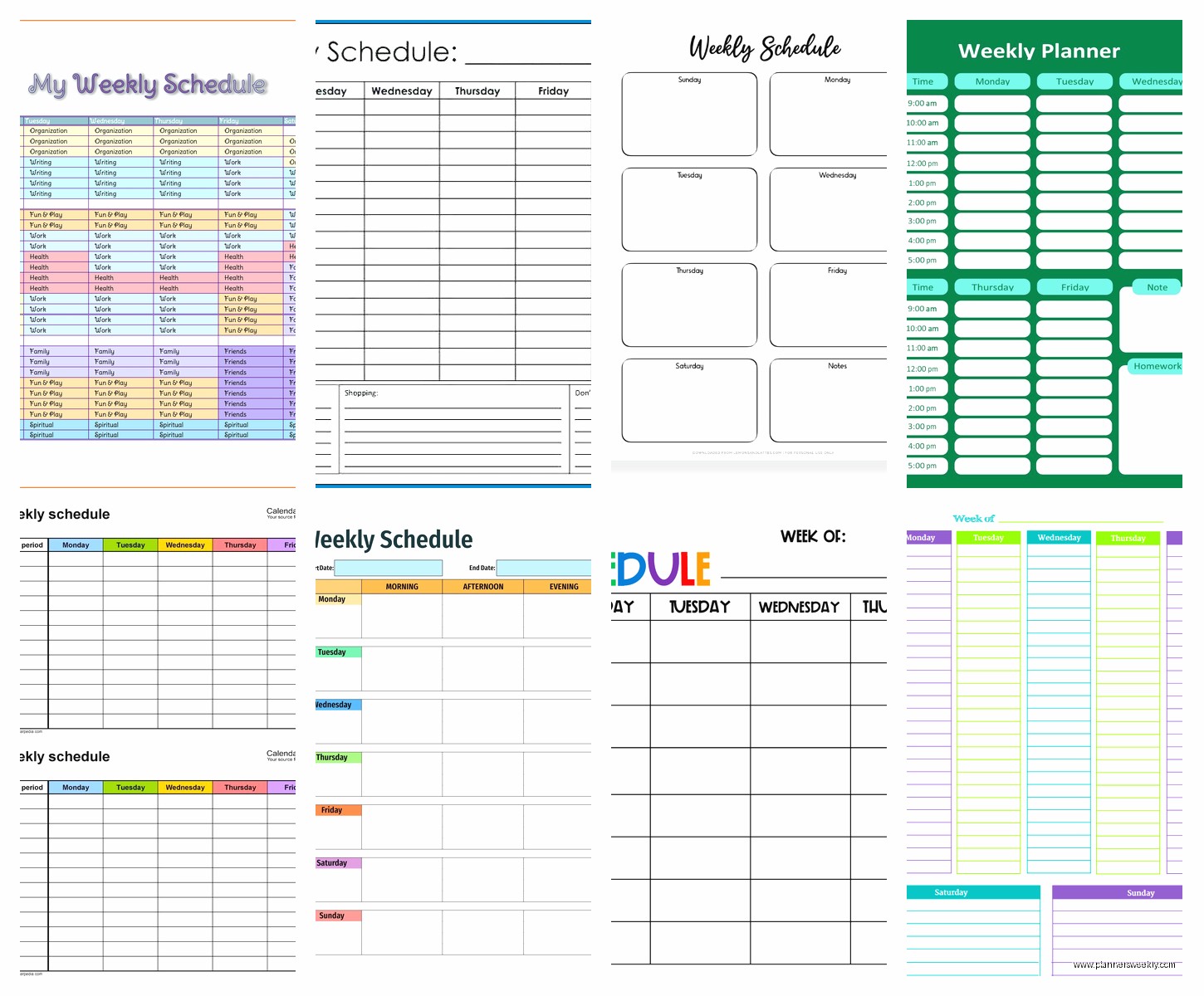
There’s also this “Student weekly schedule” one that’s honestly better than it sounds. Even if you’re not a student the layout is flexible because it’s divided by days across the top and has these big blocks you can fill in. My dog knocked over my coffee while I was testing this one so there’s a faint stain on my printed copy but it still works fine.
Template.net Has Like Everything But Quality Varies
So Template.net keeps popping up when you search for free downloads and yeah they have a massive collection. The thing is you gotta create a free account which is annoying but whatever takes like two minutes.
Their “Simple Weekly Schedule Template” is actually simple unlike most things that claim to be simple. It’s just a basic table with days of the week and time slots. No fancy graphics or weird fonts. You can customize it super easily because there’s no weird locked formatting.
Oh and another thing, they have this “Weekly Work Schedule Template” that’s specifically designed for shift work or if you manage a team. Has columns for employee names and you can block out shifts. I used this when I was coordinating a workshop last month and needed to track who was covering registration at different times.
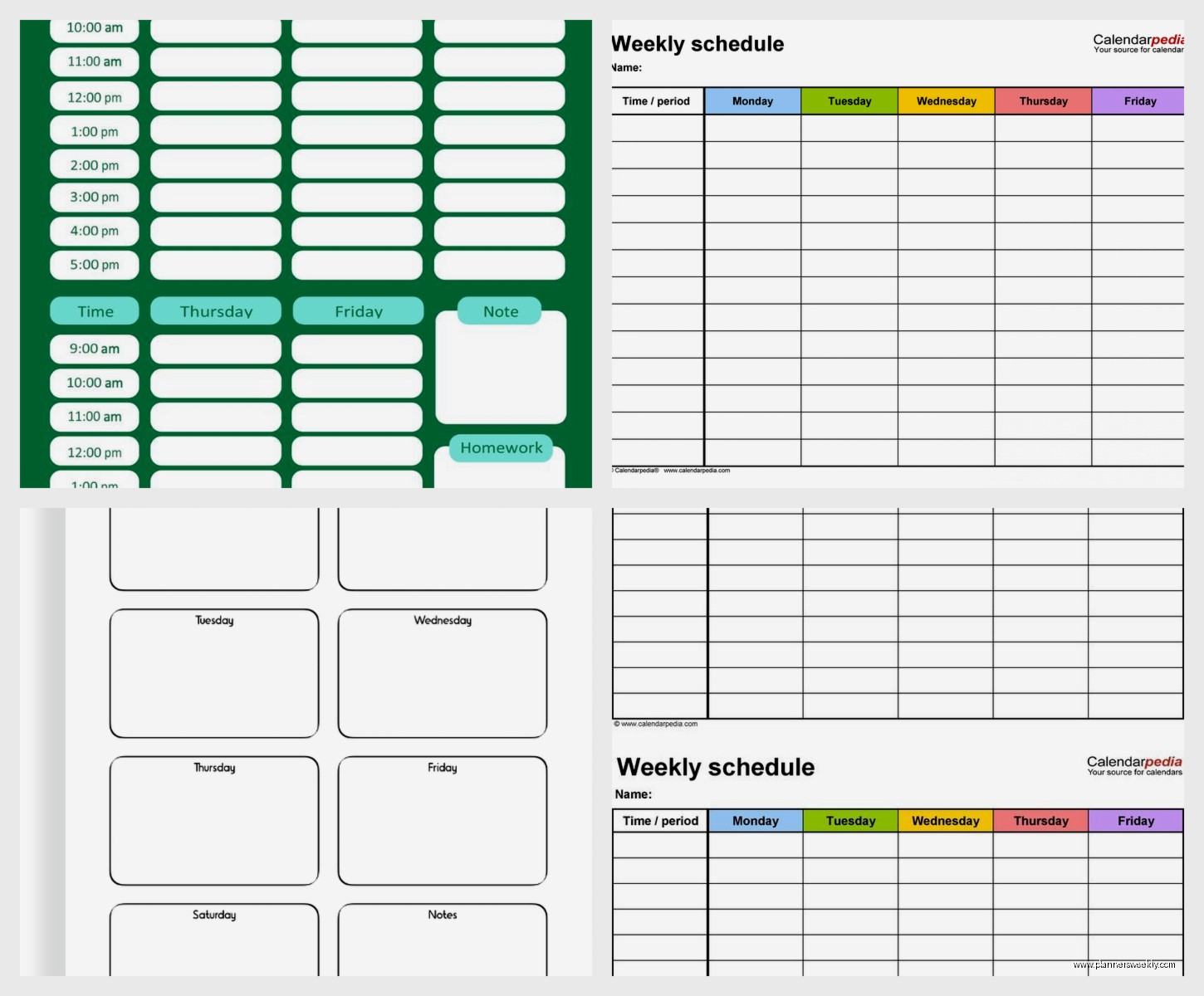
The download process is straightforward, you just click the Word icon and it downloads as a .docx file. Sometimes the formatting gets a little weird depending on which version of Word you’re using but nothing you can’t fix in like 30 seconds.
Watch Out For The Premium Traps
Template.net does this annoying thing where they mix free and premium templates in search results. Look for the ones that specifically say “Free” or you’ll click through and hit a paywall. Been there, got frustrated, closed like five tabs.
Vertex42 Is Surprisingly Solid
This is gonna sound weird but Vertex42 has some of the most practical templates I found. The site looks kinda dated like it’s from 2010 or something but don’t let that fool you.
Their “Weekly Schedule Template” comes in multiple versions which is actually helpful. There’s one with 15-minute time slots if you’re that person who needs granular planning (I am sometimes that person). Another one is hourly which is better for broader task blocking.
What I really like is they include both portrait and landscape orientations. The landscape one is better if you’re printing it and keeping it on your desk because you can see the whole week at a glance. Portrait fits better in a planner or if you’re gonna fold it and stick it in your bag.
The templates are clean, print well, and the formatting is unlocked so you can change literally anything. Font, colors, add rows, whatever. I changed the header font to something less boring and adjusted the time slots to start at 7am instead of 6am because who am I kidding I’m never scheduling anything at 6am.
Canva Has Word Templates Now And They’re Pretty
Wait I forgot to mention that Canva now lets you download designs as Word documents. I know Canva is usually for graphics but stick with me here.
Search for “weekly schedule” in Canva and filter by free templates. There are tons with actually nice designs that don’t look like corporate boredom. Once you customize it with your own text and colors, click Download and choose Microsoft Word from the dropdown.
The thing is these come out a bit different than traditional Word templates. They’re more like designed documents that happen to be editable in Word. The formatting can be finicky if you try to change too much, but if you just need to fill in times and tasks they work great.
I’ve been using one with this minimal pastel color scheme that makes me actually want to look at my schedule. It has sections for priorities, notes, and a habit tracker on the side which I didn’t think I’d use but turns out I do.
The Catch With Canva Downloads
Some fonts don’t transfer perfectly to Word so double-check how it looks after downloading. Usually it’s fine but occasionally you’ll get some weird spacing issues. Nothing unfixable just annoying.
Google The Exact Type You Need
Okay so funny story, I was watching this show about organizing (yeah I’m that person) and they mentioned hourly schedules versus block schedules and I realized I’d been using the wrong type for my workflow.
If you search “hourly weekly schedule template Word free” you get different results than just “weekly schedule template.” Same with “weekly class schedule,” “weekly meal plan schedule,” or “weekly employee schedule.” The more specific you are, the better the results.
I found this amazing hourly template from some random educational site that has every hour from 6am to 10pm with space for tasks, appointments, and notes. It’s formatted as a table which makes it super easy to edit.
For meal planning specifically, there’s templates with breakfast, lunch, dinner, and snacks already labeled. You could obviously just use a regular schedule but having it pre-labeled saves time and mental energy.
How To Actually Customize These Things
Most people download a template and then get frustrated trying to edit it. Here’s what works.
First, save it with a new name immediately so you don’t mess up the original. I learned this the hard way after spending 20 minutes customizing something and then accidentally saving over the template file.
To change colors, select the cell or text, go to the Design tab, and use the color palette. Or right-click and choose “Shading” for cell backgrounds. Don’t go too crazy with colors or it’ll look chaotic when printed.
Adding or removing rows is easy, just right-click on a row and choose insert or delete. Same with columns. The table structure is usually pretty flexible.
If the template has headers or footers you don’t want, double-click in that area and delete them. Sometimes there’s copyright info or website names you’ll wanna remove.
Printing Tips That Actually Matter
Print a test page first before you print like 52 copies for the whole year. I wasted so much paper before figuring this out. Check margins, make sure nothing is cut off, verify the scale is set to 100%.
If you’re gonna use it digitally instead of printing, save it as a PDF first. Word documents can look different on different computers depending on installed fonts and Word versions. PDF locks everything in place.
My Current System That’s Working
Right now I’m using a hybrid approach because apparently I can’t just pick one thing and stick with it. I have the Vertex42 hourly template for my main weekly overview, and then a simpler block schedule from Microsoft’s defaults for monthly planning.
Every Sunday night I fill in the hourly one with specific appointments, deadlines, and time blocks for different types of work. The monthly one I update at the beginning of each month with broader goals and recurring commitments.
Both are saved in a dedicated folder on my desktop called “Planning” with the date in the filename so I can look back at previous weeks if needed. My client canceled last Tuesday so I spent an hour comparing the different templates I’d collected and this is the system that emerged.
Where The Free Templates Fall Short
Gonna be honest, free templates are limited in some ways. They usually don’t have built-in features like automatic date filling or recurring task options. You’re manually entering everything each week.
Also most don’t sync across devices obviously because they’re just Word documents. If you need that functionality you’re probably better off with a digital app. But for people who like paper planning or want a simple digital document, free Word templates are totally sufficient.
The design options are also kinda limited unless you’re willing to customize heavily. Most free templates look pretty basic and professional which is fine for work stuff but maybe not exciting if you’re into aesthetic planning.
Best Templates For Different Needs
If you’re a student, go with Microsoft’s student weekly schedule or find one that has time slots during typical school hours with space for homework and study time.
For work, the simple professional templates from Vertex42 or Template.net work better. They look appropriate for office environments and have room for meetings, project work, and deadlines.
If you manage people or coordinate schedules, definitely find one with multiple columns for names or roles. The employee schedule templates are designed for this.
For personal life planning, the more flexible block-style templates work well because your days probably don’t follow strict hourly patterns. You need space to write “grocery shopping” or “gym” without it looking cramped.
Actually Using The Template Consistently
This is where most people fail including me for like six months. Having the perfect template doesn’t matter if you don’t actually use it.
What’s working for me now is filling it out during a specific time each week. Sunday evenings after dinner while my cat is doing her zoomies around the apartment. It’s become part of my routine.
Keep it visible. If it’s digital, keep the file open or pinned. If it’s printed, put it somewhere you’ll actually see it. Mine is on the wall next to my desk where I can glance at it constantly.
Don’t try to make it perfect. Just get the important stuff down. You can always adjust throughout the week. I use pencil when I print them so I can erase and modify as things change because of course things always change.
Review it daily. Sounds obvious but I’d forget to actually look at my carefully planned schedule and then wonder why I missed things. Now I check it first thing in the morning with my coffee.
The template is just a tool. It won’t magically make you organized but it can definitely help if you actually commit to using it. Start with one week. If it doesn’t work, try a different template or modify the one you have. There’s no perfect system that works for everyone.
