Digital Productivity, Online planners, Planners
Free Itinerary Template: Travel Planning Downloads
Mar
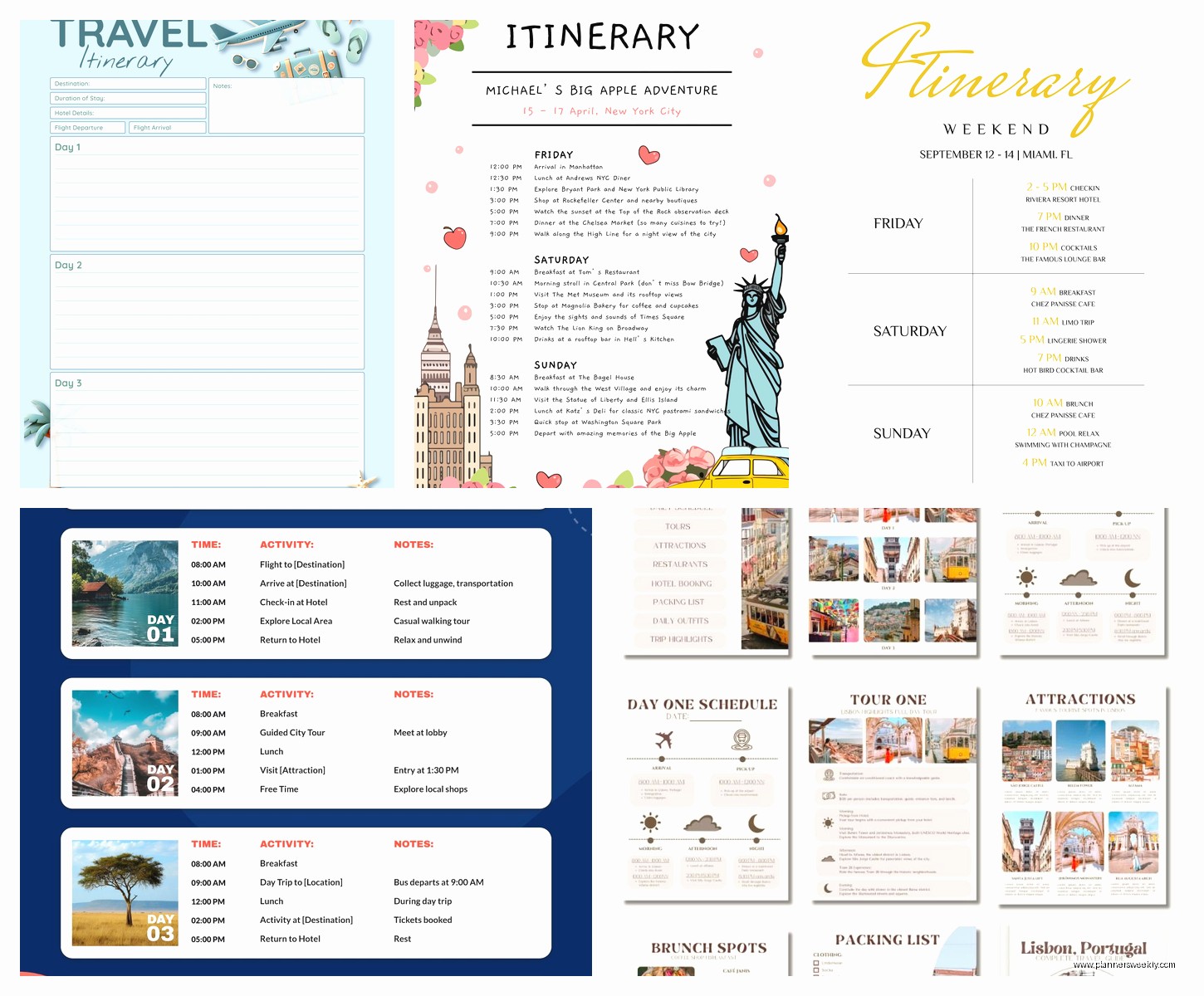
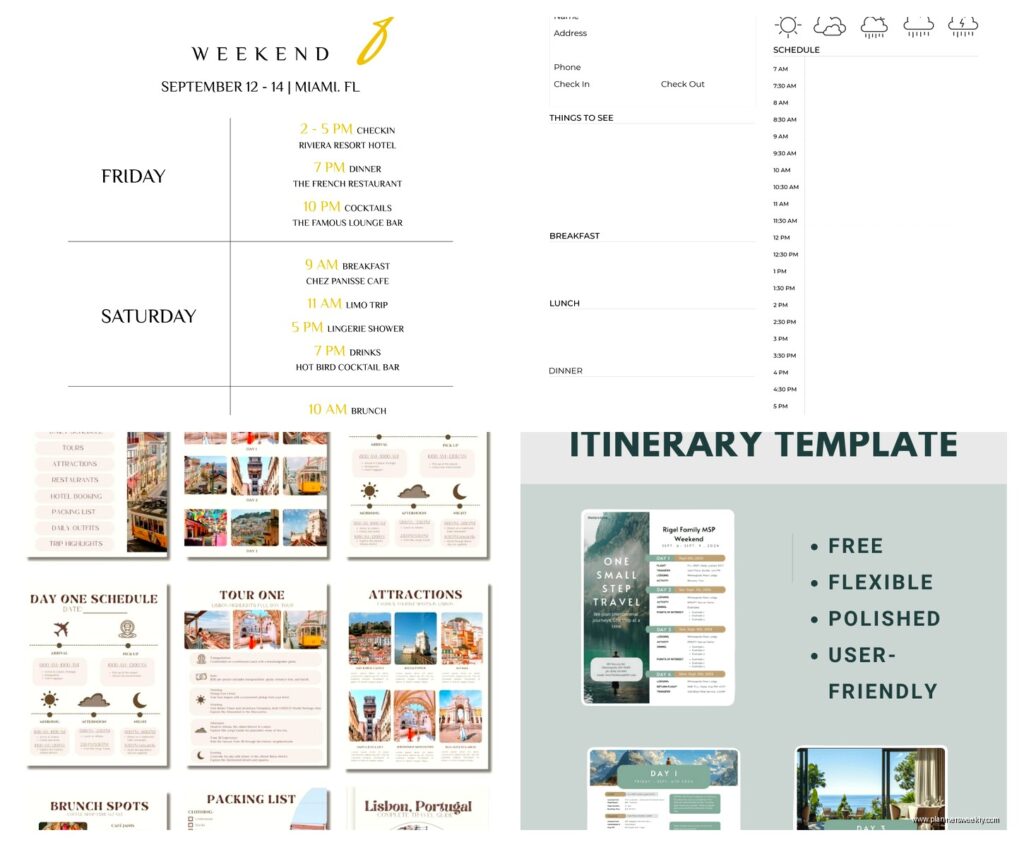
Okay so I just spent like three days organizing travel templates for a client who panics about vacation planning and honestly the free itinerary templates out there are actually way better than you’d think? Like you don’t need to drop $30 on some fancy travel planner when there’s solid stuff you can download right now.
The Google Sheets Templates Are Honestly the Best Starting Point
So Google has these free itinerary templates that I keep recommending because they’re collaborative which is huge if you’re traveling with other people. I tested this last month when my sister and I were planning a trip to Portland and she kept changing the restaurant reservations without telling me. With the Google Sheets version we could both see updates in real time and I stopped showing up to places that weren’t even booked anymore.
The template has tabs for flights, hotels, daily activities, budget tracking. You can access it from your phone which sounds obvious but some of these downloadable PDFs are impossible to read on a small screen. What I like is you can color-code everything. I made all my sister’s choices purple and mine green so we could see at a glance who was responsible for booking what.
One weird thing though is the budget section isn’t connected to the activities automatically so you gotta manually update costs. I usually just ignore their budget tab and use my own spreadsheet for money stuff because I’m picky about tracking expenses.
Canva Has Travel Templates That Don’t Look Like Homework
Wait I forgot to mention Canva because their templates are actually gorgeous? Like if you want something you’d be happy looking at instead of just a functional grid, Canva’s free itinerary templates are surprisingly good. They have this tropical theme one with little palm tree icons that I used for a beach trip and it just made planning feel less tedious.
The thing with Canva is you need an account but it’s free. You can customize colors, fonts, add your own photos. I dropped in pictures of the Airbnb we were staying at and the restaurants we wanted to try. It became this visual reference that was way more exciting than looking at a spreadsheet.
But here’s the catch and this annoyed me at first: you can’t really do calculations in Canva. It’s more of a presentation tool than a working document. So I’d plan everything in Google Sheets first, then transfer the finalized itinerary into Canva to make it pretty for sharing. My dog knocked over my coffee right when I was finishing one of these and I lost like twenty minutes of formatting work because I hadn’t saved it. Just save constantly is what I’m saying.
Print vs Digital Versions
Some people really want physical copies and honestly I get it. When I’m actually traveling I don’t always want to be on my phone. The Canva templates print beautifully. I usually export as PDF and print at home on nicer paper because the standard printer paper feels too flimsy for something I’m gonna be folding and unfolding all week.
Microsoft also has free templates through Word and Excel that are very print-friendly. They’re boring looking but extremely functional. The Excel ones have formulas already built in for budget tracking which saves time. I tested their “Trip Itinerary” template and it auto-calculates your total costs as you enter expenses. That’s actually useful if you’re trying to stick to a budget and need to see running totals.
Notion Templates for the Organized People
Okay so funny story, I resisted Notion for like two years because everyone was SO obsessed with it and I’m contrary like that. But their travel itinerary templates are really good if you want everything in one place. You can embed maps, add checklists for packing, link to booking confirmations, create a table for reservations with reminder checkboxes.
The free Notion templates have more functionality than most paid planners I’ve seen. You can create a database of all your flights with departure times and gate info, then link those to your daily schedule. It sounds complicated but Notion’s templates come pre-structured so you just fill in your information.
What I actually use Notion for now is keeping all my past travel itineraries as a reference library. Like I went to New Orleans two years ago and kept all that info in Notion, and when a client asked me for recommendations I could just share that database with her. You can duplicate templates for each trip which beats starting from scratch every time.
The learning curve is real though. My first time using Notion I spent probably an hour just figuring out how to add a new row to a table because I kept clicking the wrong buttons. If you just want something simple and fast, this might be more than you need.
The PDF Fillable Forms Are Underrated
There are tons of free PDF itinerary templates on sites like Template.net and Vertex42 that you can download and fill out on your computer. These are great if you want something that feels official. I used one for a work trip because I needed to submit my itinerary to my company and it needed to look professional.
The Vertex42 ones are especially good because they’re created by actual spreadsheet nerds who think about functionality. They have dropdown menus for things like “transportation type” and calculated fields for time zones. I didn’t even know I needed time zone calculations until I was planning a trip with multiple flights across the country and kept getting confused about arrival times.
You can fill these out in Adobe Reader or most PDF apps. They save your information so you can update them. The downside is they’re not collaborative unless you’re emailing versions back and forth which gets messy fast. I tried this with three friends planning a group trip and we ended up with like five different versions floating around and nobody knew which was current.
Apps That Generate Free Templates
TripIt has a free version that auto-generates itineraries from your confirmation emails which is honestly kind of magical. You forward your flight confirmation and hotel booking to their email address and it automatically creates a timeline of your trip. I tested this for a quick weekend trip where I didn’t wanna spend time planning and it worked perfectly.
The free version is limited though. You don’t get real-time flight alerts or seat tracking or the fancy features. But for basic “here’s where I’m supposed to be and when” it’s totally adequate. It also creates a shareable link you can send to family so they know your schedule.
Google Trips used to be amazing for this but they discontinued it which I’m still annoyed about. Now that functionality is kinda built into Google Travel but it’s not as good. You can still see your reservations from Gmail automatically organized by trip which is convenient if you’re already in the Google ecosystem.
What Actually Matters When Choosing a Template
Here’s what I figured out after testing like fifteen different templates: you gotta know how you actually use itineraries. Are you someone who needs every minute planned? Do you just want to remember hotel addresses and flight times? Are you traveling solo or coordinating with other people?
For detailed planners, spreadsheet templates with time slots for every activity work best. I have clients who literally schedule “coffee break 3-3:30pm” and they need that structure. The Excel and Google Sheets templates are perfect for this.
If you’re more loose about travel plans, the visual templates from Canva or even just a simple Word doc might be better. You don’t need fancy features if you’re just jotting down a few restaurants you wanna try and the address of your hotel.
For group travel, anything collaborative is non-negotiable. Google Sheets or Notion. Maybe TripIt if everyone’s comfortable with apps. But you need real-time updates or someone’s gonna show up to the wrong place at the wrong time.
The Packing List Thing
Oh and another thing, most good itinerary templates include packing list sections which I initially thought was gimmicky but actually use now. There’s something about checking off “toothbrush” and “phone charger” that prevents those 2am panics in a hotel room when you realize you forgot something essential.
The Notion templates especially have good packing databases where you can categorize items by type (clothing, toiletries, electronics) and mark things as packed. I made a master packing list template that I duplicate for each trip and just adjust based on destination. Beach trip? Add swimsuits. Winter trip? Add heavy coat. Sounds basic but it saves mental energy.
Customizing Free Templates
Every template I’ve found needs at least some customization to actually work for your travel style. Like the default categories are always flights, hotels, activities, but what if you’re doing a road trip? You need sections for gas stops, scenic viewpoints, driving distances between locations.
I usually download a template that’s close to what I need then modify it. Google Sheets is easiest for this because you can add columns, create new tabs, adjust formulas. With PDFs you’re more limited but you can at least add text boxes with additional information.
One template hack I learned is to keep a “notes” section for random stuff that doesn’t fit categories. Like “pharmacy is closed on Sundays” or “Sarah’s allergic to shellfish remember when booking restaurants” or “that coffee shop from Instagram is actually twenty minutes away not walking distance like it looked.”
Backing Everything Up
This is gonna sound paranoid but I always keep both digital and physical copies of itineraries when traveling. Your phone could die, you might not have service, whatever. I screenshot the most important info (flight times, hotel address, emergency contacts) and also print a condensed one-page version.
Cloud storage is your friend. Save templates to Google Drive or Dropbox so you can access from any device. I learned this the hard way when my phone died during a trip and I had to borrow my friend’s phone to pull up our hotel confirmation from Drive.
The Stuff Nobody Tells You
Most itinerary templates don’t include space for confirmation numbers and you’re gonna need those. I add a column or section for every booking confirmation number, customer service phone number, and cancellation policy. Sounds excessive until you need to change a reservation and you’re scrambling through emails trying to find that information.
Also time zones. If your template doesn’t clearly show time zones for multi-city trips, add them manually. I once missed a flight because I got confused about whether the departure time listed was local or my current time zone. Now I write “2:30pm EST” or whatever so there’s no confusion.
Restaurant reservations deserve their own section separate from general activities because they have specific times and confirmation codes. I create a simple table with restaurant name, time, confirmation number, address, and any notes like “ask for patio seating” or “order the pasta everyone raves about it.”
Wait I forgot to mention that some templates have sections for emergency contacts and important documents which seems like overkill until you’re in another country and need to find your travel insurance policy number. I scan my passport, driver’s license, insurance cards, and credit cards (front and back) and store those PDFs in a secure folder in my cloud storage. Then I note in my itinerary where those files are located.
The best free templates are honestly the ones you’ll actually use. Doesn’t matter if it’s gorgeously designed if you find it annoying to update. Start simple, add complexity only if you need it. I’ve planned amazing trips with nothing but a Google Doc with bullet points and I’ve also created elaborate Notion databases. Both worked fine because they matched what I needed at the time.
Just download a few different styles, test them for like twenty minutes each, see which feels most natural. You’ll know pretty fast which format clicks for your brain.