
Digital Productivity, Online planners, Planners
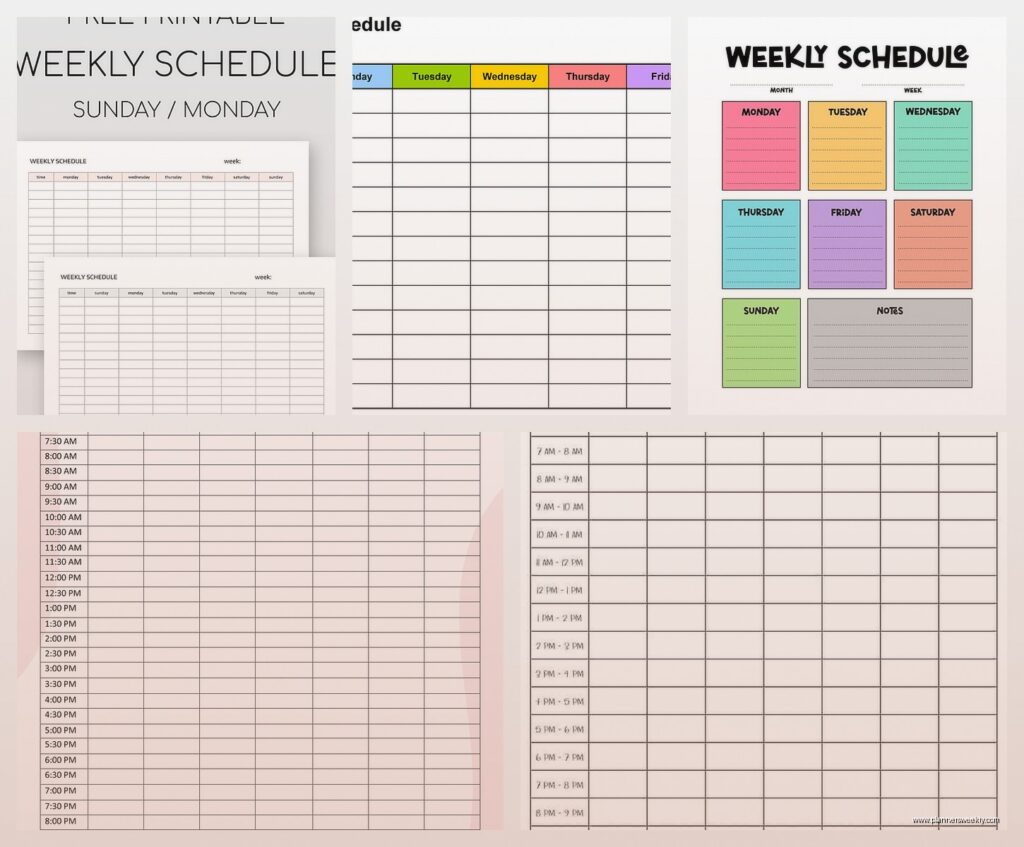
Free Weekly Schedule Template: Downloads & Customization
Apr
Okay so I’ve been testing literally every free weekly schedule template I could find for the past month because three of my clients asked about the same thing and I figured I might as well go deep on this.
Google Sheets Templates Are Actually Pretty Solid
Starting with Google Sheets because honestly that’s where most people already live anyway. Go to Google Sheets, click on Template Gallery, and there’s like five different weekly planners in there. The one I keep coming back to is their basic “Schedule” template – it’s got time slots from 8am to 8pm in 30-minute increments.
Here’s what I did to customize it: deleted the weekend columns because my weekends are chaos and I don’t schedule them, then I color-coded by category. Work stuff is blue, client meetings are green, personal appointments are yellow. Takes maybe ten minutes to set up. You can also adjust the time slots – I changed mine to start at 6am because apparently I’m a morning person now which is still weird to me.
The sharing function is where Google Sheets really wins. I have one client who shares her schedule with her assistant and they can both edit in real-time. No emailing PDFs back and forth like it’s 2009.
The Font Thing Everyone Forgets
Change the default font immediately. Arial at 10pt is gonna make you squint. I use Lexend at 11pt because it’s actually designed for readability and my 40-year-old eyes appreciate it. Also make the column headers bold – sounds obvious but the template doesn’t do this automatically and it makes scanning so much easier.
Excel Templates If You’re Stuck With Microsoft
Microsoft has their own template library and honestly it’s more overwhelming than helpful. There’s like 47 different weekly planners and most of them are trying to do too much. The one I actually use when I need Excel is called “Weekly Schedule” – super original name I know.
It’s got this nice feature where you can set recurring tasks and they auto-populate. So like if you have a standing Monday morning meeting, you type it once and boom, it shows up every Monday. Took me embarrassingly long to figure out how to do this – you have to right-click the cell and there’s a “Series” option buried in the menu.
Oh and another thing, Excel lets you password-protect sheets which Google Sheets technically does too but Excel’s version is more robust. Had a client who needed this for sensitive scheduling stuff.
Canva Has Free Templates But Here’s The Deal
Canva’s weekly planners are beautiful and completely impractical for actual scheduling. Like they’re gorgeous, very aesthetic, perfect for Instagram, terrible for real life. I tested about twelve of them last week when my dog was at the vet and I was stuck in the waiting room.
The problem is they’re designed to be printed, not edited repeatedly. If you want something pretty to print out each week and fill in by hand, great. If you want digital functionality, skip it. Unless you get Canva Pro which isn’t free anymore so that defeats the whole purpose.
But okay, if you DO want the pretty printable version: search “minimalist weekly planner” in their template library. There’s one with just clean lines and boxes, no weird motivational quotes or flower graphics. Download as PDF, print, done.
Notion Templates Are Powerful But Gonna Take Setup Time
I resisted Notion for so long because everyone was so cult-y about it but then I actually tried their weekly schedule templates and… yeah okay I get it now.
The free Notion account gives you access to their template gallery. Look for “Weekly Agenda” – it’s got a database view which sounds complicated but basically means you can see your week as a calendar, as a list, as a table, whatever. This is gonna sound weird but I actually use three different views depending on what I’m doing. Calendar view for planning, list view for checking off tasks, table view for analyzing how I spent my time.
Customization options are intense. You can add properties like priority level, energy level required, location, linked projects. I have mine set up with a “brain power” tag because some tasks need full focus and some I can do while watching TV (currently rewatching The Bear which is stressing me out but I can’t stop).
The Learning Curve Is Real Though
Fair warning: Notion takes a minute to figure out. I spent probably two hours just clicking around before I understood how databases work. But once you get it, you can customize literally everything. Toggle switches, dropdown menus, linked databases – it’s a lot.
If you don’t wanna deal with that, there are pre-made Notion templates people share for free. I found a good one on Reddit, someone’s productivity subreddit, can’t remember which one exactly but search “weekly schedule notion template free” and you’ll find a bunch.
Wait I Forgot To Mention Trello
Trello’s not technically a schedule template but you can use it that way and it’s free. Create a board, make seven lists (one for each day), add cards for tasks and appointments. Very visual, very satisfying to drag cards around.
I have a client who uses this method and she swears by it. Each card can have a due time, checklist, attachments, labels. She color-codes by work vs personal vs family stuff. The mobile app is actually good too which matters if you’re scheduling on the go.
The limitation is it doesn’t have a traditional calendar view in the free version. You’re looking at columns of cards, not time slots. Some people love this, some people hate it. I’m somewhere in the middle – it works better for task management than actual time-blocking.
Printable PDFs From Random Websites
Okay so there are approximately one million websites offering free printable weekly schedules. Most of them are trying to get your email address. Some are actually useful.
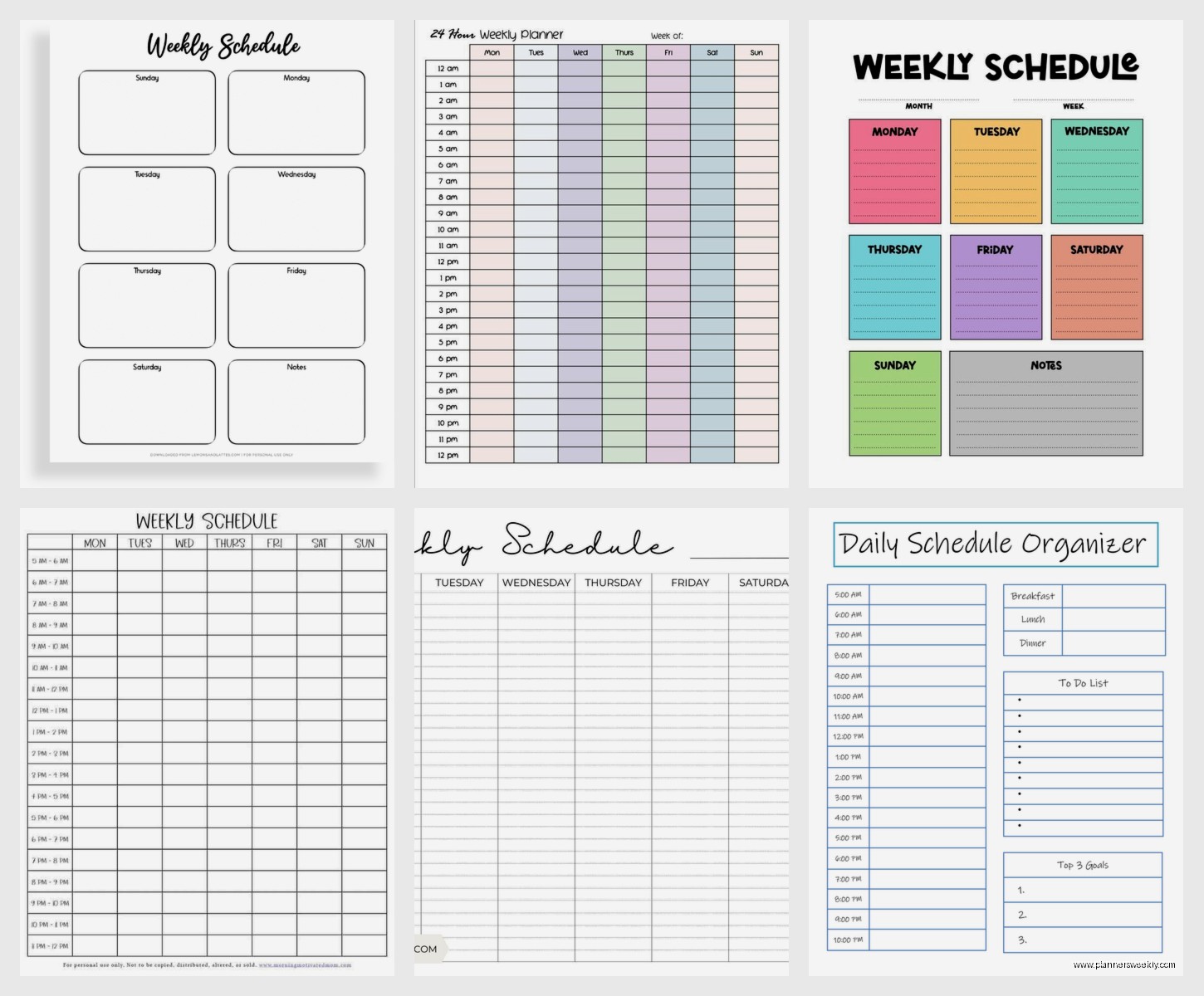
The ones I’ve actually downloaded and used: Vertex42 has a clean Excel template that’s genuinely free, no email required. It’s basic but that’s kinda the point. Time slots on the left, days across the top, that’s it. You can customize the hours and add your own categories.
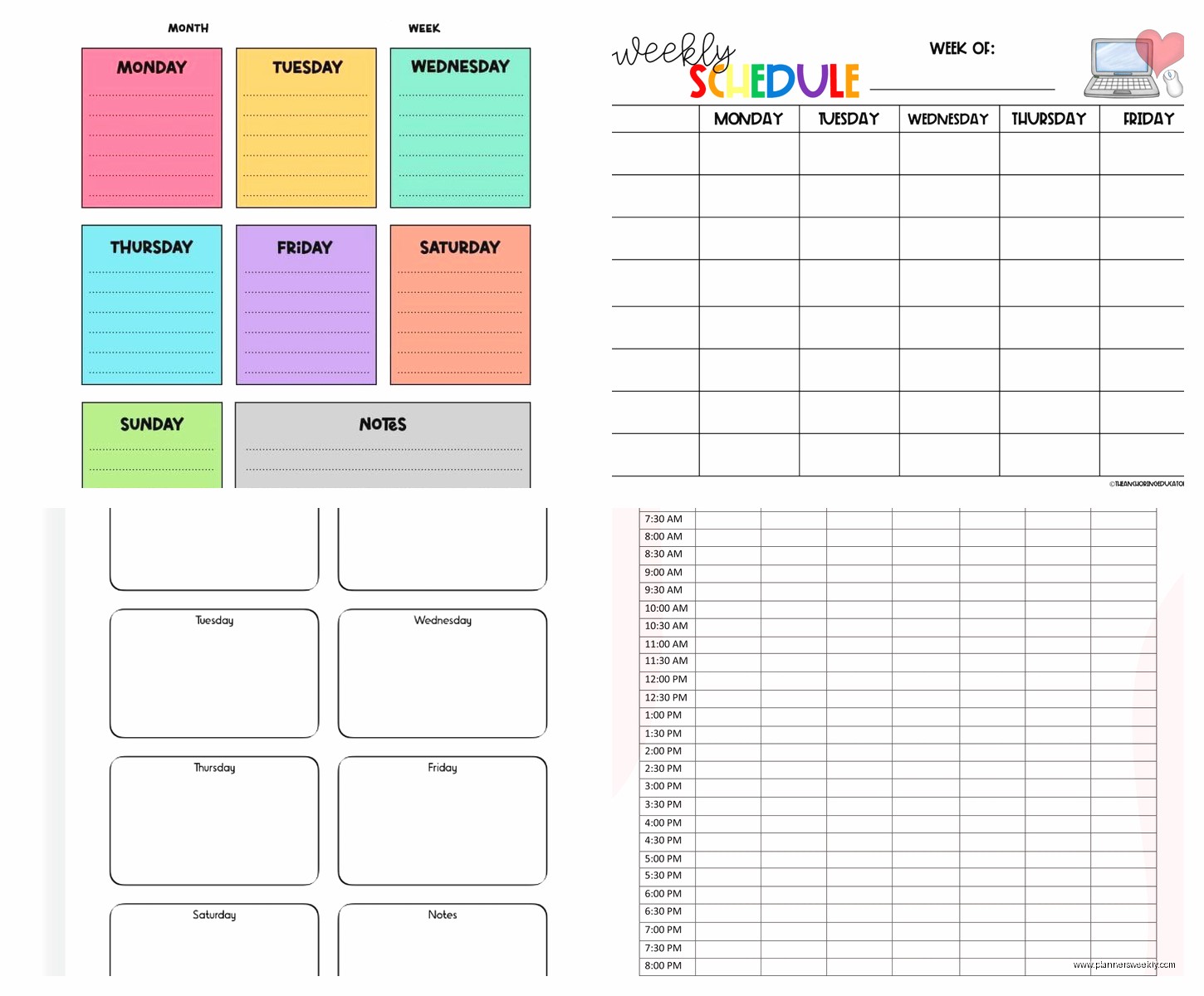
101 Planners has pretty ones if you want something nicer looking. They do want your email but they don’t spam you to death. I signed up like six months ago and I’ve gotten maybe three emails total. Their “Simple Weekly Schedule” is actually simple, not that thing where websites call something simple and it’s got seventeen different sections.
PDF Customization Is Limited Obviously
If you download a PDF, you’re basically stuck with what you get unless you have Adobe Acrobat Pro. You can fill in the fields if it’s an interactive PDF, but you can’t change the layout or design. This is fine if you found exactly what you want, annoying if you need modifications.
My workaround: open the PDF in Canva (yeah I know I just said Canva’s templates aren’t practical but bear with me). You can upload a PDF and edit it there. Change colors, adjust text, move things around. Then download your customized version. Free Canva account lets you do this.
Apple Notes Has A Hidden Template Feature
If you’re in the Apple ecosystem, Notes has template functionality that nobody talks about. It’s not in the template gallery, you have to create your own, but once you make a weekly schedule template you can reuse it infinitely.
I made mine with a table – seven columns for days, rows for time blocks. Apple Notes lets you customize table colors and styles now. Save it, then duplicate it each week. Super fast, syncs across devices, no extra app needed.
The downside is it’s very manual. No auto-population, no smart features, just a table you fill in. But sometimes that’s exactly what you need? Like I don’t always want my schedule to be connected to seventeen other systems.
Customization Tips That Apply To Everything
Regardless of which template you pick, here’s what actually matters:
- Time blocking in 30-minute increments works better than hourly for most people – gives you more precision without being overwhelming
- Leave buffer time between appointments because back-to-back scheduling will destroy you
- Color coding is not optional if you have different types of commitments – your brain processes colors faster than text
- Put the most important stuff at eye level, literally – if you’re looking at a screen, that’s the middle section, not the top
- Include drive time or transition time as separate blocks because forgetting this is how you end up late to everything
Also this might just be me but I put a “flex time” block every day. Just an hour that’s officially nothing. Sometimes I need it for overflow, sometimes it becomes bonus free time. Either way it prevents that feeling of being scheduled to death.
The Mobile Question
Whatever template you choose, check how it works on your phone because you’re gonna reference it there constantly. Google Sheets app is fine, Excel app is clunky, Notion app is actually better than desktop somehow, Trello app is great.
PDF templates on mobile are terrible unless you have a tablet with a good stylus situation. I tried using printable templates on my phone and just… no. Can’t read them, can’t edit them, completely useless.
What I Actually Use After Testing All This
My current setup is Google Sheets for the actual weekly schedule because it’s simple and shareable, Notion for bigger project planning that connects to my schedule, and yes fine I still keep a paper planner for random notes and brain dumps. The paper thing is probably inefficient but whatever, it works for me.
For clients, I usually recommend Google Sheets if they’re beginners, Notion if they’re willing to invest setup time for more functionality, and Trello if they think more in terms of tasks than time blocks.
The printable PDF route makes sense if you genuinely prefer paper and you’re not gonna need to rearrange things constantly. Some people’s schedules are pretty consistent week to week and they just need a framework to fill in. That was absolutely not me but might be you.
Common Customization Mistakes I See
People make their templates too complicated. Like they add sections for goals and reflections and meal planning and habit tracking and suddenly their weekly schedule is a whole life management system. Just… schedule your week. You can have other tools for other things.
Another thing: making the time slots too small. I tested a template with 15-minute increments and it was ridiculous. Unless you’re a surgeon or air traffic controller you don’t need that level of precision. It just makes everything feel frantic.
Oh and not accounting for regular stuff that happens every week. Your template should have your standing commitments already in there so you’re not rewriting “team meeting 10am Monday” every single week. That’s just wasted time.
The last mistake is picking something because it looks cool rather than because it matches how your brain works. I don’t care how aesthetic that Instagram planner is, if you’re a visual person who needs to see everything at once, you need a different layout than someone who likes detailed lists.
Test a few different styles for at least a week each before committing. What feels good on Sunday night when you’re planning might feel completely wrong on Wednesday afternoon when you’re trying to figure out what’s next.
