
Digital Productivity, Online planners, Planners
Monthly Work Schedule Template: Free Downloads & Guide
Mar
Okay so I’ve been building monthly work schedule templates for like seven years now and I just spent last Tuesday reorganizing my entire system because a client asked me which format actually works for hybrid teams and I realized… I had opinions.
The Templates I Actually Use Every Month
So here’s the thing about monthly work schedules – most people download these gorgeous Pinterest-worthy templates and then never open them again because they’re too complicated or not complicated enough. I’ve got like fourteen templates saved on my desktop right now and I genuinely only rotate between three of them depending on what’s happening that month.
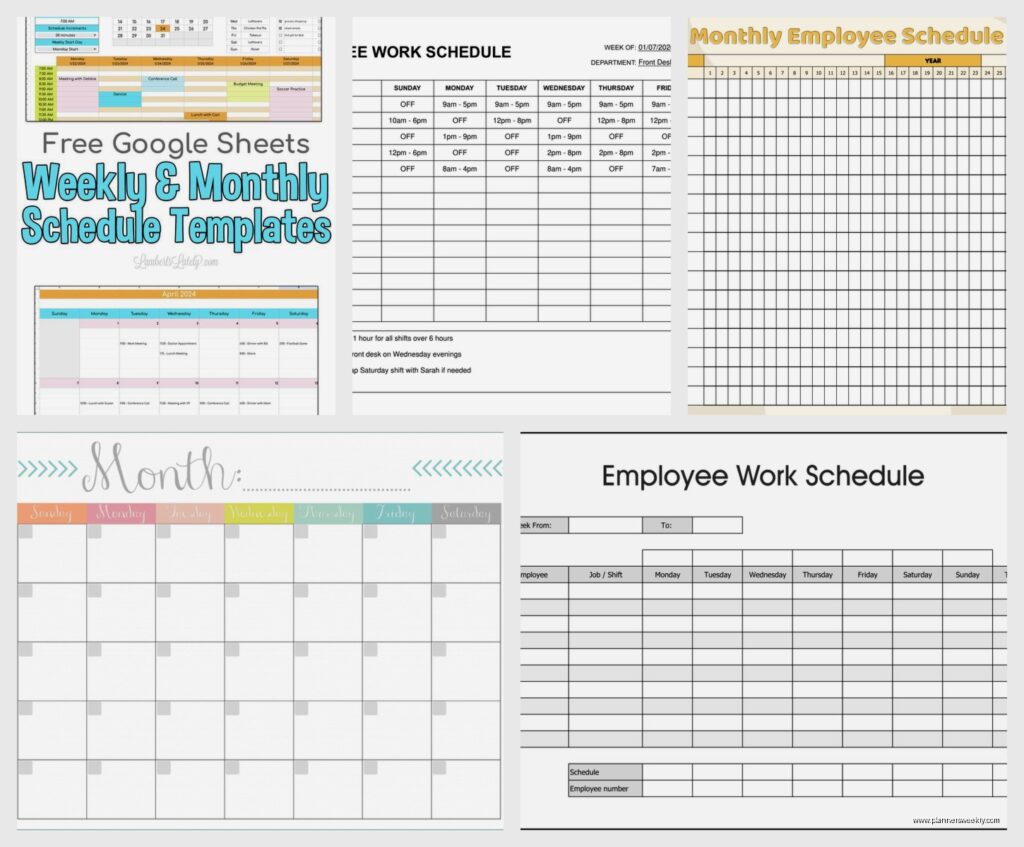
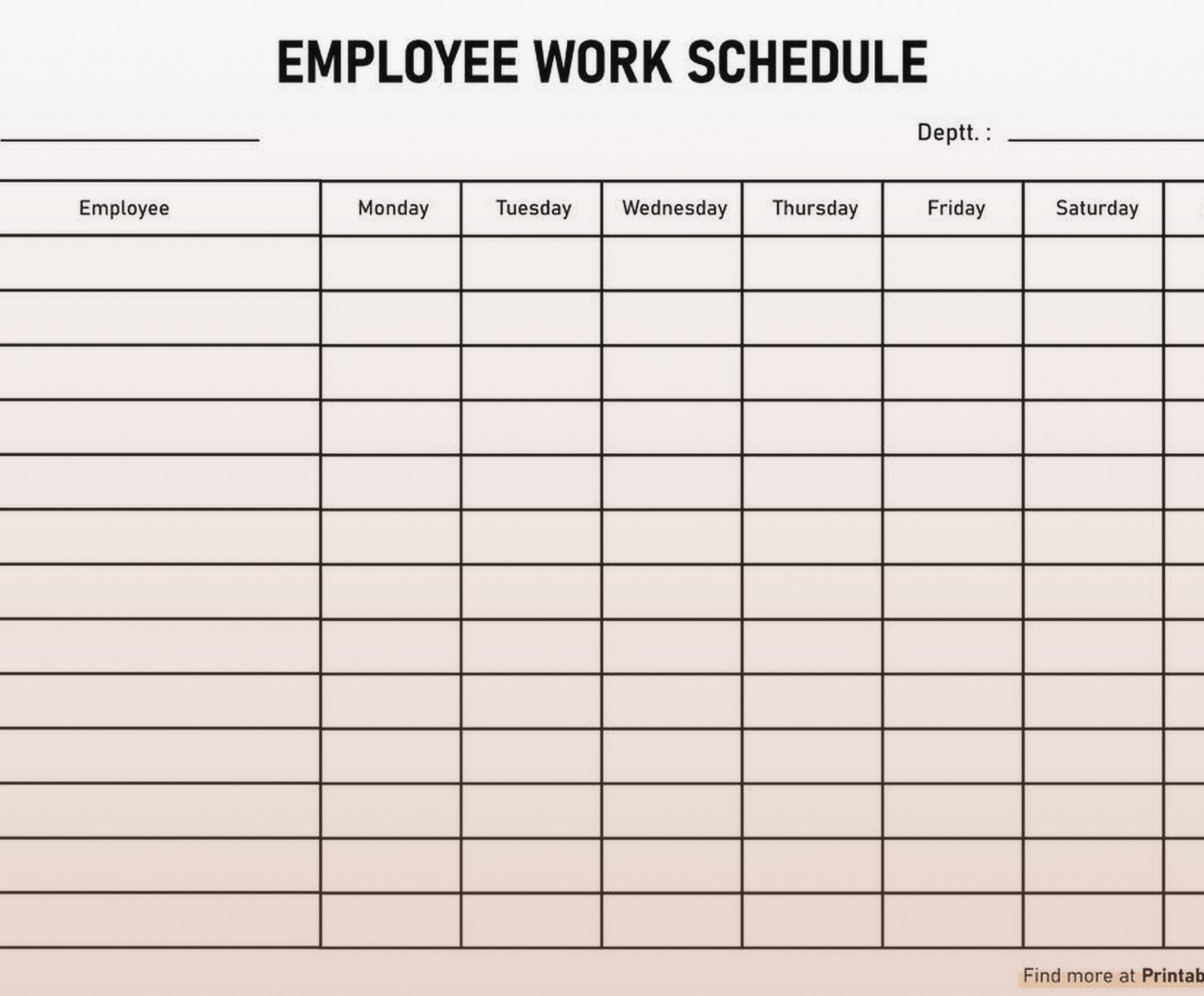
The basic grid template is your starting point. It’s literally just a calendar grid with time blocks, nothing fancy. I use Google Sheets for this one because then you can share it with your team and everyone stops asking “wait when is Sarah off next week” in Slack forty times a day. You’ve got your days across the top, employee names or task categories down the side, and you just fill in the cells with shifts or project blocks or whatever.
Here’s what goes in mine:
- Employee name or department
- Date range across the top (I do Sunday to Saturday but some people are Monday people which is fine I guess)
- Shift times or project codes in each cell
- A notes column on the right that everyone ignores but you’ll need it eventually
- Color coding that makes sense to you – I use yellow for training days, blue for remote work, green for… actually I forgot what green means I should check that
The Hourly Breakdown Template
Wait I forgot to mention – if you’re scheduling shifts that aren’t the same every day, you need the hourly version. This one’s more detailed and honestly kind of annoying to set up the first time but then you just copy it every month.
I built one for a coffee shop client last year and we had to account for opening shifts, mid shifts, closing shifts, and this one person who could only work Tuesdays from 2-4pm which was very specific but okay. The hourly template has time slots down the left side – I usually do 6am to 10pm in one-hour increments because that covers most businesses unless you’re running a 24-hour thing which is a whole different situation.
You drop employee names into the time slots they’re working and you can immediately see gaps. Like oh no one’s scheduled for the 3pm rush on Thursday, that’s gonna be a problem. It’s visual in a way that a list format just isn’t.
Free Download Options That Don’t Suck
Microsoft has free templates in Excel that are actually pretty good? I know everyone wants to hate on Microsoft templates but their monthly work schedule one has formulas already built in for calculating total hours per employee. You just go to File > New > search “work schedule” and there’s like twenty options.
The one called “Employee Schedule” is solid. It auto-calculates hours, has space for notes, and doesn’t have weird locked cells that prevent you from editing things. I’ve used this one for clients who specifically need Excel because their company is weird about Google products.
Google Sheets templates are in the template gallery when you start a new sheet. Their “Schedule” template is clean but super basic – which honestly might be what you need if you’re just tracking like five people. I added conditional formatting to mine so weekend shifts automatically highlight in a different color because I kept accidentally scheduling people for six days straight and not noticing.
Canva Has Work Schedule Templates Now
Okay so funny story, I was making an Instagram post last month and accidentally discovered Canva has work schedule templates and some of them are actually functional? They’re definitely prettier than a spreadsheet which matters if you’re gonna print these and post them in a break room or something.
The downside is they’re not great for calculations. Like you can make a beautiful schedule but you’re gonna have to manually count hours if you need that information. I use the Canva ones when I need something to look professional for a client presentation but then I also maintain the actual working schedule in Sheets.
There’s one called “Modern Work Schedule” that has this nice teal and gray color scheme and enough space to actually write shift times without the text getting all cramped. You can edit it right in Canva’s free version.
How I Actually Build These From Scratch
Sometimes the templates don’t do what you need and you gotta just make your own. I know that sounds intimidating but it’s really just deciding what information you need to see at a glance.
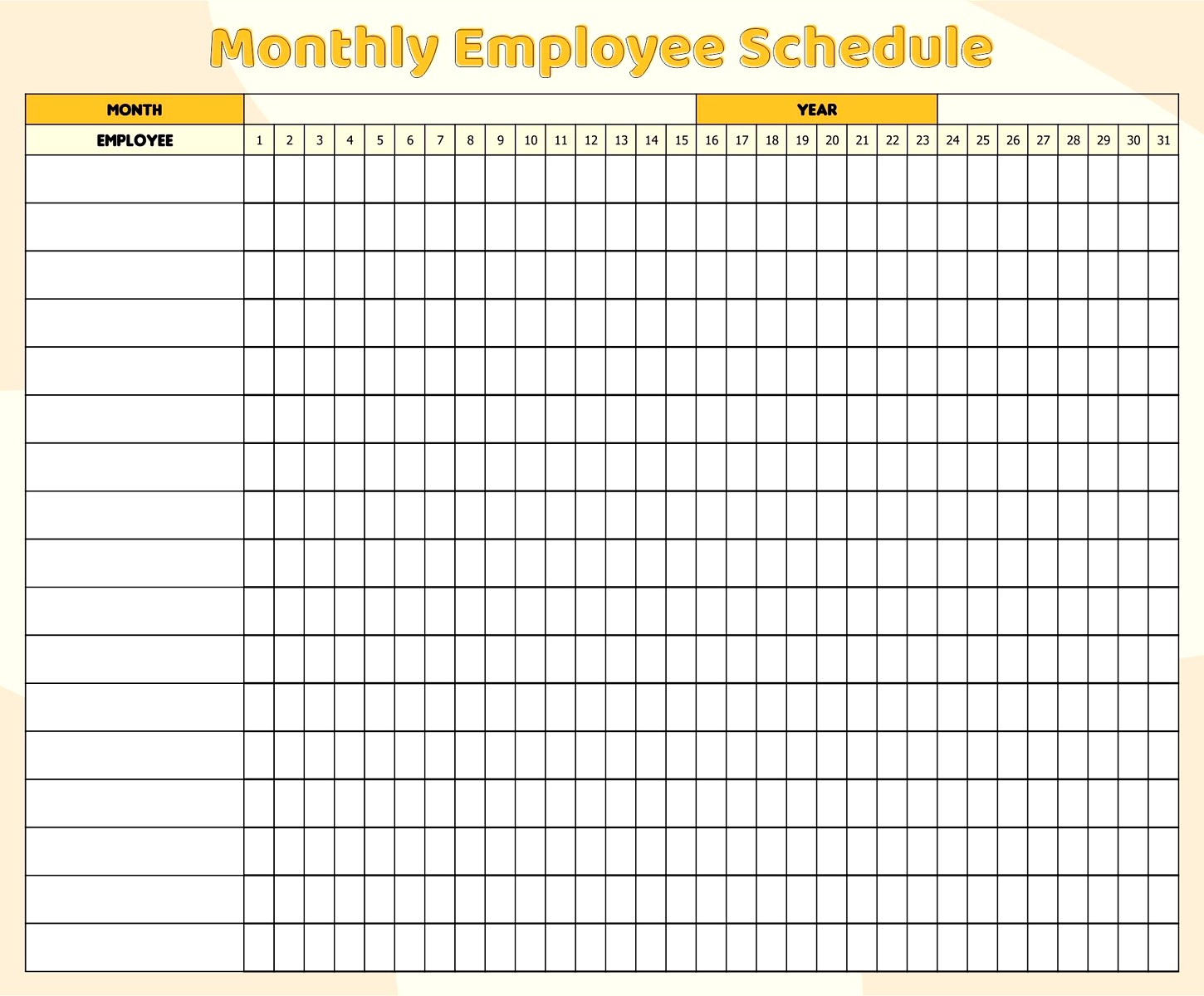
Start with a blank spreadsheet. Put the month and year at the top because future you will not remember which August this is, trust me. Then create your header row with dates – I use a formula for this now because manually typing dates is how mistakes happen.
In Google Sheets the formula is like =DATE(2024,3,1) and then you drag it across and it auto-increments. You can format the cells to show just the day number or the full date or whatever. I usually do “Mon 3/4” format so you can see both the day of the week and the date.
The Left Column Setup
Down the left side goes whatever you’re scheduling. Employee names if you’re doing staff scheduling. Project names if you’re doing project time blocking. I’ve even made ones with different locations down the side for clients who manage multiple office locations.
Pro tip that took me way too long to figure out – freeze the top row and left column so when you scroll around the spreadsheet you can still see what everything means. In Google Sheets it’s View > Freeze > 1 row and 1 column. In Excel it’s the same concept, different menu.
My cat just knocked over my water bottle which is apparently what we’re doing now… anyway.
Adding the Actual Schedule Information
In each cell where a person/project intersects with a date, you put the schedule info. For employee scheduling I usually put shift times like “9am-5pm” or “OFF” or “REMOTE”. For project scheduling I put task codes or time blocks like “Client A – 4hrs”.
The color coding is where this gets useful. I select all the cells with a certain shift type – say all the closing shifts – and highlight them the same color. Then you can see patterns like oh Sarah is closing five nights in a row, maybe we should balance that out.
Conditional formatting can do this automatically but honestly sometimes I just manually highlight things because I find it faster and I’m lazy about setting up complex formulas unless I know I’ll use the template for months.
Features That Actually Matter
I’ve tested a ridiculous number of schedule templates and here’s what separates the ones I actually use from the ones that sit in my Downloads folder forever:
- Total hours calculation per person – you need this for payroll or workload balancing
- A space for notes that’s actually big enough to write in – “Dr appt” needs to fit without abbreviating
- Easy to see who’s off at a glance – I use a gray fill for days off
- Printable without looking insane – check print preview before you commit to a template
- Works on mobile – sometimes you gotta check the schedule from your phone in the Target parking lot, it happens
The mobile thing is real. I switched to Google Sheets for most of my schedules specifically because the app is decent and you can pull it up anywhere. Excel mobile works too but I find the interface more annoying.
Templates for Different Industries
Retail schedules need different stuff than office schedules. I made one for a boutique client that had columns for register coverage, floor coverage, and stockroom because they needed to make sure all three areas were staffed. You couldn’t just schedule three people and call it done – you needed three people with the right distribution.
For restaurants I add a position column because “5 servers scheduled” doesn’t help if you also need bartenders and hosts. The template I use for restaurant clients has the date at the top, then underneath each date there are rows for different positions. It’s more complex but it prevents the “wait we have no one who can work the bar tonight” panic.
Office environments can usually get away with simpler templates unless you’re doing project-based scheduling. Then you might need a different view entirely – like a Gantt chart situation instead of a traditional calendar grid. But that’s kind of a different topic.
Making Your Template Not Horrible to Update
The best template in the world is useless if updating it is so annoying that you just… stop doing it. I learned this the hard way with an over-engineered template that had like fifteen tabs and linked formulas and it was beautiful but I dreaded opening it every week.
Keep it simple enough that you can update it in under ten minutes. If you’re spending half an hour every week fighting with your schedule template, something’s wrong. Either the template is too complex or you’re tracking information you don’t actually need.
I use data validation dropdowns for recurring information. Like instead of typing “9am-5pm” every time, I have a dropdown with standard shifts. You set this up once: select the cells, go to Data > Data Validation, choose “List of items” and type in your options separated by commas. Now you just click and select instead of typing.
This also prevents typos. You won’t end up with “9am-5pm” and “9:00am-5:00pm” and “9-5” all meaning the same thing but looking different, which makes data analysis impossible later if you need it.
The Sharing Situation
If other people need access to the schedule, Google Sheets or Excel Online is the move. You can set permissions so some people can edit and some people can only view. I usually give managers edit access and everyone else view-only access because otherwise someone accidentally deletes a column and creates chaos.
There’s a comment feature in both platforms that’s actually useful. If someone needs a shift covered they can click on that cell and add a comment asking. Way better than the random “can someone take my Thursday shift” messages in the group chat that get lost immediately.
You can set up email notifications for when the schedule changes too, though be careful with this because if you’re editing it a lot you’ll spam everyone. I usually only turn on notifications once the schedule is finalized.
Weekly vs Monthly Views
Sometimes a monthly view is too much information crammed into one place and you need a weekly template instead. I switch between them depending on what I’m planning.
Monthly is good for:
- Seeing patterns over time
- Planning time off requests
- Balancing workload across the full month
- High-level overview for managers
Weekly is better for:
- Detailed shift planning
- Day-to-day operations
- When you have complex shift rotations
- Sharing with employees who just need to know their current week
I actually maintain both for some clients. The monthly template is the planning document where we figure out coverage for the whole month, and then each week I generate a detailed weekly schedule from that. It sounds like double work but it’s really just copy-pasting one week at a time into a prettier format.
The Print vs Digital Decision
Some workplaces need printed schedules posted in a break room or office. If that’s you, design with printing in mind from the start. Use a landscape orientation for monthly schedules so you have more horizontal space for the dates. Check your margins – the default margins in most spreadsheet programs are too big and waste space.
I set margins to 0.5 inches on all sides usually. And make sure your text is big enough to read from a couple feet away if it’s going on a wall. 11pt font minimum, 12pt is better.
Also black and white printing – even if you use colors on screen, check what it looks like in grayscale. Sometimes your careful color coding becomes “fifty shades of gray that all look identical” when printed. I add text labels in addition to colors for this reason. Like the cell is highlighted yellow AND says “TRAINING” so it’s clear either way.
Formulas That Are Actually Worth Setting Up
I’m not a huge formula person because they can make templates confusing for other people to use, but there are a few that save enough time to be worth it.
Total hours per person: =SUMIF(B2:AF2,”>0″) if you’re putting numeric hours in the cells. This adds up all the hours for that row. You can get fancier with this but basic sum formulas cover most needs.
Counting scheduled days: =COUNTA(B2:AF2) counts how many cells in that range have anything in them. Useful for seeing how many days someone is scheduled at a glance.
Conditional formatting to highlight weekends: Select your weekend columns, go to Format > Conditional Formatting, set it to format cells if “Date is weekend” and choose a fill color. Now weekends are always highlighted automatically even when you copy the template to a new month.
I tried setting up a rotation formula once that would automatically assign shifts based on a pattern and it was a nightmare. Sometimes manual is fine, not everything needs to be automated.
Template Maintenance
Every few months I review my templates and clean them up. Delete old versions that are cluttering my Drive. Update the dates. Remove color coding that doesn’t make sense anymore because the person who needed Tuesdays off doesn’t work here anymore.
I keep a master blank template for each type and then do “save as” with the month name when I need to create a new schedule. So I have “Monthly Schedule MASTER” that stays empty, and then “Monthly Schedule March 2024” that’s the actual working document. This way I never accidentally mess up my template by editing the wrong file.
