Digital Productivity, Online planners, Planners
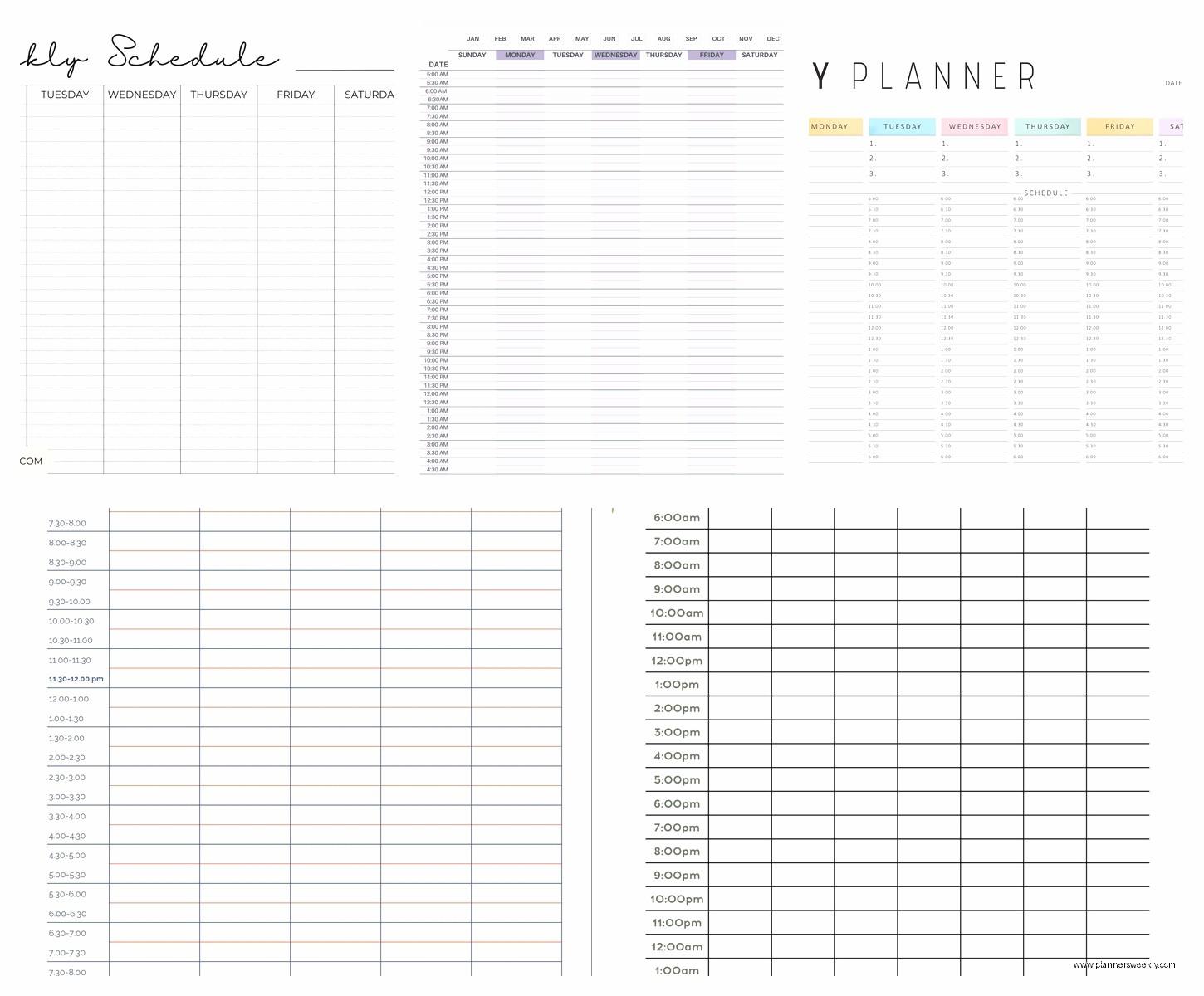
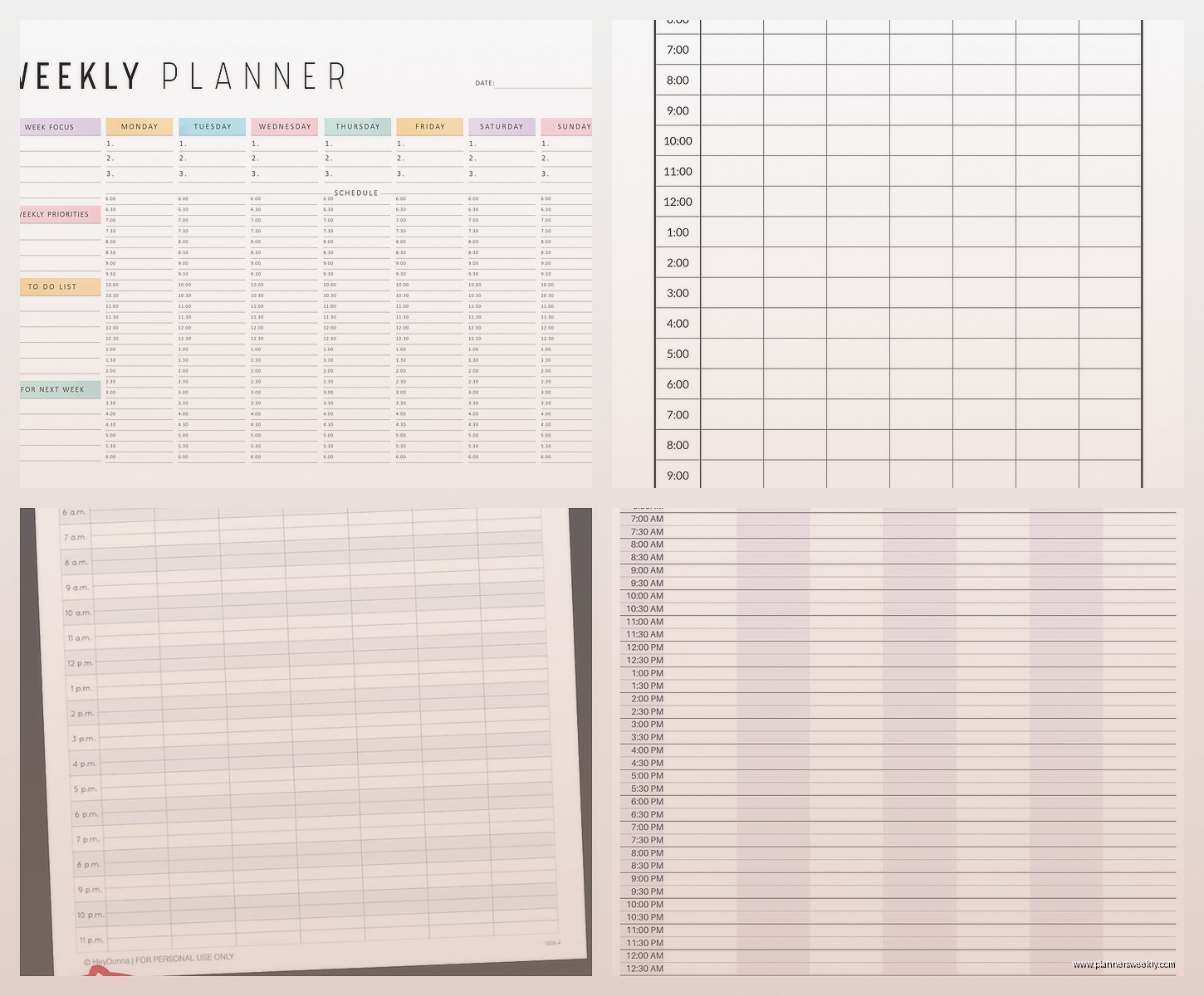
Weekly Hourly Planner: Time-Block Planning Guide
Apr
Okay so I’ve been testing like five different weekly hourly planners for the past month and honestly I’m kinda obsessed now. Started because one of my clients kept missing deadlines and I was like, you need to see where your time actually goes, and then I fell down this whole rabbit hole.
The thing with time-block planning is you really need to see the whole week at once. I tried doing this in a daily planner for like two weeks and it was useless because you can’t move things around when Wednesday explodes and suddenly you’re rescheduling everything. So weekly hourly is basically the only format that works for this.
What Actually Makes a Good Weekly Hourly Planner
The hourly increments matter way more than you’d think. I tested one that had 30-minute blocks and honestly it was too much. Like visually overwhelming and also who needs to plan in 30-minute chunks unless you’re a surgeon or something. One-hour blocks are the sweet spot. You can always draw a line halfway through if you need to split a block.
Paper quality is huge though. I was using this cheapo one from Amazon (the “Productivity Planner Pro” or whatever generic name) and my Frixion pens kept bleeding through. Ended up only being able to use pencil which defeated the whole purpose because I like color-coding. Switched to the Passion Planner and the paper is SO much better. Like 100gsm I think? My highlighters don’t bleed at all.
The Layout Thing Everyone Gets Wrong
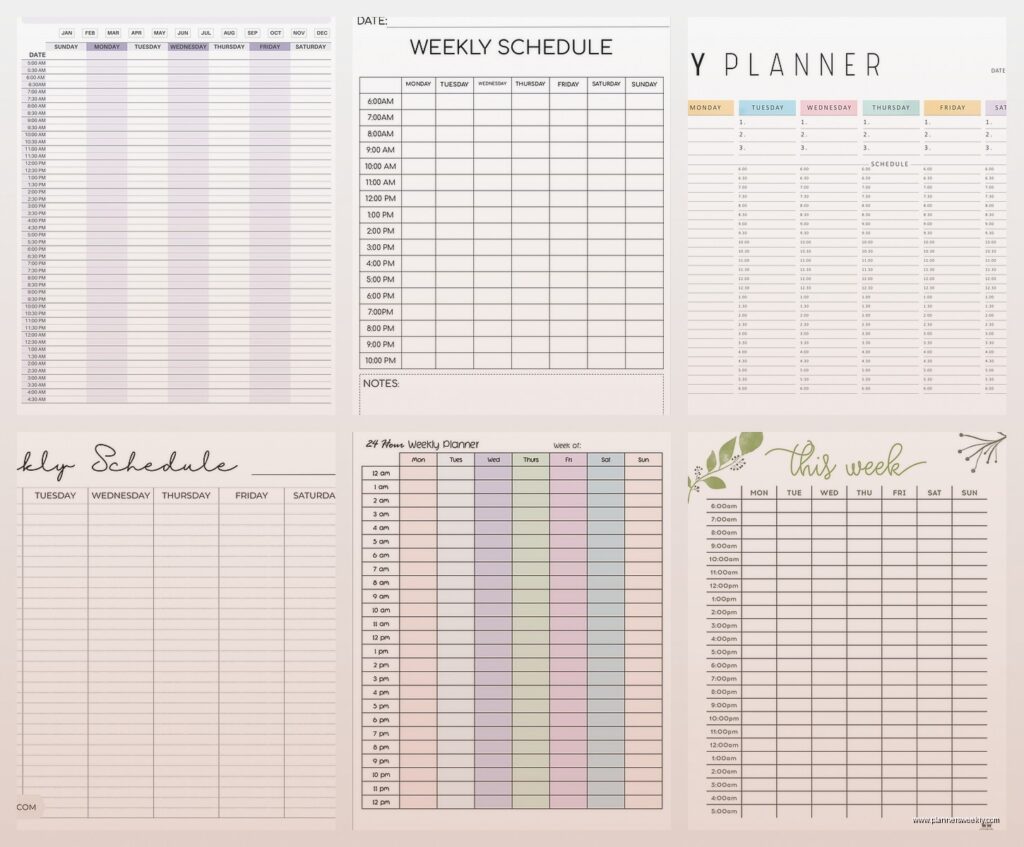
Most planners put the days going across horizontally which seems logical but it’s actually terrible for time-blocking. You want vertical columns for each day. That way you can see Monday through Sunday (or Monday through Friday if you don’t wanna plan weekends) all at once and spot patterns.
I tested this with the Ban.do planner first and it took me like three weeks to realize why I kept feeling scattered. The horizontal layout meant I was only looking at one day at a time basically. Defeated the whole purpose. When I switched to the Clever Fox which has vertical day columns, suddenly I could see that I was scheduling all my meetings on Tuesday and Thursday and leaving Monday/Wednesday/Friday totally empty which was dumb.
The Actual Time-Blocking Method I Use
This is gonna sound weird but I don’t start by filling in tasks. I start by blocking out the non-negotiables first. Sleep, meals, commute if you have one, dog walks (my dog Charlie will literally sit and stare at me at 4pm until I take him out so that’s blocked), regular appointments, whatever.
Then I block out what I call “focus blocks” which are just big chunks where I do deep work. For me that’s writing blog posts or working with clients one-on-one. These go in my best brain hours which are like 9am to 12pm. I don’t put specific tasks in these blocks yet, just label them “FOCUS” in red.
After that I add my “shallow work” blocks. Email, admin stuff, scheduling, ordering supplies, all that garbage that has to get done but doesn’t require my full brain. These go in the afternoon when I’m basically useless anyway.
Color Coding That Actually Works
Okay so I’ve tried like ten different color systems and most of them are too complicated. You’re not gonna stick with it if you need to remember that purple is for personal finance and light blue is for work finance and dark blue is for… whatever.
Here’s what actually works for me:
- Red for focus/deep work blocks
- Blue for meetings and calls
- Green for exercise and self-care stuff
- Yellow for admin/shallow work
- Orange for appointments I can’t move
That’s it. Five colors. I tried adding more and it was just too much mental overhead.
Oh and another thing, I don’t color the entire block. I just do a thick line on the left side of each time block with a highlighter. Keeps it cleaner and you can still write in the block without your pen fighting with highlighter.
Platform Specific Stuff That Actually Matters
If you’re doing this on paper (which I recommend honestly), size matters. I tested a full-size 8.5×11 planner and it was perfect for my desk but useless when I needed to take it to a coffee shop or whatever. The A5 size is better. Fits in most bags, still enough room to write.
The Passion Planner is probably the most popular one for time-blocking. It’s got hourly slots from 7am to 9pm I think? Maybe 10pm. The paper is good, it lays flat which is huge, and they have this reflections section at the bottom of each week. I don’t really use that part but some people love it.
Clever Fox is cheaper and honestly almost as good. The binding isn’t as nice so it doesn’t lay as flat, but the layout is nearly identical. Paper quality is slightly worse but still fine for most pens. If you’re on a budget this is the one.
Digital Options That Don’t Totally Suck
I resisted digital forever because I’m a paper person but then my client who travels constantly was like “I can’t carry a planner through airports” and fair point.
Google Calendar can work for this if you set it to week view and actually use it properly. The trick is creating recurring “blocks” as all-day events… wait no, not all-day events, that doesn’t work. You create them as regular events but you make them the right time blocks. So like “Focus Block” from 9-12, “Admin Block” from 2-4, whatever.
The problem with Google Calendar is other people can see your calendar and book stuff, so you gotta mark these blocks as “Busy” otherwise people will schedule meetings right through your focus time. Been there, it’s annoying.
Notion has templates for this too. I tested one last month when my laptop was in the shop and I had to use my iPad for everything. The Notion template was… fine? It worked. But honestly it felt like too many clicks to see everything. Like you’re scrolling up and down to see the full week and it just doesn’t hit the same as seeing it all at once on paper or even on a big monitor.
The Weekly Review Thing You Gotta Do
This is the part that makes time-blocking actually work instead of just being a pretty schedule you ignore. Every Sunday (I do mine Sunday evening while watching whatever show I’m binging, currently rewatching The Bear), you sit down with last week’s planner and this week’s blank pages.
First you look at what you actually did versus what you planned. I use a different colored pen to mark what actually happened. So like if I planned a focus block from 9-12 on Tuesday but actually spent that time dealing with a client emergency, I cross out “Focus Block” and write “Client emergency – Sarah’s website down” in a different color.
Do this for the whole week. It’s honestly depressing at first because you’ll realize how little of your planned schedule actually happens. But that’s the point. You start to see patterns.
For me, I noticed I was consistently blowing past my 1pm lunch block and working through it, then being exhausted by 3pm. So I moved my focus blocks later and put lunch at 11:30am instead. Sounds simple but I never would’ve caught that without tracking.
Planning The Next Week
Once you’ve reviewed last week, you plan this week. But here’s the thing – don’t plan every single hour. I learned this the hard way. I used to fill in every single block from 7am to 8pm and then feel like a failure when life happened and everything got messed up.
Now I only plan about 60% of my time. So if I have 8 hours in a workday, I only assign specific tasks to like 5 hours. The other 3 hours are buffer blocks labeled “Flex” where I catch up on whatever ran over, or handle unexpected stuff, or honestly sometimes just decompress because my morning was intense.
oh and another thing, I batch similar tasks now. All my client calls are on Tuesday and Thursday afternoons. All my writing is Monday/Wednesday/Friday mornings. Email gets checked at 11am and 4pm only, not constantly. This was a game-changer honestly.
Dealing With the Messy Reality Part
Your planner is gonna get messy. That’s fine. I used to try to keep mine pristine and would rewrite entire pages if I made too many changes. What a waste of time.
Now I just cross stuff out, draw arrows, write in margins, whatever. It’s a tool not a scrapbook. Although some people do make theirs really pretty with stickers and washi tape and stuff – if that motivates you, go for it. Just don’t let the decorating become another form of procrastination. (I’ve definitely spent 20 minutes choosing the perfect sticker instead of actually doing the task, so.)
What To Do When Everything Falls Apart
Some weeks are just chaos. Kid gets sick, you get sick, work explodes, whatever. When this happens I just mark the week “CHAOS WEEK” at the top and let it go. Don’t try to maintain the time-blocking system during a crisis. That’s not what it’s for.
The system is for normal weeks when you have some control over your time. Trying to force it during genuinely unpredictable times just makes you feel bad for no reason.
Then the next week, you start fresh. Don’t try to “catch up” on the time-blocking system itself. Just review what happened (even if the review is just “everything was on fire”), acknowledge it, and plan next week based on current reality.
The Specific Products Worth Buying
Okay so if you’re actually gonna buy something:
Best overall: Passion Planner (the Academic version if you want August-July, regular if you want January-December). It’s like $35 which is pricey but it’ll last you a year and the quality is there. The weekly hourly layout is from 7am to 10pm I just checked. They also have a compact version if you want smaller.
Budget option: Clever Fox Weekly Planner. Usually around $20-25. Nearly identical layout to Passion Planner, slightly worse paper and binding but totally functional. This is what I recommend to clients who wanna try time-blocking without spending a bunch.
Minimalist option: Wordsworth Weekly Planner. Super plain, no fluff, just the hourly grid and some space for notes. Like $18. Good if you don’t want any extra sections or prompts or whatever.
wait I forgot to mention, all of these come in different versions so make sure you’re getting the WEEKLY HOURLY one, not just weekly. Some of them have weekly layouts without hours which is useless for time-blocking.
Digital Route
If you’re going digital, honestly just use Google Calendar in week view. It’s free, it syncs everywhere, you can color-code stuff, and you probably already have it. The learning curve is basically zero.
If you want something fancier, Sunsama is specifically designed for time-blocking and task management. It’s expensive though, like $16/month I think? Maybe $20 now. I tested it for two months and it’s really nice, super smooth, integrates with other apps. But I ended up going back to paper because I stare at screens all day anyway and my brain needs the break.
For iPad people, GoodNotes with a weekly hourly template works great. You can write on it with an Apple Pencil, it feels more like paper than typing. There are tons of free templates on Etsy or you can buy fancy ones. I used this setup for a while when I was trying to go paperless and it was pretty good actually.
The main thing is just picking something and sticking with it for at least a month. Time-blocking takes time to dial in. Your first week will probably be wildly inaccurate. That’s normal. By week three or four you’ll start to get a feel for how long things actually take and how to build in buffer time.
Also you’re gonna forget to check your planner sometimes. I still do this and I’ve been using this system for like three years. Just get back to it the next day, don’t make it a whole thing.