
Digital Productivity, Online planners, Planners
Weekly Work Schedule Template: Free Downloads & Guide
Mar
Okay so I just spent the last three weeks actually using like six different weekly work schedule templates because my productivity system completely fell apart in January and I needed to figure out what actually works versus what just looks pretty on Pinterest.
The Ones I Actually Used Every Day
The basic Google Sheets template everyone recommends is honestly not bad for starting out. I know that sounds boring but hear me out – I set one up with my morning coffee on a Monday and by Wednesday I’d already customized it three times because that’s the thing about digital templates, you can just keep tweaking them. Mine has color coding now for client work versus admin stuff versus the creative projects I keep saying I’ll get to.
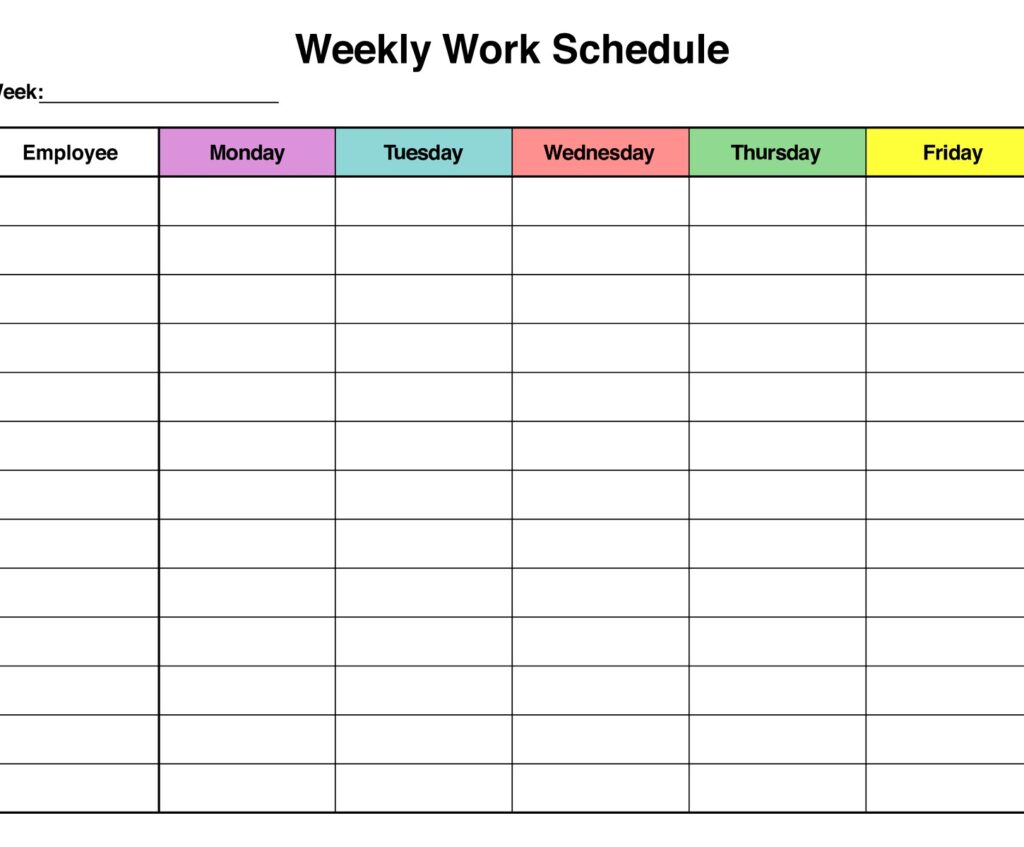
The template I’m using has columns for each day Monday through Friday, then I added Saturday because let’s be real, I always end up working a few hours on weekends anyway. Each day gets broken into hour blocks from 7am to 7pm. Before that I was trying to do 30-minute blocks and it was just… too much. Too granular. I’d spend more time updating the schedule than actually working.
What Actually Goes In The Blocks
This is where I messed up for like two years. I was putting individual tasks like “email Sarah about Q2 projections” and then the whole thing became this overwhelming to-do list that made me want to hide under my desk. Now I block by activity type:
- Client calls and meetings (with the actual client name)
- Deep work blocks (no specifics, just “writing” or “strategy work”)
- Admin time (emails, invoicing, all that fun stuff)
- Buffer time (which I always skip and then regret)
My dog Walker comes at 2pm every day so that’s just permanently blocked off, and honestly having that forced break has been good for me even though it seemed annoying at first.
The Free Downloads That Don’t Suck
I downloaded probably fifteen templates before finding ones worth keeping. The Vertex42 weekly schedule template is solid – it’s an Excel file that doesn’t try to be fancy. Just a clean grid you can print or use digitally. I tested it for a whole week back in February and the main thing I liked was that it calculates your total hours automatically if you enter start and end times. Super helpful when you’re trying to figure out if you’re actually working 40 hours or like 60 hours but lying to yourself about it.
Oh and another thing – the Monday.com free template is actually pretty good if you want something more visual. You don’t need their paid version to use the basic weekly view. I used it for three weeks before realizing I was spending too much time making things look nice instead of actually doing the work. Classic productivity coach move right there.
Paper Templates Because Sometimes Digital Isn’t It
Okay so funny story, my laptop died during a client call in March and I had this printed weekly template on my desk that I’d downloaded from Canva. Ended up using it for the rest of the week and honestly? Kind of loved it. There’s something about physically writing your schedule that makes it stick in your brain better.
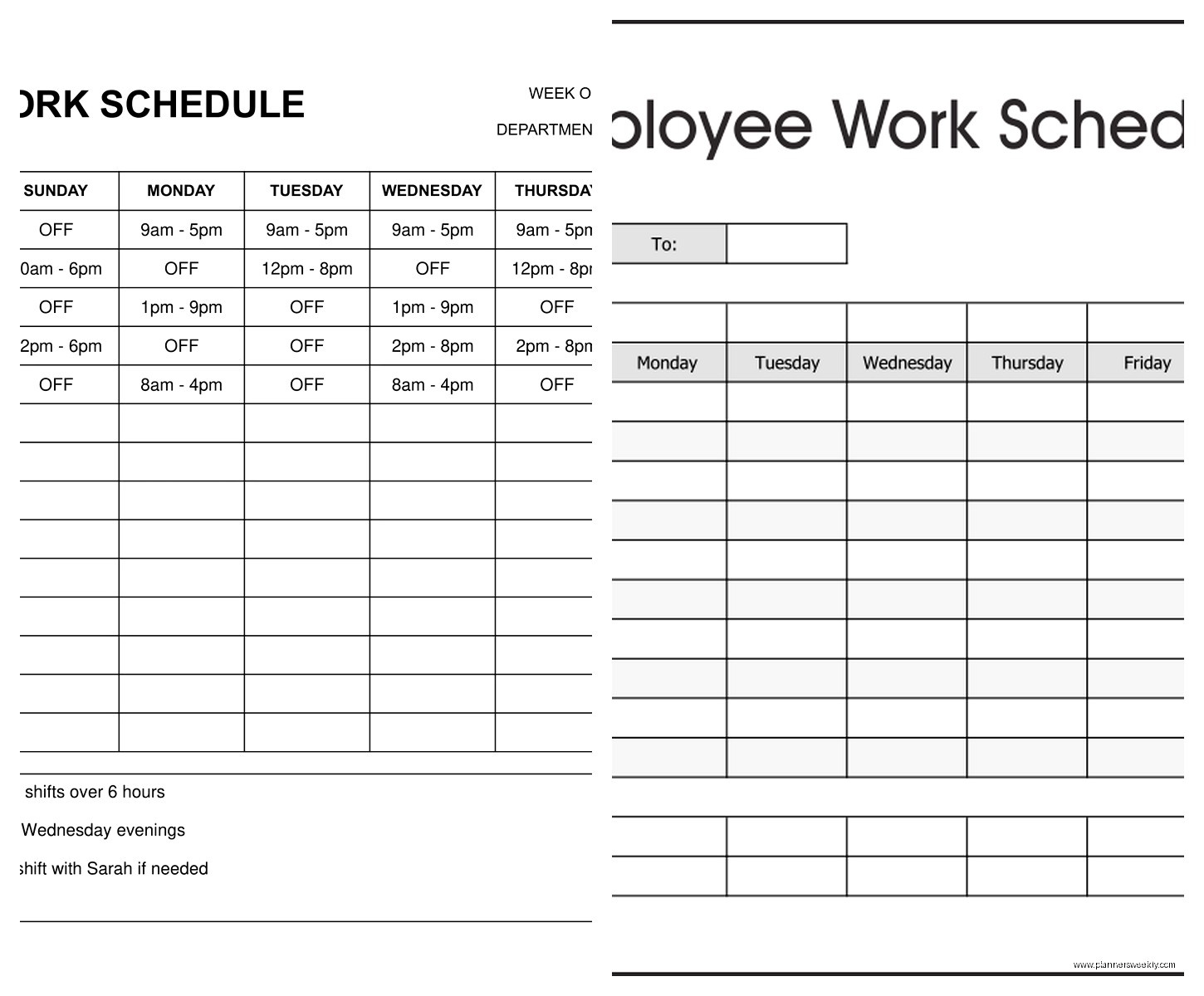
The Canva templates are free if you have a free account. Search for “weekly work planner” and you’ll get like a million options. I printed out the minimalist one with the thick lines because my handwriting is messy and I need big spaces. Used it for a month straight, would still be using it except I kept losing the paper under all my other papers.
This is gonna sound weird but I actually prefer printing them on cardstock from the craft store. Regular printer paper feels too flimsy and it ends up crumpled in my bag by Tuesday afternoon.
Time Blocking Is The Actual Method Here
Right so the template is just the tool, the actual technique that makes this work is time blocking. I know everyone talks about this now but I genuinely didn’t understand it until last year. You’re not making a to-do list, you’re assigning every hour of your workday a job.
My typical Monday looks like:
- 7am to 9am – deep work writing blog posts or working on course content
- 9am to 10am – email and Slack catch-up
- 10am to 12pm – client coaching sessions back to back
- 12pm to 1pm – lunch but actually lunch not working through it
- 1pm to 2pm – admin stuff, scheduling, invoicing
- 2pm to 2:30pm – dog walk break
- 2:30pm to 4pm – content creation or research
- 4pm to 5pm – planning tomorrow and end of day review
Some days this actually happens. Most days it goes completely sideways by 10:30am but at least I have a framework to come back to.
The Color Coding Thing Everyone Does
I resisted this for so long because it seemed extra but then I tried it and yeah okay I get it now. My Google Sheets template uses:
- Blue for client work
- Green for creative projects
- Yellow for admin and emails
- Purple for meetings
- Gray for buffer time
Takes literally two seconds to apply and then when you look at your week you can immediately see if you’re spending three entire days in meetings or if you actually have time for focused work.
The Templates I Downloaded But Never Actually Used
That fancy Notion template with all the databases and linked views? Too complicated. Spent an hour setting it up, used it for one day, never opened it again. It’s still sitting in my Notion workspace judging me.
The hourly planner that goes from 5am to 11pm made me feel like I should be working 18-hour days. Hard pass. Just looking at it was exhausting.
Any template that tries to combine your work schedule with meal planning and exercise tracking and habit tracking. I know some people love those but for me it’s too much on one page. I can’t focus on my work schedule when there’s also a section reminding me I haven’t been to yoga in three weeks.
Making Your Own Template From Scratch
Wait I forgot to mention – if none of the downloads work for you, just make your own. I did this eventually and it’s the one I’ve stuck with the longest. Open Google Sheets or Excel, here’s what I did:
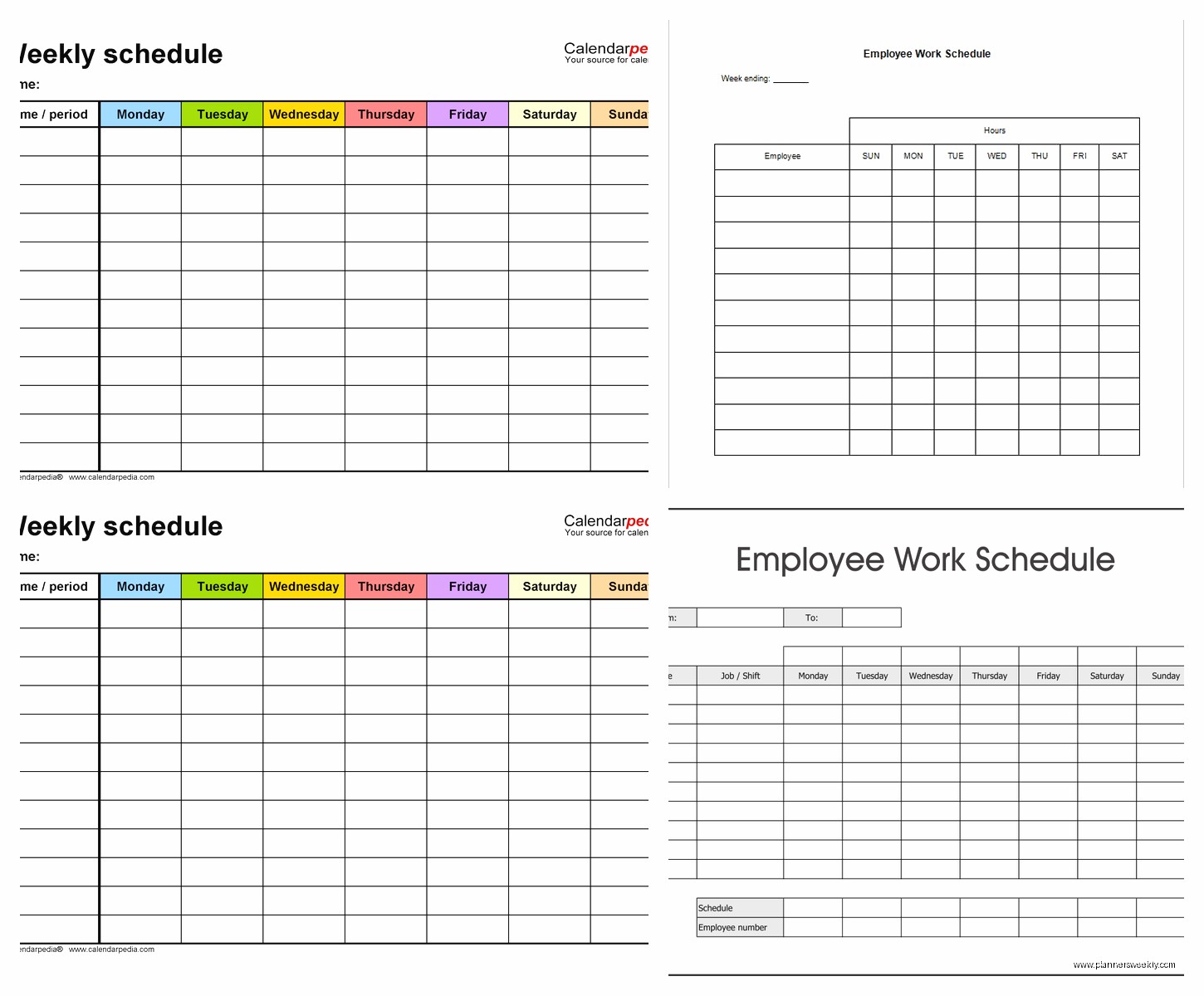
Column A is the time blocks. I do 7am, 8am, 9am, etc down the left side. Then columns B through F are Monday through Friday. Column G is for notes or tasks that didn’t fit anywhere. Column H is where I track if I actually stuck to the schedule that day (usually it’s like “60% followed it” or “completely abandoned by noon”).
I froze the top row and left column so they stay visible when I scroll, which is a game changer if you have a long schedule. To do this in Google Sheets you click View then Freeze then 1 row and 1 column.
Added some basic conditional formatting so if I type “MEETING” in any cell it automatically turns purple. Makes it visual without me having to manually color things.
The Weekly Review Part Nobody Talks About
Having the template is one thing, actually using it consistently is another. I do a weekly review every Friday afternoon around 4pm – earlier than that and I’m still in work mode and rushing through it, later than that and I’ve mentally checked out for the weekend.
I look at what I planned versus what actually happened. Usually there’s a big gap and that’s fine, the point isn’t to be perfect. The point is to notice patterns. Like I realized I was scheduling important strategy work for Friday afternoons when my brain is completely fried. Now I move that stuff to Tuesday or Wednesday mornings.
Also I noticed I was blocking zero time for email which meant I was just… doing email constantly throughout the day and never focusing on anything. Now email gets two specific 30-minute blocks and it stays closed the rest of the time. Well, mostly. I’m still working on this.
Digital vs Paper and Why I Use Both Now
My system now is kind of hybrid and it probably sounds complicated but it works for my brain. I plan the week on Sunday evening using my Google Sheets template. Print out a simplified paper version Monday morning that just shows the key blocks. Keep the paper one on my desk for quick reference and to jot notes on. Update the digital one if things change significantly.
The paper one keeps me on track during the day because it’s right there, can’t minimize it or close the tab. The digital one is the source of truth and where I do my Friday reviews because I can see multiple weeks at once and spot those patterns I mentioned.
For printing I use this basic template I made that’s just a simple table, nothing fancy. Black and white because color ink is expensive and I’m printing this every week. I spent like $30 on color printing in January before I wised up.
Apps That Work With These Templates
Okay so if you want to get a bit more sophisticated without going full complicated, these apps import or work well with basic schedule templates:
Google Calendar can import your spreadsheet if you format it right. There’s a whole thing with CSV files but it’s actually not that hard, took me maybe 20 minutes to figure out the first time. Now I can see my time blocks in calendar view on my phone which is helpful when I’m not at my desk.
Todoist integrates with Google Calendar so your tasks can show up alongside your schedule blocks. I use this for specific to-dos within the bigger time blocks. Like my 9am to 11am client work block might have three specific Todoist tasks for what I need to prep or follow up on.
My client actually showed me this one – Clockify lets you track time against your planned schedule. Free version works fine. I used it for a month to see how accurate my time estimates were and spoiler alert: I was way off. Thought I was spending 2 hours a day on email, was actually spending almost 4 hours. That was a wake-up call.
Adapting the Template for Different Work Styles
Not everyone works a standard Monday to Friday 9 to 5 thing. I have freelance clients who need completely different setups.
If you work shifts, the template needs start and end time columns instead of standard hours. One of my clients is a nurse and she does three 12-hour shifts a week, so her template is just three columns for whatever days she’s working that week, with hours from 6am to 7pm.
If you’re part-time or have variable hours, I’d still plan the full week but just shade out or mark the hours you’re not working. Helps you see your available time more clearly. My friend who works 25 hours a week was trying to fit 40 hours of tasks into her schedule and couldn’t figure out why she was always behind. Seeing it visually helped her realize she needed to cut like half her commitments.
For People Who Have Multiple Jobs or Side Hustles
This is basically me so I’ve tested this a lot. You need to block by job/role, not just by task type. My template has my coaching work in blue, blog and content work in green, and my consulting clients in orange. Otherwise everything blurs together and I end up spending my consulting time writing blog posts because that’s more fun.
I also keep separate running task lists for each role on a different tab of the spreadsheet. The weekly schedule shows the time blocks, the other tab shows what specific things need to happen during those blocks.
My cat just knocked over my water bottle so brb
Okay back. Where was I.
Common Mistakes I Made So You Don’t Have To
Scheduling every single minute of the day. You need buffer time. I learned this the hard way after having a full meltdown in week three because one meeting ran long and it threw off my entire day. Now I have 30-minute buffers between major blocks and it’s helped my stress levels significantly.
Not accounting for transition time between tasks. Your brain needs a minute to switch gears. I used to schedule a client call ending at 2pm and deep focus work starting at 2pm. Doesn’t work. Now I build in 15 minutes between different types of work.
Making the schedule too pretty. I wasted so much time in January making my template look aesthetic with custom fonts and colors and graphics. It didn’t make me any more productive, it just made me feel productive while I was actually procrastinating.
Not updating it when things change. If you have a schedule that says you’re doing deep work but you’re actually in an emergency client meeting, update the schedule. Otherwise when you review your week you’re looking at fiction instead of reality and you can’t learn anything from it.
The Energy Level Thing I Wish I’d Known Earlier
Your schedule should match your energy patterns. I’m sharpest from 7am to 11am, so that’s when I schedule creative work and anything requiring serious brainpower. Afternoons are for meetings and admin stuff that I can do on autopilot.
I tracked my energy levels for two weeks – just added a column to my schedule template and rated each hour from 1 to 5. Felt very extra doing this but the data was actually useful. Turns out I have a second wind around 8pm which explains why I was always working late. Now I sometimes schedule easier tasks for evening hours instead of trying to force myself to stop working at 5pm and then feeling guilty when I couldn’t.
Sharing and Collaborating on Schedules
If you work with a team or assistant or partner who needs to know your schedule, Google Sheets is better than Excel because of the sharing features. You can give someone view-only access so they can see when you’re available without being able to edit your schedule.
