
Digital Productivity, Online planners, Planners
Word Weekly Planner Template: Free Downloads
Apr
Okay so I’ve been testing Word weekly planner templates for like three months now because half my coaching clients keep asking me which free ones actually work, and honestly? Most of them are kinda terrible but I found some gems.
The Actual Good Free Templates on Microsoft’s Site
So Microsoft has this template library that nobody seems to know about. You just open Word, click File > New, and search “weekly planner” and boom. But here’s the thing – don’t just grab the first one. I made that mistake and ended up with this weird landscape template that didn’t fit in my planner binder and I was so annoyed.
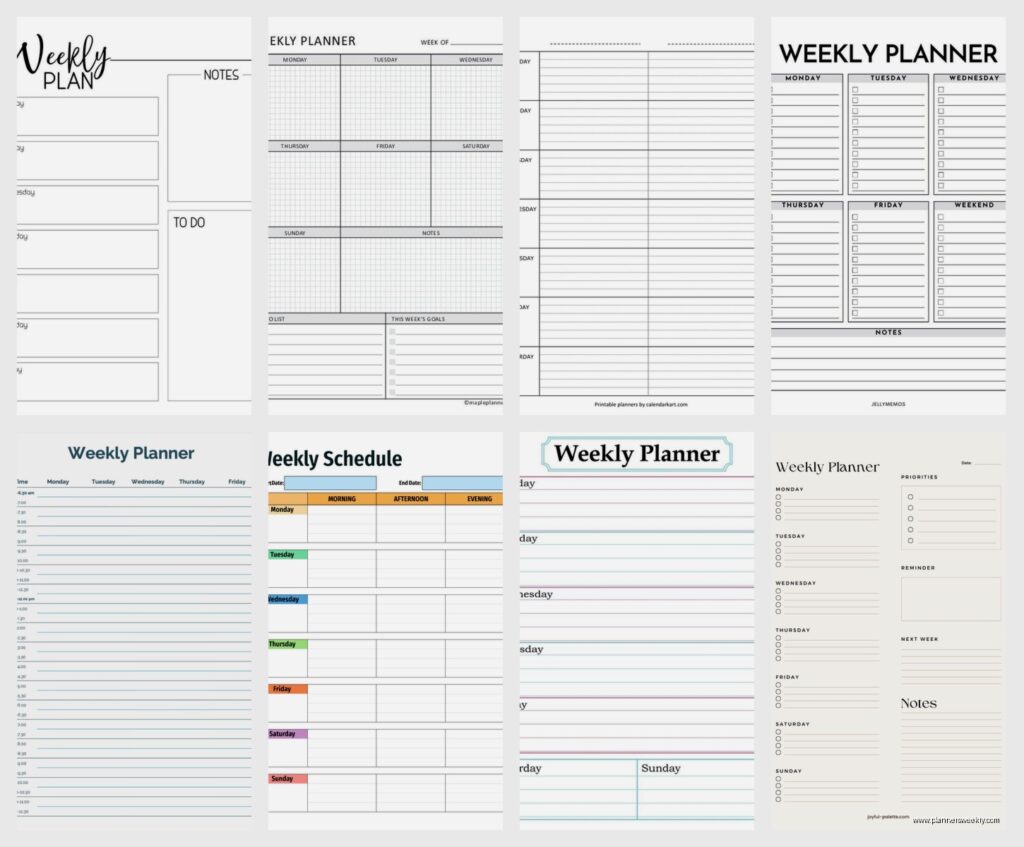
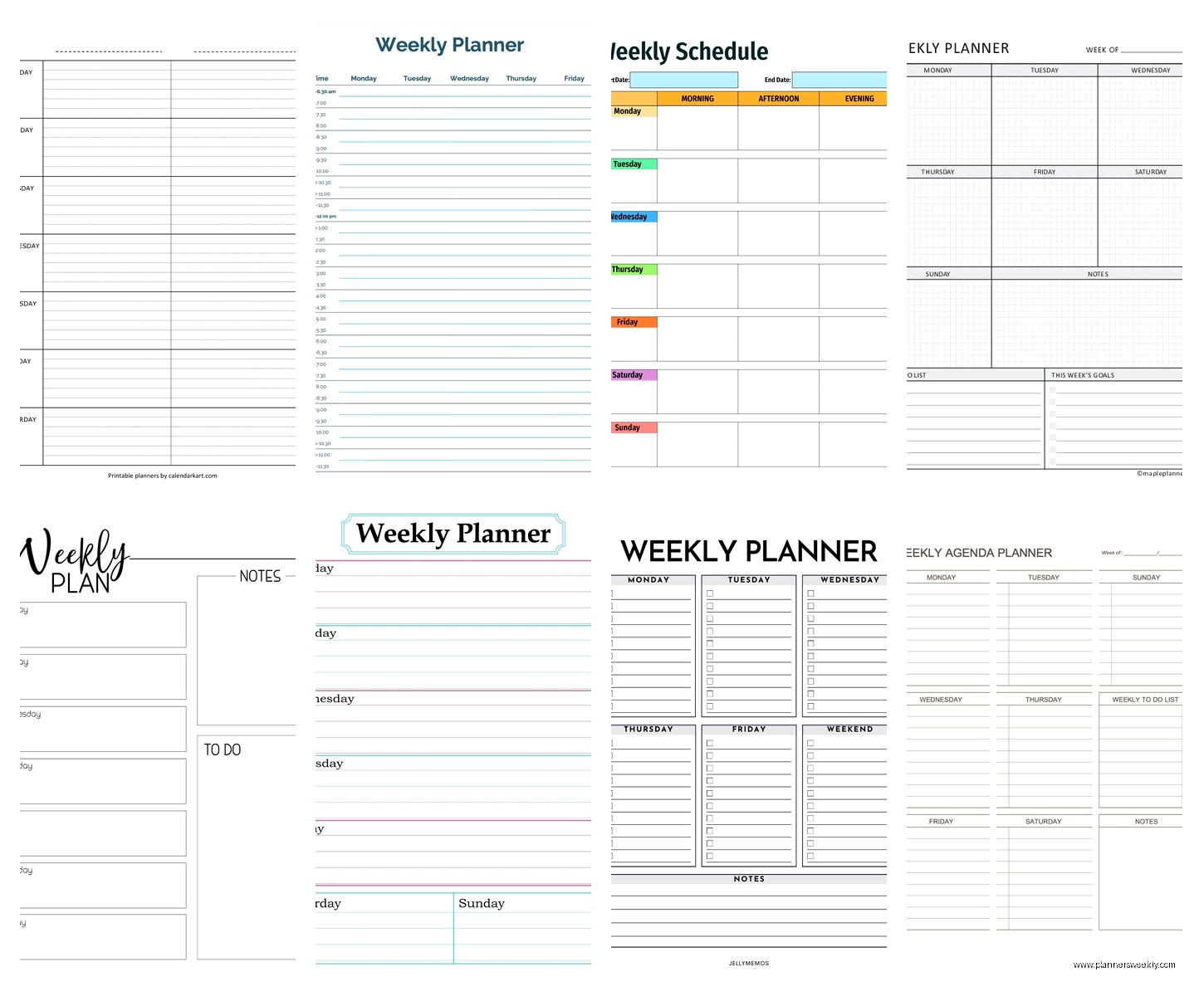
The best one I’ve found is called “Weekly Schedule” and it’s super plain but that’s actually perfect because you can customize it. It’s got time slots from 7am to 9pm which is way more realistic than those templates that start at 5am like we’re all gonna be productive at dawn. My cat wakes me up at 5am and I’m definitely not planning anything except feeding her.
There’s also this “Simple Weekly Planner” template that’s more task-focused rather than time-blocked. I’ve been using this one with clients who get overwhelmed by hourly schedules. It just has sections for each day with checkboxes and honestly the checkboxes are what sold me because they actually work – you can click them in Word and they check off. Small thing but it feels good.
Template.net Has Some Surprisingly Decent Options
Wait I forgot to mention – Template.net has free Word templates but you gotta be careful because they try to make you sign up for everything. Just keep clicking “free download” and ignore the premium stuff.
I downloaded like fifteen of their weekly planners last month when my client canceled and I had an unexpected free hour. The “Professional Weekly Planner Template” is actually really clean. It’s got a priorities section at the top which I love because let’s be real, we all put 47 things on our to-do list and then accomplish like three of them.
The layout has Monday through Sunday in columns which works better for some people. I’m more of a list person myself but my friend Sarah swears by column layouts because she can see her whole week at a glance. She’s also the person who color-codes everything though so take that with a grain of salt.
Vertex42 Templates Are Ugly But Functional
Okay this is gonna sound weird but the ugliest templates sometimes work the best. Vertex42 has these super basic Excel templates that they also offer in Word format and they look like they’re from 2005 but they’re SO functional.
Their “Weekly Schedule Planner” has these tiny boxes for each hour and at first I was like this is too cramped but then I realized it forces you to be concise about what you’re actually doing. You can’t write “work on project and also maybe organize desk and respond to emails” because it won’t fit. You gotta pick one thing.
Customizing These Things So They Actually Work For You
Here’s what nobody tells you about free templates – they’re just starting points. I spent way too long trying to find the “perfect” template before I realized I needed to just pick one and modify it.
To customize in Word you just double-click on the text boxes or table cells and start typing. If you want to change colors, select the element and go to Table Design (if it’s a table) or use the Shape Format tab. I usually change everything to navy blue because it prints better than black and looks more professional somehow.

Oh and another thing – if the template has a logo or branding you don’t want, just click it and hit delete. Some templates have locked elements though which is annoying. To unlock them, go to Review > Restrict Editing and turn off all the protection settings.
The Time Block Template I Actually Use Every Week
So after testing all these I ended up creating my own hybrid situation using the Microsoft “Weekly Schedule” as a base. I added a “brain dump” section at the bottom because I kept having random thoughts while planning and nowhere to put them.
I also made the weekend sections smaller because real talk, I don’t schedule my Saturdays down to the hour. I just have a box for “weekend priorities” with three lines. That’s it. My therapist would be proud of this boundary-setting or whatever.
The template I use now has:
- Monday through Friday with hourly blocks from 8am to 6pm
- A “top 3 priorities” box at the very top because anything more than three is lying to yourself
- Small Saturday/Sunday sections with just space for notes
- A meal planning section on the right side that I added because I kept forgetting to grocery shop
- A “next week prep” box at the bottom for stuff I need to remember
Free Templates From Canva That You Can Export to Word
Wait okay so this is kinda a workaround but it works. Canva has tons of free weekly planner templates and you can export them as PDFs, but then you can open the PDF in Word and convert it. It’s not perfect – sometimes the formatting gets weird – but I’ve found some really pretty templates this way.
The “Minimalist Weekly Planner” on Canva is gorgeous and when you convert it to Word it actually stays pretty intact. You might need to adjust some text boxes but it’s worth it if you want something that doesn’t look like a corporate spreadsheet.
Print vs Digital Usage Changes Everything
Something I didn’t realize until way too late – whether you’re printing or using digitally completely changes which template works best. I was testing everything digitally and then my client asked for printable recommendations and I had to start over.
For printing, you want templates with thicker lines and larger text. That “Simple Weekly Planner” from Microsoft looks fine on screen but when I printed it the lines were so faint I could barely see them. I had to go back and change all the border widths to at least 1pt.
If you’re using it digitally in Word, you want templates with actual form fields or content controls. These are the templates where you can tab between sections and type without messing up the formatting. To add these yourself, go to Developer tab (you might need to enable it in Options first) and insert content controls.
The Meal Planning Integration Nobody Asked For But Everyone Needs
Okay so funny story – I started adding meal planning sections to my weekly templates because I kept getting to Thursday and realizing I had nothing for dinner and no time to shop. Now like half my clients have asked for the same modification.
I just added a simple table on the right side with days of the week and two columns: “dinner” and “prep needed.” It’s literally the most basic thing but it’s changed my life. Well, my weeknight stress levels anyway.
You can add a table in Word by going to Insert > Table and just picking how many rows and columns you need. I do 7 rows (one per day) and 3 columns (day, meal, notes). Then I format it to match the rest of the template by right-clicking and choosing Table Properties.
Google Drive Has Hidden Word Templates
This is gonna sound random but if you have Google Drive, they have a template gallery that includes Word-compatible formats. Go to Google Docs, click Template Gallery, and look for planners. You can download them as .docx files and open them in Word.
The formatting sometimes gets a little wonky in the conversion but I found this “Weekly Planner with Goals” template that’s actually really nice. It has a goal-setting section at the top for the week which I thought would be cheesy but it’s actually helpful for keeping perspective.
What Actually Makes a Template Usable Long-Term
After three months of testing I’ve figured out what makes me actually stick with a template versus abandoning it by Wednesday:
- Not too many sections – if I have to fill out more than like 5 areas I just won’t do it
- Enough white space that it doesn’t feel overwhelming to look at
- Easy to modify without breaking the whole layout
- Prints well if you print (I test this now after some disasters)
- Doesn’t have inspirational quotes or decorative elements that waste space
That last one might just be me being cranky but I don’t need “Dream Big!” taking up space where I could write actual tasks. I’m watching The Bear right now and the chaos in that kitchen makes me feel better about my own disorganization, but anyway.
The Habit Tracker Addition That Surprised Me
I started adding a tiny habit tracker to the bottom of my weekly templates – just five boxes for five habits. I thought it would feel like homework but it’s actually the part I look at most.
To add one yourself, just insert a small table (1 row, 7 columns for each day) and label it with whatever habit you’re tracking. I have mine for: exercise, reading, no phone before bed, journaling, and calling someone. Very basic but seeing those boxes fill up throughout the week is weirdly motivating.
File Organization Tips Nobody Talks About
Here’s something practical – save your template as an actual template file (.dotx) instead of a regular document. In Word, go to File > Save As and change the file type to “Word Template.” Then it’ll show up in your Personal templates section when you go to create a new document.
I didn’t do this for months and kept opening the same file over and over and messing up my master copy. Very annoying. Now I just open Word, click “Personal” under the new document options, and select my template. Fresh copy every time.
Also create a folder system for your filled-out planners. I do Year > Month > Week format so I can find old weeks if I need to reference when I did something. Sounds excessive but it’s saved me multiple times when trying to remember when I had that dentist appointment or whatever.
Mobile Editing Considerations
Oh wait I should mention – if you use Word on your phone (the mobile app), some templates look absolutely terrible on small screens. The column-based layouts especially get all squished and weird.
I’ve started creating a simplified mobile version of my main template that’s just a vertical list format. It’s less pretty but actually usable when I’m on my phone. You can have both versions and just pick which one to use based on where you are.
The Word mobile app is actually pretty good for editing text but terrible for formatting so don’t try to create a template from scratch on your phone. Trust me I tried during a long car ride and it was a disaster.
Accessibility Features Worth Adding
Something I learned from a client who uses screen readers – adding alt text to your template elements makes them way more accessible. Right-click any image or text box, choose “Edit Alt Text” and add a description.
Also using actual heading styles instead of just making text bigger and bold helps with navigation. I go through and apply Heading 1 to the week title, Heading 2 to each day, etc. Takes two minutes and makes the template more professional and accessible.
The other thing is color contrast – if you’re using colors make sure there’s enough contrast for readability. There are free checkers online. I learned this after making a template with light gray text that looked elegant but was impossible to read in anything but perfect lighting.
Syncing With Digital Calendars
This isn’t exactly a Word feature but – I’ve started keeping my Word weekly planner open alongside my Google Calendar and just doing a Sunday night sync where I transfer appointments to the Word template. Takes maybe ten minutes but then I have everything in one place for the week.
Some people think this is redundant but having it in Word means I can add notes and context that don’t fit in calendar entries. Like “dentist appointment – bring insurance card – parking garage entrance on 5th street” versus just “dentist 2pm” in the calendar.
You could probably automate this somehow but honestly the manual sync helps me mentally prepare for the week so I don’t mind it.
