
Digital Productivity, Online planners, Planners
Staff Holiday Planner Guide: Free Tools & Templates
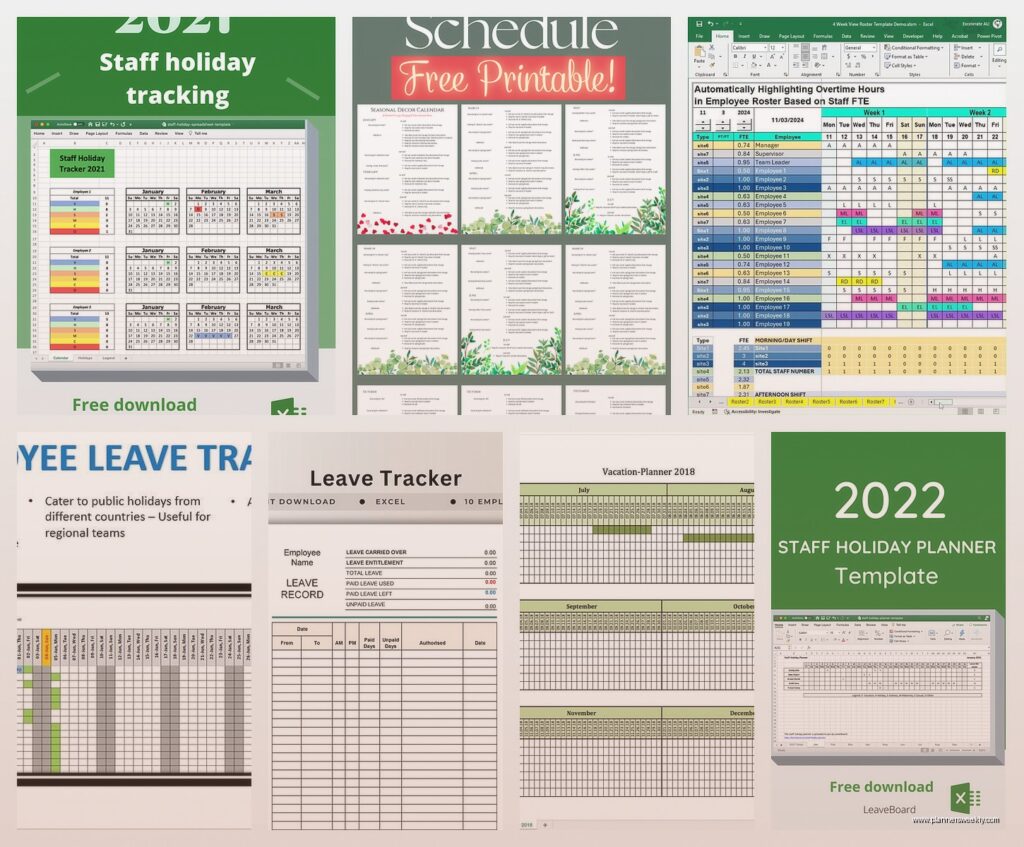
Mar
Okay so I just spent like three weeks testing every free staff holiday planner I could get my hands on and honestly some of them are absolute garbage but a few are genuinely useful, so let me walk you through what actually works.
The Spreadsheet Situation Nobody Wants But Everyone Needs
Look, I know spreadsheets aren’t sexy but they’re free and they work and honestly after testing all these fancy apps that promise the world, I keep coming back to a good Google Sheets template. I tested Microsoft Excel ones too but Google Sheets wins because multiple people can access it at once without that weird version control nightmare where someone’s working off last month’s copy.
The basic structure you want is gonna have employee names down the left side and then dates across the top. But here’s where most free templates screw up, they try to cram a whole year into one view and it becomes this tiny unreadable mess. What actually works better is breaking it into quarters or even just doing it month by month.
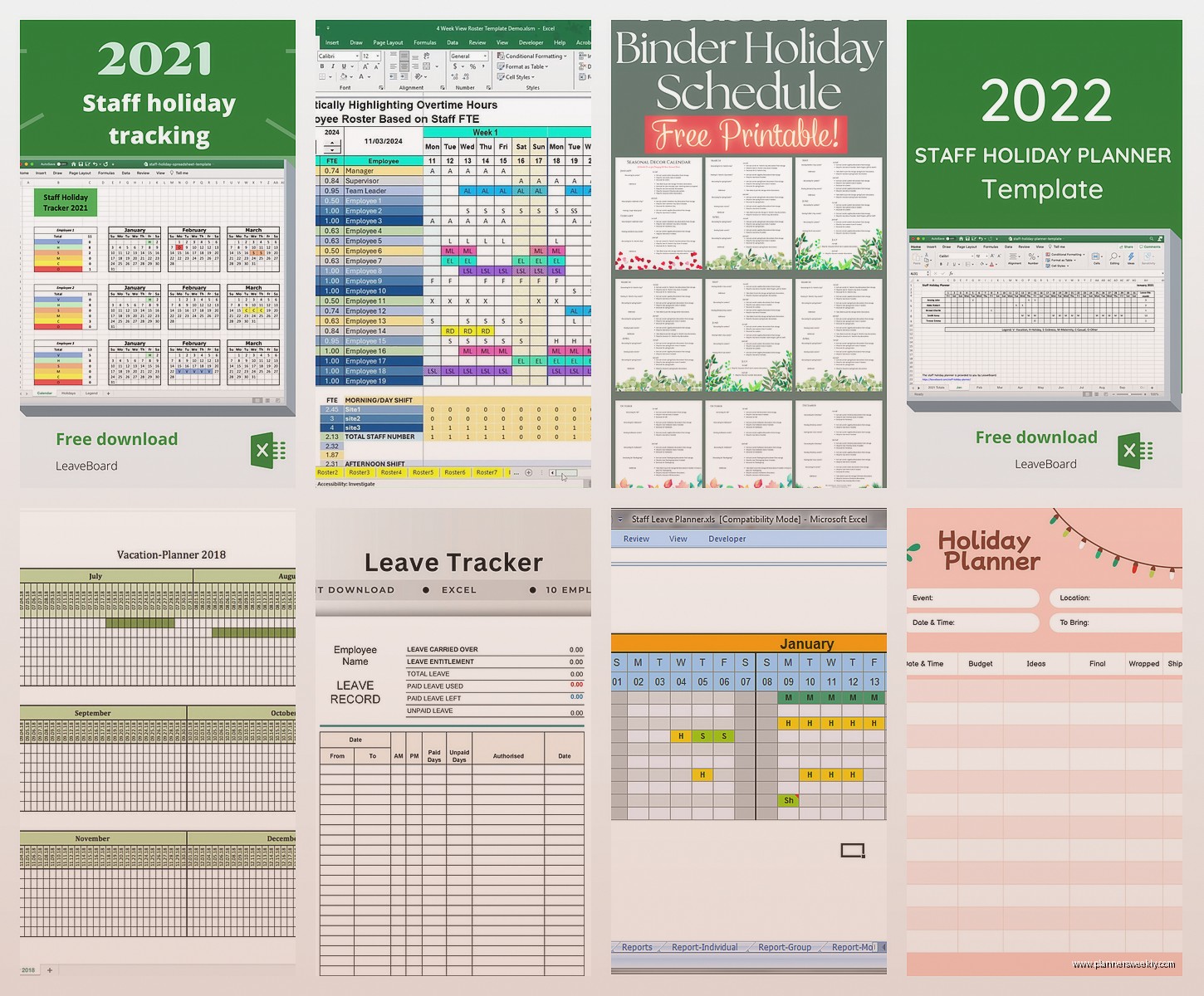
I found this one template from Vertex42 that’s actually decent. It has color coding built in so you can see approved holidays in green, pending in yellow, sick days in red. My dog knocked over my water bottle onto my laptop while I was testing this one which was fun, but yeah, the template held up even after I had to recreate parts of it.
Setting Up Your Own If Templates Aren’t Cutting It
Sometimes the free templates are just too generic and you gotta customize. Here’s what I do:
- First column is employee names, obviously
- Second column I put total holiday allowance for the year
- Third column is days already taken
- Fourth column is days remaining – this updates automatically if you set up a simple formula
- Then all your date columns start
For the date columns, I don’t actually write dates across the top because that’s annoying to set up. I just do it by week number or pay period, depending on how your company works. Week 1, Week 2, whatever. Then in each cell you can put like H for holiday, S for sick, WFH for work from home if you track that.
The formula for the remaining days is just like =B2-C2 or whatever, super basic math. But you’d be surprised how many downloaded templates don’t have this automated and you’re manually calculating which is just asking for errors.
Apps That Don’t Cost Anything (With Limits Obviously)
Wait I forgot to mention, before we get into apps – most of them have free tiers but they’re limited. Like you can only have 5 employees or whatever. So these work if you’re a small team but if you’ve got like 50 people you’re gonna hit walls.
Timetastic Free Version
Okay so Timetastic lets you have up to 10 users on the free plan which is actually pretty generous. I tested this with a client’s small office and it worked fine for them. The interface is really clean, not cluttered with stuff you don’t need. People can request time off, managers can approve it, everyone can see the wallchart view of who’s out when.
The catch is you don’t get integrations with anything on the free version. So if you want it to sync with Slack or Google Calendar or whatever, you gotta pay. For just basic holiday tracking though it does the job.
Oh and another thing, the mobile app is pretty good. I know that sounds basic but some of these free tools have apps that are clearly afterthoughts and they’re horrible to use. Timetastic’s actually works properly.
Vacation Tracker in Slack
If your team lives in Slack anyway, Vacation Tracker has a free tier that’s worth looking at. It’s limited to like 20 requests per month or something, so again, small teams only. But the nice thing is it’s right there in Slack where people already are, so there’s less friction in getting people to actually use it.
People just type a slash command to request time off. Managers get notified in Slack and can approve right there. It’ll show you who’s out in a calendar view. Pretty straightforward.
I will say the free version is missing some stuff that would be useful like carrying over unused days to the next year, but for basic tracking it’s fine. I tested it during that week I was binging The Bear and I kept getting distracted by notifications so maybe turn off Slack notifications while watching intense TV shows is my advice there.
Paper Systems That Don’t Actually Suck
This is gonna sound weird but some offices still prefer paper and honestly I get it. There’s something about having a physical wallchart that everyone walks past that actually works better than digital systems that people forget to check.
I made my own printable template in Canva which is free to use. Just made a basic grid, printed it on A3 paper, laminated it at the local print shop for like five bucks, and stuck it on the wall with whiteboard markers. People write their names and dates in different colors.
The problem with paper is obviously it’s not accessible if people work remotely or if managers need to check approvals while they’re out of office. But for teams that are all in the same location most of the time, it works.
The Hybrid Approach Actually Makes Sense
What I’ve seen work really well is doing both. Keep the digital system as the official record but also have the wallchart for quick visual reference. They don’t have to match perfectly every single day, you just update the wall one weekly based on what’s in the digital system.
My client Sarah does this and she said it cut down on those annoying situations where two people from the same department try to book the same week off because they didn’t realize the other person had already requested it. The wallchart makes it visible before they even put in the formal request.
Google Calendar But Make It Actually Organized
Okay so funny story, I thought using Google Calendar for holiday tracking would be a disaster because it seems too simple, but then I set it up properly and it’s actually pretty functional for small teams.
What you do is create a separate calendar called like Staff Holidays or whatever. Share it with everyone on the team with different permissions, managers get edit access, regular staff get view-only. When someone’s holiday gets approved, manager adds it to this calendar.
The good thing about Google Calendar is it’s free, everyone already knows how to use it, and it syncs across devices automatically. You can color-code different types of leave if you want. It’ll send reminders before someone’s holiday starts which is useful for handover planning.
The bad thing is there’s no built-in approval workflow. So someone has to email or Slack their manager to request time off, manager approves via whatever method, then manager manually adds it to the calendar. It’s not streamlined but it works and it costs nothing.
Making Google Calendar Actually Track Remaining Days
Here’s where you gotta combine it with a spreadsheet because Google Calendar won’t calculate remaining allowance for you. I keep a simple Google Sheet alongside the calendar that just has everyone’s name, total allowance, and days used. When I add a holiday to the calendar, I update the sheet.
Is this double entry? Yeah kinda. But it takes like 30 seconds and it means you have both the visual calendar view and the numerical tracking.
Microsoft Teams If You’re In That Ecosystem
Teams has some free apps you can add for holiday tracking. I tested Leaves which has a free tier, works similar to the Slack one. Request time off through Teams, approvals happen in Teams, everyone stays in the same platform.
The free version limits you to like 10 users I think, and you don’t get all the reporting features. But basic request and approval workflow is there.
What I found annoying is it adds another tab in Teams and honestly Teams already has too many tabs and things going on. But if your team is organized enough to actually check it, it functions fine.
Notion Templates People Share For Free
Wait I should mention Notion because there’s like a million free templates people have made. I spent an afternoon going through them and most are overly complicated with databases linked to other databases and formulas that break if you breathe on them wrong.
But there are some simple ones that work. Basically just a table with employee names, dates, status of request. You can add filters to see only approved holidays or only pending requests or whatever.
The advantage of Notion is it looks nicer than a spreadsheet and some people find it easier to use. The disadvantage is if your team isn’t already using Notion, there’s a learning curve and people resist learning new tools for something as simple as booking a holiday.
I found one template by someone called August Bradley that’s actually reasonable. It’s not trying to be an entire HR management system, just holiday tracking. You can duplicate it for free and customize it.
Building Your Own Simple System
Honestly after testing all these options, sometimes the best solution is just making something dead simple yourself. Here’s what actually needs to happen with holiday planning:
- Employee requests specific dates off
- Manager checks if those dates work
- Manager approves or denies
- Everyone can see who’s off when
- Someone tracks how many days each person has left
That’s it. Everything else is nice-to-have but not essential. So you could literally do this with email and a shared Google Sheet and it would work. Not fancy but functional.
The Email Plus Spreadsheet Method
Employee emails their manager like “Hey I want to take off June 10-14, that’s 5 days.” Manager checks the shared spreadsheet to see if anyone else is off, checks if employee has 5 days left, replies with approval or denial. Manager updates the spreadsheet. Done.
I know this sounds too basic but I have clients using exactly this system and it works fine for them. The spreadsheet is the source of truth, email is just the communication method.
The trick is keeping the spreadsheet really simple. Just names, dates, and a color coding system. Don’t try to make it do everything. Have another spreadsheet if you need to track allowances separately.
What About Legal Requirements and Compliance
Okay so this is important, whatever system you use has to actually comply with local employment laws about holiday tracking. In the UK for example you’re required to keep records of holiday taken for like two years or something. In the US it varies by state.
Most of these free tools don’t have built-in compliance features because that’s usually a paid tier thing. So you gotta make sure you’re exporting data regularly or keeping records yourself.
With spreadsheets this is easy, just don’t delete old data. Keep everything in one file or archive previous years to separate files. With apps, check if the free version lets you export data. Some don’t which is a problem if you need to provide records during an audit or whatever.
Setting Up Public Holidays Properly
One thing that trips people up is whether your holiday planner shows public holidays automatically or if you have to add them manually. Most free spreadsheet templates don’t have them built in, you gotta add them yourself.
What I do is add a separate column or row that marks public holidays in a different color so they don’t count against people’s personal allowance. Or if you’re using a calendar system like Google Calendar, create those as all-day events.
This matters because you don’t want someone requesting off December 25th and having it count as one of their days when it’s already a public holiday. Seems obvious but I’ve seen it happen.
Different Allowances For Different People
Another complication is when different employees have different holiday allowances. Maybe full-time gets 25 days, part-time gets prorated, someone senior negotiated extra days, whatever.
Your tracking system needs to handle this. In a spreadsheet it’s easy, just put their specific allowance in their row. In apps, the free versions sometimes don’t let you customize per person which is limiting. You end up having to track exceptions manually.
Handling Overlap and Coverage
The whole point of a staff holiday planner is making sure you don’t end up with everyone in the same department gone at the same time. So you need to be able to see at a glance who’s planning to be out when.
Wallcharts are actually best for this because you can see the whole picture. With apps and spreadsheets you might need to scroll or filter. This is why I like the Google Calendar method, you can view it by month and see everyone’s time off at once.
Some teams have rules like “only one person from sales can be off at a time” or whatever. You gotta build that into your approval process somehow. Most free tools don’t have automatic rule enforcement so it’s up to the manager approving requests to check manually.
Mobile Access Actually Matters
I didn’t think mobile access was that important but then I tested these systems with teams where managers are often out of office and yeah, it matters. If your manager can’t approve a holiday request from their phone, requests sit pending for ages.
Google Sheets mobile app is pretty functional for viewing but editing is annoying on a small screen. Google Calendar mobile app works great. The dedicated apps like Timetastic have good mobile apps as I mentioned earlier.
Paper systems obviously don’t have mobile access which is a limitation if you have any remote workers or managers who travel.
The Carryover Problem
At year end you gotta deal with unused holiday days. Some places let you carry over a certain amount, some have use-it-or-lose-it policies. Your tracking system should make it easy to see who has days left in like November December so you can remind them to use them.
