Digital Productivity, Online planners, Planners
Shift Planner Template: Free Employee Scheduling Tools
Mar
Okay so I’ve been testing like six different shift planner templates for the past three weeks because honestly my own schedule was a disaster and I figured if I’m gonna fix it, might as well try everything out there and tell you what actually works.
The Basic Google Sheets Template That Everyone Sleeps On
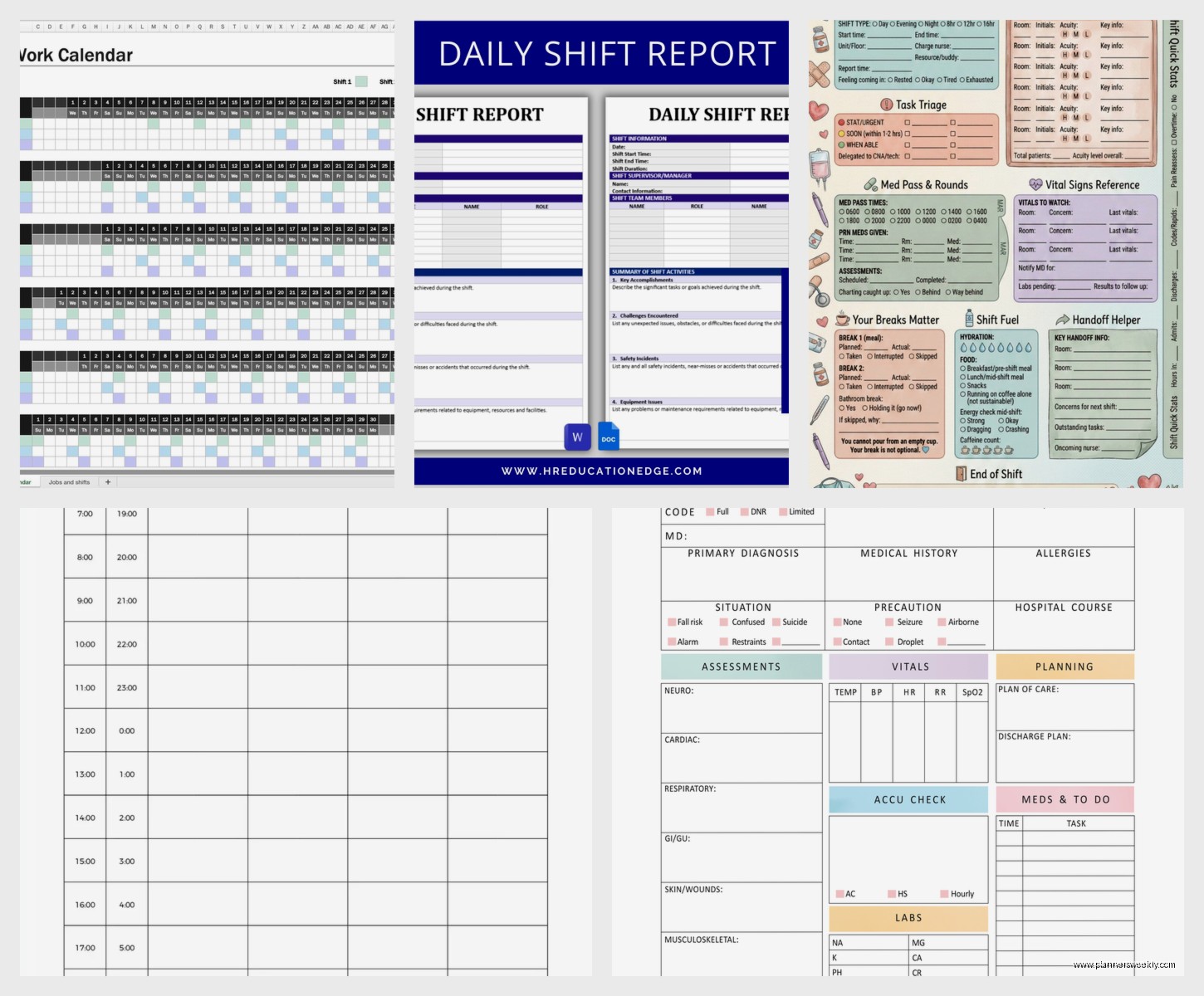
So first thing, Google Sheets has this free employee schedule template that’s just… sitting there. Nobody talks about it but I used it for a small team project last month and it’s genuinely not terrible. You go to template gallery, click “Schedule” and boom, there’s like three options. The weekly schedule one is the most straightforward.
What I like about it is you can color-code shifts which sounds basic but when you’re looking at 15 people across different time slots, those colors actually save your brain. I made morning shifts blue, afternoon yellow, night shifts that weird coral color. My cat stepped on my keyboard while I was setting it up and somehow made all Tuesdays purple but honestly it looked fine so I kept it.
The annoying part is you gotta manually copy it for each new week. There’s no auto-populate feature which like, come on Google, it’s 2024. But for a small business or if you’re managing maybe 10-15 employees max, it does the job. You can share it with your team so they can view their shifts, and if you protect certain ranges they can’t accidentally delete everything (learned that one the hard way).
Setting It Up Without Losing Your Mind
Start with the days across the top, employee names down the left side. Put in shift times like “9am-5pm” or just use letters if your shifts are consistent (E for early, L for late, whatever). The template has some built-in formatting but you’ll wanna customize it.
One thing I figured out is to add a notes column on the right side. Like if someone requested that day off three months ago and you forgot, you can just put “PTO” there. Super simple but it’s saved me from double-booking people at least four times.
When Canva Actually Makes Sense For This
Wait I forgot to mention, Canva has shift schedule templates too and they’re weirdly good? I know Canva’s usually for making Instagram posts or whatever, but they have these calendar templates that work surprisingly well for shift planning.
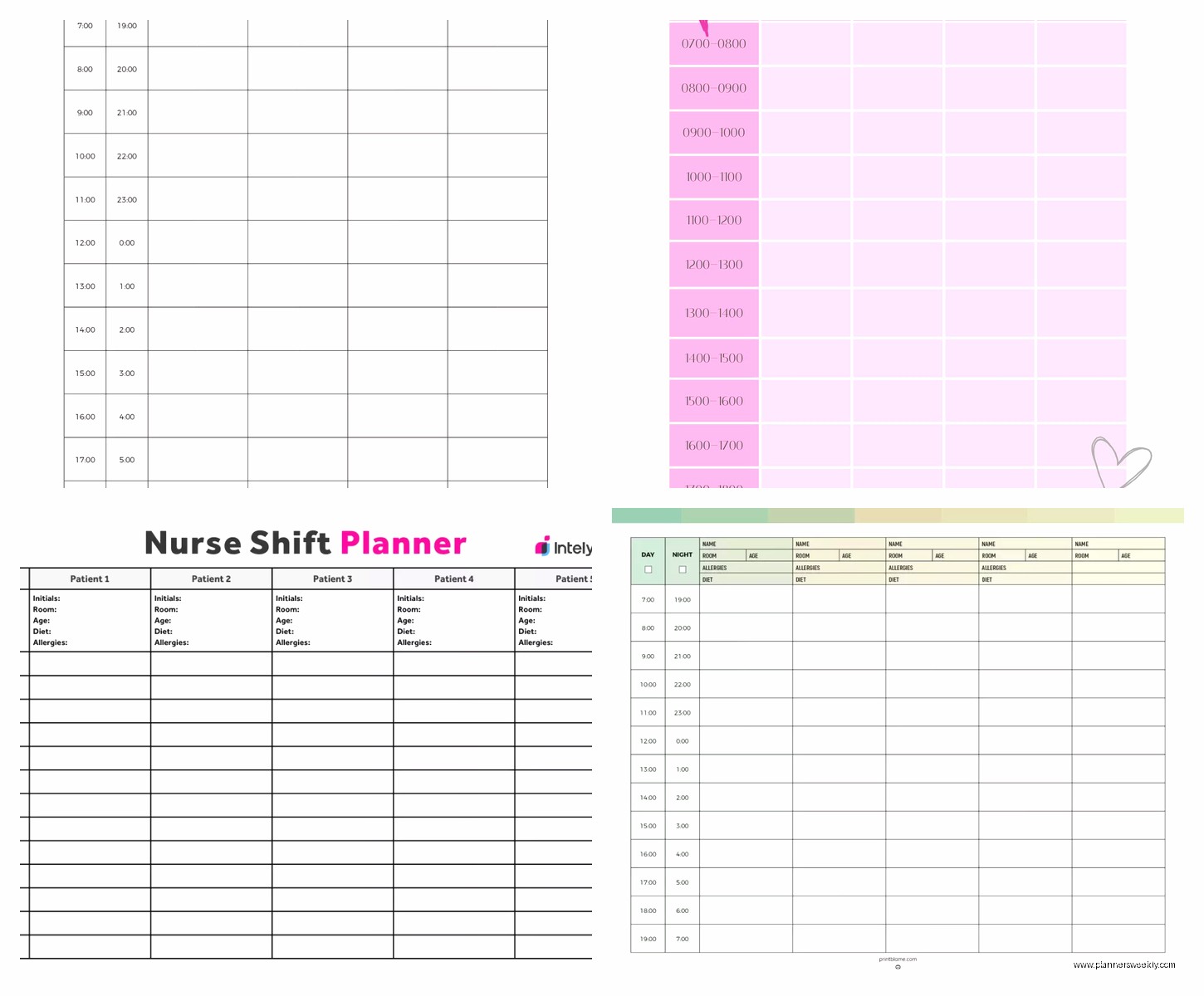
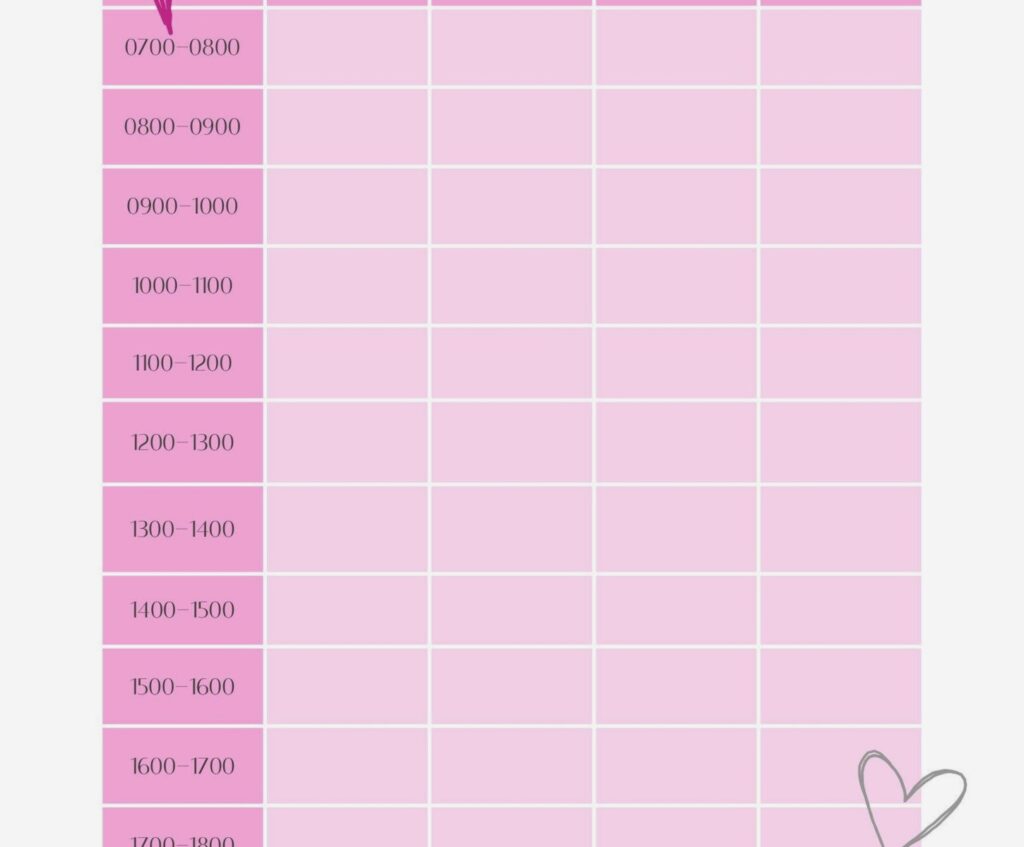
The free version gives you enough to work with. Search for “work schedule” or “employee roster” and there’s probably 50 options. They look way prettier than spreadsheets which matters if you’re printing them out for a break room or something. I used one for a coffee shop schedule and the staff actually looked at it, which never happened with my old Excel sheets.
But here’s the catch, and it’s kind of a big one. Canva’s not really built for data management. It’s a design tool. So if you need to make changes frequently or you have a complex rotation system, you’re gonna get frustrated. It’s more for simple weekly schedules that don’t change much. Like if you have the same crew working the same shifts and just need something visual and clean.
The Print-And-Post Situation
If you go this route, make a master template once and just duplicate it each week. Change the dates and any shift swaps. Takes maybe five minutes per week. I did this for about a month and it worked fine until we had to do emergency schedule changes and I realized I couldn’t update it from my phone easily. That’s when I switched back to digital.
Excel Templates That Don’t Completely Suck
Microsoft has these official templates on their website, office.com or whatever it is. The employee shift schedule one has more features than the Google Sheets version. It’s got formulas built in to calculate total hours per employee which is actually super helpful for payroll.
I tested the “Employee Shift Schedule” template specifically. It lets you track up to 20 employees and has tabs for different weeks. There’s this cool feature where it automatically highlights if someone’s scheduled for more than 40 hours, which is great if you’re trying to avoid overtime situations.
The learning curve is slightly steeper than Google Sheets but not by much. If you’ve ever used Excel for anything beyond basic lists, you’ll figure it out in like 20 minutes. My biggest issue was that it’s not cloud-based unless you save it to OneDrive, and then you gotta make sure everyone has the right permissions and it becomes this whole thing.
The Formula Situation
The template comes with formulas already set up but you can tweak them. Like I added one to count total weekend shifts per person per month because we were trying to distribute those fairly. Took me maybe 30 minutes of googling “COUNTIF function Excel” but then it worked perfectly.
Oh and another thing, you can set it up to send yourself reminders. Not automatically through Excel itself, but if you’re using Outlook you can link tasks to the schedule file. I never actually did this because it seemed like overkill but the option’s there.
When You Need Something More Robust
Okay so funny story, I was watching that show The Bear while testing these templates and there’s this whole thing about the restaurant schedule being chaos, and I was like yeah, some businesses really need more than a basic template.
That’s when free tools like Homebase or Deputy come in. They’re technically software platforms but have free tiers that work for small teams. Homebase’s free version handles up to 20 employees and includes time clock features. You can build schedules, employees can swap shifts through the app, and it tracks hours automatically.
I tested Homebase for two weeks with a client who runs a small retail store. Setup took maybe an hour because you have to input all employee info, availability, and role types. But once it’s done, creating the actual schedule is way faster than spreadsheets. You’re dragging and dropping shifts, and it warns you if someone’s not available or if you’re understaffed.
The Mobile App Thing
This is gonna sound obvious but the mobile app access is actually huge. Employees can check their schedules from their phones, request time off, offer to pick up shifts. All that communication that used to happen through group texts or bulletin boards is just… in the app. My client said it cut down on “hey what time do I work Thursday” messages by like 80 percent.
The free version has some limitations though. You can’t access some of the advanced reporting and I think there’s a cap on how many schedules you can save or something. For most small businesses though it’s plenty.
Deputy’s Free Tier
Deputy is similar but feels slightly more corporate? Like the interface is more polished but also more complex. Free for up to 10 employees which is pretty limited. I used it for managing some freelance writers I work with occasionally, just to test it out.
The schedule builder is really visual. You can see everyone’s availability at a glance with these color-coded blocks. There’s a feature where it suggests optimal schedules based on employee availability and labor costs, but that’s in the paid version. The free tier is pretty bare bones honestly.
Where Deputy beats Homebase for me is the communication features. You can send targeted messages to everyone working a specific shift or in a specific role. Like “hey everyone working Saturday morning, parking lot entrance is gonna be blocked, use the side door” type stuff. That’s actually in the free version.
Going Old School With PDF Templates
Wait I should mention PDF templates too because sometimes you just need something to print out and you don’t want any software at all. Sites like Template.net and Vertex42 have free downloadable shift schedule PDFs.
These are super basic. You download them, fill them out by hand or type into them if they’re fillable PDFs, print them, done. I keep one printed template in my desk drawer as backup because technology fails and sometimes you just need to scribble a schedule during a staff meeting.
The Vertex42 ones are actually really well-designed. Clean layout, enough space to write clearly, options for daily, weekly, or monthly views. I used their weekly schedule template when my internet was out for two days last month and I had to plan coverage for a weekend event. Worked perfectly fine.
The Hybrid Approach
What some people do, and this is pretty smart actually, is create the schedule digitally but always print a backup copy. Put it in the break room, in a binder, wherever. Because not everyone checks their phone constantly and sometimes people just wanna walk by and look at a physical schedule.
I do this for my own weekly plan honestly. Digital master in Google Sheets, printed copy on my desk. Something about seeing it on paper makes it feel more real? That’s probably just me being old though.
The Rotation Schedule Templates
If you need rotating shifts, like your employees work different shifts each week in a pattern, there are specific templates for that. The Excel “Rotating Shift Schedule” template handles this automatically once you set up the rotation pattern.
You input your shift types (morning, evening, night, off days) and how many weeks the rotation cycle is, then it populates everything. I tested this with a theoretical 4-week rotation for 6 employees and it took maybe 10 minutes to set up. Then every 4 weeks you just… use the same schedule again.
This only works if your rotation is actually consistent though. If you’re constantly making changes based on availability or business needs, you’ll spend more time overriding the template than it saves you.
The Fairness Factor
One thing I really like about rotation templates is they help with fairness. Everyone gets the same number of weekend shifts, night shifts, whatever. Nobody can complain that you’re playing favorites because it’s literally just following the pattern. Had a client implement this and it cut down on scheduling complaints immediately.
Building Your Own From Scratch
Sometimes the templates just don’t match your specific situation and you gotta build your own. I did this for a weird project that had three different locations and cross-training requirements and none of the existing templates worked.
Started with a blank Google Sheet. Days across the top, employees down the side, but then I added columns for location, role, and total hours. Used conditional formatting to highlight conflicts like double-bookings or understaffed shifts. Took me probably three hours to build but now I have exactly what I need.
The trick is to start simple and add features as you need them. Don’t try to make it perfect on day one because you’ll just get overwhelmed and give up. I literally started with just names and days, then added times, then added the fancy stuff later.
What Actually Matters When Choosing
After testing all these, here’s what I figured out matters most. First, how many employees are you scheduling? Under 10, anything works. Over 20, you probably need actual software with a free tier, not just a template.
Second, how often does your schedule change? If it’s basically the same every week, a simple template is fine. If you’re constantly adjusting, you need something with better editing tools and maybe mobile access.
Third, do your employees need to access it themselves? If yes, you need cloud-based. Google Sheets, Homebase, Deputy, whatever. If you’re just printing it and posting it, a basic Excel or PDF template is totally fine.
And honestly, the best template is the one you’ll actually use consistently. I’ve seen people with super fancy systems that they abandon after two weeks because it’s too complicated. Better to use a simple Google Sheet consistently than have a perfect system you ignore.
My go-to recommendation is start with Google Sheets template, use it for a month, figure out what’s annoying you about it, then either customize it or switch to something else. You gotta know what your actual pain points are before picking a solution, otherwise you’re just guessing.