Digital Productivity, Online planners, Planners
Printable Weekly Calendar: Free Templates & Designs
Apr
Okay so I’ve been testing printable weekly calendars for like three months now because honestly my planner obsession got out of hand and I needed to figure out which free templates actually work versus which ones just look pretty on Pinterest.
Where to Actually Find Good Free Templates
Canva is gonna be your first stop honestly. I know everyone says this but here’s the thing – their free weekly calendar templates are actually customizable without needing the paid version. I spent a Tuesday morning (my dog was at the groomer so I had time) just going through their entire collection and about 60% of them work perfectly with the free account. The minimalist ones are best because they don’t have those annoying premium elements locked.
Template.net has this massive collection but – and this is important – half of them require you to sign up with your email. I made a burner email specifically for template sites because I was getting like 47 promotional emails a day. Their vertical weekly layouts are actually really good though if you print on regular letter size paper.
Microsoft Office Templates
Wait I forgot to mention Microsoft’s built-in templates if you have Word or Excel already. Go to File > New and search “weekly calendar” and there’s probably 20+ options that come with your existing subscription. The Excel ones are weirdly better than Word because you can adjust the cell sizes super easily. I use the “Weekly appointment calendar” template and just delete the time slots if I don’t need them.
Vertex42 is this random site that looks like it hasn’t been updated since 2012 but their Excel calendars are genuinely the most functional I’ve found. The creator is clearly someone who actually uses spreadsheets for planning instead of just making things look cute.
Formats That Actually Print Well
This is gonna sound weird but PDF downloads print way better than Word docs most of the time. Something about how Word reformats things when it talks to your printer. I’ve had pages come out with text cut off or margins all wrong with .docx files but PDFs just… work.
Letter size (8.5 x 11) is obviously the standard but if you have a hole puncher for a specific planner system, check the measurements first. I wasted an entire pack of cardstock printing A5 templates before realizing my hole puncher was set up for Happy Planner sizing which is totally different.
Portrait vs Landscape
Portrait (vertical) works better if you write a lot per day. I tested this with my client schedule for two weeks – portrait gave me way more room for notes and tasks. Landscape (horizontal) is better if you want to see the whole week at a glance without turning pages. My Monday through Friday fits perfectly in landscape but then weekends feel cramped.
Oh and another thing – if you’re printing double-sided to save paper, make sure your template doesn’t have important info near the center margin. I lost so many task lists to the binding area before I figured this out.
Customization Without Losing Your Mind
Canva lets you change colors and fonts super easily. Click any element and the toolbar pops up. I always change the default fonts because Canva’s choices are sometimes… questionable. My go-to is Montserrat for headers and Open Sans for body text because they’re readable when printed small.
Adding your own sections is where it gets tricky. In Canva you gotta drag text boxes and then manually align them which is annoying but doable. I created a meals section at the bottom of my weekly template by just adding a text box and drawing lines with the line tool. Took maybe 10 minutes.
For Excel templates, you can insert rows and columns wherever. Right-click > Insert is your friend. I added a water tracking column to mine and it’s literally just me typing “Water: [ ] [ ] [ ] [ ] [ ] [ ] [ ] [ ]” in a cell. Not fancy but it works.
The Color-Coding Situation
If you’re gonna color-code, do it BEFORE you print or you’ll waste ink. Trust me. I printed 12 weeks of calendars in black and white thinking I’d highlight them later and it looked so messy. Now I just make work stuff blue, personal stuff green, and appointments red in the template itself.
Your printer might not print colors exactly like they look on screen though. My printer makes purples look weirdly pink so I just avoid purple now. Test print one page first.
Specific Templates I Actually Use
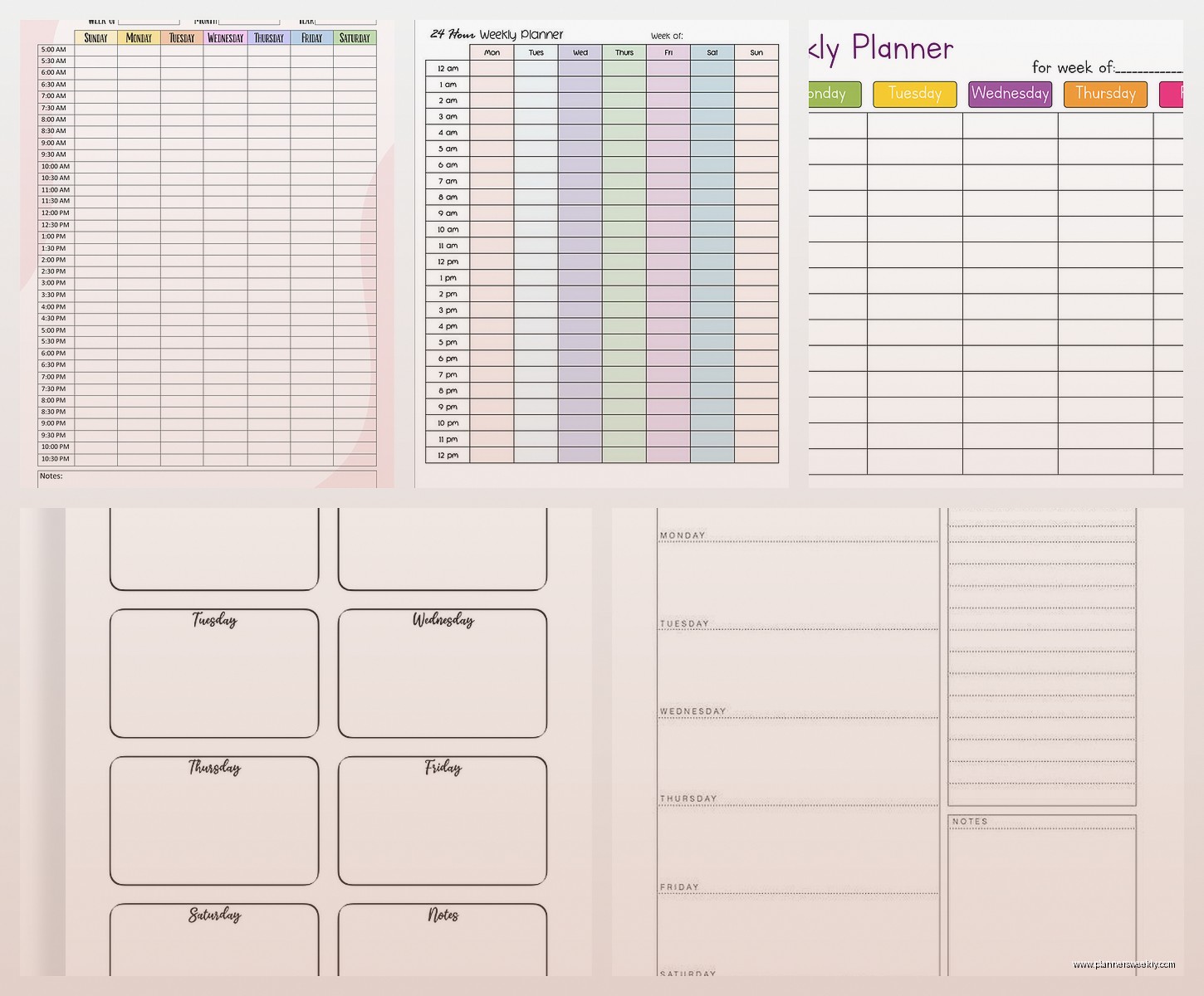
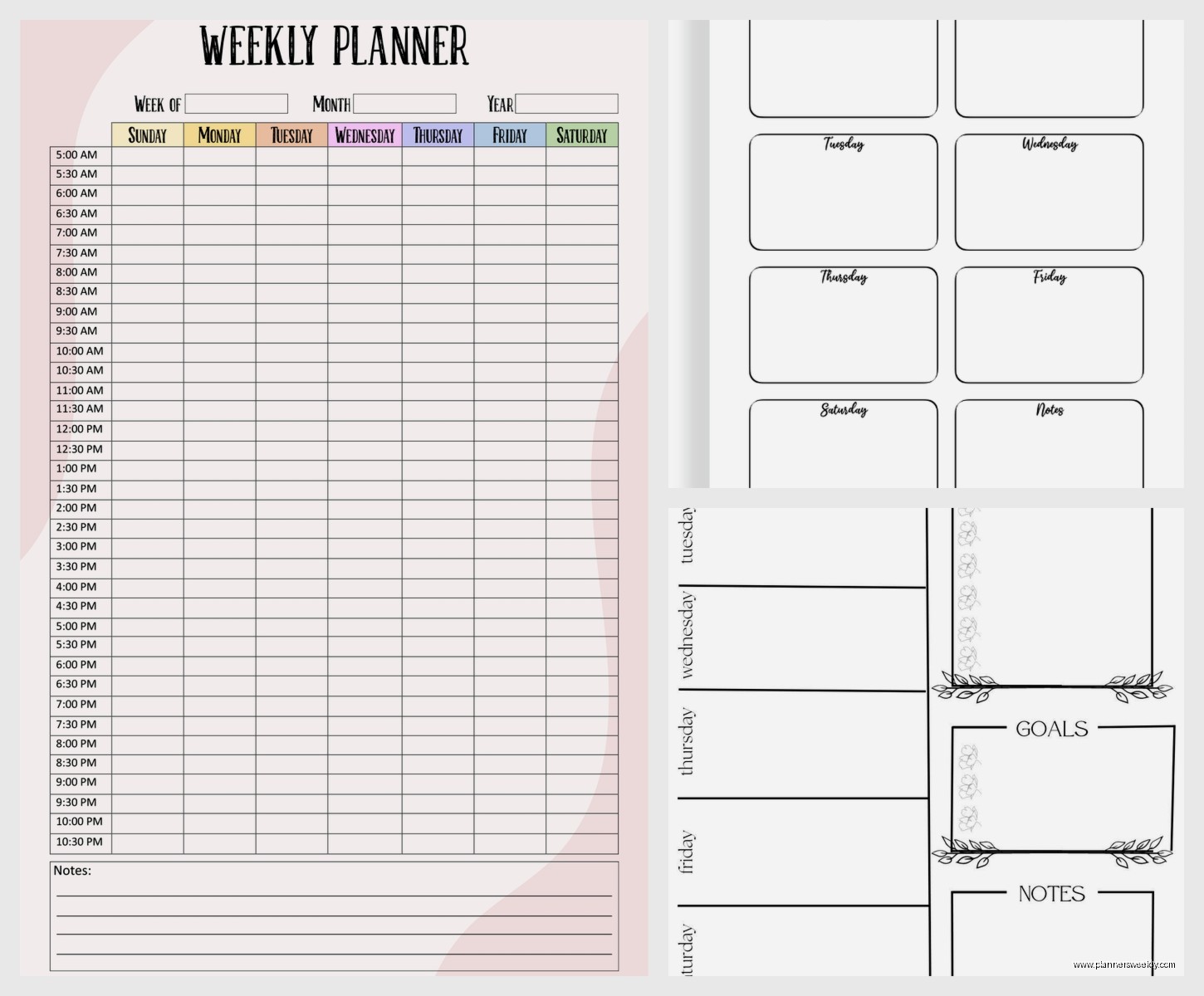
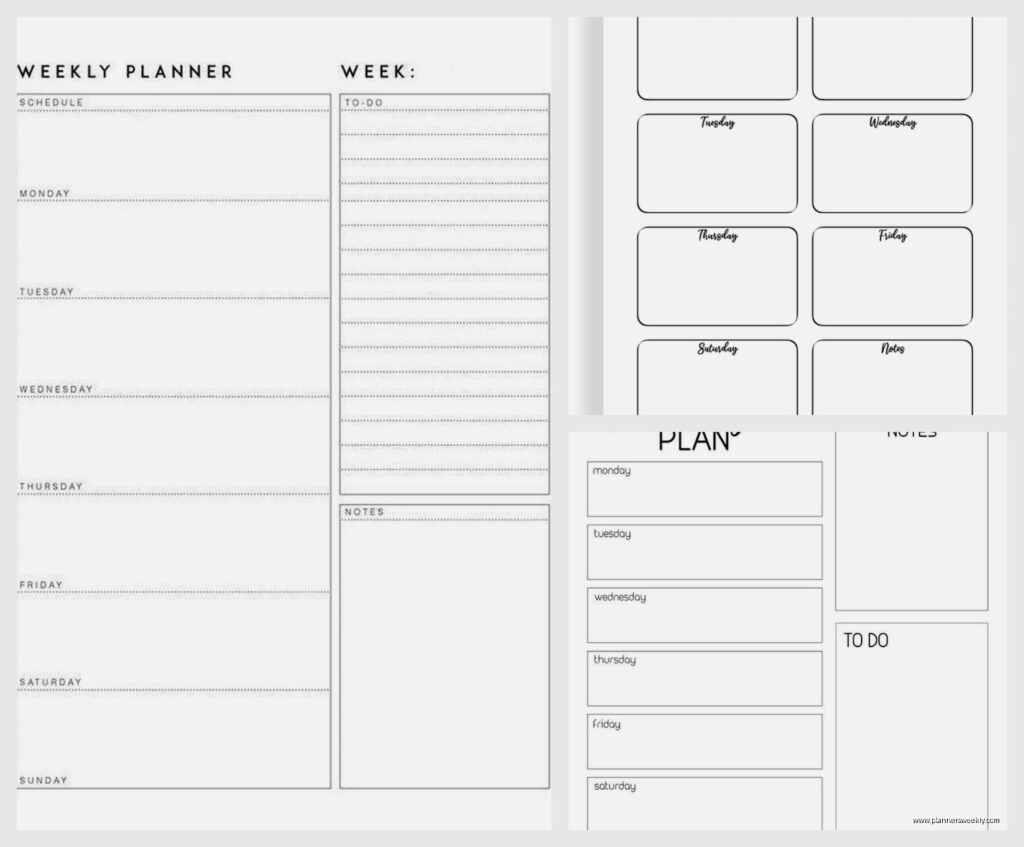
The “Simple Weekly Planner” on Canva is my everyday one. It’s got Monday through Sunday in columns, a notes section on the side, and that’s it. No inspirational quotes, no weird graphics, just boxes for days. I print it on regular printer paper and it lives in a clipboard.
For work weeks I use Vertex42’s “Weekly Schedule with Tasks” Excel template because it has time slots from 6am to 10pm and a separate task list. I deleted the time slots for weekends since I don’t schedule my Saturdays down to the hour like some kind of robot.
Scattered Squirrel (yes that’s the real name) has these weekly layouts with meal planning sections that I used when I was trying to get better at grocery shopping. Didn’t last long because meal planning stresses me out but the template itself was really well designed. Free download, just sign up for their newsletter which you can unsubscribe from immediately.
Hourly vs Block Scheduling
Hourly templates have every hour listed out usually from like 7am to 9pm. These are good if you need to track appointments or time-block your day. They take up more space though so you sacrifice room for notes.
Block scheduling templates just give you morning/afternoon/evening sections. Way more flexible and honestly less stressful to look at. I switched to block scheduling after my therapist pointed out that my hourly planner was giving me anxiety about being “off schedule” by 15 minutes.
Printing Tips Nobody Tells You
Print in “Actual Size” not “Fit to Page” in your print settings. Fit to Page shrinks everything slightly and then your carefully planned layouts look weird and the text is tiny.
If you’re printing multiple weeks, use the “Multiple Pages Per Sheet” option backwards. Set it to 1 page per sheet (which is default) but check the preview first because sometimes it tries to be helpful and messes things up.
Cardstock is worth it if you’re gonna use the same weekly layout repeatedly. I print my template on 110lb cardstock, write on it with erasable pens, and reuse it every week. Regular paper gets gross after erasing a few times.
The Ink Cost Reality
Black and white only unless you reeeally need color. A full-color weekly planner page uses up ink so fast. I calculated it once during a boring Zoom meeting and printing color weeklies for a year would cost more than just buying a paper planner.
Draft or economy mode is fine for planning pages. You’re not printing a resume, you just need to see the text. I print everything in draft mode and can’t tell the difference.
Making Templates Work for Specific Needs
If you work shifts, look for templates that don’t assume 9-5 hours. There’s one on Template.net called “24-Hour Weekly Schedule” that has the full day broken down. You can delete the hours you don’t need.
For students, the “Weekly Study Planner” templates usually have sections for assignments and exam prep. I recommended one to my niece and she actually used it all semester which was shocking because she doesn’t usually take my advice.
Habit tracking can be added to basically any weekly template by just drawing a grid in the margin. I put little boxes for my habits (exercise, reading, whatever) and check them off daily. Low-tech but it works.
Budget Tracking Layouts
Some weekly calendars have expense tracking built in but honestly I think that’s overkill for a weekly view. If you need it though, search “weekly budget planner” and you’ll find templates with spending sections. I tried one for a month and it just made me depressed about my coffee spending.
What Doesn’t Actually Matter
Fancy borders and decorative elements look nice but take up space and use ink. I went through a phase where I only printed “aesthetic” templates and they were honestly harder to use because there was less room for actual planning.
Pre-filled dates seem convenient but they’re not. What happens when you don’t print it on time or skip a week? Now you have a dated page that’s wrong. Blank date fields you fill in yourself are way more flexible.
Inspirational quotes at the top of the page just… why? You’re not gonna read them after the first week anyway. They take up prime real estate where you could write actual tasks.
Organization Systems That Work
Three-hole punch your pages and put them in a binder. Revolutionary, I know, but so many people just print pages and then lose them. I have a 1-inch binder with dividers for each month and it’s the only system I’ve stuck with for more than six weeks.
Clipboards work if you only need the current week visible. I keep one on my desk with this week’s page and archive old weeks in a folder. Less flipping through pages to find stuff.
oh and if you’re printing weeks in advance, write the date range at the top in big letters. I cannot tell you how many times I’ve grabbed the wrong week’s page because they all look identical.
Troubleshooting Common Issues
If your margins are cutting off text, go into Page Setup and reduce all margins to 0.5 inches. Most templates assume 1-inch margins which is too much.
Blurry printing usually means you downloaded a low-resolution image instead of a proper PDF or template file. Go back and look for the “high quality” or “print quality” download option.
Pages printing in the wrong orientation – check your printer settings AND the document’s page setup. Sometimes they conflict and your printer just picks one randomly.
My Current Setup
I print the Simple Weekly Planner from Canva every Sunday night for the week ahead. Takes 30 seconds. It goes in my clipboard with a pen clipped to it and sits on my desk all week. That’s it. That’s the system.
For client work I use the Excel hourly template printed on Monday mornings because my schedule changes too much to print in advance. Different clipboard, lives in my work bag.
The meal planning template I mentioned earlier comes out like once a month when I remember that I should probably plan meals but then I forget about it again. Very on-brand for me.
You’re gonna try a bunch of different templates before you find one that works and that’s fine. I have a folder on my computer called “planner attempts” with like 30 different templates I tried once and abandoned. It’s part of the process honestly.