
Digital Productivity, Online planners, Planners
Daily Hourly Planner: Time-Block Planning Guide
Apr
Okay so I’ve been testing daily hourly planners for like three months now and honestly the whole time-blocking thing changed how I work but you gotta pick the right setup or you’ll just have another pretty notebook collecting dust.
The Formats That Actually Work
So there’s basically three formats worth your time. Digital apps, printed planners, and those half-digital setups with a tablet. I tested all of them because my productivity coaching clients kept asking which one they should use and I was like… I dunno, let me actually figure this out.
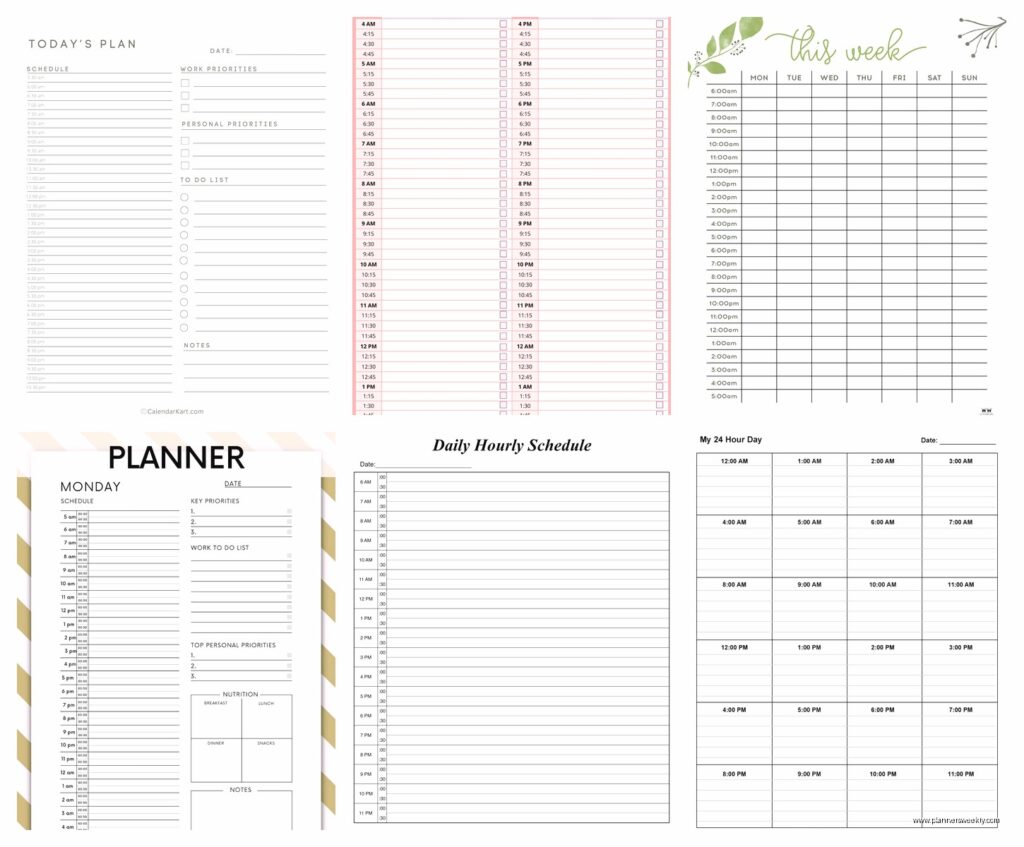
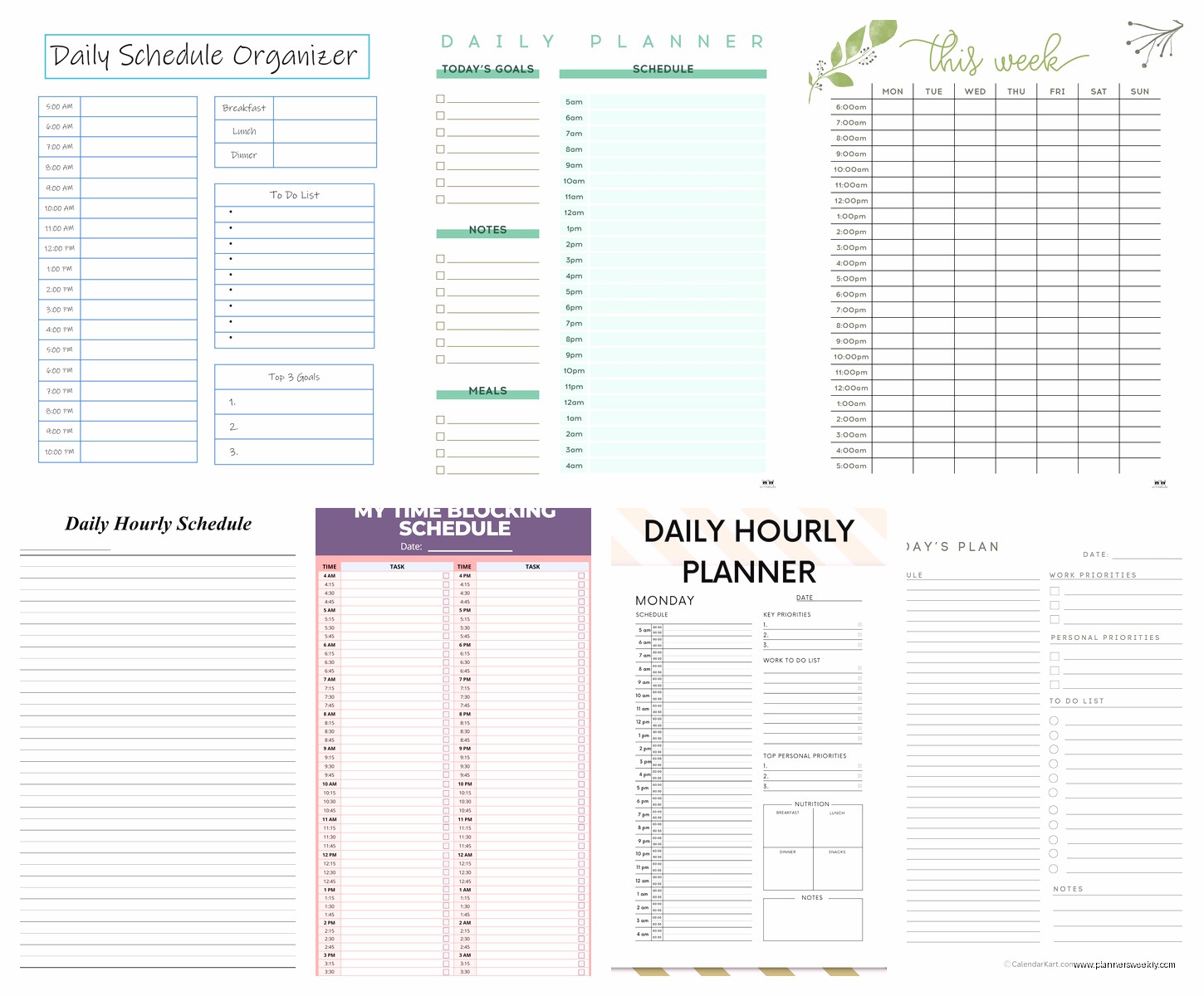
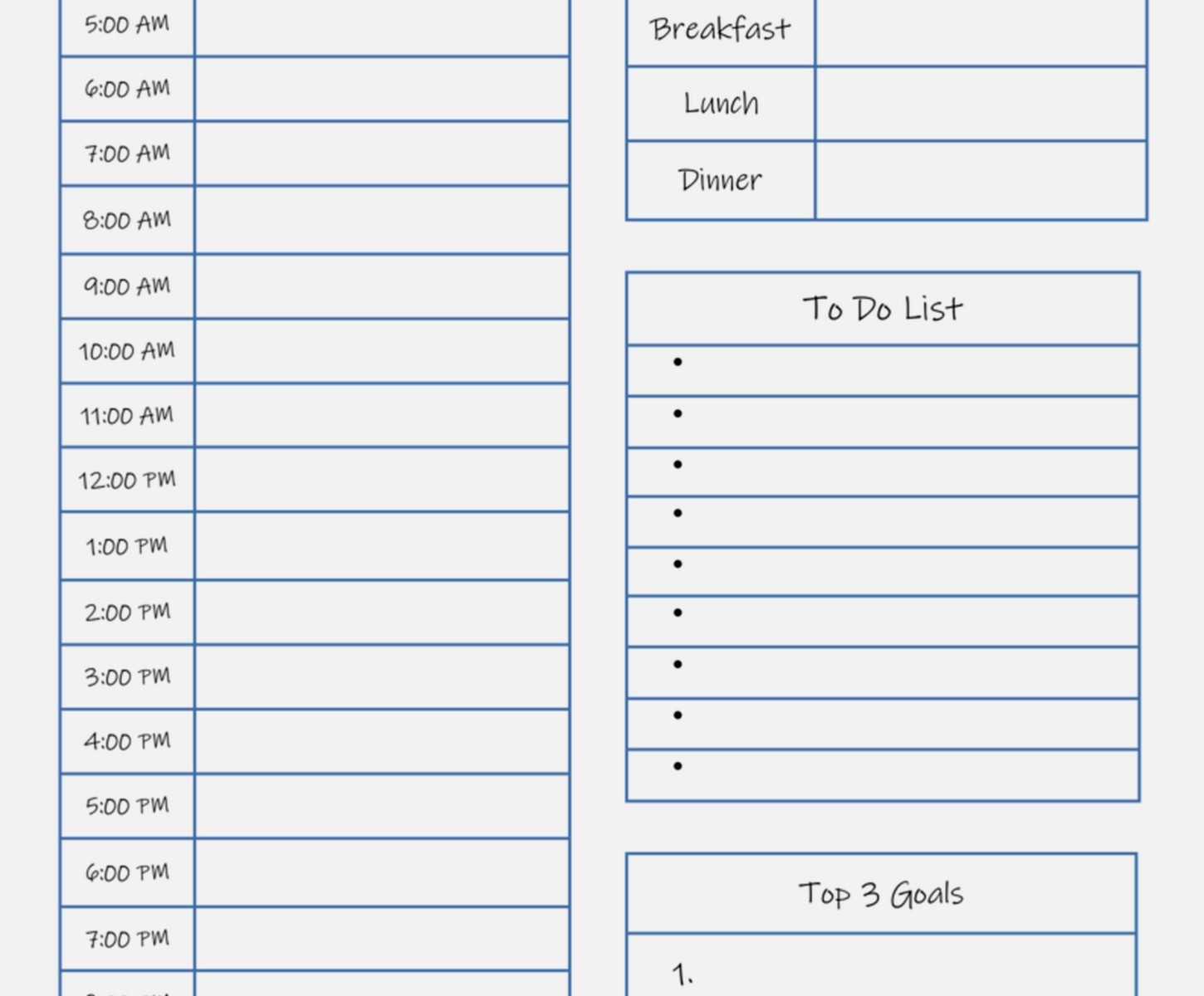
The printed hourly planners are what I started with. Passion Planner‘s daily sheets are genuinely good if you need that 5am to 9pm layout with 30-minute blocks. The paper quality matters more than you’d think because I was using this cheaper one from Amazon and the ink kept bleeding through when I used my Pilot G2 pens. Annoying as hell. The Passion Planner handles gel pens, highlighters, everything.
But here’s the thing about printed planners—you can’t move stuff around. Like when my morning meeting got rescheduled to afternoon, I had to cross out and rewrite and it looked messy. Some people don’t care about that but it drove me nuts.
Digital Time-Block Apps
I switched to digital after that and tested Sunsama, Akiflow, and Motion AI. Sunsama is the one I actually stuck with even though it’s $16/month which feels steep. It connects to your Google Calendar and lets you drag tasks into time blocks. The daily planning ritual feature is… okay this is gonna sound weird but it actually makes me sit down and plan instead of just winging it.
Motion AI is interesting because it auto-schedules your tasks based on deadlines and priorities. My friend Sarah swears by it but I found it too controlling? Like it would put writing tasks at 2pm when I know I write better in the morning. The AI doesn’t know your energy patterns unless you fight with it for a few weeks to learn your preferences.
Akiflow is the middle ground—less hand-holdy than Sunsama, less bossy than Motion. It’s got this command bar that’s really fast once you learn the shortcuts. I used it for a month but went back to Sunsama because I missed the evening reflection prompts.
How to Actually Set Up Your Time Blocks
Right so everyone talks about time-blocking but nobody explains the actual mechanics. Here’s what works after testing this with like 40 different clients:
Start with your anchors. These are the non-negotiable things that happen at specific times. Meetings, school pickup, that Zoom call with your team. Block those first. I use a different color for anchors—usually red or dark blue depending on the planner.
Then add your energy-dependent tasks. This is where most people screw up. They put “write report” at 4pm when their brain is mush. I know I’m sharpest from 9am to 11:30am, so that’s when I block deep work. Creative stuff, writing, anything that needs actual thinking. My afternoons are for emails, admin stuff, calls.
The Block Sizes Thing
Oh and another thing—block sizes matter way more than I expected. I tried doing 30-minute blocks for everything and it was chaos. Too many switches. Now I use:
- 90-minute blocks for deep work (based on that ultradian rhythm thing)
- 30-minute blocks for admin tasks, emails, quick calls
- 15-minute blocks for transitions and buffer time
- 60-minute blocks for meetings because they always run over anyway
The buffer blocks are KEY. I learned this the hard way when I scheduled things back-to-back and then needed to pee or grab coffee and suddenly everything was delayed. Now I put a 15-minute buffer between different types of tasks.
Platform-Specific Setup Instructions
For Google Calendar (which is free and most people already have)—you can totally use this for time-blocking. Create a separate calendar called “Time Blocks” so you can toggle it on and off. Color-code by task type: green for deep work, blue for meetings, yellow for admin, purple for personal stuff.
The trick with Google Calendar is using the “out of office” feature for your deep work blocks. Sounds dramatic but it actually declines meetings automatically during those times. I started doing this after someone kept booking over my writing time and I was like, nope, done with this.
Notion Setup
If you’re using Notion (which I do for client management), there’s this template by Thomas Frank that’s pretty solid for time-blocking. You create a database for tasks, then use a timeline view to drag them into your day. It’s more manual than Sunsama but it’s free and you can customize literally everything.
I set up properties for: task type, energy level needed (high/medium/low), estimated time, and actual time. Tracking actual vs estimated time was eye-opening—I consistently underestimate how long writing takes by like 40%.
Paper Planner Setup
For paper planners, my current setup is the Ink+Volt Daily Planner. It’s got hourly blocks from 6am to 9pm, which is enough for most people. The left side has your schedule, right side has a task list and notes section.
Here’s how I use it: I plan tomorrow’s blocks the night before (usually while watching The Great British Baking Show, don’t judge). I write in pencil first because things change. Once the day starts, I use pen to track what actually happened. Different colors for different task categories—I’m not artistic about it, just functional.
Wait I forgot to mention—get a planner with lay-flat binding. The ones that don’t lay flat are SO annoying when you’re trying to write in the early morning time slots.
The Hybrid Approach That Works Best
Okay so after all this testing, I landed on a hybrid system and it’s honestly the sweet spot. I use Google Calendar for my master schedule and meeting blocks, Sunsama for daily task planning and time-blocking, and a paper notepad for the actual work.
Here’s why this works: Google Calendar is where other people can see my availability. Sunsama is where I plan my ideal day and drag tasks around. The paper notepad is for focus—when I’m in a time block, I write the task at the top of a fresh page and just work. No digital distractions.
My client Jennifer does something similar but uses her iPad with GoodNotes instead of paper. She’s got a digital planner template that she can duplicate each week. The advantage is she can move things around and it stays neat, but she says the screen sometimes tempts her to check email. Trade-offs.
Common Mistakes I See Everyone Make
People try to block every single minute of their day. Don’t do this. You’re not a robot. I leave at least 2 hours unblocked for random stuff that comes up, because it always does. My cat knocked over a plant this morning and I spent 20 minutes cleaning dirt—that time had to come from somewhere.
Another mistake: making blocks too specific. “9:00am – Write introduction for Johnson report” is too rigid. Better: “9:00am – Deep work: Johnson report.” Then you can work on whatever part makes sense when you sit down.
Also, people forget to schedule breaks. I block 15 minutes mid-morning and mid-afternoon for actual breaks. Not “check email” breaks—like, walk outside or do nothing breaks. Otherwise I end up at 6pm with a headache and no memory of eating lunch.
The Flexibility Problem
This is gonna sound contradictory but you need both structure and flexibility. I have a template for a typical week—Mondays are for admin and planning, Tuesday and Thursday mornings are for client calls, Wednesday is deep work day, etc. But I don’t follow it religiously.
Sometimes you gotta move things around and that’s fine. The point isn’t to create a perfect schedule, it’s to be intentional about your time. If you planned to work on Project A but you’re really feeling Project B, switch it. Just make sure you’re actively choosing, not just procrastinating.
Specific Tools Worth Buying
If you’re going paper: get the Clever Fox Daily Planner if you want something cheaper than Passion Planner but still quality. It’s like $25 and has undated pages so you don’t waste money if you skip days. The hourly layout runs 6am to 8pm with 30-minute increments.
For digital: honestly just start with Google Calendar if you’re not sure yet. It’s free, you already know how to use it, and you can always upgrade to Sunsama or Akiflow later. I wasted money trying Motion AI for three months before admitting it wasn’t for me.
If you want something in between: Rocketbook makes these reusable planners that you can scan and erase. It’s like $35 and you use Frixion pens. My friend Dave uses this and loves it but I found the scanning step annoying. He’s more organized than me though.
How to Stick With It
The first two weeks are gonna feel weird and constraining. You’ll want to quit. I almost did. Then something clicked and I realized I was getting more done in less time because I wasn’t constantly deciding what to work on next.
Start small—just block your morning for the first week. Don’t try to plan your entire day perfectly from 6am to 9pm. That’s overwhelming and you’ll give up. I started by just blocking 9am to noon for three different task types and built from there.
Review your blocks weekly. I do this Sunday evening with coffee. What worked? What didn’t? Did I consistently ignore certain blocks? (If yes, maybe those tasks aren’t actually priorities or they’re scheduled at the wrong time.)
Track your completion rate but don’t obsess over it. I aim for completing about 70% of my planned blocks. Some days are 90%, some are 40% because everything went sideways. That’s life. The time-blocking still helps even on chaotic days because at least I know what I’m NOT doing.
The Energy Audit Thing
Oh wait, before you start blocking your whole calendar, do an energy audit for like three days. Just track when you feel focused vs scattered, energized vs drained. I thought I was a morning person but turns out I’m sharpest 10am to 1pm, not first thing. That changed where I put my important blocks.
Use whatever tracking method is easiest—I just set phone reminders every two hours to note my energy level in a simple note. High, medium, or low. After three days you’ll see patterns.
Also notice what tasks drain you vs energize you. I hate scheduling social media posts so I batch those in a single 45-minute block Friday afternoon when my brain is already tired anyway. Might as well do the annoying stuff when I’m not at my peak.
The Weekly Template Approach
This changed everything for me. Instead of planning from scratch every day, I created a weekly template with my regular commitments and ideal blocks. Monday mornings are always admin. Tuesday and Thursday 9am to noon are client sessions. Wednesday is protected for content creation.
Then each week I just adjust the template based on what’s actually happening. Way faster than starting with a blank calendar. Most apps let you duplicate weeks—Sunsama does, Google Calendar kinda does if you use recurring events.
For paper planners, I keep my template in my phone notes and just reference it when setting up the week. Takes maybe 10 minutes on Sunday evening instead of 30+ minutes planning each day from scratch.
Anyway that’s basically everything I learned from three months of obsessive testing. The main thing is just to start somewhere and adjust as you go. Don’t wait for the perfect system because you’ll just keep researching and never actually do it. Pick a platform, block your morning tomorrow, and see how it feels.
