
Digital Productivity, Online planners, Planners
Aesthetic Planner Online: Best Beautiful Digital Tools
Apr
Okay so I just spent like three weeks testing every aesthetic planner app I could find because my entire client base suddenly decided they needed digital planning solutions and honestly? Most of them are gorgeous but completely impractical. Let me break down what actually works.
Notion Templates Are Where Everyone Starts But
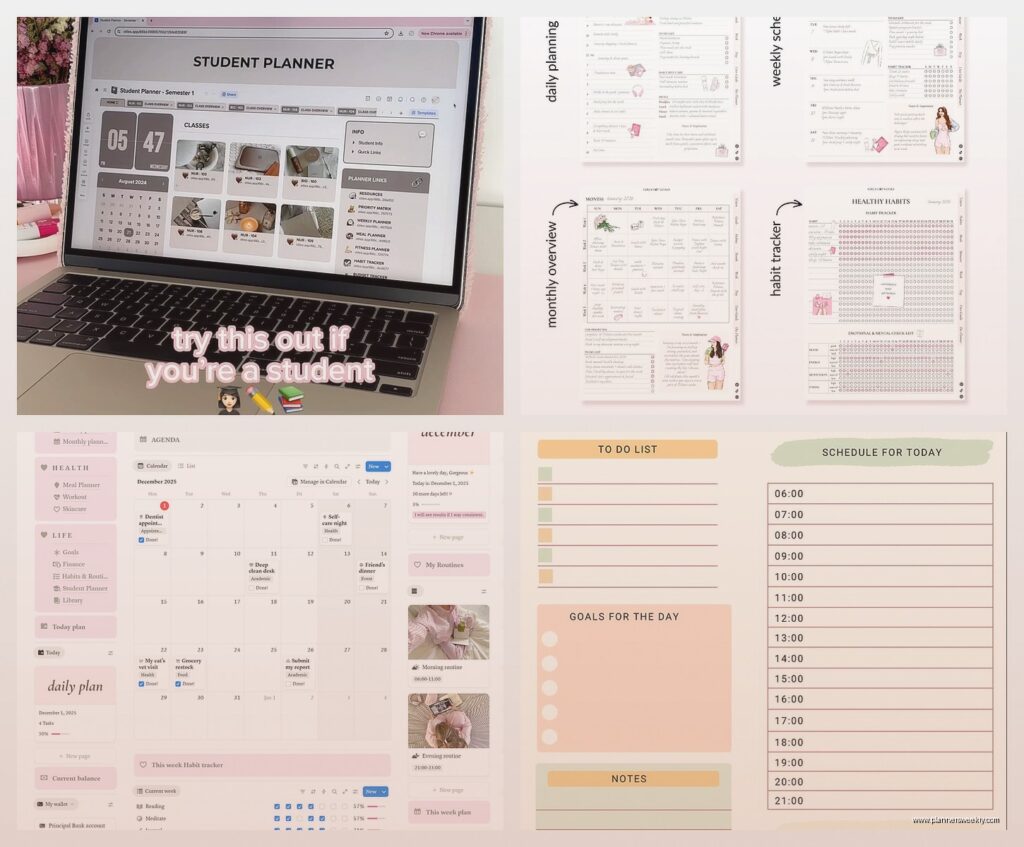
So Notion is probably what you’ve seen all over Instagram with those minimalist beige layouts and the aesthetic widgets everywhere. Here’s the thing – it’s free to start which is why everyone gravitates toward it, but the learning curve is steeper than people admit. I bought like four different aesthetic planner templates from Etsy (spent maybe $40 total?) and they ranged from absolutely stunning but totally unusable to surprisingly functional once I figured out how databases work.
The best one I found was this template called “The Minimalist Life Planner” – it’s got this whole cream and sage green color scheme that doesn’t make my eyes hurt after staring at it for three hours. What made it actually work was the linked databases. You can create a task in your daily page and it automatically shows up in your weekly view and your master task list. Took me forever to understand that concept but now I’m obsessed.
The downside is Notion doesn’t work great offline and sometimes there’s this lag when you’re switching between pages. My dog knocked over my coffee last week while I was mid-planning session and in my panic to save my laptop I lost like ten minutes of work because it hadn’t synced yet. So yeah, save constantly.
Setting Up Your Notion Aesthetic Planner
- Start with a pre-made template instead of building from scratch – trust me on this
- Use Unsplash integration for cover images that actually look cohesive
- Stick to 2-3 colors max or it gets chaotic real fast
- Learn how to use toggle lists – they keep things looking clean
- Set up your mobile app because you’ll need it
GoodNotes If You Want That Handwritten Feel
Wait I forgot to mention – if you have an iPad this changes everything. GoodNotes is like $8 or something and it’s where the really aesthetic digital planning happens. You buy PDF planner templates (Etsy again, or there’s tons on Creative Market) and you can write on them with an Apple Pencil.
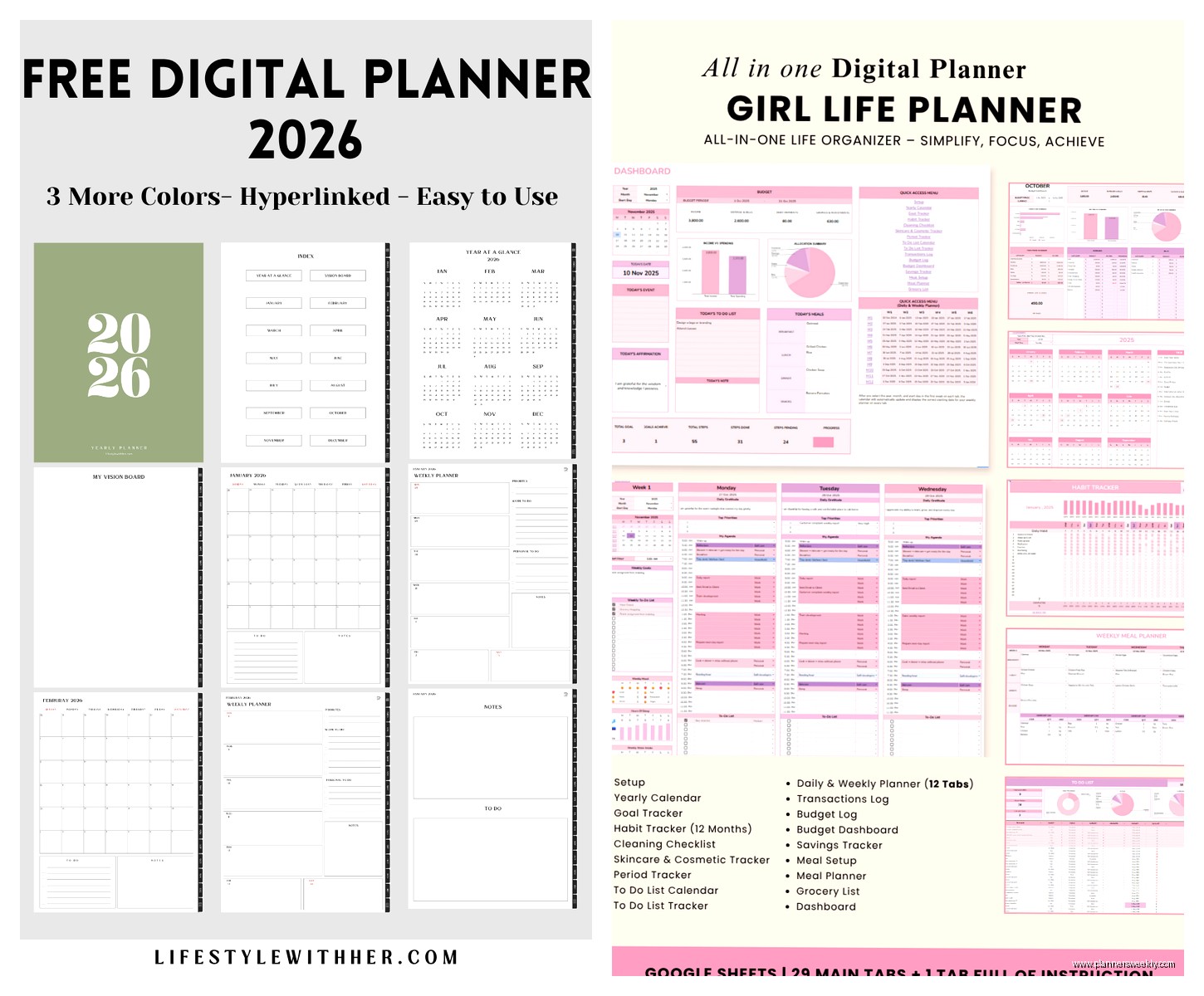
I tested probably fifteen different planner templates in GoodNotes and my favorite was this one called “The Blush Planning System” – super feminine with watercolor elements but not so decorated that you can’t actually write on it. The creator clearly understood that aesthetic doesn’t mean sacrificing functionality. Each page has enough white space that my handwriting doesn’t look cramped.
The thing about GoodNotes is you can customize the paper templates, add your own stickers (there are THOUSANDS of digital sticker packs – I may have developed a small addiction), and it actually feels like writing in a physical planner. The palm rejection works really well so you’re not accidentally making marks everywhere.
Oh and another thing – you can record audio while you write notes which sounds gimmicky but it’s actually useful for meeting notes. I used it during a client call last Tuesday and being able to go back and hear exactly what they said while looking at my notes was kind of amazing.
GoodNotes Setup Tips
- Get a matte screen protector for your iPad – makes writing feel more paper-like
- Start with one planner template before buying more (learned this the expensive way)
- Use the lasso tool to move things around – total game changer
- Create a favorites folder for stickers you use constantly
- Back up to cloud storage because these files get big
Notion vs GoodNotes Is Honestly The Wrong Question
So here’s what I figured out after using both – they serve different purposes and trying to make one do everything is gonna frustrate you. I use Notion for planning that needs to be dynamic – like my content calendar where things are constantly moving around, or my client database where I need to link information between different pages.
GoodNotes is what I use for daily planning and journaling because there’s something about handwriting that makes me actually process information better. Also it’s way prettier for the kind of decorative planning I do on Sunday evenings while watching whatever true crime documentary I’m currently obsessed with (currently Deep Water on Hulu, highly recommend).
Goodnotes Alternatives That Are Also Gorgeous
Notability is basically GoodNotes’ main competitor and honestly they’re so similar that it comes down to personal preference. Notability has better audio recording features and some people prefer the interface. It’s also around $8. I found it slightly less intuitive but that might just be because I learned GoodNotes first.
Noteshelf is another one – it’s got more paper texture options if you’re really particular about that. The aesthetic templates available for it are slightly more limited though.
This Is Gonna Sound Weird But Try Structured
Okay so Structured is this day planner app that’s specifically for time-blocking and it’s SO aesthetically pleasing. Like minimal, clean, satisfying to use. It’s free with premium features at $8/year which is nothing.
The interface shows your day as this visual timeline with color-coded blocks for different tasks. You can add little icons to each task and customize colors. What makes it actually useful is you can set buffer times between tasks, it sends you notifications before things start, and there’s this satisfying completion animation when you check things off.
I started using this for days when I have a lot of meetings and appointments because seeing everything laid out visually keeps me from overbooking myself. Which I definitely did before – I once scheduled three calls in the same hour because I wasn’t paying attention to my calendar. Not my finest moment.
For The Aesthetic Instagram Planning Content
If we’re being real, a lot of people want aesthetic planners partly for the content potential. Not gonna judge because I definitely take photos of my planning spreads. For this specifically, GoodNotes wins hands down. The ability to customize everything, add cute stickers, use different pen colors – it photographs beautifully.
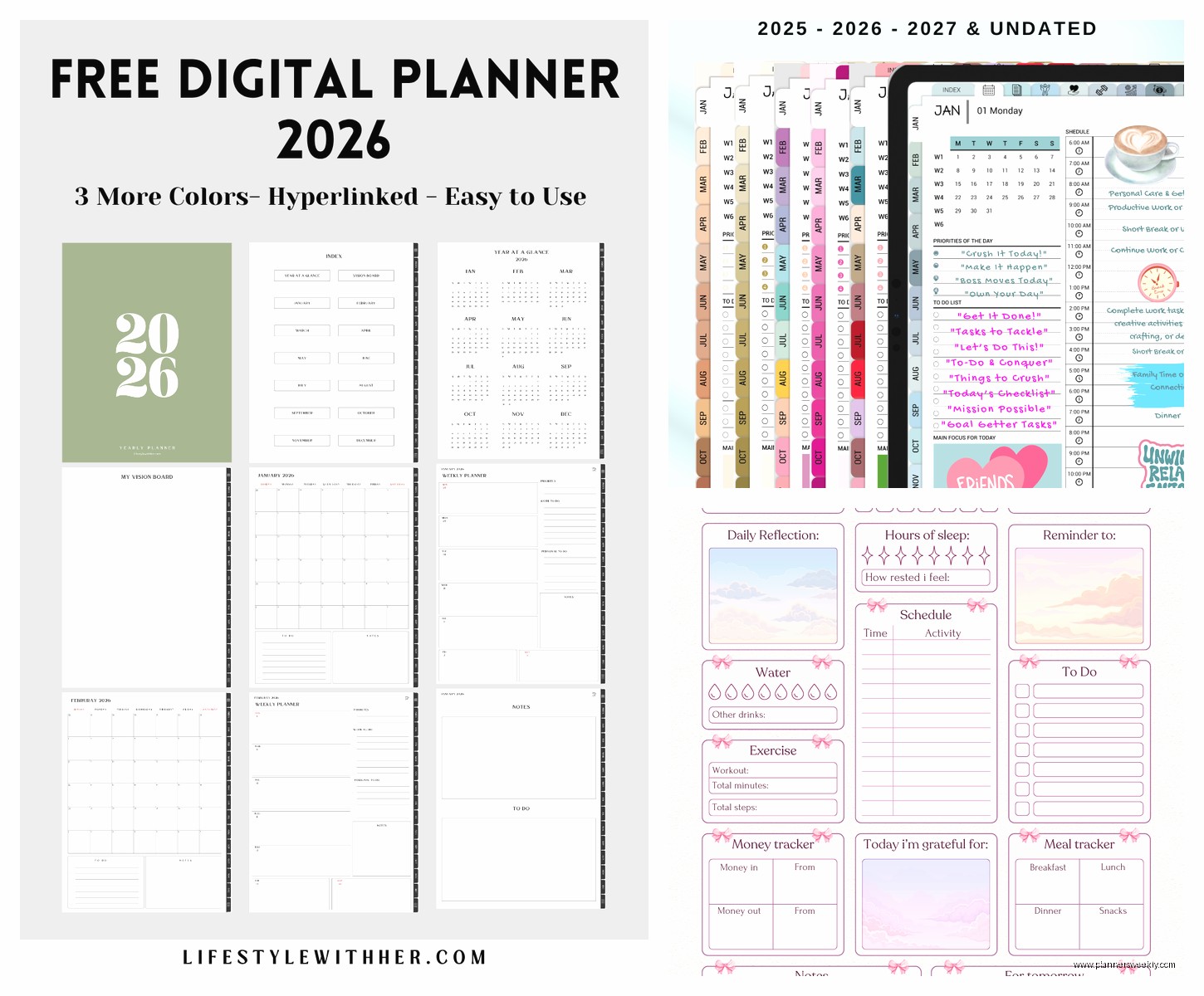
My client canceled last Tuesday so I spent an hour comparing how different apps look in screenshots and GoodNotes with a good template and some digital washi tape looks the most like traditional bullet journaling. Notion can look really clean and modern but it’s harder to make it look warm and inviting in screenshots.
Making Your Digital Planner Instagram-Worthy
- Use consistent colors across all your planning pages
- Digital stickers but don’t go overboard – less is more
- Good lighting when you photograph your iPad screen
- The “light mode” usually photographs better than dark mode
- Screenshot the whole page rather than trying to photograph the screen
Google Calendar But Make It Aesthetic
Wait I should mention that Google Calendar has gotten surprisingly customizable. You can color-code everything, add descriptions with emojis, and there are browser extensions that make it look way prettier. It’s not gonna give you the same aesthetic planning experience as dedicated apps but if you need something that syncs across every device and integrates with work calendars, it’s actually decent now.
I use Colorful Google Calendar extension and it lets you add gradients and custom colors beyond the default options. Makes it feel less corporate and more intentional.
The Hybrid System That Actually Works
Okay so after testing everything, here’s what I actually use daily and recommend: Google Calendar for appointments and time-sensitive stuff because it syncs everywhere and other people can add to it. Notion for project planning, content calendars, and anything that needs databases or linked information. GoodNotes for daily planning, journaling, and brain dumps.
Is it three different apps? Yes. Does it sound complicated? Maybe. But each one does its specific thing really well and they all look cohesive because I use the same color scheme across everything – sage green, cream, and soft terracotta.
The Money Breakdown
Let’s talk actual costs because this can add up fast if you’re not careful. Notion is free for personal use. GoodNotes is $8 one-time. Structured is free or $8/year for premium. So far you’re at like $16 total for the basic setup.
Where it gets expensive is templates and digital stickers. I’ve probably spent $150 on various templates and sticker packs over the past year. You don’t need to do this. There are tons of free options. But the paid ones are usually better designed and more functional.
My advice is start with free templates and only buy paid ones once you know exactly what you need. I wasted money on several gorgeous templates that I used once and never opened again because they didn’t fit my actual planning style.
What About Android Users
So most of what I tested was on iPad but if you’re on Android, Samsung Notes is actually really good and comes free. It has similar features to GoodNotes – you can import PDFs, write on them, use different pen types. The aesthetic planner community is definitely more iOS-focused but Samsung Notes is improving.
Notion and Structured both work on Android. Google Calendar obviously. You’re not completely left out of the aesthetic planning world without an iPad, it’s just that the template marketplace is more developed for iOS.
The Actual Planning Part
Okay so all these tools are useless if you don’t have a system. This is gonna sound obvious but I’ve seen so many people buy aesthetic planners and then just… not use them because they don’t know what to actually put in them.
Start with a brain dump – everything you need to do, want to do, appointments, deadlines, all of it. Then categorize by timeframe – today, this week, this month, someday. Then by type – work, personal, household, whatever categories make sense for your life.
I do a weekly planning session every Sunday evening where I review everything and drag tasks into specific days. Takes maybe 20 minutes. Then daily I spend 5 minutes in the morning reviewing my plan and 5 minutes at night checking off what got done and moving what didn’t.
Weekly Planning Routine
- Review last week – what got done, what didn’t, why
- Check upcoming appointments and deadlines
- Brain dump any new tasks or ideas
- Assign tasks to specific days based on energy levels and time available
- Set 3 main priorities for the week
- Make it look pretty because why not
Common Mistakes I Made So You Don’t Have To
Over-designing pages instead of actually planning. Spent like two hours making a perfect weekly spread in GoodNotes and then had no time to actually plan my week. The aesthetic part should enhance function, not replace it.
Buying too many templates before figuring out what layout works for me. Turns out I hate monthly calendar views and prefer weekly spreads with lots of space for tasks. Took me like $50 worth of templates to figure that out.
Not backing things up. Lost an entire month of planning once when an app glitched. Now everything syncs to cloud storage automatically.
Trying to make one app do everything. Just accept you might need multiple tools and make sure they work together rather than fighting with limitations.
Specific Template Recommendations
For GoodNotes, check out “The Dated Planner” by BlushBerry – it’s got monthly, weekly, and daily pages all hyperlinked which is actually really useful. Around $12 but you can reuse it every year by just changing dates.
For Notion, “Ultimate Life Planner” by Easlo is free and super comprehensive. Good starting point before you customize.
Digital sticker packs from BeaYOUtiful Planning are cute without being overwhelming – she has both free and paid options.
The Learning Curve Reality
Just be prepared that there’s an adjustment period. First week with Notion I almost gave up three times because I kept breaking things. GoodNotes was more intuitive but I still had to watch YouTube tutorials to understand layers and how to import stickers properly.
Give yourself like two weeks of using something before deciding if it works for you. The first few days always feel clunky with any new system.
Also nobody’s planning system looks perfect from day one. All those aesthetic planning videos on TikTok? Those people have been refining their systems for months or years. Your first attempts will be messy and that’s completely normal.
