Digital Productivity, Online planners, Planners
Digital Wall Planner: Best Display & Calendar Options
May
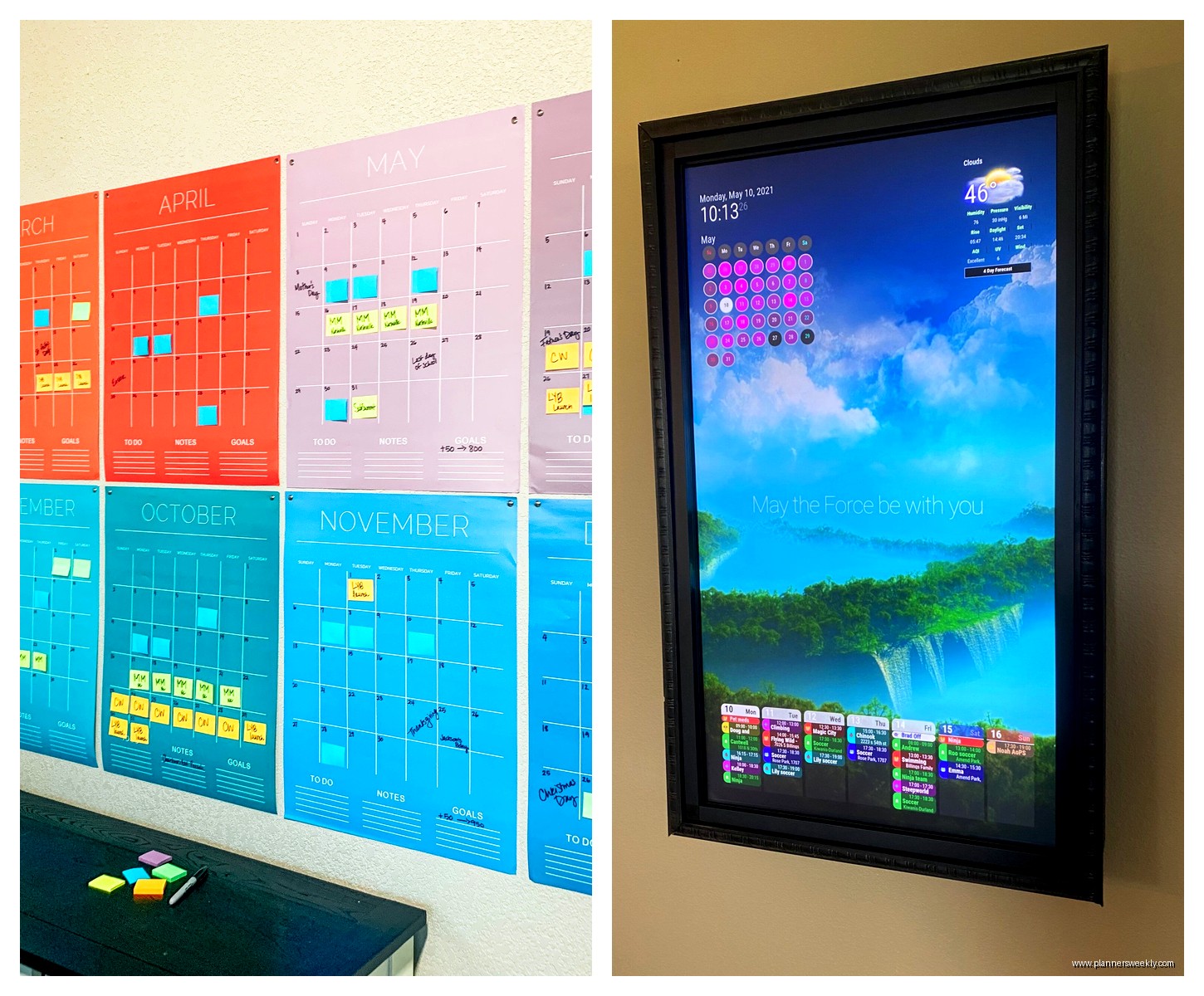
Okay so I’ve been testing digital wall planners for like three months now because honestly my paper calendar situation was getting ridiculous and I needed something my whole family could actually see without me having to yell “check the calendar” seventeen times a day.
The Display Situation Nobody Talks About
First thing – and this is gonna sound weird but – you need to figure out if you want a dedicated device or if you’re gonna repurpose something. I started with an old iPad mounted on the wall and it worked fine until my son kept taking it down to play games. So that lasted maybe two weeks.
The dedicated options are basically e-ink displays or regular LCD screens. E-ink looks SO much better in bright rooms, doesn’t glare at all, but the refresh rate is terrible if you want anything interactive. I tested the Visionect Joan Executive which is like 32 inches and costs an actual fortune but my client has one in their office and let me mess with it. Beautiful display, updates maybe once a minute? Not great if you’re the type who needs to see changes immediately.
LCD Screens That Actually Work
Regular LCD monitors are honestly where I landed. Got a 27-inch Samsung display for like $200 and mounted it in our kitchen. The trick is getting one with good viewing angles because you’re not always gonna be standing directly in front of it. I learned this the hard way when I bought a cheaper Dell first and you literally couldn’t read it unless you were standing perfectly centered.
You want IPS panel technology specifically. The Samsung M7 is what I ended up keeping – it’s technically a smart monitor so it can run apps without a computer attached which is clutch. Has a remote too so you can control it without touching the screen which stays way cleaner.
Oh and another thing – glossy vs matte screens matter more than I thought. Glossy looks prettier but if you have windows nearby you’re gonna be dealing with reflections all day. My kitchen has a window right across from where I mounted it and I had to get blackout curtains because the glare was making me insane between 3-5pm.
Mounting Hardware You Actually Need
Nobody tells you this but the mounting situation is half the battle. I bought three different mounts before finding one that worked. You need something that’s easy to adjust because trust me you will not get the height right the first time.
The ECHOGEAR tilting mount worked best for me – like $40 on Amazon and it lets you tilt the screen down slightly which makes a huge difference if you’re mounting it above eye level. I initially mounted mine too high trying to keep it away from my dog who likes to jump at things and then I was craning my neck constantly to read it.
Wait I forgot to mention – measure where your studs are before you buy anything. I didn’t and ended up having to use those toggle bolt things in drywall which always make me nervous even though they’re supposedly rated for way more weight than a monitor.
Software Options That Don’t Suck
Okay so the display is only half of it. You need something actually running on it that shows your calendar and looks good from across the room.
Google Calendar in Kiosk Mode
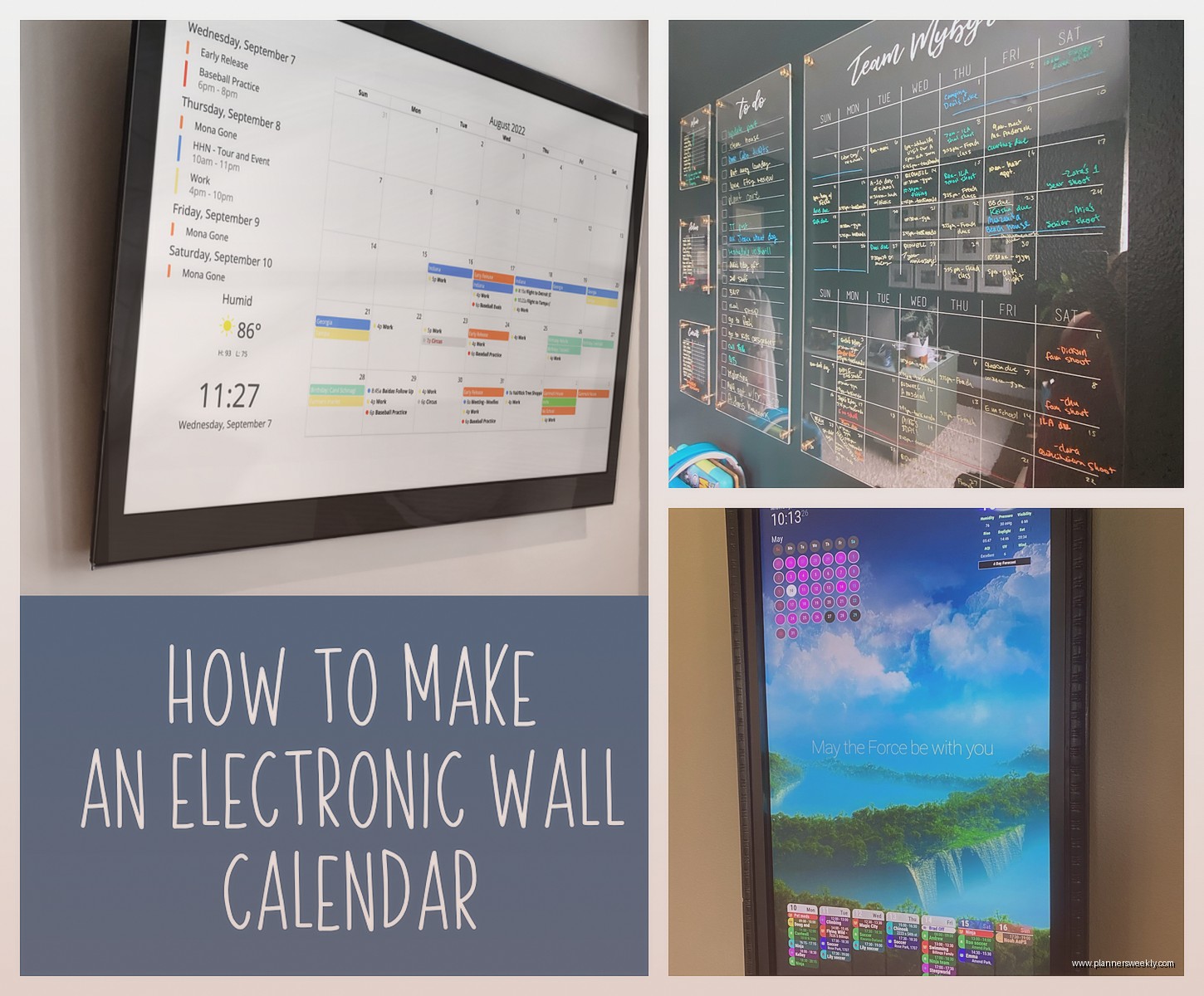
The simplest setup is honestly just Google Calendar in full screen mode on a browser. Sounds basic but it works. I use a Raspberry Pi 4 connected to the monitor running Chromium in kiosk mode. Cost maybe $50 for the Pi and a power supply.
You can set it to auto-refresh every few minutes and it shows your whole week or month view. The family calendar sharing in Google is actually really good – everyone can add stuff from their phones and it shows up on the wall immediately. Well, after the next refresh.
The downside is it looks very obviously like just a Google Calendar. Not ugly but not particularly designed for a wall display either. Text can be small depending on how many events you have.
DAKboard Was a Game Changer
This is what I actually use now and I’m kinda obsessed with it. DAKboard is specifically designed for wall displays and it looks SO much better than a plain calendar. It costs $5/month after a free trial but honestly worth it.
You can customize basically everything – show multiple calendars, add weather, news headlines, photos, tasks, whatever. I have mine showing Google Calendar, my Todoist tasks, weather, and it rotates through family photos in the background. My mom came over and immediately wanted me to set one up for her.
The layouts are actually thoughtful – they make text big enough to read from far away and you can adjust the refresh rate. I have mine updating every 5 minutes which is frequent enough without killing the Pi’s SD card.
Oh and funny story – I initially had it showing news headlines but my daughter kept reading terrible news while eating breakfast so I turned that off real quick. Now it just shows the weather forecast which is actually useful when everyone’s trying to figure out what to wear.
Touch vs Non-Touch Displays
So I went back and forth on this forever. Touch screens are obviously more interactive but they cost more and get SO dirty. Like within a day there are fingerprints everywhere and I was cleaning it constantly.
My current setup is non-touch and everyone just updates the calendar from their phones. This actually works better because nobody has to walk over to the wall to add something – they just pull out their phone wherever they are and add it. Shows up on the wall automatically.
If you DO want touch, the ASUS VT229 is decent – 22 inches, touch enabled, around $150. I tested it for a month before switching to the non-touch Samsung. The touch response was fine but not amazing. Sometimes took two taps to register.
The one scenario where touch makes sense is if you have really young kids who don’t have phones. They can walk up and tap events to see details or mark chores as done or whatever. But my kids are 10 and 13 and they both have phones so that wasn’t a factor for us.
Tablet Options If You’re on a Budget
Okay so if you don’t wanna spend $200+ on a monitor setup, an old tablet actually works pretty well. Amazon Fire HD 10 tablets go on sale for like $80 and you can mount one of those.
I have a Fire HD 8 in my home office running the same DAKboard setup and it’s totally fine for a smaller space. The screen is obviously smaller so you can’t pack as much info on it but for a personal workspace it works.
You gotta disable the sleep mode which is annoying on Fire tablets – you need to install a third party app to keep the screen always on. I use Stay Alive Free and it works fine though the battery does degrade faster when you’re keeping it plugged in 24/7.
The Power and Cable Situation
This is gonna sound obvious but figure out your power situation before you mount anything. I mounted my monitor first and then realized the nearest outlet was on the opposite wall and I had to run a cable along the baseboard which looks terrible.
In-wall cable management is worth it if you’re at all handy. There are kits for like $20 that let you run power cables through the wall legally. Takes maybe an hour to install and looks so much cleaner.
If you’re using a Raspberry Pi or Fire Stick to power the display, you can sometimes power it FROM the monitor’s USB port which eliminates one cable. The Samsung M7 I mentioned earlier has a USB port that provides enough power for a Fire Stick which is nice and clean.
Calendar Apps That Actually Sync Well
The whole point of a wall planner is everyone can see it so you need calendar apps that sync properly. Google Calendar is the obvious choice because it just works with everything.
But if you’re an Apple household, iCloud calendars work fine too – DAKboard supports them directly. I had issues with Outlook calendar syncing being delayed by like 15 minutes sometimes which defeats the purpose.
What I actually do is have separate calendars for different family members that all show on the wall in different colors. My stuff is blue, my husband’s is green, kids are orange and purple. Makes it really easy to see at a glance who has what going on.
Todoist integration is great if you’re a task list person like me. I can see my top priorities for the day right on the wall display so I’m not constantly checking my phone. My productivity coach brain loves this setup.
Brightness and Scheduling
One thing I didn’t think about initially – you probably want the display to turn off at night. Having a bright screen on in your kitchen at 2am when you go get water is jarring.
Most monitors have a schedule feature in their settings. The Samsung M7 lets you set on/off times which is perfect. I have mine turn off at 10pm and back on at 6am.
If your monitor doesn’t have scheduling, you can use a smart plug. I have a cheap Kasa smart plug on my office Fire tablet setup and it turns off at 11pm automatically. Works fine though the tablet takes a minute to boot back up in the morning.
Brightness during the day matters too – I have mine set to like 60% brightness which is bright enough to read easily but not so bright it’s annoying. Auto-brightness is a feature on some displays but honestly I found it more distracting when it kept adjusting.
Size Recommendations Based on Distance
Okay so this is actually important – how big should your display be based on where you’re viewing it from?
For a kitchen or hallway where you’re viewing from 6-10 feet away, 24-27 inches is the sweet spot. Big enough to read easily but not so huge it looks weird on the wall.
Home office or bedroom where you’re closer, 15-22 inches works great. I have the Fire HD 8 (8 inches) in my office and it’s fine because I’m only like 3 feet away from it.
Living room or family room where you might be viewing from 10-15 feet away, you probably want 32+ inches. This is where those expensive e-ink displays actually make sense if you have the budget because they look more like a framed calendar from far away.
I tried a 40-inch display in our living room and it was honestly too big. Looked like a TV and was distracting. Ended up returning it and sticking with the 27-inch in the kitchen which everyone walks past multiple times a day anyway.
Portrait vs Landscape Orientation
Most people default to landscape because that’s how monitors naturally are but portrait actually makes more sense for calendar displays. You can see more events in a day view without scrolling.
The Samsung M7 can rotate to portrait mode which is cool. I tried it for a week and liked being able to see the full week in column view but my mount didn’t work great in portrait orientation so I switched back to landscape.
If you’re gonna do portrait, make sure your mount supports it and that your software looks good in that orientation. DAKboard has portrait layouts that work well. Google Calendar in portrait is kinda weird looking honestly.
My Current Setup That Actually Works
After all this testing here’s what I landed on and have been using for like 4 months now with no complaints:
Samsung M7 27-inch monitor in the kitchen mounted at about 5.5 feet height, tilted down slightly. Raspberry Pi 4 running DAKboard connected via HDMI. Showing Google Calendar for the whole family, weather, and my Todoist tasks. Updates every 5 minutes. Display turns off at 10pm and back on at 6am.
Total cost was about $300 for everything including the mount and the Pi. Worth every penny because I’m not constantly answering “what’s happening this weekend” questions anymore.
The only thing I’d change if I were starting over is I’d run the cables through the wall from the beginning instead of having to redo it later. And maybe get a monitor with a white bezel instead of black because it would blend better with our wall color but that’s purely aesthetic.
Oh wait one more thing – if you have cats, mount it higher than you think you need to. My cat tried to jump at birds on the weather widget for like a week before she gave up. Dogs too – my dog definitely tried to jump at it when we first set it up.