
Digital Productivity, Online planners, Planners
Assignment Tracker Template: Student Planning Tools

Mar
Okay so I just spent like three weeks testing different assignment tracker templates because honestly my college-age clients kept asking which one actually works and I was tired of giving vague answers. Here’s what I found.
The Basic Digital Setup That Actually Gets Used
Most students think they need this elaborate system with color coding and seventeen different views but like… no. The trackers that actually get used consistently are stupid simple. I’m talking three columns: what’s due, when it’s due, current status. That’s it.
I tested this with my nephew first (junior in college, perpetually behind on everything) and gave him a Google Sheets template with just those three columns plus a priority marker. He’s actually been using it for six weeks now which is a record for him. The key thing was making the priority column a dropdown with only three options because too many choices and people just skip it entirely.
What Goes in a Minimum Viable Tracker
- Assignment name (obvious but you’d be surprised)
- Class or subject
- Due date AND due time because 11:59pm vs 9am is a huge difference
- Status dropdown (not started, in progress, submitted)
- Priority level (high, medium, low)
That’s literally all you need to start. Everything else is just procrastination dressed up as productivity.
Digital vs Physical and Why You Might Need Both
So here’s where it gets interesting. I’m obviously biased toward paper planners because that’s half my job reviewing them, but I tested going fully digital for a month with assignment tracking and… it was fine? But only fine. The problem with digital-only is that you don’t see it unless you actively open the app or spreadsheet.
The physical setup I’ve been recommending lately is this hybrid thing where you keep the master tracker digital (because you can access it from your phone in class when a professor randomly announces something) but then you write your top three priorities for the day on an index card every morning. My cat knocked over my coffee on like day four of testing this which destroyed that day’s card but honestly it didn’t matter because I’d already looked at it enough times that morning.
Physical Template Options
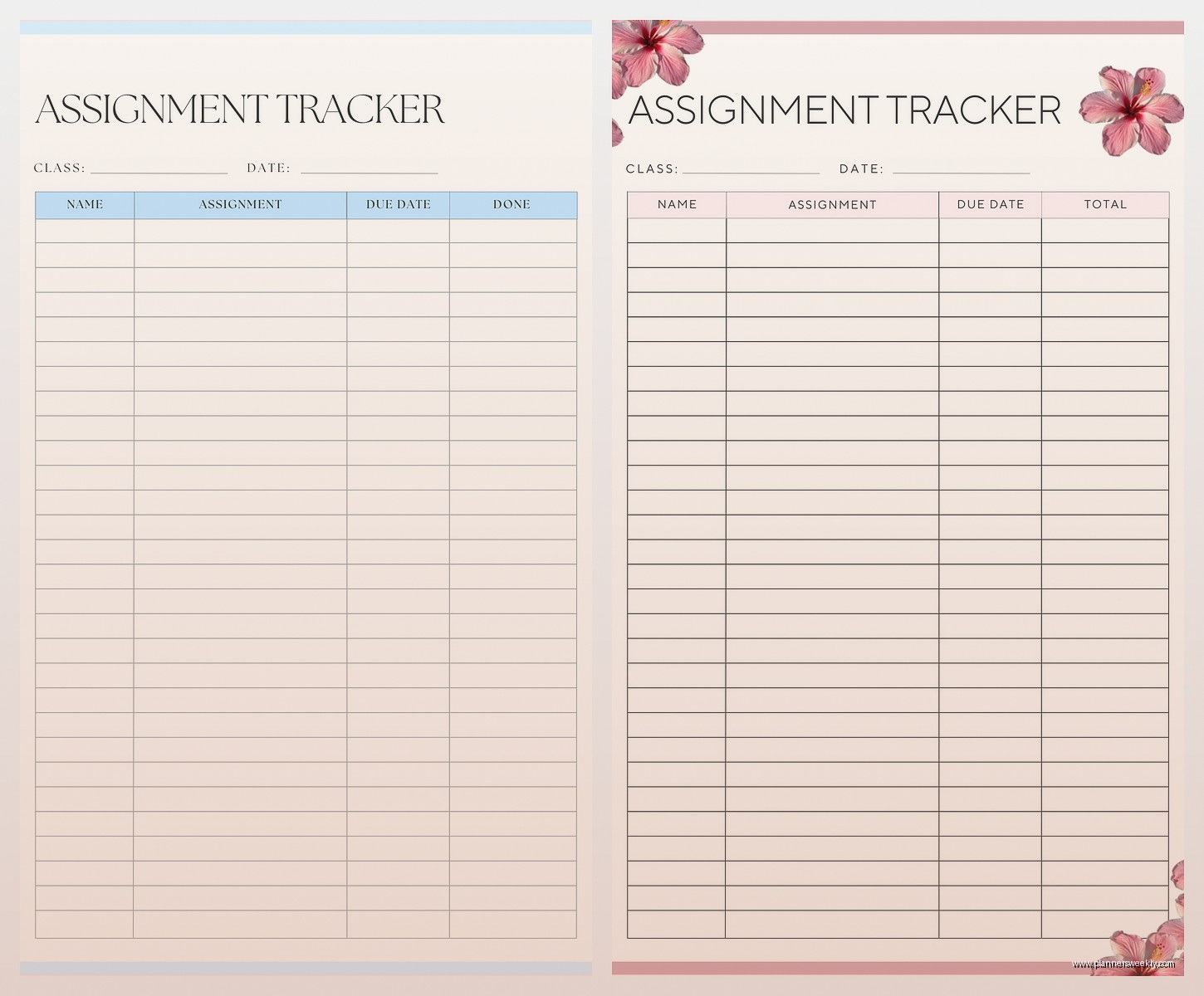
If you’re gonna go paper, here’s what actually works. I tested about eight different printed templates from Etsy and stationery brands:
The weekly spread format beats monthly for assignment tracking. Monthly looks nice on your desk but you can’t fit enough detail about each assignment. Weekly gives you room to actually write notes like “need to email TA about extension” or “waiting for group member to send their part ugh.”
Passion Planner has this assignment-specific insert that’s pretty good. It’s got space for breaking down bigger projects into steps which sounds obvious but most students just write “research paper due Nov 15” and then panic on Nov 14. This one forces you to think about the steps. Costs like $12 for a pack which isn’t terrible.
Oh and another thing, the cheap composition notebooks from Target work just as well if you draw your own columns. I did this for two weeks and it was honestly fine. Little time-consuming to set up but you can customize it exactly how you want.
The Google Sheets Template I Actually Use With Clients
Okay so I’ve been refining this template for like two years now and it’s gotten pretty solid. It lives in Google Sheets because then students can access it from anywhere and it auto-saves which is crucial for people who forget to save things (most students).
Main sheet has these columns: Assignment Name, Course Code, Type (essay, exam, problem set, etc), Assigned Date, Due Date, Due Time, Estimated Hours to Complete, Priority, Status, Notes. That Type column is more useful than you’d think because when you’re looking back at the end of semester you can see patterns like “oh I always underestimate how long problem sets take.”
The Estimated Hours column is the secret weapon honestly. Forces you to think realistically about time. Most students think every assignment takes “like an hour” and then wonder why they’re always behind. I had one client track her actual time versus estimated time for a month and she was off by an average of 2.5 hours per assignment. Just seeing that data changed how she planned.
Conditional Formatting That Doesn’t Suck
This is gonna sound complicated but it’s not I promise. You can set up the due date column to turn yellow when something’s due within 3 days and red when it’s due within 24 hours. Takes like two minutes to set up and then you have this visual alarm system that actually works.
I also color-code by class using the row highlighting feature. So all Econ assignments have a light blue background, all Biology stuff is green, whatever. Your brain processes that faster than reading the course code every time.
Notion Templates If You’re Into That
Look I have mixed feelings about Notion for student stuff because it can become this whole productivity theater situation where you spend more time organizing your tracker than actually doing assignments. But if you’re already using Notion for notes, having your assignment tracker there too makes sense.
The best Notion assignment tracker I tested had a database view with three different layouts: calendar view for seeing the whole month, table view for detailed planning, and board view (like Trello) for moving stuff between “to do,” “doing,” and “done.” Being able to switch between views depending on what you need is actually pretty useful.
Wait I forgot to mention, the template had linked databases for each class so you could see all your Psych assignments in one place or all your assignments across classes. That’s harder to do in a spreadsheet and it’s genuinely helpful during midterms when you need to see everything due that week across all classes.
The downside is Notion has a learning curve and if you’re not already comfortable with it, setting up your tracker becomes another thing on your to-do list. My client Sarah tried switching to Notion last semester and gave up after three days because she couldn’t figure out how to set up the views right and just went back to her Google Sheet.
Breaking Down Big Projects
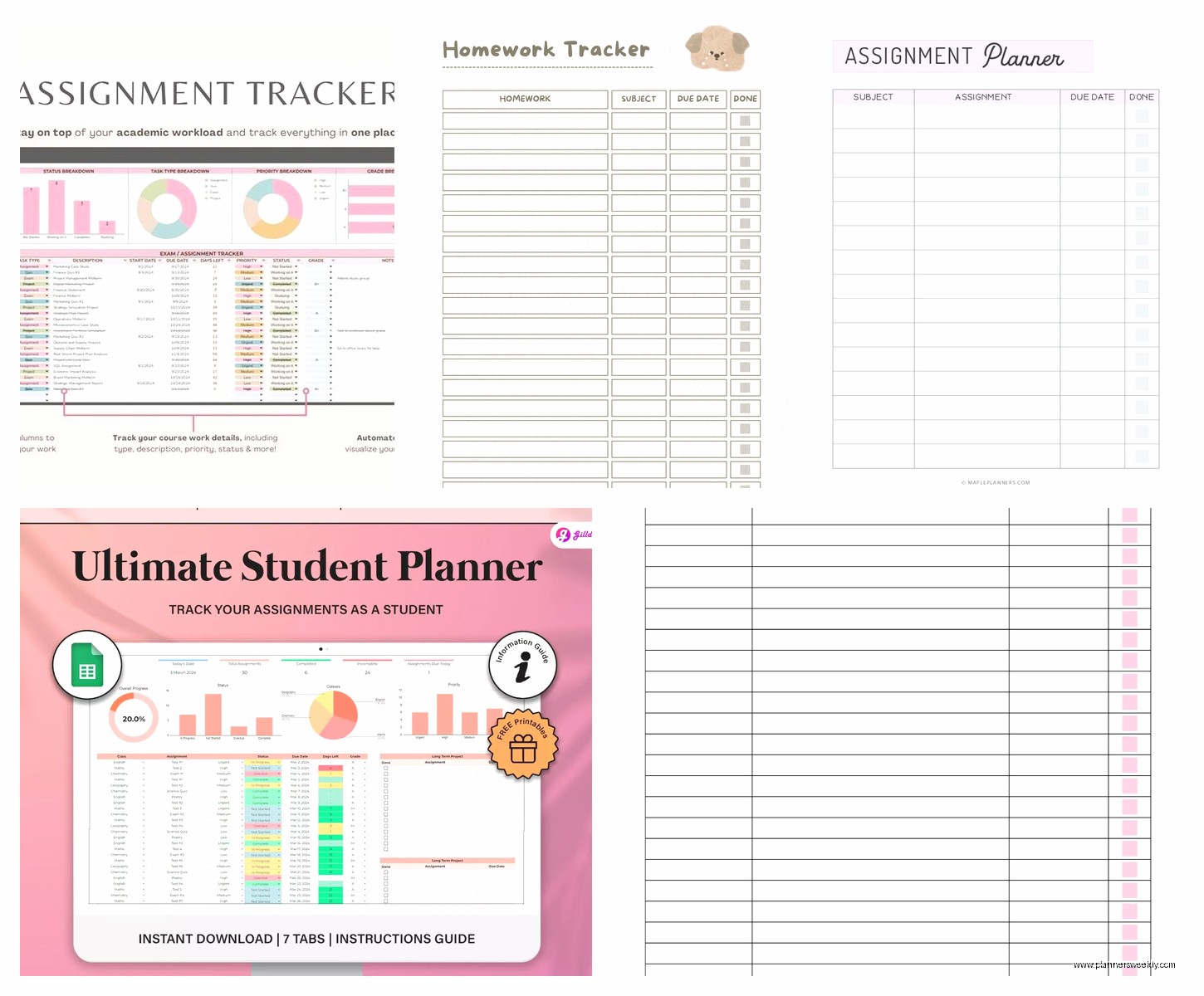
This is where most basic trackers fail. Someone writes “research paper due Dec 10” in their tracker and that’s not actually actionable. What are you supposed to do with that information on October 15?
The system I teach (and use myself for big projects) is to create sub-tasks with their own due dates. So that research paper becomes:
- Choose topic by Oct 20
- Find 5 sources by Oct 27
- Outline by Nov 3
- First draft by Nov 17
- Revisions by Dec 3
- Final edits by Dec 8
- Submit by Dec 10
In a spreadsheet you can indent these or use a separate “Parent Task” column. In Notion you can actually nest them which is cleaner. On paper you just write them as separate line items.
My nephew was super resistant to this at first because it felt like making more work but then he actually turned in a paper early for the first time ever and was like “oh okay I get it now.”
Group Project Tracking Because That’s Its Own Hell
Okay so funny story, I was working on this guide during a group project tracking session with a client and her group members were just… not responding to anything. Super frustrating. But it made me realize assignment trackers need a specific section for group work.
For group assignments you need additional columns: Who’s Responsible for What, Date You Last Followed Up, Next Action Item. Sounds neurotic but group projects fail because of unclear ownership and people assuming someone else is handling stuff.
I actually recommend keeping group project tracking separate from your individual assignments. Different spreadsheet tab or different physical notebook section. Mixing them makes both harder to parse.
The Follow-Up System
This is gonna sound weird but you need a system for tracking when you last checked in with group members. If you waited for everyone to proactively communicate, nothing would ever get done. I put a reminder in my digital calendar to check the group project tracker every Monday and Thursday. Just two minutes to see if anyone’s behind and send a quick “hey how’s your part going” message.
Syncing With Your Regular Planner
Most students have some kind of planner or calendar already, even if it’s just the default iPhone calendar. Your assignment tracker shouldn’t replace that, it should feed into it.
What I do (and recommend) is a weekly review session every Sunday night where you look at your assignment tracker and block out time in your actual calendar for working on stuff. The tracker tells you WHAT needs to happen, your calendar tells you WHEN you’re actually gonna do it.
Without this connection, your tracker is just a list you occasionally look at and feel guilty about. With it, you have an actual plan.
I use Google Calendar and just create events like “Work on Econ problem set” for specific time blocks. Color-coded by class same as my tracker. Takes maybe 15 minutes on Sunday and saves hours of “what should I work on now” decision fatigue during the week.
Mobile Access Because You’re Not Always at Your Desk
Whatever system you use needs to work on your phone. Period. Professors announce assignment changes in class, you remember something while walking between buildings, whatever. If you can’t quickly check or update your tracker on your phone, you won’t use it consistently.
Google Sheets works fine on mobile, just a little cramped. Notion’s mobile app is actually pretty good. There are specific assignment tracker apps but honestly most of them are either too simple (basically just a to-do list) or too complicated (trying to be a whole learning management system).
I tested myHomework app for like two weeks and it was… okay? Clean interface, easy to add assignments, has reminders. But it didn’t really do anything my Google Sheet couldn’t do and I don’t love having another app to maintain. Though if you want something designed specifically for this purpose instead of adapting a general tool, it’s probably the best option.
The Weekly Review That Makes Everything Work
Here’s the thing nobody tells you: the tracker itself isn’t what keeps you organized. It’s the habit of regularly reviewing and updating it. I cannot stress this enough.
Every Sunday night (or whatever day works for your schedule) you gotta sit down and actually look at the whole tracker. Add new assignments that got announced, update status on stuff you worked on, adjust priorities based on what’s coming up. Maybe 20 minutes tops.
During this review I also move anything I didn’t finish from last week into this week’s plan and honestly evaluate why I didn’t finish it. Was I unrealistic about time? Did something else come up? This reflection part is what actually improves your planning skills over time.
My client James does his review during his Sunday night TV show (currently rewatching The Office for the millionth time) and that routine stacking thing really works for him. The show makes it feel less like a chore.
What Doesn’t Work and Why
Okay real talk, some popular systems just don’t work for most students. Bullet journaling for assignment tracking is too time-intensive unless you’re already hardcore into bujo culture. Those aesthetic study gram spreads with elaborate headers and drawings? Nobody maintains that during midterms.
Apps that gamify studying with points and levels sound fun but the novelty wears off in like a week. Tried Forest app, tried Habitica, the game mechanics don’t actually change your relationship with assignments.
Overly complex systems with eight different priority levels and tags for learning objectives and alignment with life goals and whatever. Just no. You’ll spend more time categorizing than actually working. Keep it simple.
Making It Stick
The hardest part isn’t finding a good template, it’s actually using it for more than three weeks. What I’ve found helps: link it to something you already do daily. Check your tracker when you check your phone in the morning. Update it right after your last class of the day. Whatever works with your existing routine.
Also it’s okay if your system evolves. My nephew started with just a basic spreadsheet and gradually added columns as he figured out what info he actually needed. Don’t try to build the perfect system on day one, just start with something and adjust as you go.
