Digital Productivity, Online planners, Planners
Content Planning Calendar Template: Marketing Guide
Mar
Okay so I just spent the last two weeks building out content calendars for three different clients and honestly, the template situation is WAY more important than people think. Like everyone’s out here talking about content strategy but then they’re tracking everything in random Google Docs and wondering why nothing gets published on time.
The Basic Structure You Actually Need
So here’s what I figured out after my dog ate my notebook (long story, he’s fine but my hand-written editorial calendar is not) – you need like five core columns minimum. Publication date, content title, format, status, and assigned to. Everything else is honestly optional depending on your situation.
The publication date thing seems obvious but you gotta decide if you’re tracking by when you START working on it or when it goes live. I learned this the hard way when I had a client who kept saying “but I thought we were publishing that today” and I was like “no that’s when we’re WRITING it” and yeah. So now I use two date columns – creation date and publish date.
Content Title and Working Headlines
This is gonna sound weird but don’t finalize your titles in the calendar template. I use a “working title” column and then a separate “final headline” column because I cannot tell you how many times the title changes after we actually write the thing. Like you plan this beautiful piece called “10 Ways to Improve Your Morning Routine” and then you write it and realize it’s actually about evening prep that makes mornings better, so now it’s completely different.
Format Tracking Is Where Everything Falls Apart
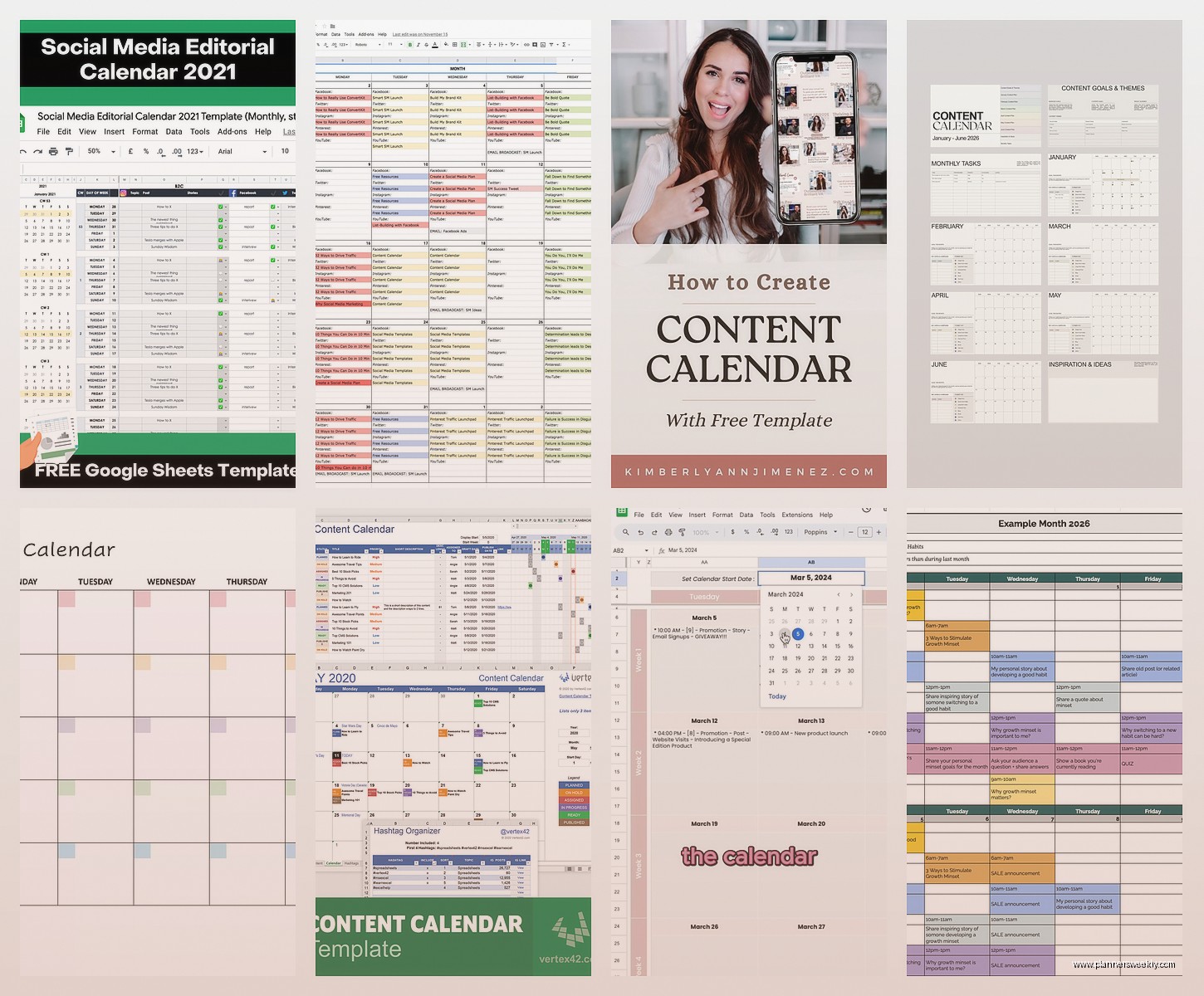
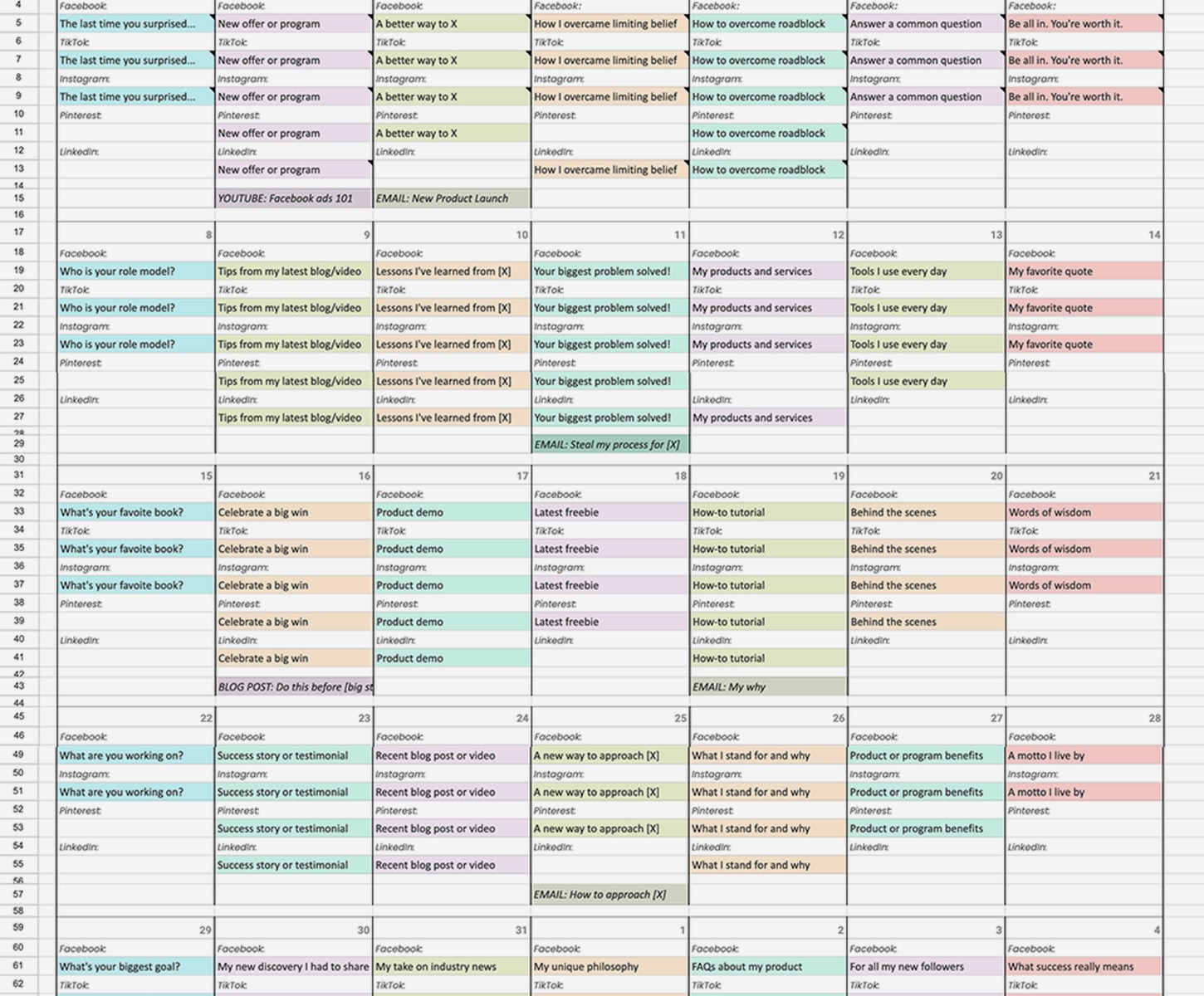
Oh and another thing – the format column saves your life when you’re juggling blog posts, social media, videos, newsletters, whatever. I color-code mine because I’m that person. Blog posts are blue, social content is green, video scripts are purple, email newsletters are orange. My assistant thinks I’m ridiculous but then she never has to ask me what type of content we’re working on.
What I do is create a dropdown menu in Excel or Google Sheets with all your content types listed. Keeps everything standardized so you’re not dealing with someone writing “blog” and someone else writing “blog post” and another person writing “article” for the same thing. Trust me on this one.
The Status Column That Actually Makes Sense
Most templates have like eight different status options and it’s too much. I use five: Idea, In Progress, Review, Scheduled, and Published. That’s it.
Idea means we know we want to do it but nobody’s touched it yet. In Progress means someone’s actively working. Review is when it’s done and waiting for edits or approval. Scheduled means it’s loaded into WordPress or wherever and set to go live. Published means it’s live and we’re done.
I tried adding “Needs Revisions” as a separate status for a while but it just confused everyone because isn’t that just… back to In Progress? Yeah. Keep it simple.
Assignment and Responsibility Columns
Wait I forgot to mention – if you’re working with a team (or even just like you and one other person), you NEED an “assigned to” column. But here’s what I learned: you actually need TWO assignment columns.
One for the writer and one for the reviewer/approver. Because otherwise you get this thing where the content is written but it’s just sitting there and nobody knows whose job it is to approve it. My client last month had seventeen blog posts in draft status because everyone thought someone else was supposed to be reviewing them.
Platform and Distribution Tracking
So this part gets a little complicated but stick with me. You need to track WHERE each piece of content is going. Not just “blog” but like… is it going on the main blog? The Medium publication? LinkedIn articles? All three?
I use a platform column with checkboxes or a multi-select option. That way you can see at a glance that your article about productivity hacks is going on the blog, getting repurposed for LinkedIn, AND you’re pulling quotes for Instagram. This is how you actually get ROI from content instead of writing something once and never using it again.
The Keyword and SEO Tracking Situation
Okay so funny story, I used to skip this part because I was like “I’ll just remember what keywords we’re targeting” and then I’d have three articles accidentally competing for the same search term. Not great for SEO, turns out.
Now I have a “primary keyword” column and a “secondary keywords” column. Primary is the main thing you’re trying to rank for. Secondary is the related terms you’re naturally including. This also helps when you’re planning future content because you can sort by keyword and see what you’ve already covered.
Content Pillars or Categories
This is where you track your main content themes. Like if you’re a marketing agency, maybe your pillars are SEO, Social Media, Email Marketing, and Content Strategy. Every piece of content should fit into one of these buckets.
I color-code these too (yeah I know, I have a problem) because it makes it super obvious if you’re publishing ten articles about SEO and nothing about email marketing for three months straight. Balance matters, especially if you’re trying to be known for multiple services.
Campaign and Promotion Tracking
Oh wait this is important – add a campaign column if you’re doing any kind of coordinated launches or promotions. Like if you’re launching a new product, all the content supporting that launch should be tagged with the campaign name.
This saved me during a product launch last fall when my client was like “what content did we create for the X launch?” and I could just filter by campaign name and pull up everything instantly. Otherwise I would’ve been scrolling through months of content trying to remember what was related.
Performance and Analytics Columns
So here’s where people either go way overboard or completely ignore it. You need SOME performance tracking in your calendar template, but not like… every possible metric.
I track three things: target traffic/views, actual traffic/views, and engagement rate. That’s it. You can get more detailed in your actual analytics tools, but for the calendar you just need enough to see what’s working and what’s not.
Fill in the target numbers when you’re planning, then come back after publication and add the actuals. Takes like five minutes a week and suddenly you have data about what content types and topics actually perform.
Notes and Context Column
This is gonna sound basic but you need a notes column that’s just… freeform text. Because sometimes you need to remember that “this post needs to include a quote from the CEO” or “we’re waiting on images from the design team” or whatever.
I was watching The Bear the other night (so good btw) and it made me think about how chefs have those note systems in kitchens – that’s basically what this column is. Quick context that future you will need.
Content Dependencies
Wait I forgot to mention dependencies. If you have content that relies on other content being published first, you need to track that. Like if you’re writing “Advanced Email Marketing Tactics” but it references your beginner guide that hasn’t gone live yet.
I use a simple “depends on” column where I can note the title of whatever needs to be published first. Or if it’s waiting on something external like a product launch or an event happening.
The Repurposing and Refresh Columns
Okay this part is where the calendar template becomes actually powerful instead of just a tracking tool. Add a “repurpose opportunities” column where you note how each piece of content could be reused.
Blog post could become a video script. Video could be transcribed into a blog post. Long article could be broken into a social media series. You get the idea.
And then – this is key – add a “refresh date” column. Like you publish an article today, but you set a refresh date for six months from now when you’ll update it with new information and republish. This is how you keep content evergreen and working for you instead of just publishing once and forgetting about it.
Budget and Resource Tracking
If you’re paying writers or designers or anyone external, add a budget column. Just track the cost per piece of content. Doesn’t need to be complicated, just enough so you know what you’re spending.
I also add a “resources needed” column for things like images, graphics, videos, interviews, whatever. This way you know BEFORE you start creating that you need to schedule a photoshoot or book an interview or whatever.
The Monthly and Quarterly View Problem
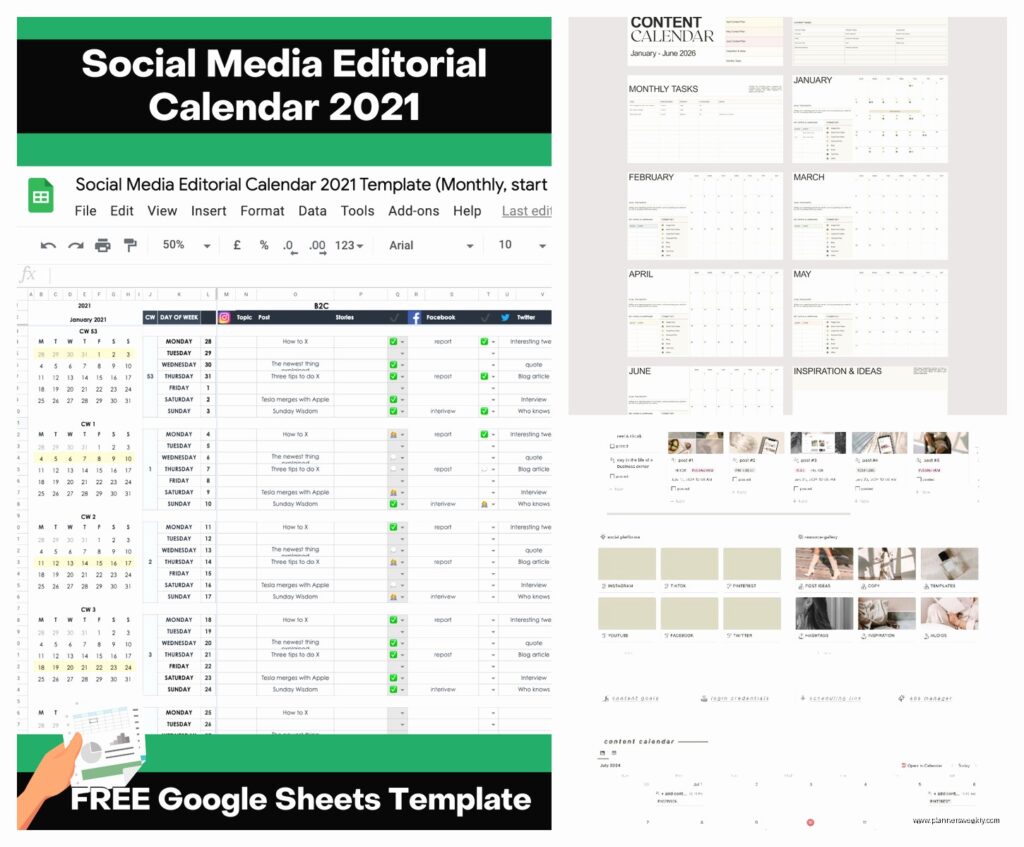
So here’s something nobody tells you about content calendar templates – you actually need two views. A detailed spreadsheet view for tracking all this stuff I just mentioned, and a visual calendar view for seeing the big picture.
I keep my main tracking spreadsheet with all the columns, but then I have a separate monthly calendar view (literally just a calendar template) where I can see what’s publishing when. Color-coded by content type obviously.
This is because sometimes you need to see that you’re publishing three things on Tuesday and nothing on Thursday and you should probably balance that out. But you can’t see that easily in a spreadsheet view.
Team Communication Integration
Oh and another thing – figure out how your calendar template connects to wherever your team actually communicates. Are you in Slack? Teams? Email?
I set up automations (using Zapier, there’s probably other options but that’s what I use) so when content moves to “Review” status, it automatically pings the reviewer in Slack. When something gets scheduled, it notifies the social media person so they can prep promotion.
This is the difference between a calendar that just sits there and one that actually keeps projects moving forward.
Template Maintenance and Updates
Look, templates get messy. Every few months I archive old content into a separate tab or sheet so the main calendar stays focused on current and upcoming content. Published stuff from more than three months ago gets moved to the archive.
Also gotta update your dropdown menus and categories as things change. Maybe you add a new content format or a new team member joins. Keep the template current or it stops being useful.
The biggest mistake I see is people setting up this perfect template and then never adjusting it as their needs change. Your template should evolve with your content strategy, not stay frozen in time.