Digital Productivity, Online planners, Planners
Excel Event Planning Template: Free Downloads & Guide
Mar
Okay so I just spent like three days building event planning templates in Excel because honestly the free ones online are either way too complicated or they’re missing the stuff you actually need when you’re planning an event and my cat kept walking across my keyboard but I finally figured out what works.
The Basic Template You Actually Need
So here’s the thing – you don’t need some fancy color-coded monstrosity with 47 tabs. You need maybe three or four sheets max. I’m gonna walk you through what I built last week for a client’s conference and it’s been working really well.
First sheet is your master task list. Like just the straightforward stuff – what needs to happen, who’s doing it, when it’s due. I set mine up with columns for Task Name, Assigned To, Due Date, Status (I use a dropdown with Not Started, In Progress, Complete, Overdue), Priority (High, Medium, Low), and Notes. The dropdown thing is actually super easy – you go to Data > Data Validation > List and type your options separated by commas.
Oh and another thing – add a column for “Date Completed” because I learned this the hard way when someone swore they finished ordering the chairs and turns out they hadn’t. If you make people log when they actually finished something you have proof.
Budget Tracking That Won’t Make You Cry
Second sheet is budget and honestly this is where Excel actually shines compared to other tools. Set up columns for Category, Item Description, Estimated Cost, Actual Cost, Vendor, Payment Status, and Variance. That last one is just a formula – Actual minus Estimated – so you can see where you’re bleeding money.
I use categories like Venue, Catering, AV Equipment, Marketing, Staff, Miscellaneous because there’s always random stuff. Then at the bottom I have SUM formulas for each column and a cell that shows your total variance. When that number gets too big and red you know you gotta have a conversation with someone.
Wait I forgot to mention – conditional formatting is your friend here. Select your Variance column, go to Conditional Formatting > Color Scales, and pick the red-yellow-green one. Now you can literally see at a glance where you’re over budget without doing math in your head.
Guest List Management Because Spreadsheets Are Perfect For This
Third sheet is your guest list and RSVP tracking. Name, Email, Phone, Company/Title if it’s that kind of event, Invitation Sent (date), RSVP Status (Pending, Yes, No, Maybe), Number of Guests, Dietary Restrictions, and Special Accommodations.
The dietary restrictions column saved my butt at a networking event last month – turns out three people were gluten-free and two were vegan and if I hadn’t tracked that we would’ve had some very hungry angry attendees.
Pro tip that’s gonna sound weird but – add a column for “Source” like how you got their contact info. Was it from the sales team, marketing list, referral, whatever. Because inevitably someone will ask “how did this random person end up on the invite list” and you’ll want to know.
The RSVP Formulas That Make You Look Organized
At the top of your guest list sheet add some summary cells. I have:
– Total Invited (just COUNT the names)
– Total Confirmed (COUNTIF for “Yes” responses)
– Total Declined (COUNTIF for “No”)
– Still Pending (COUNTIF for “Pending” or “Maybe”)
– Expected Attendance (Confirmed plus half of Maybe because let’s be real)
The formula for Expected Attendance looks like: =COUNTIF(G:G,”Yes”)+(COUNTIF(G:G,”Maybe”)*0.5)
Assuming column G is your RSVP Status. You can adjust that 0.5 multiplier based on your experience – for professional events I find about 50% of maybes show up, for free events with food it’s more like 80%.
Timeline Sheet Because Time Is Fake But Deadlines Aren’t
Fourth sheet is your timeline or Gantt-ish chart. I say Gantt-ish because actual Gantt charts in Excel are annoying to build and you probably don’t need that level of detail.
Just make columns for Task, Start Date, End Date, Duration (in days), and then like 12-15 columns representing weeks or months leading up to your event. You can manually shade the cells to show when each task is happening. It’s not automated but it takes like 10 minutes and gives everyone a visual representation.
This is gonna sound weird but I color-code by who’s responsible. So all my tasks are in blue, tasks for the catering team are yellow, venue stuff is green, etc. Makes it super obvious if one person or vendor has too much happening at once.
The Vendor Contact Sheet Everyone Forgets
Oh wait I’m adding a fifth sheet actually – vendor contacts and contracts. This saved me SO much time when I was planning a workshop series and needed to quickly call the AV company because a microphone died.
Columns: Vendor Name, Contact Person, Phone, Email, Service Provided, Contract Date, Payment Schedule, Total Cost, Insurance Required (yes/no), Proof of Insurance Received (date).
That insurance thing bit me once at a corporate event – the venue required proof of liability insurance from all vendors and I didn’t track it and we almost had to cancel the catering the day before. Not fun.
The Free Templates You Can Download And Modify
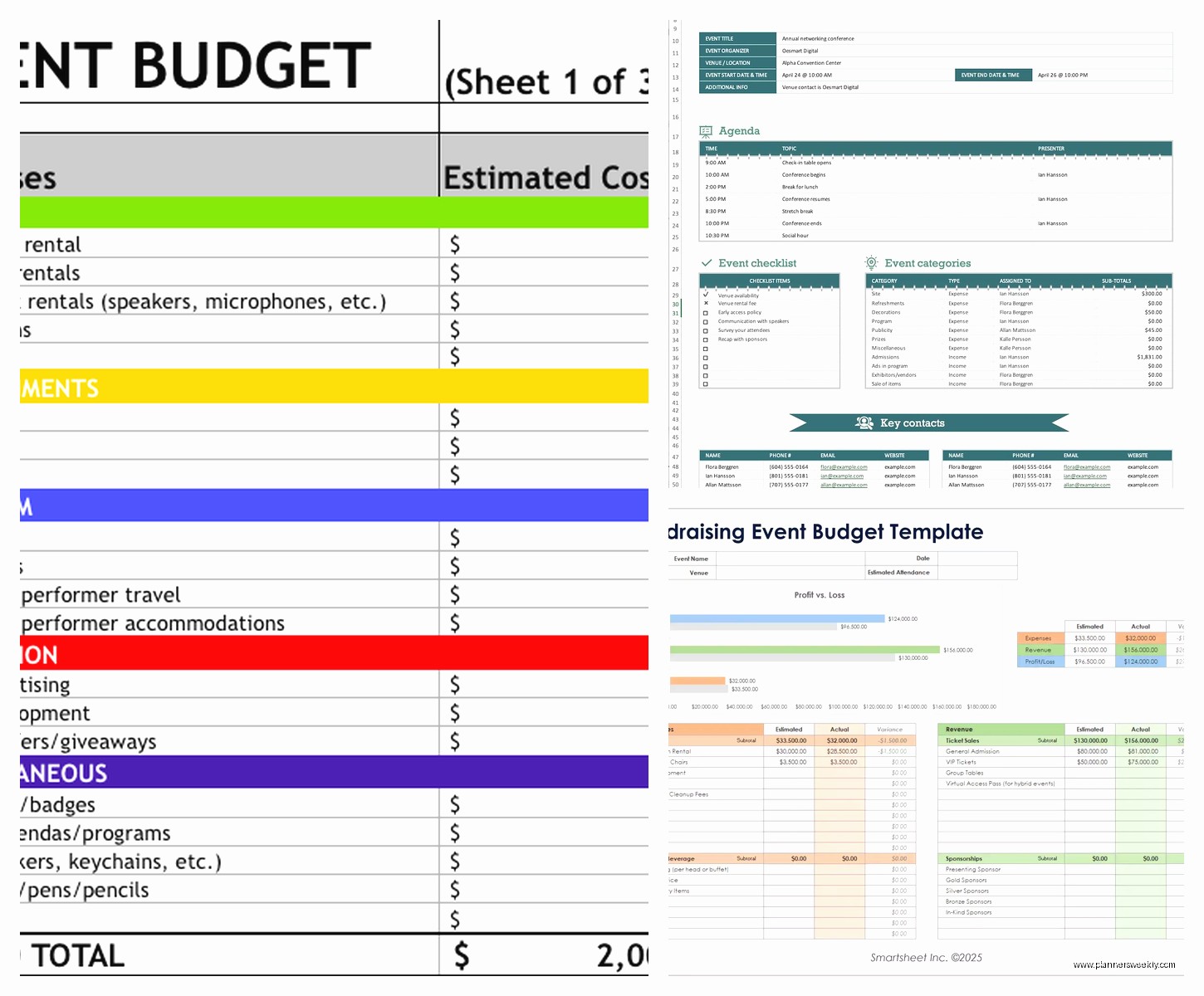
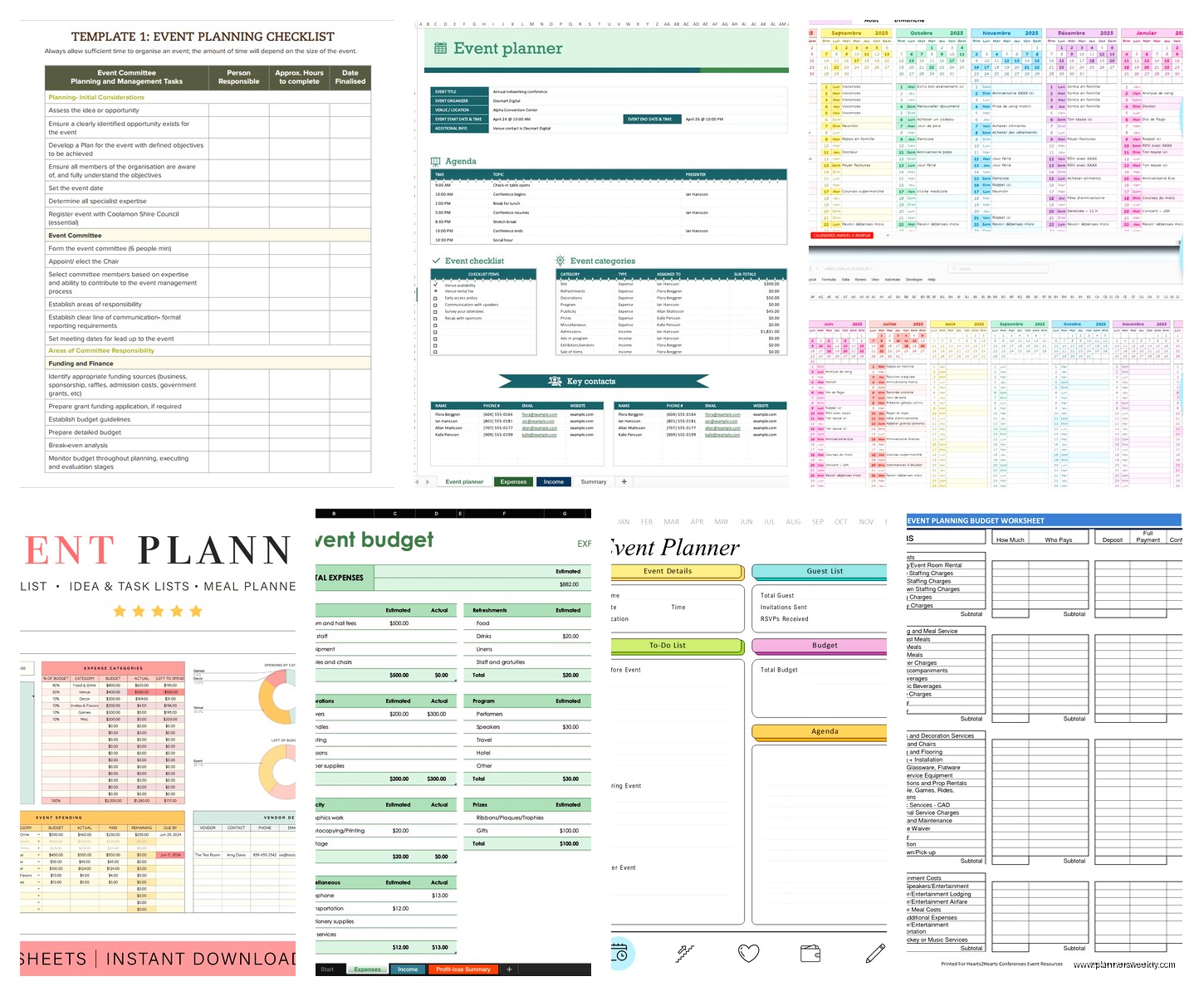
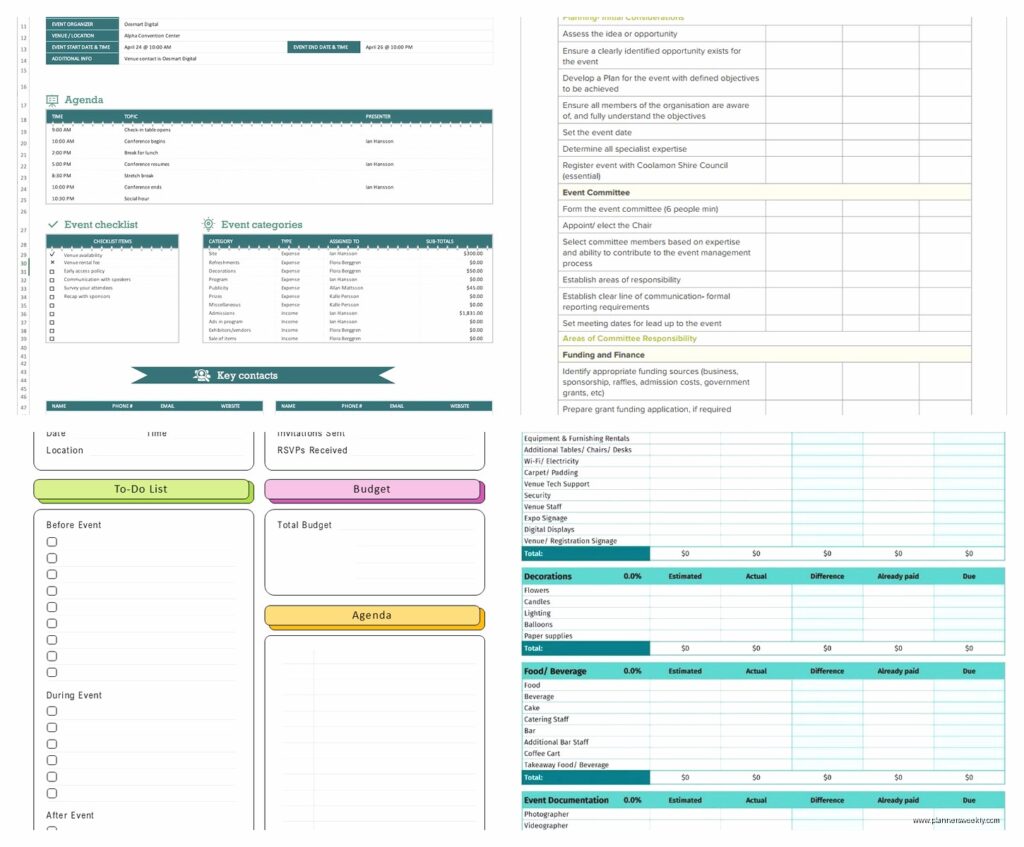
Okay so if you don’t wanna build this yourself Microsoft actually has decent free templates. Go to File > New and search “event planning” – there’s one called “Event Planning Tracker” that’s pretty solid as a starting point. It’s got most of what I mentioned but you’ll wanna customize it.
Vertex42 has free templates too and I used their timeline template as inspiration. They have one specifically for weddings but honestly you can just delete the wedding-specific stuff and it works for any event.
My biggest advice though – don’t get sucked into downloading 15 templates trying to find the perfect one. Just pick one that’s close enough and modify it. I wasted like two hours comparing templates when I could’ve just started with one and adjusted as I went.
Formulas That’ll Make Your Life Easier
Quick formula dump because these have been super useful:
For counting days until your event put this in a cell: =EventDate-TODAY()
Replace EventDate with your actual cell reference.
For checking if something is overdue: =IF(AND(DueDate<today(),status”Complete”),”OVERDUE”,””)
Then you can use conditional formatting to highlight that cell in red or whatever.
For attendance capacity tracking: =CurrentRSVPs/VenueCapacity
Format it as a percentage. When it gets above like 85% you know you’re close to full and might need to close registration or find a bigger space.
What To Actually Track During The Event
This is something most templates don’t include but you need a day-of sheet. Like a running timeline of what happens when on the actual event day.
I make columns for Time, Activity, Location (if it’s a big venue), Person Responsible, Status, and Notes. Then I print this out because inevitably something goes wrong with technology and you need a paper backup.
My client spilled coffee on their laptop an hour before an event started last year and thank god we had printed timelines because we would’ve been completely lost otherwise.
Add rows for stuff like:
– Vendor arrival times
– Setup completion deadlines
– Registration desk opening
– Each session/activity start time
– Break times (people WILL ask when lunch is)
– Breakdown and cleanup start time
The Post-Event Tracking You’ll Thank Yourself For Later
Oh and another thing – add a debrief sheet BEFORE the event happens. Set up sections for:
– What went well
– What went wrong
– Vendor performance ratings
– Budget final reconciliation
– Attendance vs. expected
– Lessons learned for next time
Fill this out like within 48 hours of your event while everything’s fresh. Future you planning the next event will be so grateful because you won’t remember the details six months from now.
I didn’t do this after my first big event and when I had to plan the second one I was like “wait what vendor did we use for the projector? Were they good?” and had to dig through emails for an hour.
Common Mistakes I See People Make
Okay so things that trip people up with Excel event planning:
Don’t make it too complicated. I’ve seen templates with pivot tables and macros and like… unless you’re planning 50+ events a year you don’t need that. Keep it simple enough that anyone on your team can open it and understand what’s happening.
Actually update it. A template is useless if you set it up and then never look at it again. I block 15 minutes every morning during event planning to update my spreadsheet. It becomes your single source of truth but only if you keep it current.
Share it properly. Put it in OneDrive or Google Drive (yeah I know we’re talking Excel but you can use Google Sheets with the same principles) so multiple people can access it. Don’t email versions back and forth or you’ll end up with EventPlan_Final_FINAL_v3_ACTUAL_FINAL.xlsx
Use data validation for dropdown lists because if people can type whatever they want you’ll end up with “yes” “Yes” “YES” “y” and your formulas won’t work. Constrain the inputs.
The Mobile Access Thing
One more thing – Excel mobile app is actually decent if you keep your template simple. I’ve checked RSVPs from my phone while standing in line at the grocery store. Just don’t try to do complex formatting on mobile, it’s gonna frustrate you.
The OneDrive app lets you access Excel files and make quick edits. Super useful when a vendor calls and you need to check what time they’re supposed to arrive and you’re not at your desk.
Customizing For Different Event Types
So the basic template I described works for like conferences, workshops, networking events, corporate stuff. But you’ll wanna tweak it based on what you’re planning.
For weddings add columns for Plus-One status, gift tracking if you’re doing that, seating assignments. For conferences add session tracking – which sessions each person registered for if you’re doing breakouts. For fundraisers add donation tracking and sponsorship levels.
I planned a workshop series last fall and added a sheet tracking which participants attended which sessions because they could pick and choose. Just a grid with names down the side and session dates across the top, check marks for who showed up.
The beauty of Excel is you can just add columns and sheets as you realize you need them. Start simple and expand based on your actual needs not what you think you might possibly need someday.
Backing Up Your Data Because Murphy’s Law
Save versions. Like periodically do Save As and add the date. EventTemplate_Jan15.xlsx, EventTemplate_Jan22.xlsx whatever. Because I’ve had files corrupt and if you only have one version you’re screwed.
Also export your guest list as CSV every few days. Takes two seconds and if something catastrophic happens at least you have your contact list.
Okay I think that covers most of what I’ve learned from actually using these templates. The key is just to start with something functional and iterate as you go rather than trying to build the perfect template before you begin. You’ll figure out what you need as you’re using it anyway.</today(),status