Digital Productivity, Online planners, Planners
Excel Holiday Tracker: Employee Leave Management

Mar
Okay so I just spent like three days setting up holiday trackers for two different clients and honestly? Excel is still the way to go if you don’t wanna pay for fancy software. Here’s what actually works.
The Basic Setup That Won’t Make You Want to Scream
First thing – don’t overthink the template. I see so many people trying to build these elaborate systems with pivot tables and macros right off the bat and then they abandon it by March. Start simple. You need like four main columns: Employee Name, Leave Type, Start Date, End Date. That’s it. You can add the fancy stuff later once you know it’s actually gonna get used.
I usually add a fifth column for Status (Approved/Pending/Denied) because my client last week didn’t have that and it was chaos. People just assumed their leave was approved and booked flights and… yeah. Don’t skip the status column.
The Formula That Actually Saves Time
So the thing nobody tells you about leave tracking is calculating the actual number of days. You can’t just subtract end date from start date because weekends exist. Use NETWORKDAYS function. Seriously. It looks like this: =NETWORKDAYS(start_date, end_date)
But wait – you also need to account for public holidays. The formula becomes: =NETWORKDAYS(start_date, end_date, holidays_range)
Create a separate sheet called “Holidays” and list all your public holidays there. Then reference that range in your formula. I learned this the hard way when someone took leave over Christmas and my tracker said they used 10 days when it was actually like 6 working days.
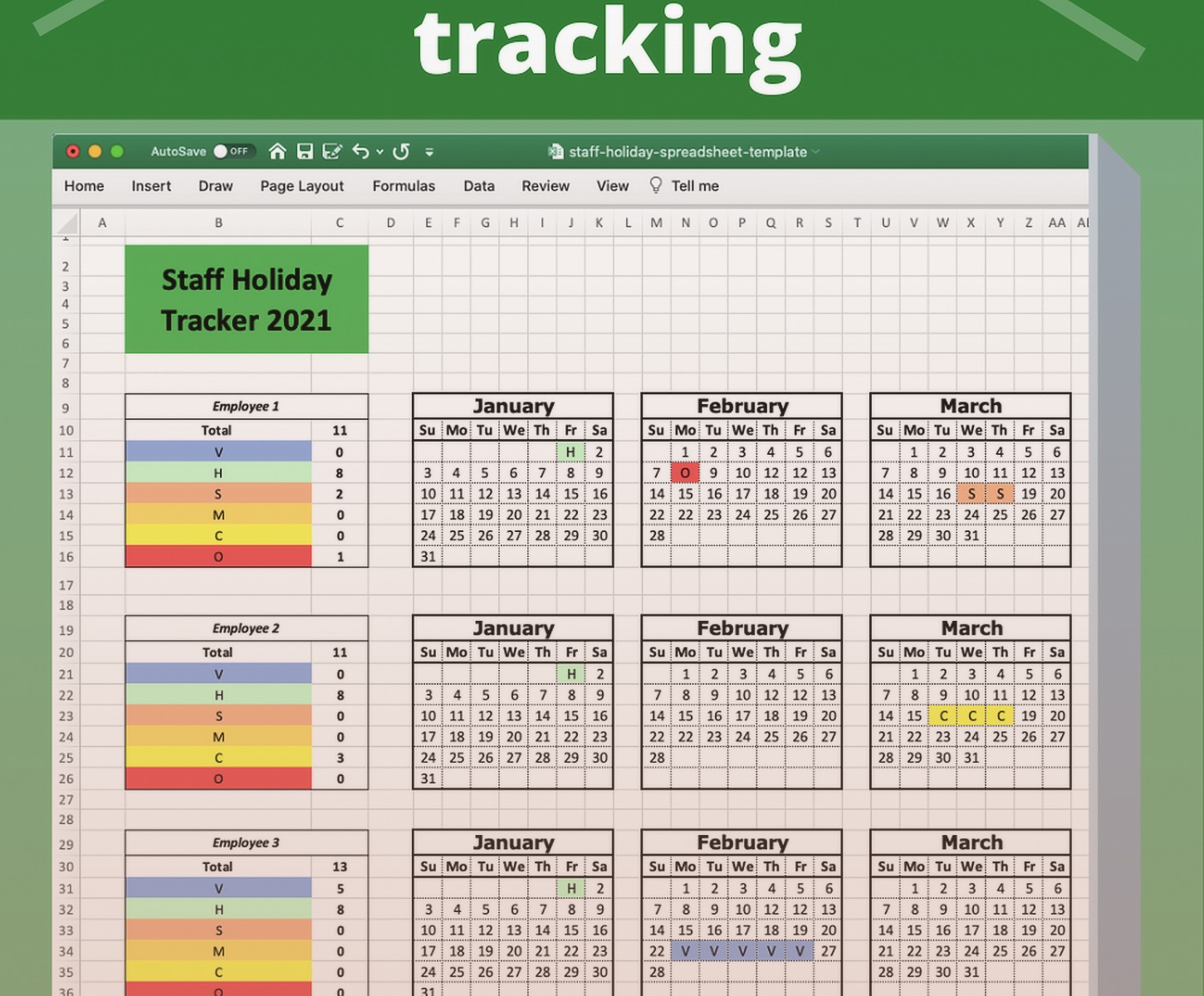
Color Coding Without Going Overboard
Conditional formatting is your friend but also can become your enemy real fast. I use three colors max:
– Green for approved leave
– Yellow for pending requests
– Red for denied (though honestly I rarely use red because it feels harsh)
To set this up go to Home > Conditional Formatting > New Rule > Format cells that contain. Choose “Specific Text” and then pick your color. My dog just knocked over my coffee talking about colors but anyway.
Some people do different colors for different leave types (sick leave, annual leave, parental leave) but I find that gets visually overwhelming when you’re scanning a sheet with 30 employees.
The Running Balance Tracker
This is where it gets actually useful. You need a summary section that shows each employee’s:
– Total annual leave entitlement
– Leave taken so far
– Leave pending approval
– Remaining balance
I set this up on a separate sheet called “Summary” with employee names down the left and these categories across the top. Use SUMIFS to pull data from your main tracker sheet.
For leave taken: =SUMIFS(Days_Column, Employee_Column, “Employee Name”, Status_Column, “Approved”)
For pending: Same formula but change “Approved” to “Pending”
Remaining balance is just: Total Entitlement minus Leave Taken minus Pending Leave
The Date Validation Thing That Prevents Mistakes
Oh and another thing – set up data validation on your date columns. Click the column, go to Data > Data Validation > Settings. Choose “Date” and set it to “greater than or equal to” today’s date. This stops people from accidentally entering leave requests for last year which happened at my client’s office and messed up all their reporting.
Actually wait, scratch that. You want managers to be able to enter historical leave too sometimes. So maybe just do a warning instead of blocking it completely. Use custom validation with a formula that highlights weird dates in yellow or something.
Managing Different Leave Types
Not all leave is created equal right? You’ve got:
– Annual leave (vacation days)
– Sick leave
– Parental leave
– Compassionate leave
– Unpaid leave
– Public holidays (which shouldn’t count against their balance)
I create a dropdown list for Leave Type using Data Validation. List your leave types on a hidden sheet (or just in a corner somewhere) and reference that range. This keeps everything consistent – you don’t want some people typing “Vacation” and others typing “Annual Leave” because then your formulas break.
Each leave type might have different entitlements too. Annual leave is usually 20-25 days, sick leave might be separate, parental leave has statutory minimums. So your summary tracker needs separate columns for each type if you’re tracking them separately.
The Overlap Checker You Definitely Need
This is gonna sound weird but the most useful thing I added recently is an overlap checker. Because you can’t have your entire accounts team on leave the same week. I use conditional formatting with a custom formula that highlights if more than X people from the same department are off on the same dates.
It’s a bit complicated to set up but basically you need a helper column that counts how many approved leave dates overlap for people in the same department. If that count exceeds your threshold (maybe 2 people max?) it turns red.
I’m not gonna lie the formula is kinda gnarly. Something like: =SUMPRODUCT((Department_Range=Department)*(Start_Date<=Date)*(End_Date>=Date)*(Status=”Approved”))
Test it on a small dataset first because I definitely broke my spreadsheet twice trying to get this working.
The Calendar View Everyone Actually Wants
Okay so funny story – I built this whole elaborate tracker with all these formulas and my client was like “but can we see it as a calendar?” And I was like… oh. Yeah. That makes sense.
You can create a calendar view in Excel but it’s honestly easier to just use conditional formatting on a grid. Create columns for each day of the month and rows for each employee. Use a formula to check if that employee has approved leave on that date and color the cell accordingly.
The formula in each cell would be something like: =AND(Date>=Start_Date, Date<=End_Date, Status=”Approved”)
Format those TRUE cells with your leave color. Boom, visual calendar.
Or just export to Google Calendar or Outlook if you want a proper calendar view. Excel isn’t great at calendar displays tbh.
Automation Stuff That’s Actually Worth Doing
I’m not big on macros for most small business stuff but there are a few automations that save genuine time:
Email Notifications: You can set up Excel to send an email when someone submits a leave request. This requires VBA which I know sounds scary but there are templates online. Search “Excel VBA send email on cell change” and you’ll find code you can copy-paste.
Automatic Date Filling: When someone enters a start date and number of days, auto-calculate the end date. Formula: =WORKDAY(start_date, number_of_days-1, holidays_range). The minus 1 is because the start date counts as day 1.
Expiry Warnings: If your company has a “use it or lose it” policy for annual leave, add conditional formatting that highlights employees with high remaining balances when you get close to year-end. Use TODAY() function to make it dynamic.
The Mobile Access Problem
Real talk – Excel on mobile is terrible for data entry. If your employees need to submit leave requests on their phones, Excel probably isn’t the best solution. You’d want something like Google Sheets with a Google Form for submissions, or actual HR software.
But if it’s just managers accessing the tracker to approve stuff, Excel mobile works fine for viewing. Just make sure you set up the sheet protection so people can’t accidentally delete formulas while scrolling on their phone.
Multi-Year Tracking Without Losing Your Mind
Create separate sheets for each year. Don’t try to cram everything into one massive sheet. Have tabs like “2024 Tracker,” “2025 Tracker,” etc.
Then your Summary sheet pulls from the current year’s tracker. At year-end, you can archive the old data and start fresh. Makes everything cleaner and faster to load.
I keep a “Historical” sheet that just has the annual summaries – employee name, total leave taken, carry-over balance. That’s enough for records without keeping every single leave date forever.
Sharing and Permissions
If you’re using Excel on OneDrive or SharePoint, you can share with specific people and set permissions. Make most employees “View Only” and give managers edit access.
Actually here’s what works better – create a submission form (even just a simple second sheet) where employees enter their requests. Then managers copy approved requests to the main tracker. This prevents accidental changes to the master sheet.
Or use Excel’s built-in form feature. Go to the Developer tab (you might need to enable it first), click Forms, and create a data entry form. It’s ugly but functional.
The Carry-Over Calculation Nobody Gets Right
At year-end, you gotta handle unused leave. Some companies let you carry over up to 5 days, some make you use it or lose it.
Add a “Carry Over from Previous Year” column in your summary. At the start of the new year, manually enter how many days each person is carrying over (or use a formula that references last year’s remaining balance with a MAX cap).
Then Total Entitlement for new year = Standard Entitlement + Carry Over.
I always mess this up and have to fix it in January so like, maybe set a calendar reminder for yourself in December to sort this out before everyone goes on Christmas break.
Reporting That Your Boss Will Actually Care About
Create a dashboard sheet with:
– Total leave days taken this month/year
– Average leave balance remaining
– Departments with upcoming coverage gaps
– Employees who haven’t taken leave recently (burnout risk)
Use pivot tables or just SUMIFS formulas. Add a simple column or bar chart. Make it visual because nobody reads numbers.
I usually update this monthly and email it to leadership. Takes like 10 minutes once it’s set up.
Common Mistakes I See Everywhere
Not including half-days. People take afternoon dentist appointments and that’s 0.5 days of leave. Your tracker needs to handle decimals.
Forgetting about different employee types. Part-timers might have pro-rated leave entitlements. Contractors might not get sick leave. Add an “Employment Type” column and adjust entitlements accordingly.
No audit trail. If someone changes a leave request from 5 days to 3 days, can you see that? Consider keeping a change log sheet or at least noting the date of last update.
Making it too complicated. I cannot stress this enough. If your tracker requires a PhD to understand, nobody will use it consistently.
The Backup Strategy You’re Probably Ignoring
Save versions. Like regularly. Excel has version history if you’re using OneDrive but I also manually save a copy at the end of each month labeled “Leave_Tracker_Jan2024_Final.xlsx” or whatever.
Had a client whose intern accidentally deleted three months of data and they had no backup. Don’t be that person. Set a monthly reminder to save a backup copy somewhere else.
Okay I think that’s everything I’ve learned from actually using these trackers day-to-day. The key is starting simple and only adding complexity when you actually need it. Most small businesses need like 20% of the features I just described. Figure out which 20% solves your specific problems and ignore the rest.