Digital Productivity, Online planners, Planners
Excel Hourly Schedule Template: Free Time-Block Guide
Apr
Okay so I just spent the last week rebuilding my entire schedule system in Excel because my old planner was honestly a mess, and here’s what I figured out about making hourly schedule templates that actually work.
The Basic Setup That Changed Everything
First thing – open Excel and forget everything you think you know about making it look pretty right away. That’s where everyone screws up. Start with Column A as your time blocks. I do 30-minute increments starting at 5:00 AM (yeah I know, but some of my clients are early risers and I need to track when I’m available). Type 5:00 AM in A1, then 5:30 AM in A2, and here’s the thing – you can drag down to autofill but Excel gets weird with time formatting sometimes.
The trick I learned after my dog knocked over my coffee and I had to redo the whole thing: format the cells as Time first. Select your whole A column, right-click, Format Cells, pick Time, choose the format that shows AM/PM. THEN start entering times. Saves so much headache.
Column Layout That Actually Makes Sense
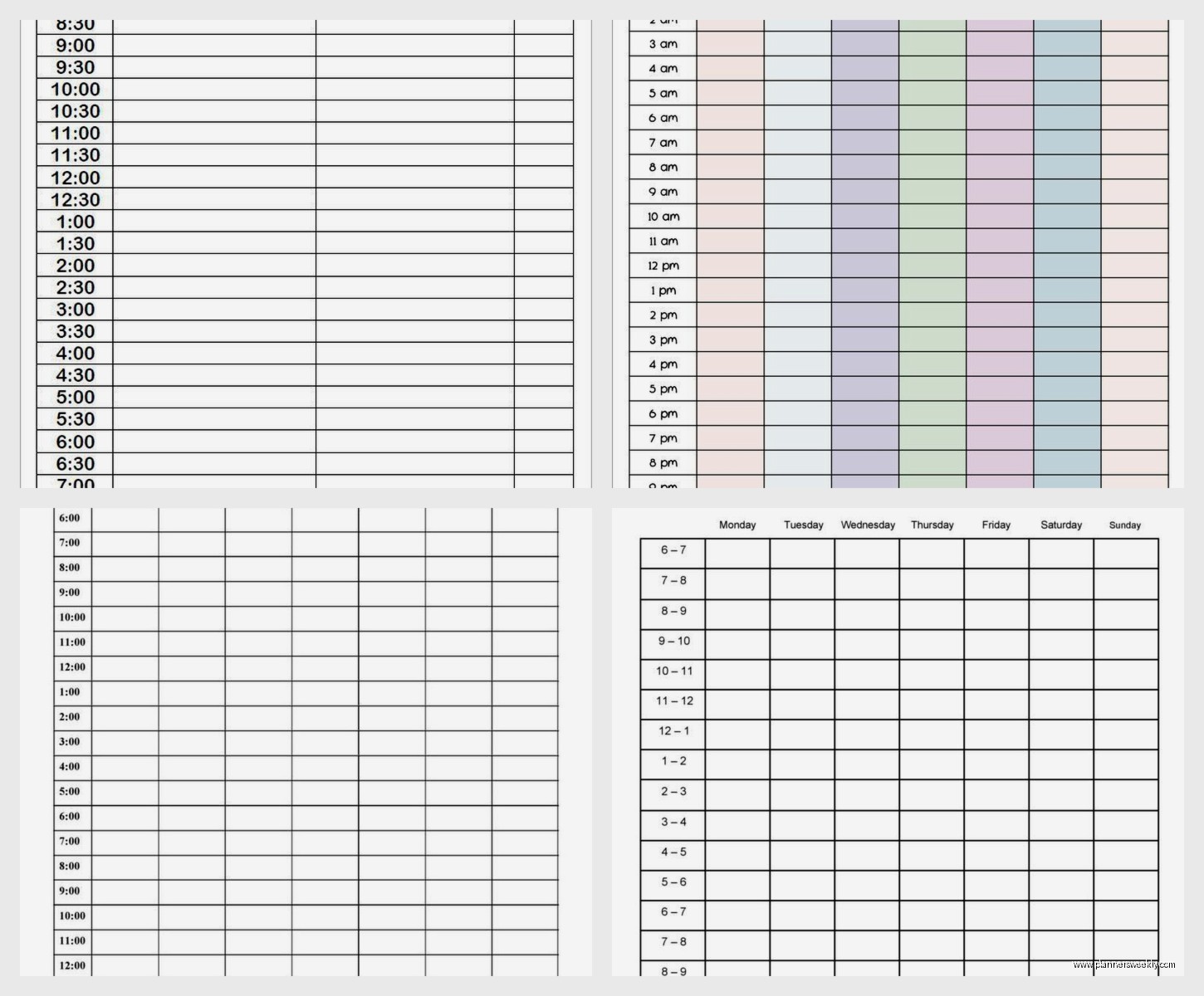
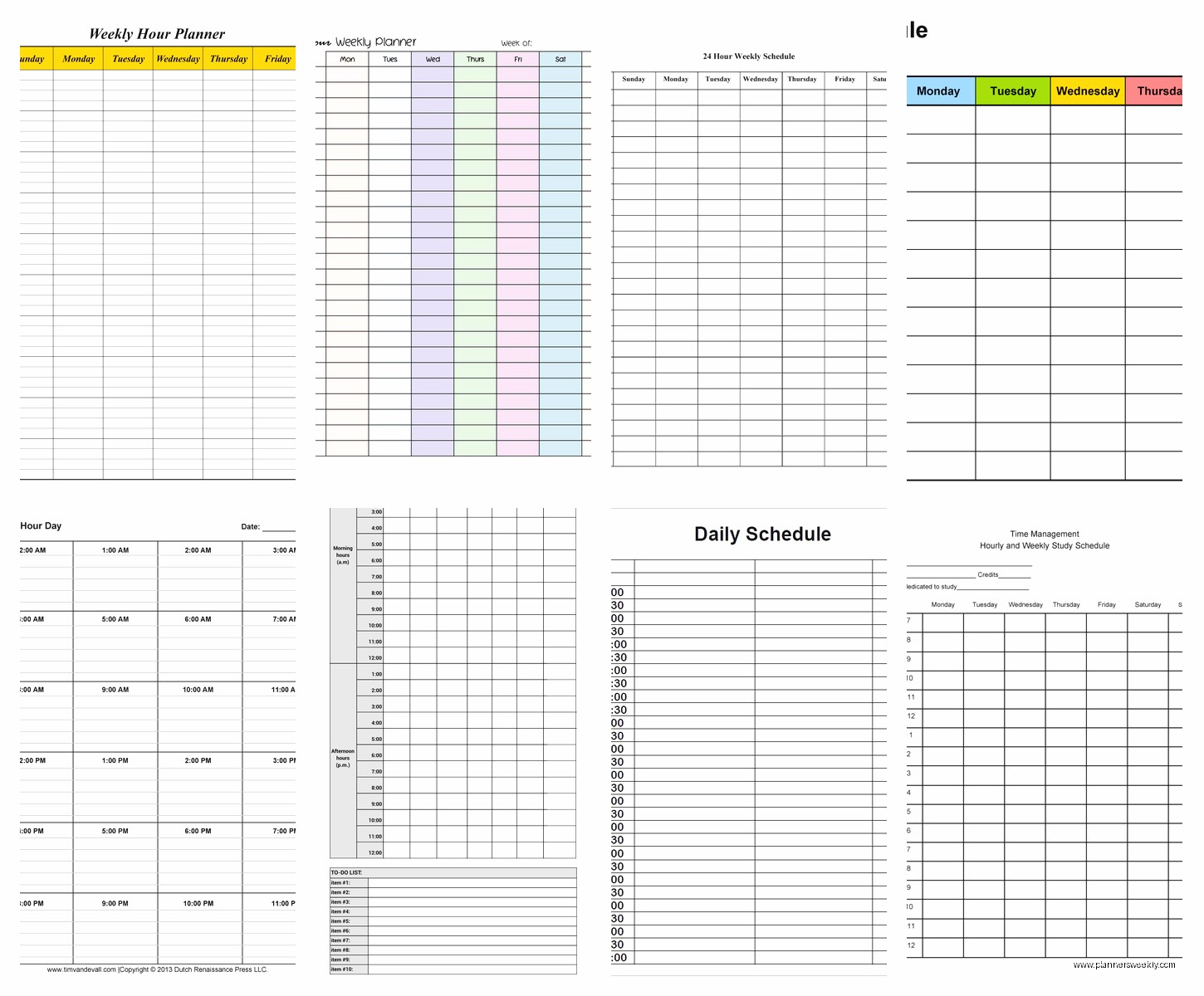
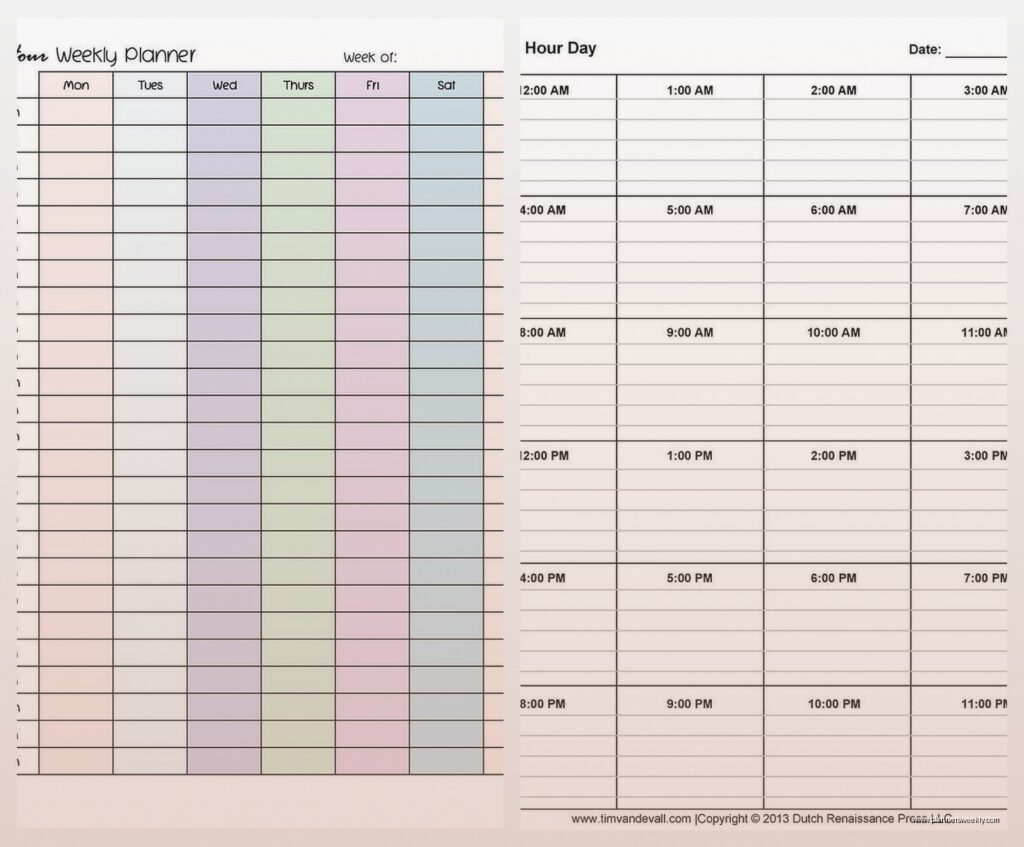
Column B through whatever – these are your days. Monday, Tuesday, etc. But wait I forgot to mention, I actually do TWO different versions of this template now. One is a weekly view with days across the top, the other is a single-day deep dive with different categories across the top.
For the weekly version:
- Column A: Time slots
- Columns B-H: Monday through Sunday
- Column I: Notes or “floating tasks”
The single-day version I use when I have a really packed day:
- Column A: Still time slots
- Column B: Work tasks
- Column C: Personal stuff
- Column D: Client meetings
- Column E: Buffer time (this changed my life honestly)
Color Coding Without Going Overboard
Okay so funny story – I used to make these elaborate color systems with like 12 different categories and I’d spend 20 minutes just deciding what color “email processing” should be. Don’t do that. Pick 4-5 max.
My system now:
- Red: Hard deadlines, cannot move
- Yellow: Flexible tasks
- Green: Personal/self-care (because I kept forgetting to eat lunch)
- Blue: Client work
- Gray: Buffer/transition time
To color code, just select the cell, go to Home tab, paint bucket icon. Or right-click and pick Fill Color. I know this sounds basic but you’d be surprised how many people ask me this.
The Time-Blocking Method That Actually Stuck
Here’s what works: don’t try to schedule every single minute. I tried that for three days and wanted to throw my laptop out the window. Instead, block in 1-2 hour chunks for focused work.
In cell B5 (let’s say that’s your 9:00 AM slot on Monday), type what you’re doing. “Blog writing” or “Client proposal for Anderson account” or whatever. Then – this is gonna sound weird but it works – I merge the cells vertically for however long that task takes.
So if blog writing takes 9:00-11:00, I select B5:B9 (if you’re doing 30-min increments that’s four cells), then click Merge & Center in the Home tab. Now you’ve got a visual block that actually looks like a time block.
The Formula I Wish I’d Known Earlier
Oh and another thing – you can make Excel calculate your total focused hours. At the bottom of each day column, skip a row and add this formula: =COUNTA(B2:B50)-COUNTBLANK(B2:B50)
Wait no, that counts cells with content. What you actually want for time tracking… okay I use a different approach. In a separate area (I use columns K-M), I manually track:
- Deep work hours
- Meeting hours
- Admin hours
Just put a simple =SUM formula at the bottom. Like =SUM(K2:K50). Then when you complete a task, put the number of hours in that category. It’s manual but it makes you more aware of where time actually goes.
Templates I’ve Tested and What Worked
I downloaded probably 15 different free Excel hourly templates last month when my client canceled and I had unexpected time. Most are garbage, honestly. They’re either too complicated with macros that break, or so simple they’re basically just a blank grid you could make in 30 seconds.
The best free one I found was from Vertex42 – they have a weekly schedule template that’s clean and actually functional. But I ended up making my own because I’m picky about the time increments.
Building Your Own vs Downloading
Making your own takes maybe 45 minutes the first time. But then you can customize everything. Downloaded templates always have something annoying – the times start at 6 AM when you need 5 AM, or they use 15-minute blocks when you want 30-minute, or the colors are hideous.
My process for building from scratch:
- Set up time column with proper formatting
- Add day columns or category columns
- Apply borders – select all your working cells, go to Home tab, Borders dropdown, pick All Borders
- Adjust column widths so everything’s readable
- Add color coding after you use it for a day or two (you’ll know what categories you need)
- Save as a template file
To save as template: File > Save As > Browse > in the “Save as type” dropdown pick “Excel Template (*.xltx)”. Then it’s always there when you need a fresh copy.
Practical Features That Made Mine Better
I added a “Weekly Goals” section above my schedule. Just three merged cells at the top where I type my 3 main priorities for the week. Sounds cheesy but it helps when I’m deciding what to schedule.
Also – and this took me forever to figure out – I froze the top row and the time column. So when I scroll, I can always see what day it is and what time I’m looking at. To do this: click cell B2, go to View tab, click Freeze Panes, pick Freeze Panes from the dropdown. Game changer for long scrolling schedules.
The Print Layout Nobody Talks About
If you actually print these (I do sometimes for my desk), you gotta fix the page layout. Page Layout tab > Orientation > Landscape. Then Page Layout > Size > Legal if you have a lot of hours to fit.
Set your print area too: select all the cells you want to print, Page Layout tab > Print Area > Set Print Area. Otherwise Excel will print like 17 random blank pages and waste your ink.
Oh and go to Page Layout > Print Titles > click in the “Rows to repeat at top” field and select your header row. That way if it prints on multiple pages, each page shows the day headers.
My Actual Daily Workflow With This Thing
Sunday night: I fill in all my fixed commitments for the week. Client meetings, deadlines, appointments. These go in first with red highlighting.
Monday morning: I look at the gaps and assign my flexible tasks. Writing, admin work, content review, whatever needs doing. Yellow highlighting.
Throughout the day: I update as things shift because let’s be real, nothing goes exactly as planned. I keep the Excel file open in a second monitor (or just alt-tab to it constantly).
End of day: I put an X or checkmark in completed blocks. Just helps me see what actually got done versus what I planned.
The Buffer Time Trick
This is gonna sound excessive but schedule 15-30 minutes between major task switches. I mark these gray and label them “buffer” or “transition.” It’s for bathroom breaks, grabbing water, dealing with the inevitable Slack message, or just staring into space because your brain needs a minute.
I used to schedule back-to-back blocks and would end every day feeling like I got hit by a truck. The buffer time fixed that. Plus stuff always takes longer than you think, so buffer absorbs the overflow.
Conditional Formatting If You Wanna Get Fancy
I resisted this for months but conditional formatting is actually useful for hourly schedules. You can make cells automatically change color based on what you type.
Example: Make any cell that contains “meeting” turn blue automatically.
Select your schedule range > Home tab > Conditional Formatting > New Rule > “Format only cells that contain” > “Specific Text” > “containing” > type “meeting” > click Format and choose your blue color > OK.
Now whenever you type “meeting” anywhere in that range, boom, it’s blue. Works for any keyword. I have rules set for “client,” “writing,” “admin,” and “break.”
Wait I forgot to mention – you can also use conditional formatting to highlight weekend days differently. Select your Saturday and Sunday columns, apply a light gray fill through conditional formatting. Makes it visually clear when the work week ends.
Mobile Access Because You’re Not Always At Your Desk
Save your template to OneDrive or Google Drive. Then you can open it on your phone with Excel mobile app. It’s not perfect for editing on a tiny screen, but you can at least check what’s next in your day.
I actually keep mine in OneDrive and have it synced across my laptop, work desktop, and phone. When I update it anywhere, it updates everywhere. Pretty standard cloud stuff but worth mentioning because some people still email themselves files like it’s 2008.
The Recurring Tasks Problem
Excel doesn’t have built-in recurring event functionality like calendar apps do. So for tasks that happen every week at the same time, I just copy-paste them. Select the cells, Ctrl+C, click where you want them, Ctrl+V.
Or make a “template week” on a separate sheet tab, then copy the whole week over whenever you start a new week. Right-click the sheet tab at the bottom > Move or Copy > check “Create a copy” > OK.
What Doesn’t Work In Excel Schedules
Don’t try to make it do reminders or notifications. Excel just isn’t built for that. Use your phone calendar for time-sensitive alerts and Excel for planning and tracking.
Also don’t overthink the formulas. I’ve seen people try to build elaborate tracking systems with pivot tables and charts and it’s just… you’re spending more time maintaining the schedule than actually working. Keep it simple.
And honestly? If you need to coordinate with other people or share calendars, just use Google Calendar or Outlook. Excel schedules are best for personal time-blocking and tracking your own patterns.
The whole point is having a visual map of your time that you control completely. No syncing issues, no app subscriptions, no internet required. Just you, Excel, and your highly optimized schedule that you’ll probably still ignore sometimes because that’s life.