Digital Productivity, Online planners, Planners
Excel Daily Planner Template: Free Downloads & Guide
Apr
Okay so I just spent like three days testing every Excel daily planner template I could find because my own planning system totally fell apart last month and honestly? Most of them are either way too complicated or so basic they’re useless. But I found a few that actually work.
The Basic Microsoft Template That’s Actually Good
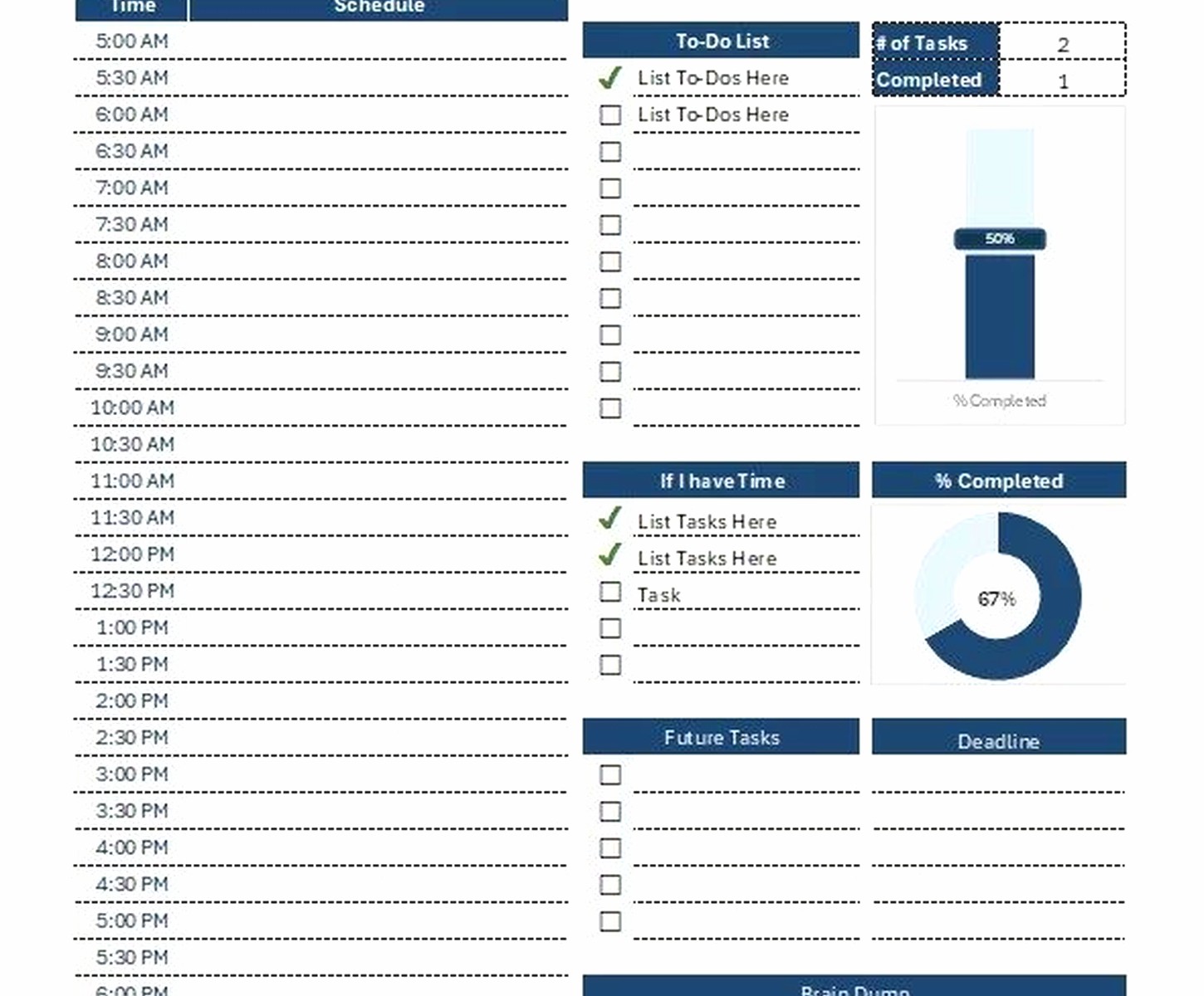
Right so Microsoft has this built-in daily planner template that most people skip over because it looks boring in the preview. But here’s the thing—I’ve been using it for two weeks and it’s genuinely solid for people who just need to track tasks and appointments without all the fancy stuff.
You get it by opening Excel, clicking “New,” and searching “daily planner.” It’s the one that’s just called “Daily Schedule” with the blue header. Super plain looking but that’s kinda the point.
What I like about it: The time slots go from 8am to 6pm in 30-minute increments, which you can totally customize if you’re a night owl like me (I changed mine to start at 10am don’t judge). There’s a notes section at the bottom that I use for random thoughts that pop up during the day. And it prints perfectly on one page which matters if you’re someone who still prints things.
The annoying part is you gotta manually create a new sheet for each day. I set up a whole week on Sunday nights while watching Succession reruns and just copy-paste the template across tabs. Takes like five minutes once you get the hang of it.
Vertex42’s Daily Planner Because It Has That Priority Section
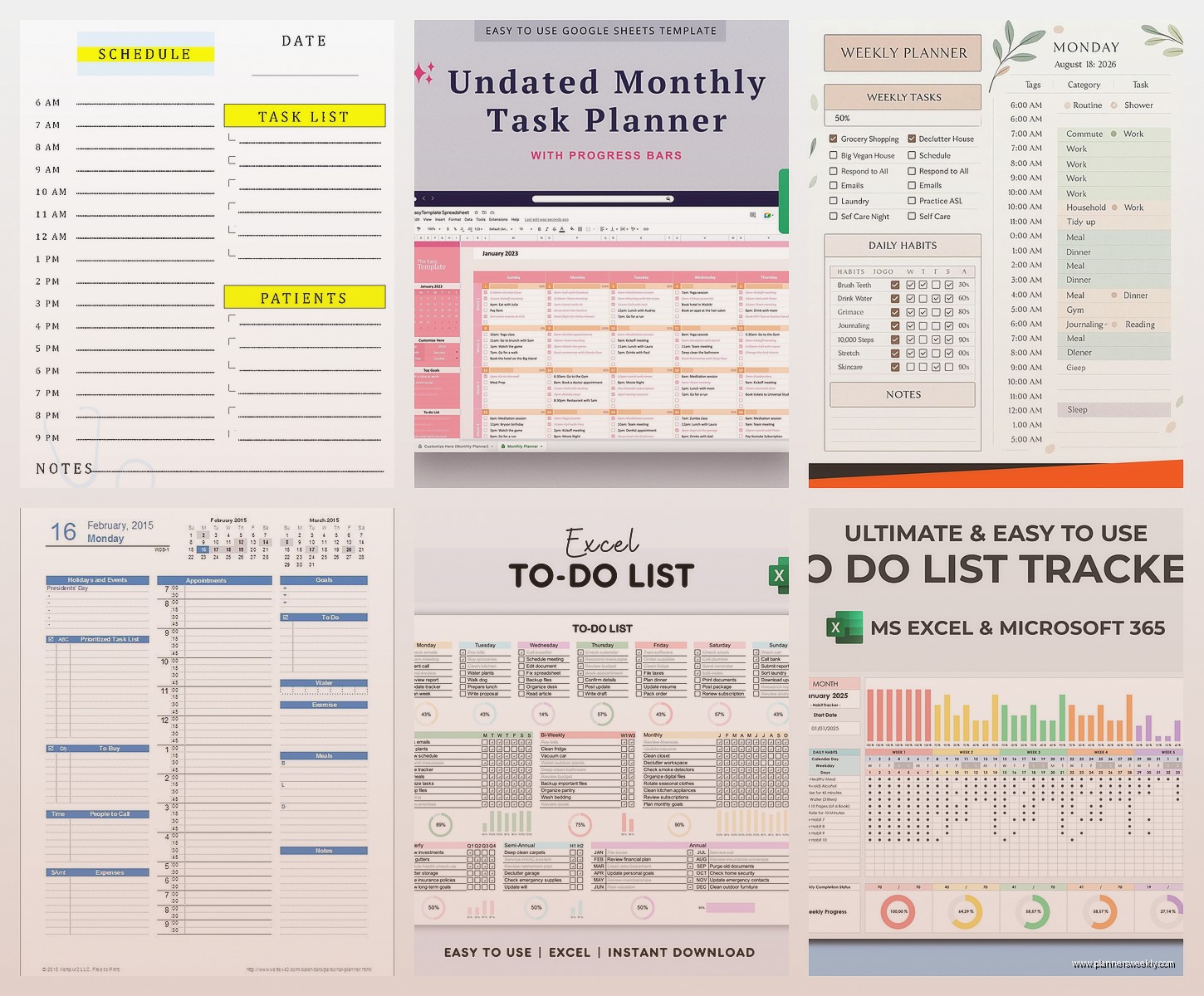
Wait I forgot to mention—if you need something with a bit more structure, Vertex42 has this daily planner template that’s been around forever. I’m pretty sure I used a version of this back in like 2015.
You download it from their website (just google “vertex42 daily planner” it’ll be the first result). It’s free but they have that little “please consider donating” message at the top which you can delete if it bugs you.
This one has three priority levels built in—high, medium, low. Which sounds basic but actually helps when you’re staring at fifteen tasks and having a mini crisis about where to start. I color-code mine: red for high priority, yellow for medium, and I leave low priority white because honestly if it’s low priority it might not happen that day anyway.
Oh and another thing—it has a water intake tracker at the bottom. I thought that was so random when I first saw it but my friend Sarah told me she actually uses it and drinks way more water now so maybe it works? I keep forgetting to fill it in but the intention is there.
The formulas in this template are pretty smart too. Like it automatically calculates how many tasks you completed versus how many you planned. Which is either motivating or depressing depending on your day.
How to Actually Customize These Templates
Okay so this is gonna sound obvious but I see people using these templates straight out of the box and then complaining they don’t work. You gotta make them yours.
For the time slots: Click on the cell with the time, right-click, and you can change it to whatever increment you want. I do hour blocks for deep work time and 15-minute blocks for the afternoon when everything gets chaotic.
For the colors: Select the cells you want to change, go to Home tab, click that paint bucket icon. I make my morning routine section light green because it feels calming and my brain needs that at 6am.
Adding checkboxes: This changed everything for me. Go to Developer tab (if you don’t see it, go to File > Options > Customize Ribbon and check the Developer box). Then click Insert > Checkbox. Drop those next to each task and you get that satisfying click when you complete something.
My cat walked across my keyboard while I was setting up checkboxes last week and somehow created like forty of them in random cells so maybe do this when pets are not around.
The Template I Made for Time Blocking
So none of the free templates really worked for time blocking the way I do it with my coaching clients. I ended up making my own and honestly it’s nothing fancy but it works.
I divided the day into these chunks: Morning Routine, Deep Work Block 1, Admin Time, Lunch, Deep Work Block 2, Meetings, Evening Wind Down. Each section has its own color and I list specific tasks under each one.
The game changer was adding a column called “Actual Time Spent” next to each task. Because I was lying to myself about how long things take. Answering emails does NOT take 30 minutes it takes 90 minutes apparently and now I plan accordingly.
If you want to make something similar: Start with a blank Excel sheet, merge cells across the top for your header, then create rows for each time block. Use borders to separate sections (Home > Borders). Save it as a template file so you can reuse it.
That Habit Tracker Template Everyone Uses
Wait this isn’t exactly a daily planner but it pairs really well with one—the habit tracker templates. There’s one from Template.net that’s specifically designed to work alongside a daily schedule.
It’s got a grid where days go across the top and habits down the side. You just mark an X or fill in the cell when you complete the habit. I track like six things: workout, write 500 words, no phone before 9am, read for 20 minutes, plan next day, and take vitamins.
Seeing the chain of X’s builds up is weirdly motivating. I broke my workout chain last Thursday because I had a migraine and I’m still annoyed about it which probably means it’s working.
The Google Sheets Alternative If You’re Gonna Work Across Devices
Okay so funny story—I was fully team Excel until I left my laptop at a coffee shop (got it back don’t worry) and couldn’t access my planner. Now I keep a backup Google Sheets version.
Most Excel templates convert to Google Sheets pretty smoothly. You just open Google Sheets, click File > Import, and upload your Excel file. Some formatting might get weird but the functionality stays the same.
The advantage is you can access it from your phone when you’re out. I keep a simplified version on my phone with just the essential tasks for the day. The full detailed one stays on my computer because trying to edit complex spreadsheets on a phone screen is actually torture.
There’s also this template in the Google Sheets template gallery called “Daily Schedule” that’s designed for Sheets specifically so the formulas work better. It has this nice feature where you can share it with other people and they can see your availability. I use this for coordinating with my assistant.
Formulas That Make Your Planner Actually Smart
Most people don’t use formulas in their planners but you’re missing out. Here’s the ones I actually use:
For counting completed tasks: =COUNTIF(range,”Done”) where range is whatever cells contain your task status. I have mine set up to show completed out of total at the bottom of each day.
For highlighting overdue items: Use conditional formatting (Home > Conditional Formatting > New Rule) to turn cells red if the date is before today and status isn’t “Done.” This haunts me in a productive way.
For carrying over incomplete tasks: This one’s trickier but basically you can use an IF formula to automatically pull unfinished tasks from yesterday into today’s list. I gave up on this because it got too complicated and I’d rather manually decide what carries over.
Templates for Specific Situations
If you work shifts there’s this template called “Shift Daily Planner” that lets you input different start times. My friend who’s a nurse uses this and swears by it.
For people managing teams: The “Daily Team Planner” template has columns for different team members. I use this when I’m coordinating projects with multiple clients. Everyone gets their own column with their tasks and deadlines.
Student templates: There are tons specifically for students with sections for classes, assignments, study time. I tested one for a client’s daughter and it had a GPA calculator built in which seemed intense but she loved it.
Printing vs Digital and Why I Do Both
This is gonna sound weird but I print Monday’s planner every week even though I work digitally the rest of the time. Something about physically writing on paper for the start of the week helps me actually commit to the plan.
If you’re printing: Go to Page Layout tab and set your margins to Narrow. Change orientation to Portrait or Landscape depending on your template layout. I do Print Preview first because I’ve wasted so much paper on weird formatting issues.
For digital-only: Consider getting a second monitor or using split screen. I keep my planner on the left side of my screen and work on the right. Game changer for actually following your schedule instead of forgetting to check it.
The Mistakes I Made So You Don’t Have To
I tried using a template with every possible section—goals, priorities, schedule, habits, meal plan, water intake, gratitude, weather tracking (why??), and like five other things. It was overwhelming. I spent more time filling out the planner than actually doing tasks.
Start simple. Pick a template with just time slots and a task list. Add features as you figure out what you actually need.
Also don’t make a new planner system every week. I did this for a month straight because I kept thinking the next template would be THE ONE. Stick with something for at least two weeks before deciding it doesn’t work.
And backup your files oh my god. I lost an entire month of planning data when my computer decided to update itself and something got corrupted. Now everything auto-saves to cloud storage.
How to Actually Stick With Using It
Put it on your desktop. Name the file something like “OPEN THIS FIRST” in all caps. I know it sounds dumb but it works.
Fill it out the night before, not the morning of. Your morning brain is not gonna make good decisions about priorities.
Don’t aim for perfection. Some days I use like 60% of my planner and ignore entire sections. That’s fine. It’s still better than having no plan at all.
Review it at the end of the week. I do this Friday afternoons with coffee and just look at what worked and what didn’t. Then I adjust the template for next week.
The template that works is the one you’ll actually use consistently not the one with the most features or the prettiest design. I’ve seen people succeed with the most basic templates and fail with elaborate ones. Start simple and build up from there if you need to.