
Digital Productivity, Online planners, Planners
Free Calendar Schedule Maker: Best Online Tools
Apr
Okay so I’ve been deep in the calendar maker rabbit hole for like three weeks now because half my coaching clients keep asking me which one they should actually use, and honestly? The answer depends on what kind of chaos you’re trying to wrangle.
Google Calendar – The One Everyone Already Has
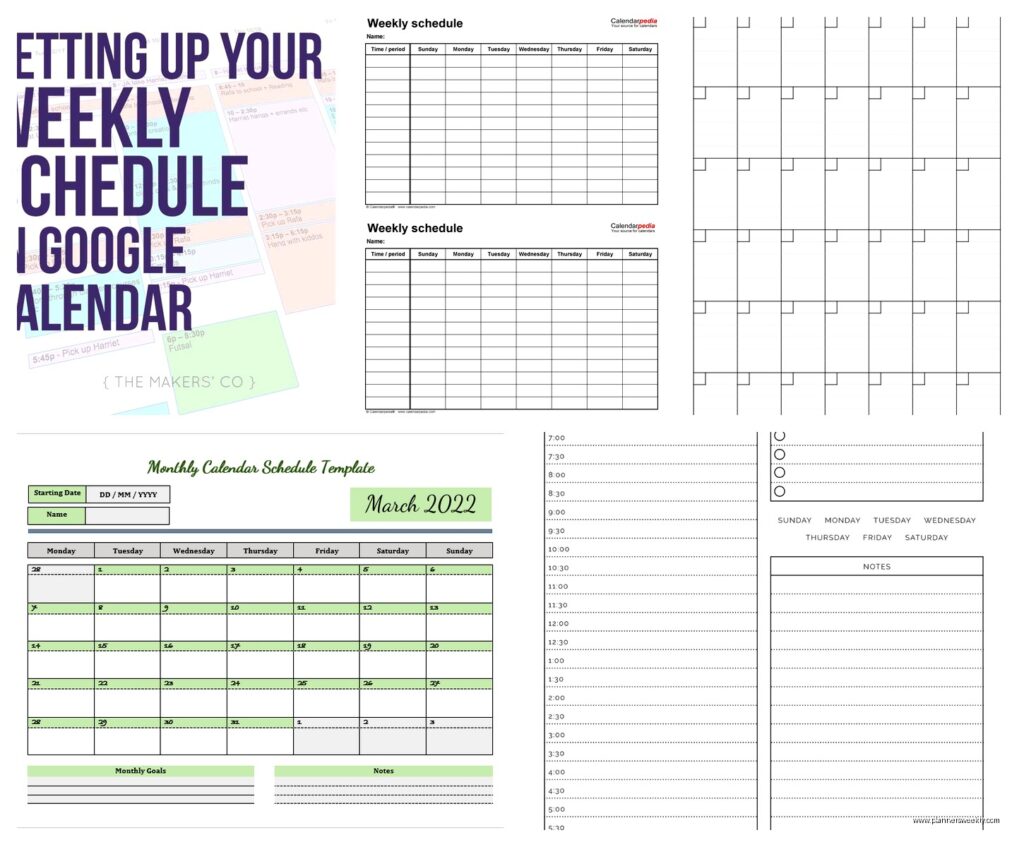
Let me start with Google Calendar because you probably already have it and don’t even realize how much you can do with it. I was helping this client last month and she was like “I need a schedule maker” and I’m like… you literally have one connected to your Gmail account already.
The color-coding system is actually pretty solid once you stop being lazy about it. You can create multiple calendars for different areas of your life – work, personal, that side hustle you keep saying you’ll focus on – and layer them on top of each other. The thing that surprised me is how decent the scheduling features got in the last year or so. You can share your availability with people without that awkward back-and-forth email chain.
What I actually use it for: blocking out my deep work time and making sure I don’t accidentally book two clients at once. The mobile app syncs fast which matters when you’re standing in line at the coffee shop trying to confirm if Thursday works.
The annoying parts:
- The interface feels cluttered if you have more than like 4 calendars going
- Customization is kinda limited – everything looks very Google-y
- The print layouts are honestly ugly, which matters if you’re someone who likes paper backups
Canva – Wait Hear Me Out
This is gonna sound weird but Canva has become one of my go-to calendar makers and I stumbled into it completely by accident. I was making a content calendar template for a workshop and realized their calendar templates are actually really good?
The free version gives you access to thousands of calendar templates. Like, everything from minimalist monthly views to those aesthetic weekly spreads that look like they belong on Pinterest. You can customize colors, fonts, add images, stickers if you’re into that vibe.
I made a meal planning calendar last month that actually looks nice enough that I stuck it on my fridge instead of hiding it inside a drawer. My sister saw it and was like “where’d you buy that” and I’m like I made it in 20 minutes while watching that new Netflix show about the chef.
Best for:
- People who care what their calendar looks like
- Content creators who need editorial calendars
- Anyone making calendars to share with teams or clients
- Making printable calendars that don’t look like they came from 2003
The drag-and-drop thing makes it really easy to move stuff around. You can duplicate pages so if you’re making a 12-month calendar you don’t have to start from scratch every time. And the collaboration features mean you can share it with other people to edit together.
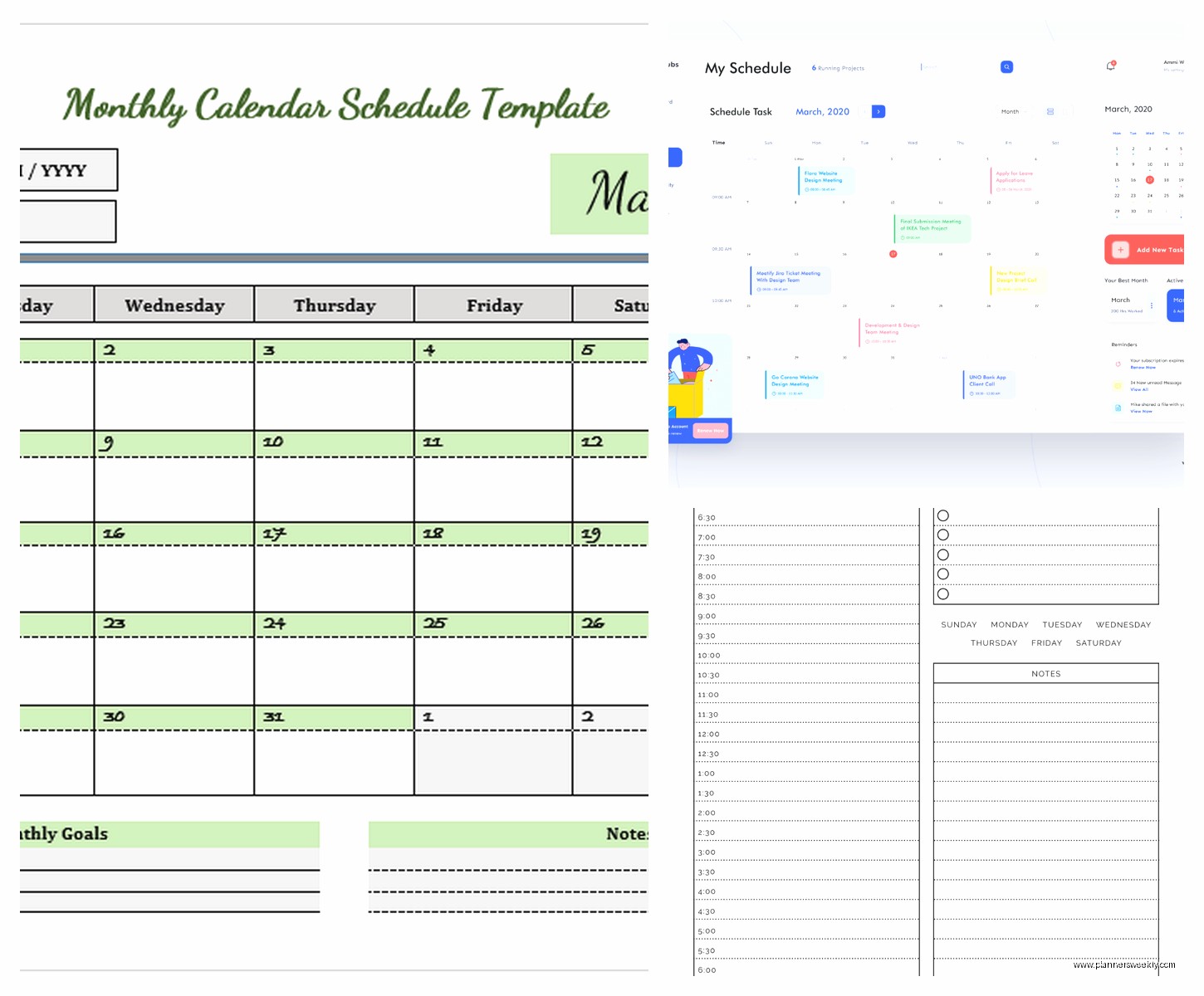
Downside is it’s not a live calendar – you’re basically making a static document. So it’s more for planning and printing rather than day-to-day digital scheduling.
Notion – For the Productivity Nerds
Okay so Notion has this learning curve that’s kind of annoying at first but once you get it? It’s honestly pretty powerful for calendar stuff. I resisted it for like a year because everyone was SO intense about it online and that made me suspicious.
The calendar view in Notion is actually a database that you can view different ways. So you can look at the same information as a calendar, a list, a kanban board, whatever. This is useful when you’re trying to plan content or projects where you need to see things from multiple angles.
I use it for my blog editorial calendar because I can add properties like “status,” “topic category,” “word count goal” and then filter by those. You can’t really do that in a regular calendar app. Plus you can embed other stuff – like I have my content calendar page with research links and draft notes all in one place.
The free version includes:
- Unlimited pages and blocks for personal use
- Calendar database views
- Templates from their gallery
- Basic collaboration features
Fair warning though – if you just need a simple calendar to track appointments, this is probably overkill. It’s better for people who want to build a whole productivity system. My friend tried to use it just for tracking her kid’s activities and gave up after two days because it felt like too much.
TimeTree – The One Nobody Talks About
Oh and another thing – TimeTree is this app I found when I was researching shared calendars for families and it’s surprisingly good? It’s specifically designed for sharing calendars with other people, which makes it different from just sharing a Google Calendar.
The interface is cleaner than Google’s and you can have conversations within each event. So like if you’re planning something with friends, everyone can comment directly on that calendar entry instead of starting a separate group chat. Which honestly helps because I’m in like 47 group chats and can never find anything.
You can create different calendars for different groups – one for family, one for your book club, one for that running group you joined and went to twice. Each calendar has its own members and they only see what’s relevant to them.
The free version doesn’t really limit you in annoying ways. You can have unlimited calendars and members. There’s a premium version but I haven’t needed it yet.
Trello – Unconventional But Stays With Me
Wait I forgot to mention – Trello isn’t technically a calendar maker but the calendar power-up (that’s what they call their add-ons) turns it into one and it’s actually really useful for certain types of scheduling.
I use this for my content production workflow. Each card is a blog post or video, and I can see them laid out on a calendar view. But I can also flip to the board view to see what stage everything’s in. Cards can have checklists, attachments, due dates, labels.
My client who runs a small marketing agency uses this for her entire team’s project calendar. Everyone can see what’s due when, who’s responsible, what the status is. The visual aspect helps more than a traditional calendar because you can see the whole pipeline.
Why I like it:
- Super flexible – you can organize it however makes sense to you
- Good for project-based work rather than just time-based scheduling
- The free version is genuinely useful, not just a teaser
- Mobile app is solid
The learning curve isn’t as bad as Notion’s, but you do have to think about how to set up your boards. I spent like an hour one Saturday just playing around with different systems before I found what worked.
Calendly – If You’re Scheduling Meetings
This one’s more specific but if you’re scheduling meetings with people – clients, interviews, coffee chats, whatever – Calendly is honestly worth it. The free version lets you have one event type and connect one calendar.
You just send people your link and they pick a time that works from your available slots. No more of that “does Tuesday at 2 work?” “no how about Wednesday at 3?” “actually I have a thing” email chain that goes on forever and makes you wanna scream.
I started using this when I began coaching and it immediately saved me probably 2 hours a week of scheduling back-and-forth. People can see your availability in their own timezone which prevents that “wait are you East Coast or West Coast” confusion.
The free version is kinda limited – you can only have one type of meeting scheduled this way. So I use it for my standard coaching calls. For other types of meetings I just… send calendar invites the old fashioned way.
Apple Calendar – If You’re Already in That Ecosystem
Okay so funny story, I switched to iPhone like two years ago after being an Android person forever, and I kept ignoring Apple Calendar because I figured it couldn’t be that good. But my dog got sick last month and I had all these vet appointments to track and I just started using whatever was already there and… it’s actually fine?
If you have a Mac and an iPhone, the syncing is seamless in a way that Google Calendar tries to be but isn’t quite. You can create events with Siri while you’re driving. The interface is clean and not overwhelming.
The natural language input is pretty good – you can type “lunch with Sarah next Tuesday at noon” and it figures it out. Color coding works well. You can set different default alerts for different calendars which is more useful than you’d think.
Limitations to know about:
- Not great if you collaborate with people outside the Apple ecosystem
- Fewer features than Google Calendar overall
- The web version is kind of an afterthought
- Limited customization options
But if you just need a straightforward calendar that works and you’re already using Apple stuff? Don’t overthink it, just use this one.
Cozi – The Family Calendar Everyone’s Parents Use
My sister told me about this one and at first I was like “isn’t that for moms?” which yes, kinda, but it’s actually really good for any household with multiple people trying to coordinate schedules.
You can see everyone’s schedules in one place with color coding for each family member. There’s a shared shopping list feature which seems random but is apparently super useful? And a meal planning section. The free version has ads but they’re not that intrusive.
Each family member can have the app and add stuff to the shared calendar. So like if your partner makes a dentist appointment, it automatically shows up on your calendar too. Prevents that thing where you both schedule something at the same time and then have to figure out who’s canceling.
I don’t personally use this because I live alone with just my cat (who doesn’t have a very demanding schedule), but everyone I know with kids swears by it.
Which One Should You Actually Use Though
Here’s what I tell my clients: start with what you already have and only switch if you hit a specific limitation.
If you just need a basic digital calendar – use Google Calendar or Apple Calendar depending on your phone. Don’t overcomplicate it.
If you need to make pretty calendars to print or share – Canva is your friend. I’ve made everything from content calendars to family birthday trackers in there.
If you’re managing projects or content production – look at Notion or Trello. They’re more work to set up but worth it if you need that flexibility.
If you’re constantly scheduling meetings with people – gotta get Calendly or something similar. The time savings is real.
If you’re coordinating with family or roommates – try Cozi or TimeTree. They’re built for that specific use case.
The biggest mistake I see people make is switching between too many systems trying to find the “perfect” one. There isn’t a perfect one. Pick something that handles your main use case well enough and stick with it long enough to actually build the habit of using it. I’ve tested like 15 different calendar systems over the past few years and honestly? Most of them work fine if you actually use them consistently.
Also you can use more than one. I use Google Calendar for appointments, Notion for my editorial calendar, and Canva when I need to make something to share with clients. They serve different purposes and that’s okay. You don’t have to force everything into one system if that makes it more complicated.
