Digital Productivity, Online planners, Planners
Free Monthly Work Schedule Template: Downloads & Guide
Mar
Okay so I’ve been testing monthly work schedule templates for like three weeks now because honestly my own scheduling system was a mess and my clients kept asking what I use, and here’s what actually works.
The Quick Reality Check on Free Templates
Most free monthly work schedule templates are either way too complicated or insultingly basic. Like you download them and it’s either a nightmare of formulas you didn’t ask for or it’s literally just a blank calendar that you could’ve made yourself in five minutes. I tested probably 15 different ones and only kept using maybe 4.
The Google Sheets templates are honestly your best bet if you’re sharing schedules with a team. I know everyone defaults to Excel but hear me out – the collaboration features actually matter when you’re trying to coordinate shifts. I learned this the hard way when I was helping a client manage her small retail team and we kept emailing Excel files back and forth like it was 2009.
What Actually Makes a Template Worth Downloading
You need these things or don’t bother:
- Space for actual shift times not just X marks
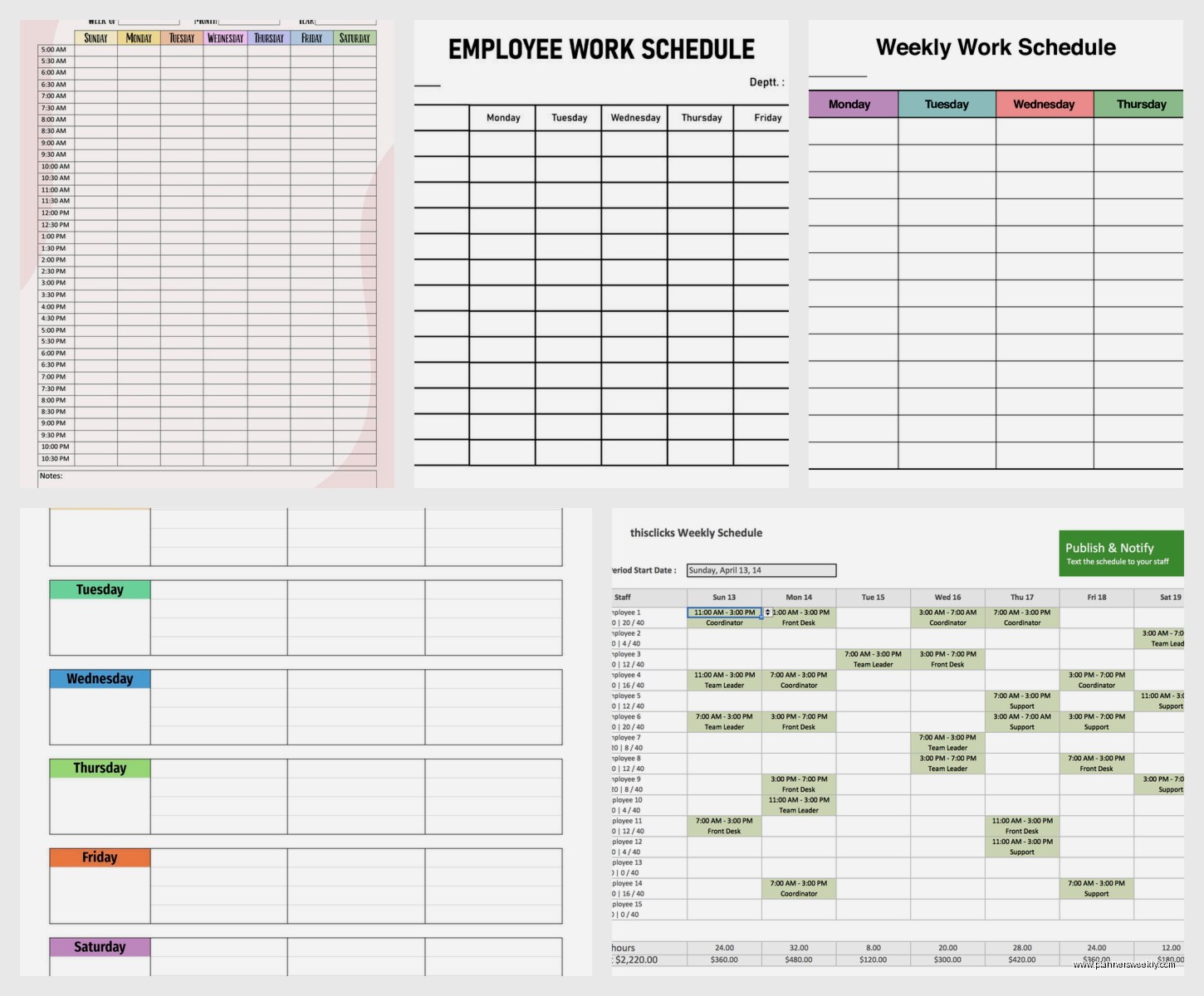
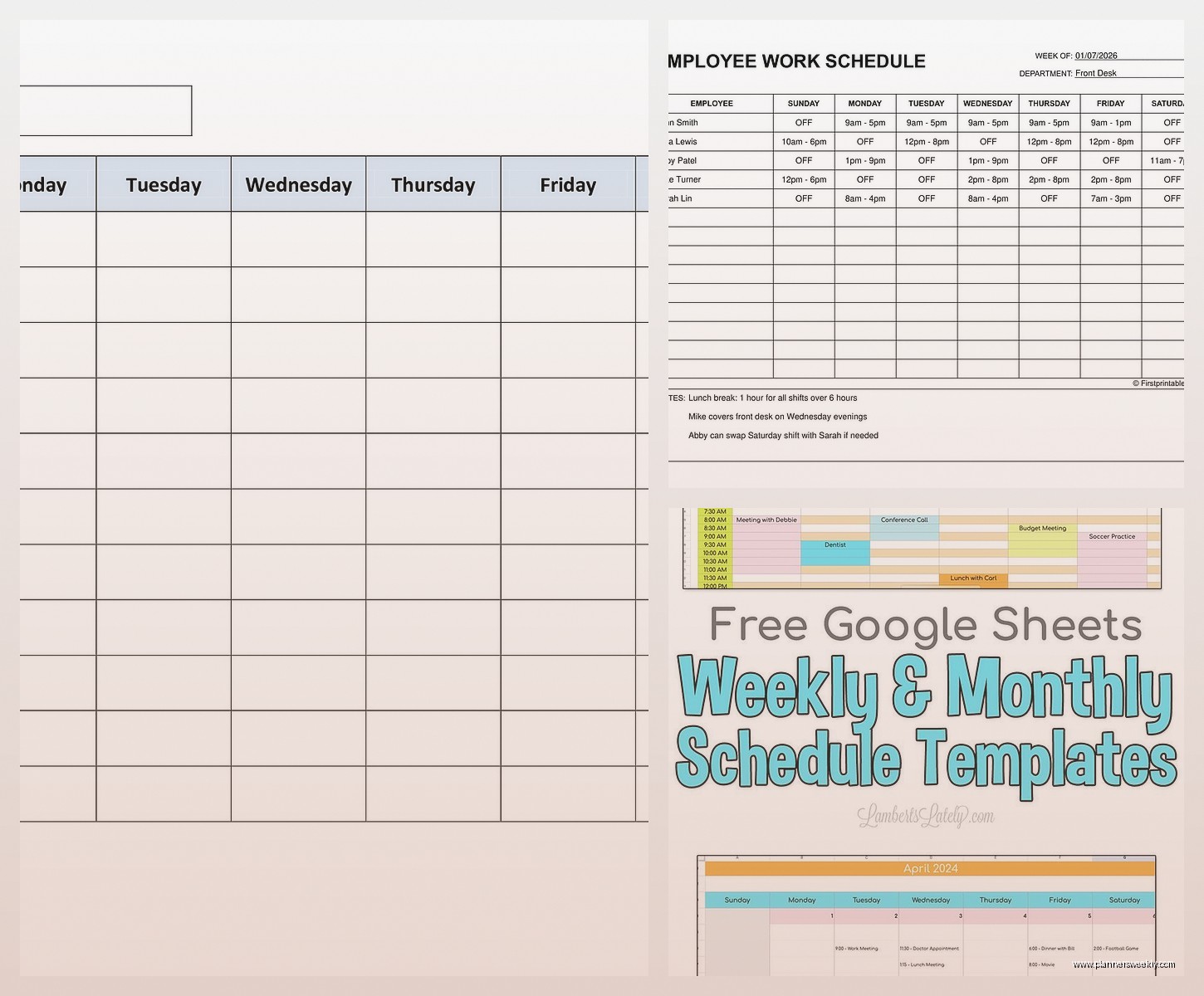
- Some kind of color coding that doesn’t make your eyes bleed
- A spot for notes because stuff always comes up
- Easy to print without weird formatting issues
- Mobile-friendly if it’s digital because you’re gonna check it on your phone
The printing thing is huge. I wasted so much paper testing templates that looked fine on screen but printed with half the schedule cut off or in a font size for ants.
The Templates I Actually Keep Using
Vertex42’s Employee Schedule Template
This one’s Excel-based and it’s shockingly good for free. It has dropdown menus for employee names which sounds fancy but actually saves you so much time. You can track up to 20 employees and it auto-calculates total hours per person.
The color coding is automatic – morning shifts are one color, evening another. You can change the colors but the defaults are actually pretty reasonable, like they’re not trying to use neon yellow or whatever.
One annoying thing though – it has a bunch of sheets in the workbook and if you’re not comfortable with Excel you might get confused clicking around. I just hide the sheets I don’t use. Takes two seconds once you know how.
Best for: small businesses, managers who need hour tracking, people comfortable with Excel
Google Sheets Team Schedule Template
This is the one I use for most of my clients now. You can find it in Google’s template gallery – just search “schedule” and pick the one that says “Team Schedule.”
What I love is that you can literally watch people edit in real time. Had a situation last month where two employees were both trying to swap shifts and instead of playing telephone I just watched them work it out in the comments. Saved me three emails and a phone call.
It’s pretty minimal though so if you need fancy features like overtime calculations you’ll have to add formulas yourself. I usually just add a simple SUM formula at the bottom of each column. My formula skills are like… basic but functional.
Oh and another thing – you can set up notifications when someone edits it which is either really useful or really annoying depending on your team. I turn them off personally because I don’t need a ping every time someone adds a note.
Microsoft’s Weekly Schedule Templates (But Use Them Monthly)
Wait I forgot to mention – Microsoft has these weekly schedule templates that are technically meant for one week but if you’re creative you can duplicate them and make a monthly view. Sounds like extra work but they’re SO much cleaner than their actual monthly templates.
I do this thing where I print four of them and tape them together. My partner thinks I’m insane but it works perfectly and I can see the whole month on my office wall. Very analog but sometimes that’s what you need when you’re staring at screens all day.
The weekly ones have better formatting for shift details. You can actually fit start time, end time, AND break times without everything looking cramped.
Setting Up Your Template Without Losing Your Mind
Start With Your Regular Shifts First
Don’t try to build the perfect schedule on your first attempt. I see people do this all the time – they open a blank template and try to factor in every possible variable and then they give up before scheduling even one shift.
Just plug in your recurring shifts first. The ones that happen every week. Get those locked in and THEN worry about the complicated stuff.
I usually spend like 20 minutes just on the predictable stuff and then I can see where the gaps are. Makes it way less overwhelming.
Color Coding That Actually Makes Sense
This is gonna sound weird but I have opinions about color coding schedules. Most people use colors randomly or they use too many colors and it becomes visual chaos.
Here’s what works:
- One color for opening shifts
- One color for closing shifts
- One color for mid-shifts
- Maybe one more for special events or on-call
That’s it. Four colors max. I use blue for mornings, orange for evenings, green for mids, and red for anything unusual. Been using this system for two years and my brain just automatically processes it now.
Don’t use yellow unless you hate yourself because yellow on white backgrounds is impossible to read. Learned that one the hard way.
The Notes Section Is Not Optional
Every template should have space for notes and you should actually use it. “Sara prefers not to close on Thursdays” or “John has class until 2pm Tuesdays” – this stuff matters and if you don’t write it down you’ll forget.
I keep a running list of preferences and restrictions in a separate tab or section. Then when I’m building next month’s schedule I just reference it instead of trying to remember who said what three weeks ago.
My cat just knocked over my coffee while I’m writing this which feels relevant because interruptions are exactly why you need good notes. You’re not gonna remember everything.
Digital vs Printable Schedules
Okay so funny story – I was totally convinced digital schedules were superior until I worked with a restaurant client where half the staff didn’t have smartphones or didn’t want to check work stuff on their phones. Which is totally fair actually.
Now I do both. Digital master schedule that I maintain, printed copies posted in the back office or break room. Best of both worlds.
If you’re printing, test print ONE page before you print the whole month. Adjust margins and scaling in your print settings. Every printer is slightly different and you don’t wanna waste toner.
Making Templates Mobile-Friendly
If your team is checking schedules on phones, simplicity matters more than features. I strip out a lot of the fancy stuff for mobile versions.
Google Sheets actually works pretty well on mobile if you’re not trying to edit complex formulas. The app is free and most people already have it.
For Apple users, Numbers works great too and it’s designed for mobile-first. The templates look really clean on iPhone screens. Android is fine with it too but the formatting sometimes gets weird.
Handling Schedule Changes Without Starting Over
This is where most schedule systems fall apart. Someone calls in sick or needs to swap shifts and suddenly you’re rebuilding the whole thing.
The Swap Request System
I add a separate section for swap requests. Literally just a little table with columns for: who wants to swap, which shift, who’s covering, date requested, approved yes/no.
Sounds bureaucratic but it saves so much confusion. People screenshot that section and text it to each other. Creates accountability too because there’s a record.
Version Control That’s Not Complicated
If you’re using digital templates, just add the date to the filename. “March_Schedule_v1” then “March_Schedule_v2” when you make changes. Super simple but you can always go back and see what the original plan was.
I learned this after accidentally overwriting a schedule and having no idea what the original shifts were. Had to text like five people to reconstruct it. Not fun.
Templates for Different Work Situations
Rotating Shifts
If you have rotating schedules, look for templates with built-in rotation patterns. Some templates let you set up a rotation cycle and it auto-fills. Saves tons of time.
The Vertex42 one I mentioned earlier has this feature. You set up your rotation pattern once and it just repeats. Change one cycle and it updates everything.
Multiple Locations
Managing schedules for multiple locations is its own beast. I use separate sheets/tabs for each location but with a master summary sheet that shows who’s where.
Color code by location too. Location A is always blue, Location B is always green, whatever. Makes it immediately obvious if someone’s accidentally scheduled at two places.
On-Call and Flexible Schedules
This is harder to template honestly. I usually just mark on-call shifts in a different color and include the on-call rotation in the notes section.
For super flexible schedules where people basically pick their shifts, I create a template with all available shifts listed and people claim them. More collaborative but requires everyone to actually participate.
Common Template Mistakes
Don’t put too much information in each cell. I see schedules where every cell has name, start time, end time, break time, position, location… it’s unreadable.
Use abbreviations or create a key. “JD 9-5 (L)” is way cleaner than “John Doe 9:00am-5:00pm Lunch 12:30-1:00pm”
Also don’t make your template so customized that only you understand it. I made this mistake early on with a client – created this elaborate system with custom codes and formulas and then I went on vacation and nobody could figure out how to use it. Keep it intuitive.
Where to Actually Download Good Templates
Template.net has a huge selection but you gotta filter through some clunky designs. The search function is decent though.
Microsoft Office Templates – built into Word and Excel, just click File > New > Search “schedule”
Google Workspace Template Gallery – already mentioned this but it’s genuinely the easiest option
Vertex42.com – specifically good for Excel templates with actual functionality
Canva has schedule templates too if you want something that looks nice for client-facing schedules. They’re more design-forward but less functional for actual scheduling math.
Avoid the sketchy template sites that want your email before showing you anything. Usually the templates aren’t even that good and now you’re on spam lists.
My Current Setup
Since people always ask – I use a Google Sheet as my master schedule with a simplified version I print weekly. The printed version goes on my office wall because I like seeing the whole week at a glance without opening my laptop.
For clients I usually set them up with whatever system matches their tech comfort level. Not gonna force a technophobe to use Google Sheets when a printable Excel template will work fine.
I probably spend 30 minutes max per month on scheduling now that I have a system. Used to take me hours because I’d overthink it or restart halfway through.
The key is really just picking one template and sticking with it long enough to get fast at using it. Template-hopping wastes more time than using an imperfect template consistently.