Digital Productivity, Online planners, Planners
Free Schedule Maker Template: Downloads & Tutorials
Apr
Okay so I just spent like three weeks testing every free schedule maker template I could find because honestly my old planner system was falling apart and you know how it is when you’re trying to help clients get organized but your own stuff is a mess.
Google Sheets Templates Are Actually Pretty Solid
Started with Google Sheets because it’s free and I already live in there anyway. The built-in template gallery has this weekly schedule thing that’s super basic but that’s kinda the point? You can access it by going to sheets.google.com, clicking the template gallery in the top right, and there’s like a whole section for schedules.
The weekly schedule template is color-coded by default which I normally hate but it actually helps when you’re scanning quickly. You can share it with other people too which is huge if you’re coordinating with a team or family. I’ve been using it for my coaching sessions and my husband can see when I’m booked without texting me fifteen times.
Oh and another thing, you can make a copy of any template and customize it. I changed all the colors to neutrals because the default bright blue was giving me a headache. Just right-click the tab at the bottom and duplicate it for different weeks or months.
The Hourly Breakdown Template
There’s also this hourly schedule template that breaks down every single hour from like 6am to 10pm. Honestly it’s a lot if you’re not someone who needs that level of detail but for my clients who are freelancers juggling multiple projects it’s perfect. You can block out time in 30-minute or 15-minute chunks.
Wait I forgot to mention, all these Google templates auto-save which saved me last Thursday when my laptop died in the middle of scheduling out my entire May. Nothing lost.
Microsoft Excel and Word Options
So Microsoft also has free templates if you have Office 365 or even just the online versions. Go to templates.office.com and search for “schedule” and you’ll get like hundreds of options. Some are way too corporate looking but there are some clean ones.
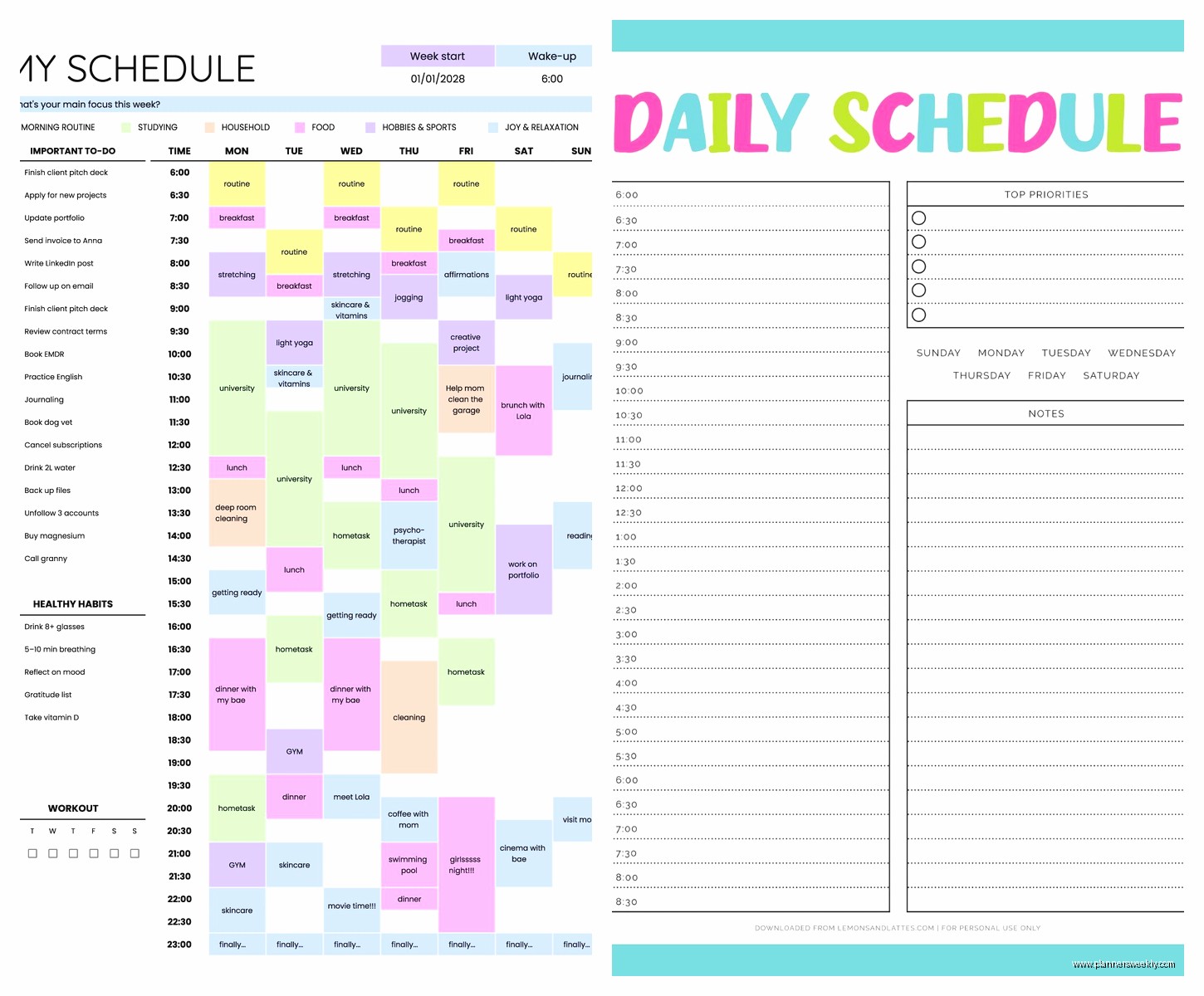
The student schedule templates are actually really good even if you’re not a student? They have these weekly layouts with time blocks and a notes section on the side. I’ve been using the “Weekly class schedule” template for my content calendar and just renamed the days to different content types instead.
Download Process for Office Templates
You can download them as actual files which is nice if you want to work offline. Click the template you want, hit download, and it opens in Excel or Word. Then save it to your computer and you’ve got it forever. I keep a master copy in my templates folder and just duplicate it whenever I need a fresh week.
The Excel ones are better than Word for schedules honestly because you can do formulas and stuff. Like I set up one where it calculates my total billable hours for the week automatically which is gonna save me so much time during invoicing.
Canva Has Free Schedule Templates Too
This is gonna sound weird but Canva actually has schedule makers and they’re surprisingly functional? I always thought of Canva as just for social media graphics but they have this whole templates section for planners and schedules.
You need a free account but that takes like two seconds. Search for “weekly schedule” or “daily planner” and there are hundreds. The aesthetic ones are really pretty if you care about that, lots of minimalist designs and also some colorful options.
Customizing in Canva
Everything is drag and drop which makes it super easy to adjust. You can change fonts, colors, add your own text boxes. I made one for my weekly blog posting schedule and added little icons for different post types. My cat walked across my keyboard while I was doing this and somehow made the whole thing pink but honestly it looked kinda good so I kept it.
The downside is you gotta download it as a PDF or image, so it’s not as flexible as a spreadsheet for ongoing updates. I print mine out and write on them by hand because sometimes I just need to not look at a screen.
Notion Templates Are Free If You Use Notion
Okay so if you’re already in the Notion ecosystem they have built-in schedule templates that are actually really powerful. Go to the template gallery on their website or just create a new page and select a template.
The weekly agenda template has this database view thing where you can switch between calendar view, list view, and table view. It’s the same data just displayed differently which is perfect for when you need to see your schedule in different contexts.
Setting Up a Notion Schedule
Create a new page, type slash and then “template” and you’ll see options. The calendar database is what you want. You can add properties like time, category, priority level. I set mine up with tags for “client work,” “admin,” “personal” and then filter by those when I need to.
It syncs across all your devices automatically which is clutch. I update it on my computer but check it on my phone constantly throughout the day.
Wait I should mention the learning curve is kinda steep if you’ve never used Notion before. My first week with it I was so confused about databases versus pages versus blocks. But once it clicks it’s really flexible.
Free Printable PDFs from Template Sites
There are these websites that just offer free printable templates and honestly some are really good. Template.net has a free section, Vertex42 is another one, and Printabulls or something like that.
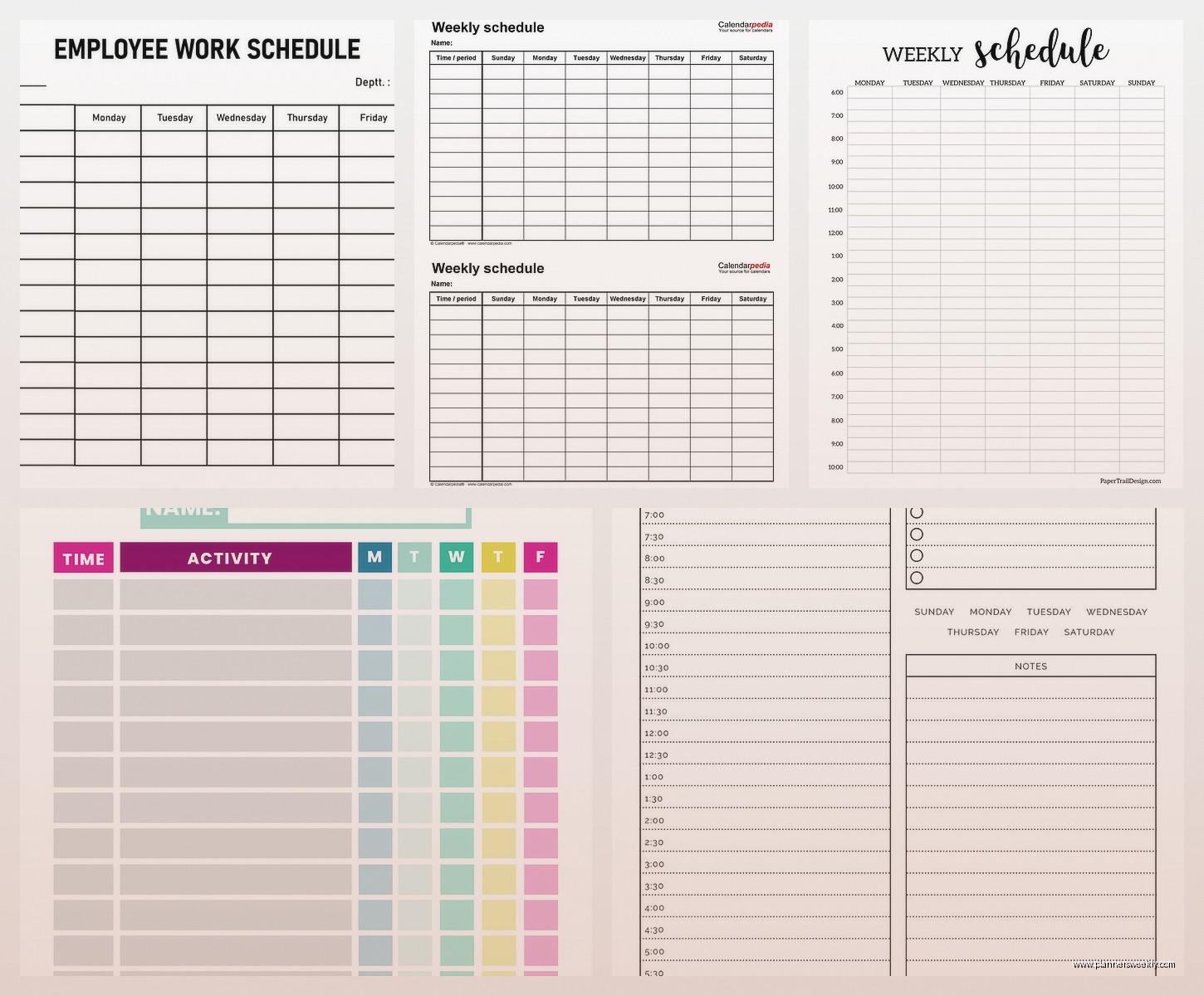
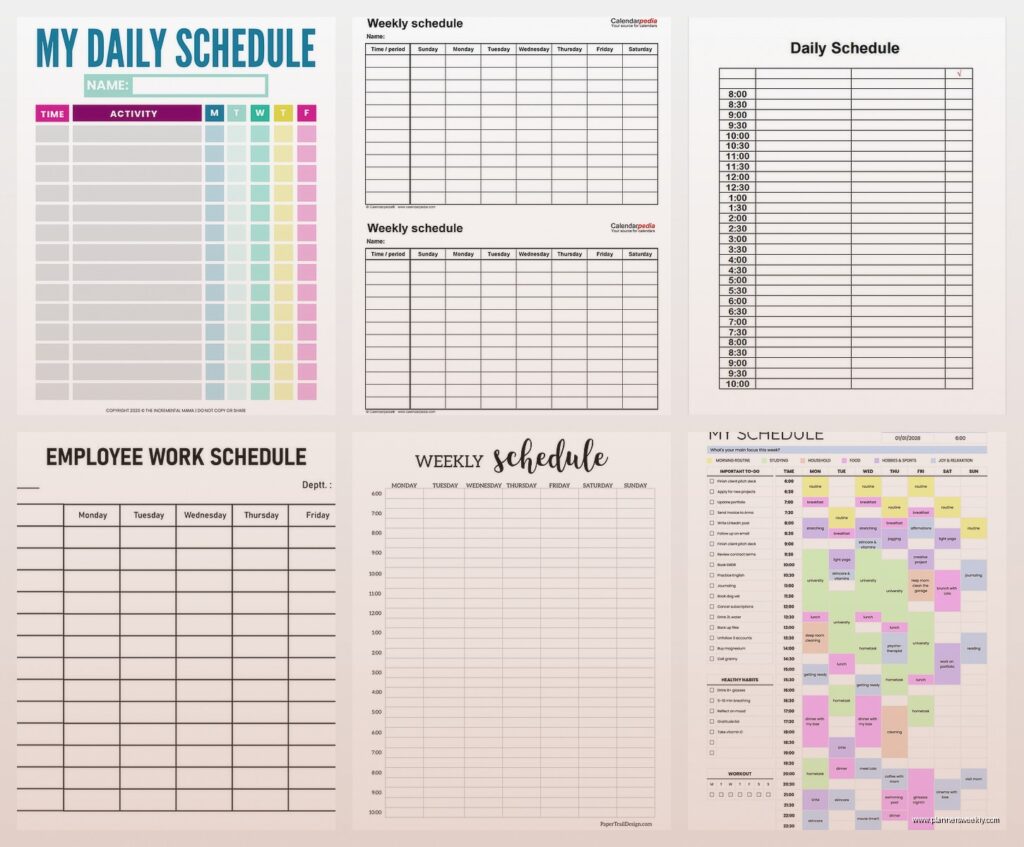
You download them as PDFs or sometimes Word docs. The quality varies a lot though. Some look super professional and some look like someone made them in 2003 and never updated them.
What to Look For
Check the file format before downloading. PDFs are easiest for printing but you can’t edit them unless you have fancy software. Word or Excel files you can customize.
I downloaded like fifteen different ones last week and compared them side by side. The ones from Vertex42 were consistently good quality. They have weekly schedules, monthly calendars, and these hourly planner sheets that are really detailed.
Google Calendar as a Schedule Maker
This might be obvious but Google Calendar itself works as a schedule maker and it’s completely free. You can create multiple calendars for different areas of your life and color code them.
I have one for work appointments, one for personal stuff, one for content deadlines, and one for my husband’s schedule that he shares with me. You can toggle them on and off to see just what you need.
The Time Blocking Trick
Create events for your tasks not just appointments. Like I block out “writing time” from 9-11am every Tuesday and Thursday. It shows up on my calendar just like a meeting would. You can set recurring events too which saves time.
Oh and you can print your Google Calendar in different views. Go to the settings, print, and choose week view or month view or whatever. It generates a PDF you can print or save.
Trello with Calendar Power-Up
Okay so funny story, I was watching this productivity YouTuber while testing templates and she mentioned using Trello as a schedule maker. Thought it was weird but tried it and it actually works pretty well.
You need to enable the Calendar power-up which is free. Create a board, add lists for different categories or time blocks, then turn on the calendar view. Each card becomes an event on the calendar.
Why This Works
It’s super visual and you can drag cards around easily. I use it for my content calendar now because I can see all my blog posts, social media content, and newsletter drafts in one place. You can add due dates, labels, checklists to each card.
The mobile app is really good too. Better than some actual calendar apps I’ve tried.
Airtable Free Templates
Airtable has free schedule templates in their universe gallery thing. It’s like a spreadsheet and database had a baby. More powerful than Google Sheets but easier than setting up an actual database.
They have a content calendar template, an editorial calendar, a social media calendar. I grabbed the content calendar one and customized it for my coaching schedule. You can create different views like calendar, kanban board, gallery.
The free plan has limits on how many records you can have but for personal scheduling it’s plenty. I’ve been using it for three months and haven’t hit any limits.
Simple HTML or Text-Based Schedules
This is super low-tech but sometimes you just need a basic text document. I keep a running text file on my desktop with my weekly schedule written out in plain text. No formatting, no colors, just times and tasks.
It loads instantly, never crashes, works offline, takes up basically no space. When I’m overwhelmed by fancy tools I go back to this. Just open Notepad or TextEdit and type out your schedule.
You can get slightly fancier with a simple HTML file if you know basic HTML. Make a table with hours and days. Save it as an HTML file and open it in your browser. I have one of these as my “master schedule template” that I copy and edit each week.
Mobile Apps Worth Mentioning
TimeBloc is free on iOS and it’s specifically for time blocking schedules. Super simple interface, you just drag blocks of time onto your day. It syncs with your regular calendar too.
For Android, there’s aTimeLogger which is more for tracking time but you can use it to plan your schedule too. The free version has everything you need.
Any.do has a free calendar and task list combined which works well for scheduling. You can see your tasks and appointments in one view.
My Actual Current Setup
After testing all this stuff I’m using a combination because of course I am. Google Sheets for my master weekly template that I share with my assistant, Google Calendar for actual appointments and time blocks, and Canva templates that I print out for weekly reviews.
The printed weekly schedule sits on my desk and I write on it throughout the week. Then on Fridays I transfer everything to my digital systems. It’s probably not the most efficient but it works for how my brain operates.
You gotta find what matches your workflow. If you’re super digital, stick with Notion or Google Calendar. If you like paper, download and print the Canva or PDF templates. If you need to share with others, Google Sheets or Airtable.
The best template is honestly the one you’ll actually use consistently. I’ve had clients who swear by a basic Word document table and others who have elaborate Notion setups. Both work fine if you stick with them.