Digital Productivity, Online planners, Planners
Free Timetable Creator: Best Online Scheduling Tools
Apr
Okay so I just spent the last three weeks testing basically every free timetable creator because my coaching clients kept asking me which one to use and honestly I was tired of giving vague answers.
Canva’s Free Schedule Maker Is Actually Pretty Solid
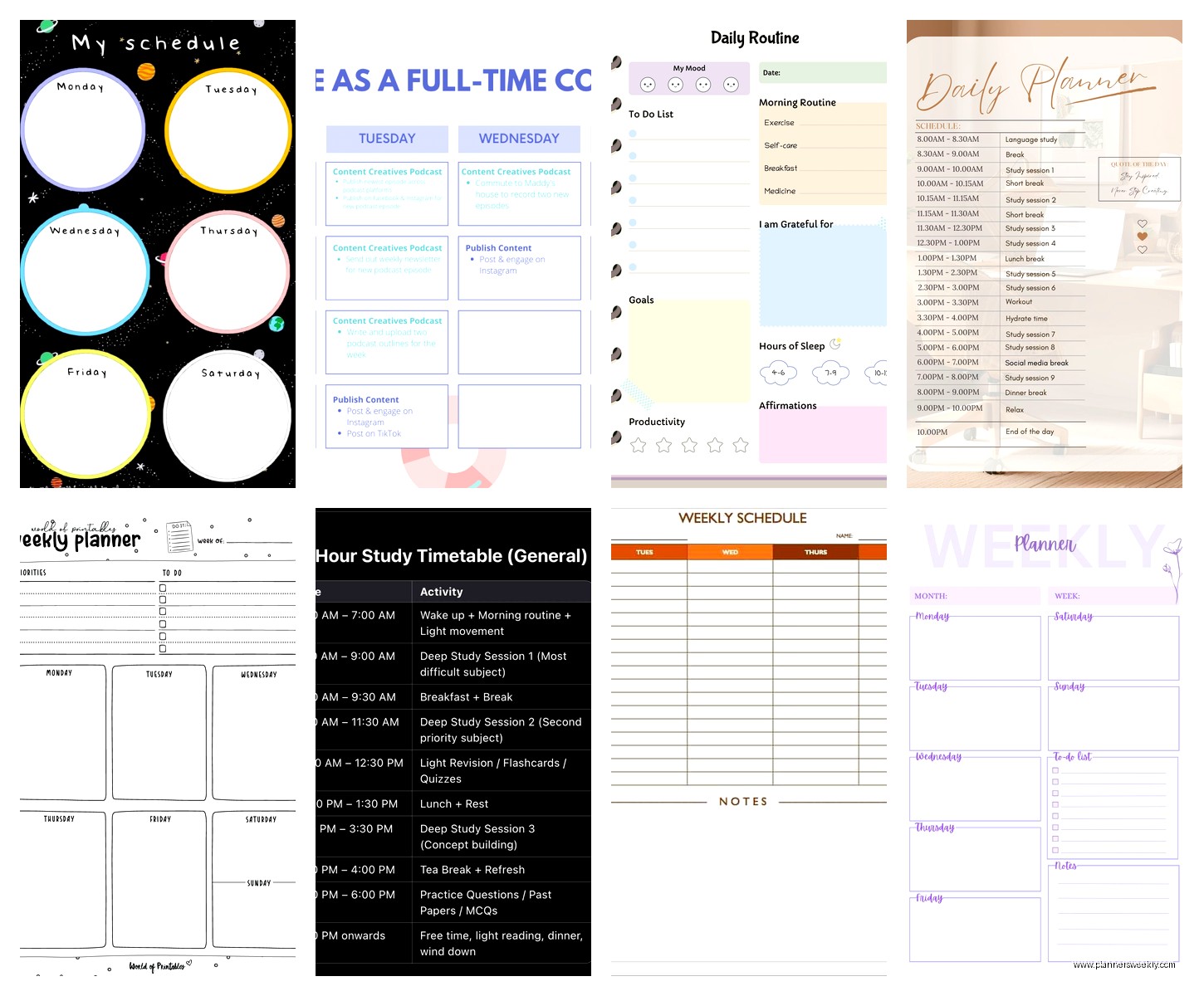
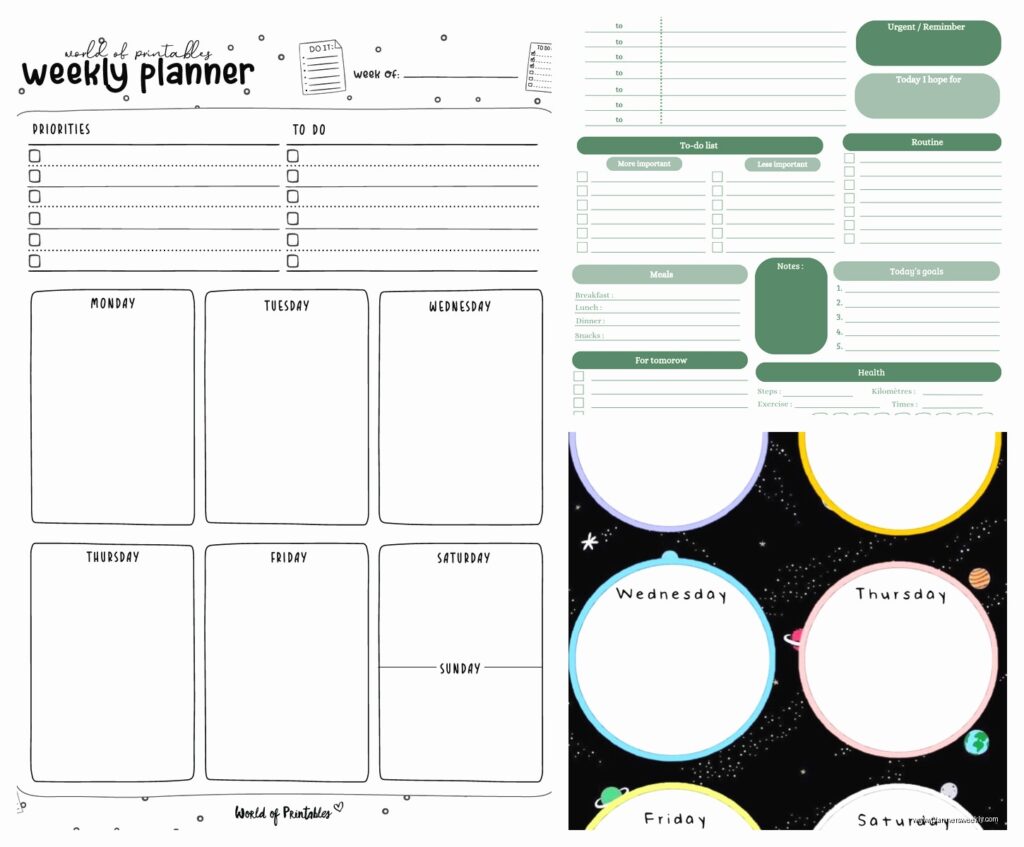
Starting with Canva because I literally used it this morning. Their timetable templates are surprisingly good if you want something that looks nice but you don’t wanna spend forever making it pretty. I opened it up while watching The Bear (which btw is stressful for a productivity show) and made a weekly schedule in like 15 minutes.
The drag and drop thing works exactly how you’d expect. You pick a template, change the colors, add your text. My favorite part is you can duplicate blocks which sounds basic but when you’re scheduling recurring tasks it saves so much time. Like if you have the same meeting every Tuesday and Thursday you just copy paste.
The free version gives you access to tons of templates but here’s the catch – some of the fancier elements are locked behind their Pro plan. You’ll see a little crown icon on stuff you can’t use. Annoying but the free templates are honestly enough for most people.
Export options are solid. PDF, PNG, JPG. I usually do PDF because it prints cleaner and you can share it without people accidentally editing it.
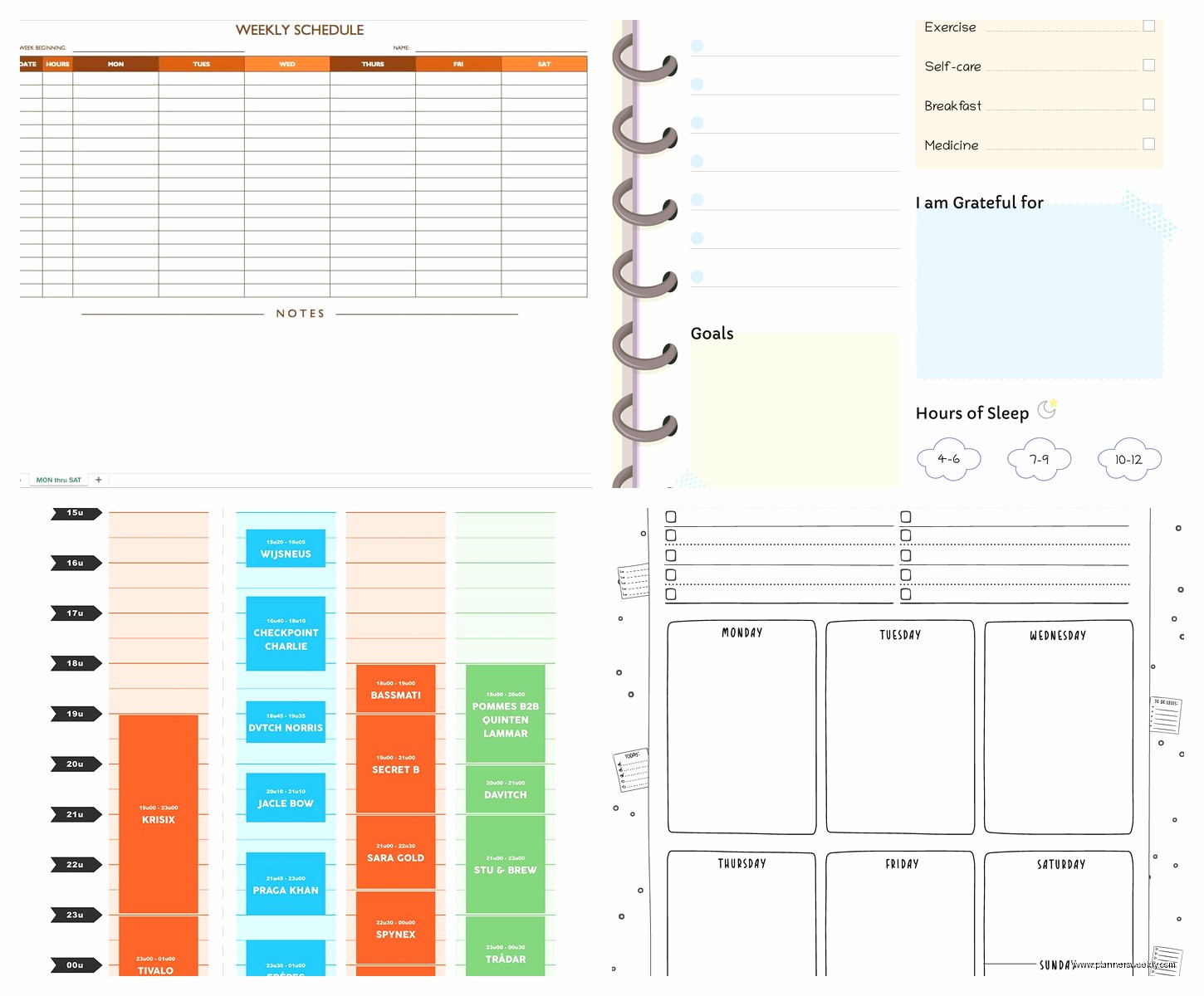
Google Sheets But Make It a Schedule
Wait I need to mention Google Sheets because everyone forgets it’s actually a scheduling tool. Not glamorous at all but super functional.
I’ve been using Sheets for my own weekly planning for like two years now. You can color code cells, merge them for longer time blocks, add formulas if you’re into that. My friend Sarah who teaches uses it for her class schedules and shares it with students so they can view but not edit.
The thing with Sheets is it’s not gonna look as polished as Canva but it’s incredibly flexible. You can create dropdown menus for recurring tasks, use conditional formatting to highlight certain types of activities. I set mine up so work tasks are blue, personal stuff is green, and appointments are yellow.
Oh and another thing – it auto saves to your Google Drive so you’re never gonna lose it. I’ve had my laptop crash mid-schedule creation more times than I wanna admit and Sheets just… keeps everything.
Template wise you gotta make your own or find free ones online. There’s a bunch on Reddit and productivity blogs. I can share mine but it’s honestly pretty basic, just days across the top and time slots down the side.
Notion for the People Who Want Everything in One Place
Notion is that app everyone either loves obsessively or finds completely overwhelming. I’m somewhere in the middle but for timetables it’s actually really good if you’re already using Notion for other stuff.
The database feature lets you create a schedule that’s also connected to your tasks, notes, whatever. So like you can have your Monday 2pm meeting linked to the meeting notes and action items. It’s overkill for some people but if you’re managing complex projects it’s chef’s kiss.
Free version works fine for individuals. You get unlimited pages and blocks which is all you need. I tested their timeline view last week and my dog kept barking at the mailman so I got distracted but from what I remember it’s good for visualizing longer term schedules.
Setting it up takes longer than Canva though. You’re basically building from scratch unless you use a template. Notion has a template gallery with schedule options but you gotta customize them to fit your needs. I spent probably an hour getting mine exactly right with the right properties and views.
The mobile app is decent for checking your schedule on the go but editing on phone is kinda clunky. Better to set it up on desktop then just reference it on mobile.
Visme Has Timetable Templates You Probably Haven’t Tried
This is gonna sound weird but I stumbled on Visme while looking for presentation tools and they have schedule makers too. Their free plan is limited but functional.
The templates look professional without being boring. I made a daily schedule for one of my clients who’s a freelance designer and she actually said it looked better than what she would’ve made herself. The interface is similar to Canva, drag and drop, customizable colors and fonts.
Free version lets you create up to five projects and download them. The watermark is small, bottom corner, not super intrusive. If you only need one or two timetables it’s perfect.
One downside is the editor can be a bit slow if you have a bunch of elements on the page. I was adding icons to each time slot and it started lagging. Removed some stuff and it was fine but something to know.
The Icons and Graphics Situation
Both Canva and Visme have built in icon libraries which is great for visual learners. I like adding little symbols next to activities – dumbbell for gym time, coffee cup for breaks, laptop for work blocks. Makes the schedule easier to scan quickly.
When You Need Actual Scheduling Logic – Clockify
Okay so funny story, I thought Clockify was just time tracking but they have a scheduling feature too. It’s more for work schedules and team coordination but if you need something with actual calendar integration it’s worth looking at.
Free version supports unlimited users and projects. You can create schedules, assign them to team members, track time against scheduled activities. It’s definitely more corporate feeling than the design tools but the functionality is there.
I tested it for a client who manages a small team and needed to coordinate everyone’s availability. The calendar view shows who’s scheduled when and you can spot conflicts easily. Exports to Excel which is helpful for payroll or reporting.
Not great if you just want a simple weekly planner for yourself though. It’s built for workplace scheduling so there’s features you probably won’t use. Feels like using a sledgehammer to hang a picture frame.
Monday.com’s Free Tier Is Sneaky Good
Wait I forgot to mention Monday.com. They’re known for project management but the timeline and calendar views work perfectly for timetables.
Free for up to two users with unlimited boards. You can create a board that’s basically your schedule with time blocks as items. Color coding, labels, due dates all included.
The visual aspect is really satisfying. Everything’s bright and organized and you can switch between different views. I like the week view for planning and the month view for overview.
Setup is more involved than Canva though. You’re configuring boards and columns and it can feel like a lot if you just want a simple timetable. But once it’s set up it’s really powerful. You can set recurring tasks, get notifications, link related items.
Mobile app is excellent. Better than Notion’s in my opinion. Easy to check your schedule and make quick updates.
StudioBinder for Content Creators and Students
This one’s niche but if you’re planning content calendars or study schedules, StudioBinder’s free plan is surprisingly useful. It’s designed for film production scheduling but works for any timeline based planning.
I found it when a client who’s a YouTuber asked about content planning tools. The stripboard view lets you organize activities in sequence and see everything at once. You can color code by category, add notes, attach files.
Free version has limitations on projects but for personal use it’s enough. The interface takes getting used to because it’s not standard calendar layout but once you understand it it’s actually really intuitive.
The Dark Horse – Excel or Google Sheets Templates
Coming back to spreadsheets because there’s premade templates that are honestly better than some dedicated apps. Microsoft has a template library with dozens of schedule options. Same with Google Sheets templates.
I downloaded like fifteen last Tuesday when my client canceled and I had extra time. Found some really good ones for meal planning, study schedules, work rosters, workout planning. Most are free, professionally designed, and immediately usable.
The advantage is you can customize literally everything. Don’t like the colors? Change them. Need different time increments? Adjust the cells. Want to add formulas that calculate total hours? Go for it.
Downside is no fancy features like notifications or cloud syncing beyond basic Google Drive stuff. It’s static. You update it manually. But sometimes that’s exactly what you need, something simple that doesn’t require learning a new platform.
My Actual Recommendation Depends on Your Situation
If you want pretty and fast – Canva, hands down. Best looking results with minimal effort.
If you’re already in the Google ecosystem – Sheets or Notion depending on complexity needs.
If you need team coordination – Monday.com or Clockify.
If you’re a visual person who loves color coding – literally any of them work but Monday.com and Notion give you the most options.
For students I usually recommend Notion or Google Sheets because they can link to notes and assignments. For freelancers Canva or Visme because client facing schedules need to look professional. For teams definitely Monday.com or Clockify.
The Features That Actually Matter
After testing all these I realized most people only care about like five things. Can you color code? Can you export or print? Can you access it on mobile? Is it actually free or free with annoying limitations? And does it take forever to set up?
Canva wins on ease of use. Notion wins on flexibility. Google Sheets wins on reliability and simplicity. Monday.com wins on features. Clockify wins on professional team scheduling.
The export thing matters more than you’d think. I’ve seen people create beautiful schedules in apps that only let you screenshot them. Then they look terrible printed. Always check export options before investing time in setup.
Mobile access is crucial if you actually want to use your schedule. A timetable that only exists on your laptop is gonna get ignored. Canva, Notion, and Monday.com all have solid mobile apps.
Common Mistakes I See People Make
Making schedules too detailed. Like breaking down every 15 minute block. It looks impressive but you’re never gonna follow it that precisely and then you feel bad about yourself. Hour blocks or 30 minute blocks max unless you’re scheduling something really specific.
Not leaving buffer time. Your schedule shouldn’t be packed back to back. Life happens, things run over, you need breaks.
Choosing tools that are too complex for their needs. If you just want a weekly overview you don’t need Notion’s database features. Sometimes a simple Canva template is perfect.
Not updating it regularly. Schedules need maintenance. What works in January might not work in March. I review mine monthly and adjust.
Oh and trying to make it look perfect instead of functional. I spent like three hours once choosing the exact right shade of blue for my Notion schedule. Completely unnecessary. Pick colors, move on.
The best timetable creator is honestly whichever one you’ll actually use consistently. I’ve tried probably twenty different apps over the years and keep coming back to a simple Google Sheet because it works for my brain. Your mileage will definitely vary.