
Digital Productivity, Online planners, Planners
Free Weekly Planner Template: Downloads & Customization
Apr
Okay so I just spent the last three weeks testing basically every free weekly planner template I could find because my coaching clients kept asking me which ones actually work, and here’s what I figured out.
Google Sheets Templates Are Surprisingly Good
The Google Sheets weekly planner templates are honestly way better than I expected. I started with the basic one from their template gallery and it’s… fine? Like it does the job but it’s kinda bland. What I ended up doing was grabbing the “Weekly Schedule” template and then customizing the hell out of it.
Here’s the thing about Google Sheets templates – they’re collaborative by default which is either amazing or completely useless depending on your situation. I had one client who shares hers with her assistant and they color-code tasks together in real-time. But if you’re solo like me most of the time, you just need something that syncs across devices.
To customize these, you’re gonna want to:
- Change the time blocks – the default is hourly from 8am to 6pm which is absolutely useless if you’re not a traditional office worker
- Add conditional formatting so overdue stuff turns red automatically (this saved my butt so many times)
- Create a dropdown menu for task categories using Data Validation
- Freeze the top row and first column so you don’t lose track when scrolling
The conditional formatting thing is actually super easy once you do it once. You select the cells, go to Format > Conditional formatting, and set up rules like “if date is before today, make it red” or whatever. I watched my dog destroy a tennis ball while figuring this out the first time and now I do it without thinking.
Canva Has Free Templates That Don’t Look Like Garbage
Wait I forgot to mention – if you want something that’s actually pretty to look at, Canva’s free weekly planner templates are solid. They have this “Weekly Planner” section with probably 50+ free options. The catch is that some elements are locked behind Canva Pro, but honestly? The free ones are perfectly usable.
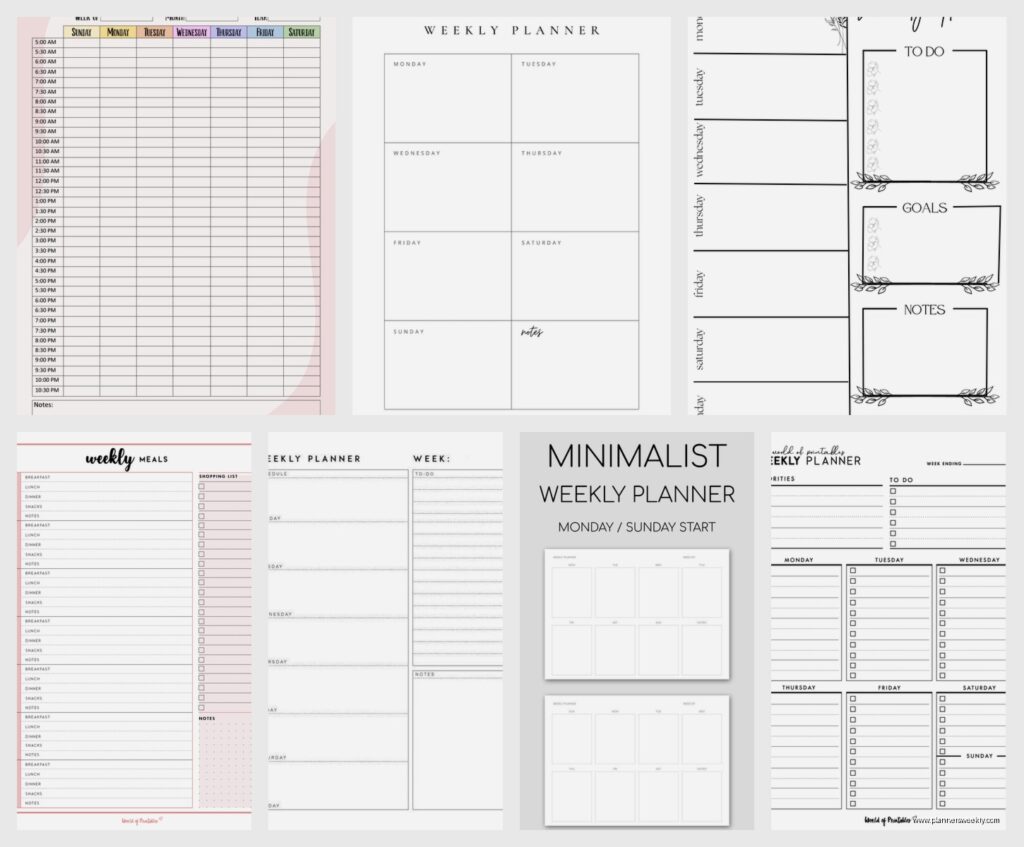
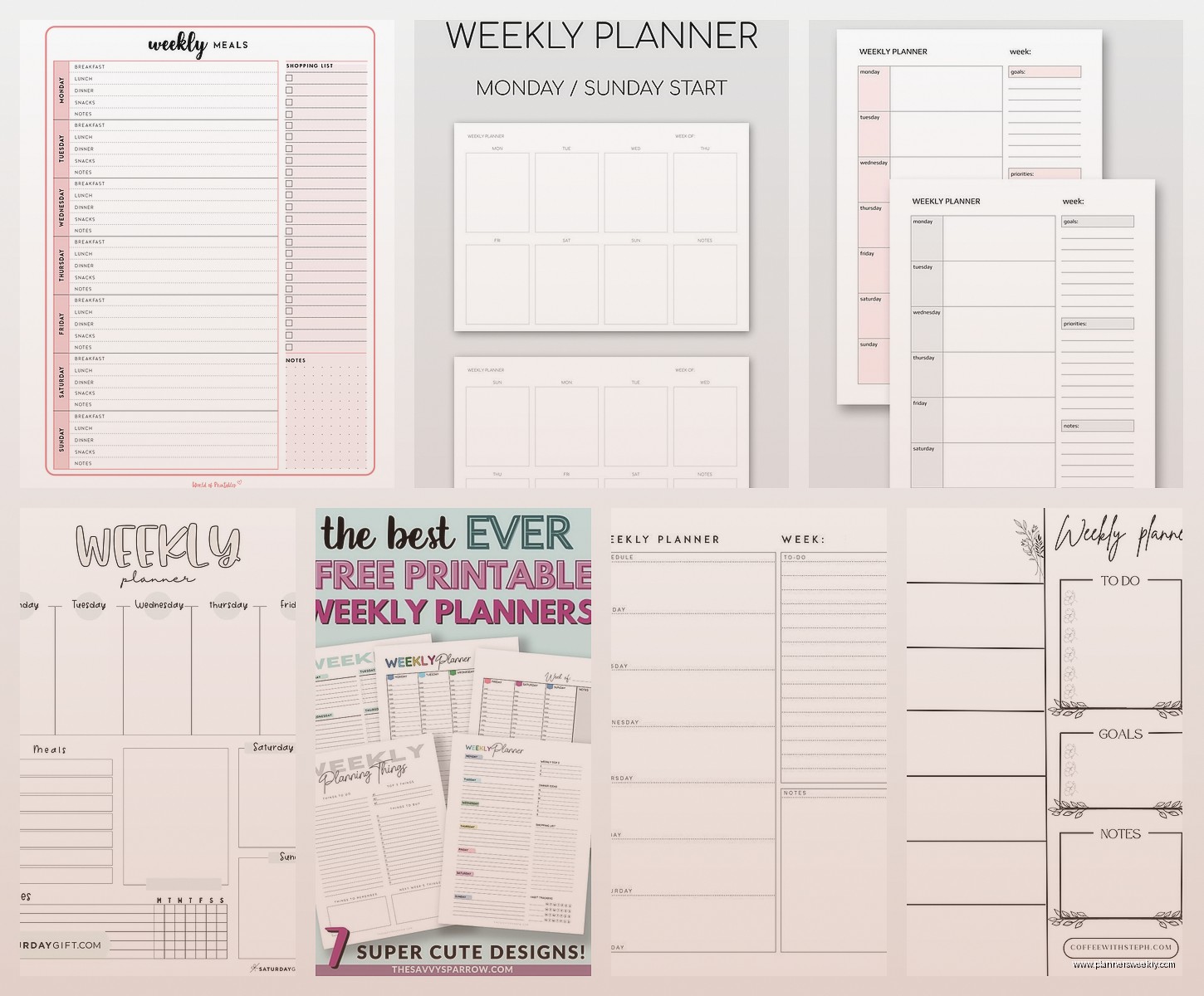
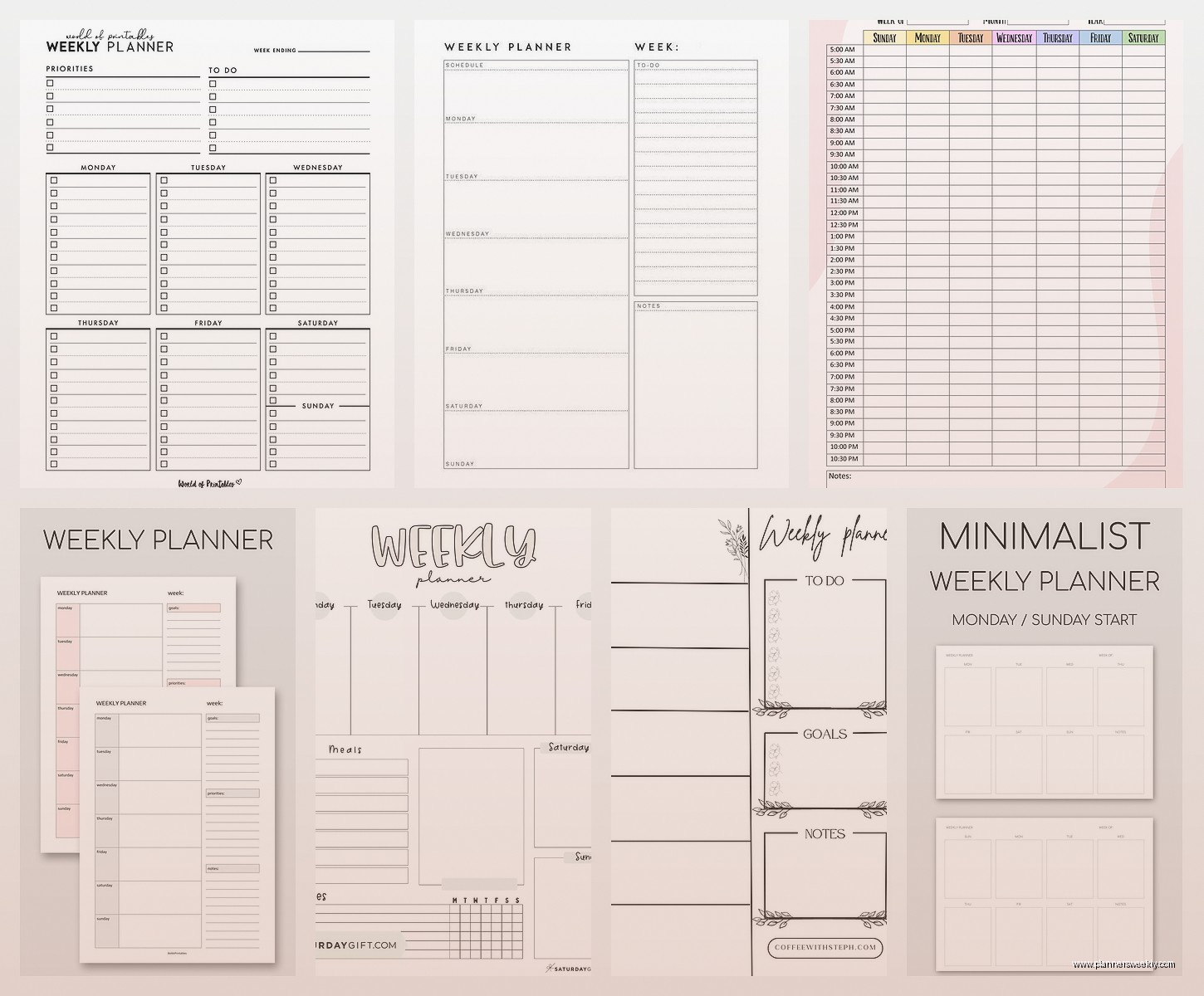
I downloaded like six different styles last month when I was procrastinating on actual work. The minimalist ones are my favorite because they print well without using tons of ink. There’s this one black and white template with little checkboxes that I’ve been using for three weeks straight.
To customize in Canva:
- Click on any text element and just… type your own stuff (obvious but people ask me this)
- Change colors by selecting elements and using the color picker – I make mine match my bullet journal color scheme
- Resize sections by dragging the corners if you need more space for certain days
- Add your own elements from the free library – I throw in little icons for work vs personal tasks
- Download as PDF for printing or PNG if you’re using it digitally
The PDF vs PNG thing matters more than you’d think. PDFs are better for printing because they stay crisp, but PNGs are easier if you’re importing into something like GoodNotes or Notability on an iPad.
Microsoft Word Templates Are Old School But They Work
Okay so funny story – I resisted Word templates for the longest time because they felt so 2010, but then my laptop died during a client meeting and all I had was my old backup computer with basic Office installed. Turns out Microsoft’s built-in weekly planner templates are actually really functional?
You can access them by opening Word, clicking “New,” and searching for “weekly planner.” They have this one called “Weekly Schedule” that’s just a simple table layout. Nothing fancy but it gets the job done.
The best part about Word templates is that they’re stupid easy to modify:
- Right-click any table cell to add or delete rows and columns
- Change fonts and colors using the Home tab (I know, groundbreaking advice)
- Insert text boxes if you want floating notes sections
- Save your customized version as your own template so you don’t have to redo it every week
That last point is key – once you get it set up how you like it, go to File > Save As Template. Then it’s just there forever and you can reuse it. I have probably five different versions saved for different purposes – one for work weeks, one for when I’m traveling, one for low-key weeks where I don’t have much going on.
Notion Templates If You’re Into That Whole Thing
Oh and another thing – Notion has a template gallery with weekly planners that people have made. Some are absurdly complex with databases and linked pages and honestly who has time for that, but there are simpler ones that are pretty useful.
I tested the “Weekly Agenda” template from their gallery and it’s clean. Very straightforward. You get a page for each week with sections for each day, plus areas for goals and notes. The nice thing about Notion is that everything’s searchable later, so if you’re like “wait what week did I meet with that vendor” you can actually find it.
Customizing Notion templates is weird if you’re not used to it:
- Click the three dots menu to “Duplicate” the template into your workspace first
- Add new blocks by typing “/” and choosing what you want – to-do list, heading, whatever
- Drag blocks around to reorder them (this is gonna sound weird but I find this really satisfying)
- Create a template button so you can generate new weeks quickly without copying manually
- Link to other Notion pages if you want – like your master project list or whatever
The template button thing is honestly game-changing once you set it up. You create a button that automatically generates your whole weekly layout with one click. There’s a learning curve but it’s worth it if you’re planning to use Notion long-term.
Excel Templates Because Some People Still Use Excel
Look, Excel templates are basically the same as Google Sheets but offline. Microsoft has a bunch in their template library. The “Weekly Task Planner” one is decent – it has built-in formulas that calculate completion percentages and stuff.
I tested this one week when my internet was out (storm knocked out power and I was tethering to my phone but didn’t wanna burn through data). It worked fine. You can do all the same conditional formatting tricks as Google Sheets.
The advantage is that it’s faster if you’re working offline. The disadvantage is that it doesn’t sync automatically unless you’re saving to OneDrive or whatever cloud storage you use.
Printable PDF Templates From Random Websites
This is gonna sound weird but some of the best free templates I found were just from bloggers and productivity sites that offer free downloads. Places like Scattered Squirrel, Clean Mama, Clementine Creative (though you gotta give your email usually).
These are pre-made PDFs that you just download and print. No customization unless you wanna get fancy with PDF editing software, but they’re designed well and ready to go. I keep a stack of printed weekly planners on my desk for when I just need to scribble quick plans without opening my laptop.
The quality varies wildly though. Some are beautiful but impractical – like fonts so fancy you can’t read them, or not enough space to actually write anything. Others are perfectly functional but ugly as hell.
My criteria for printable templates:
- Enough writing space in each day block – minimum half inch of white space
- Not too much decorative stuff that wastes ink
- Clear labels and structure
- Fits standard letter or A4 paper
- Readable when printed in black and white
Actually Customizing These Things
Okay so here’s what I’ve learned about customization after testing all these formats. The specific changes that actually make a difference:
Time blocking adjustments: Most templates assume you work 9-5 which is hilarious. I shift mine to start at 7am because that’s when I actually function. If you’re a night person, you probably need evening blocks instead of morning ones. Just delete rows or add them as needed.
Priority markers: I add a little star or number system to rank tasks by priority. In Google Sheets this is easy with symbols. In Word or Canva you can just type them or add shapes. Sounds simple but it helps so much when you’re looking at your week and deciding what actually matters.
Category color coding: Work stuff is blue, personal is green, health/fitness is orange in my system. Completely arbitrary but consistent. Your brain starts recognizing the patterns. In digital templates you can use highlighting or cell colors. In printable ones you gotta use actual highlighters or colored pens.
Habit trackers: I added a little section at the bottom of my weekly template for daily habits – water intake, exercise, whatever. Just checkboxes for each day. Takes two seconds to add in any template format and keeps me honest about whether I’m actually doing the things I say I wanna do.
Notes section: Always need more space for random notes than templates give you. I usually expand whatever notes area exists or add a whole section at the bottom. This is where I dump ideas, things people told me, random thoughts that don’t fit anywhere else.
The Printing Situation
If you’re printing these – and I print mine every week even though I also use digital versions because I’m apparently inefficient – here’s what works:
Print on 32lb paper instead of regular 20lb if you can. It feels more substantial and doesn’t curl weird. I buy the Hammermill Color Copy paper in bulk. Costs more but whatever, it’s nice to use nice things sometimes.
Print in draft mode or grayscale to save ink unless you really care about colors. My printer was eating through color cartridges until I switched to grayscale and honestly it looks fine.
Hole punch and put them in a binder, or clip them to a clipboard if you’re mobile. I have both systems going – binder at my desk, clipboard in my bag. My cat knocked over the binder last week and pages went everywhere which was fun.
Digital Planning Apps That Use Templates
Wait I should mention – apps like GoodNotes, Notability, and OneNote let you import planner templates as PDFs and write on them with a stylus. This is the best of both worlds if you have an iPad or tablet.
I use GoodNotes with a Canva template I customized. Import the PDF, duplicate the page for each new week, write directly on it with Apple Pencil. It feels like paper but everything’s searchable and backed up to the cloud.
The workflow is: design your template in Canva or wherever, export as PDF, import to GoodNotes, set it as a template in the app so you can reuse it. Takes maybe 10 minutes to set up initially then you’re good forever.
What Actually Works Day-to-Day
After testing all this stuff, here’s what I actually use: a Google Sheets template for planning and tracking because it syncs everywhere, plus a printed Canva template that sits on my desk for quick reference and scribbling urgent stuff.
The digital version is my source of truth – everything goes in there eventually. The paper version is for when I don’t wanna open my laptop or my hands are full or I just need to physically write something down because typing doesn’t hit the same.
I spend maybe 15 minutes on Sunday evenings filling out the next week. Reviewing what’s coming up, blocking time for important stuff, making sure I’m not overcommitting. Then throughout the week I adjust as needed because nothing ever goes according to plan anyway.
The key is picking one system and actually using it consistently rather than constantly switching templates. I know this because I spent like six months switching templates every week and accomplished nothing except having a very organized collection of unused planner templates.
Start with the simplest free option that meets your basic needs – probably Google Sheets or a basic Canva template. Use it for at least two weeks before deciding it doesn’t work. Customize gradually as you figure out what’s missing. Don’t try to build the perfect system on day one because you won’t know what you actually need until you’ve used something for a while.
And honestly that’s it. Free weekly planners are everywhere, most of them are fine, pick one and actually use it instead of endlessly optimizing. The best template is the one you’ll actually fill out every week.
