
Digital Productivity, Online planners, Planners
Free Work Schedule Maker Template: Downloads & Guide
Mar
Okay so I just spent like three weeks testing every free work schedule template I could find because honestly my own planner system was falling apart and I needed something for my team. Here’s what actually works.
The Google Sheets Template That Changed Everything
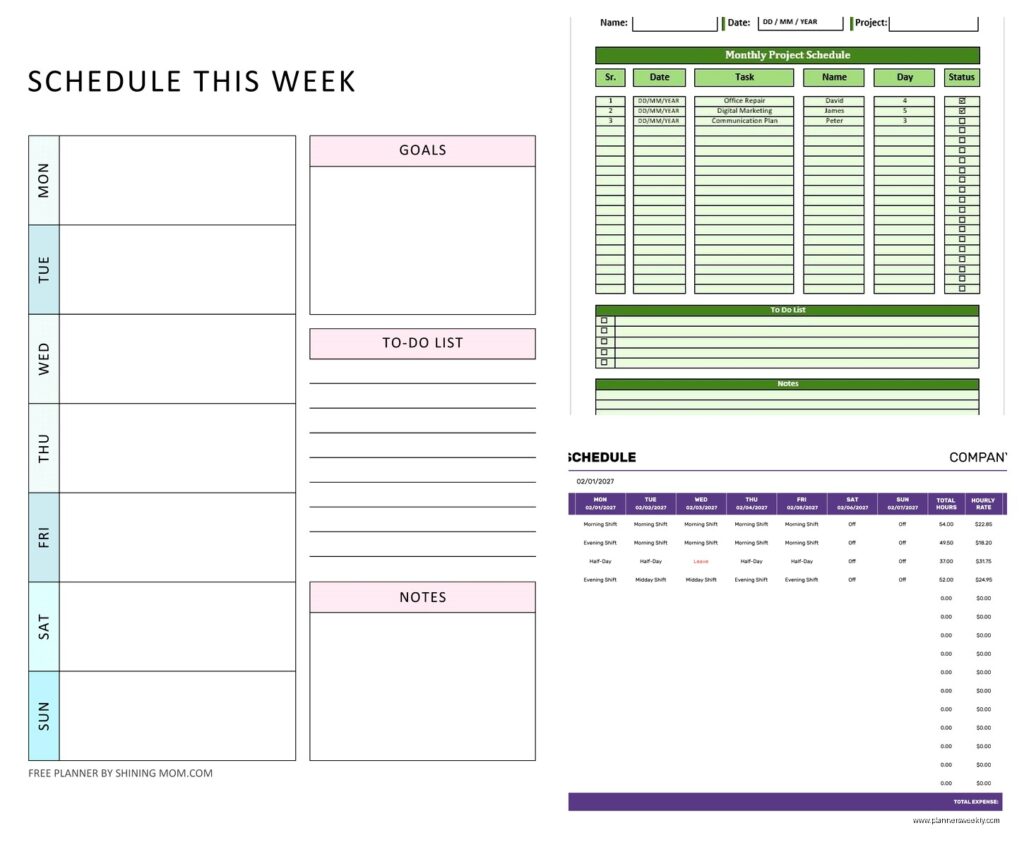
I’m gonna start with the one I’m actually using now because it’s the most practical. Google has this free work schedule template in their template gallery and it’s honestly better than half the paid ones I’ve tried. You just go to Google Sheets, click on Template Gallery, and look for the schedule templates. There’s like five different versions but the weekly employee shift schedule is the one you want.
What I love about it is you can color-code everything. I spent way too long making mine aesthetic when I should’ve been working on client reports but whatever. You can share it with your whole team, they get notifications when you update it, and if someone needs to swap shifts they can literally just comment on the cell. My assistant figured it out in like two minutes without me explaining anything which is basically the gold standard.
The formula setup is already done for you so it auto-calculates total hours per person. I didn’t realize this at first and was manually adding everything up like a complete idiot for the first week.
Excel Templates If You’re Old School
Wait I forgot to mention, if you’re not into Google Sheets, Microsoft has basically the same thing. Go to File > New in Excel and search for “schedule” and you’ll get overwhelmed by options. The employee shift schedule template is solid. It’s got this dropdown menu system for entering names and shift times which sounds fancy but honestly just makes data entry faster.
One weird thing though, the Excel version doesn’t sync across devices as smoothly unless you’re saving it to OneDrive. I had this whole situation where I updated the schedule on my laptop, forgot to save it to the cloud, then showed up to a meeting with the old version on my iPad. Super professional. So just make sure you’re working from OneDrive or SharePoint if multiple people need access.
The Formulas You Actually Need
Most templates come with basic formulas but here’s what I added that made mine actually useful:
- Total hours per employee per week (SUM formula across their row)
- Overtime flagging (conditional formatting that turns cells red if someone goes over 40 hours)
- Coverage calculator so you can see if you have enough people scheduled for each shift
- A notes column because there’s always something, someone’s on vacation or training or whatever
I’m not gonna lie, I had to YouTube how to do the conditional formatting part. There’s this guy who does Excel tutorials and his voice is super soothing, I ended up watching like six of his videos when I only needed one. But now I know way too much about Excel.
Canva Has Schedule Templates Now
This is gonna sound weird but if you need something that looks good for client-facing stuff, Canva has free schedule templates. I used one for a workshop I was running where participants needed to see the daily agenda. It’s not functional for actual scheduling logistics because you can’t do formulas or anything, but it prints beautifully and you can make it match your brand colors.
The downside is you gotta manually update everything. There’s no auto-calculation. So I use Canva for the pretty version I send to clients and Google Sheets for the actual working document. Is this extra work? Yes. Do I care because it looks professional? Also yes.
Clockify’s Free Template Library
Oh and another thing, Clockify (the time tracking app) has this whole library of free downloadable templates. They’re Excel and Google Sheets formats. I tested their weekly work schedule template and their employee shift planner. Both are really clean and straightforward.
What’s cool is they’re designed to work alongside their time tracking software if you decide to use that later. But they function fine as standalone templates. The shift planner one has this nice feature where you can see daily coverage at a glance, which is super helpful if you’re managing a retail store or restaurant or anything where you need X number of people during specific hours.
My dog was barking at nothing while I was testing these and I totally lost track of which template had which features, so I had to start over with a spreadsheet comparing the templates. Very meta.
Actual Download Links You Need
Okay so practical stuff. Here’s where to get each one:
- Google Sheets templates are at sheets.google.com, click Template Gallery at the top
- Excel templates are in the app itself under File > New, or you can go to templates.office.com
- Canva templates require a free account, then search “work schedule” in their template library
- Clockify templates are at clockify.me/schedule-template, no account needed for the downloads
I also found good ones on Vertex42 (vertex42.com) which is this website that’s been around forever. Their templates are super functional but look like they’re from 2010. If you don’t care about aesthetics and just want something that works, check them out.
How to Actually Set Up Your Template
Right so you’ve downloaded something, now what. Here’s my process after testing this like fifteen different ways:
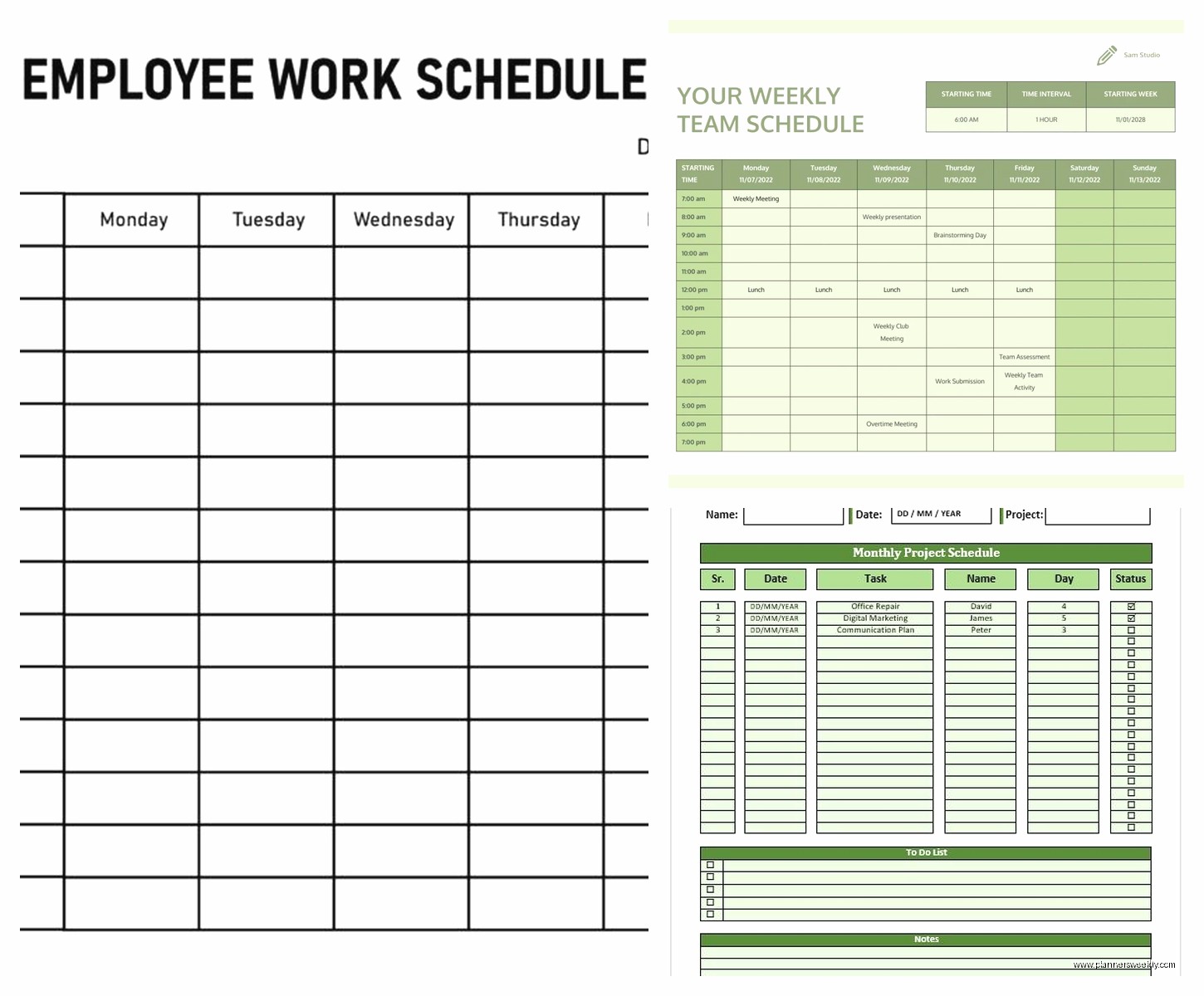
Start with your employee names in the first column. Obvious but I’m saying it anyway. Then across the top you want days of the week or dates, depending on if you’re planning week by week or doing a longer schedule.
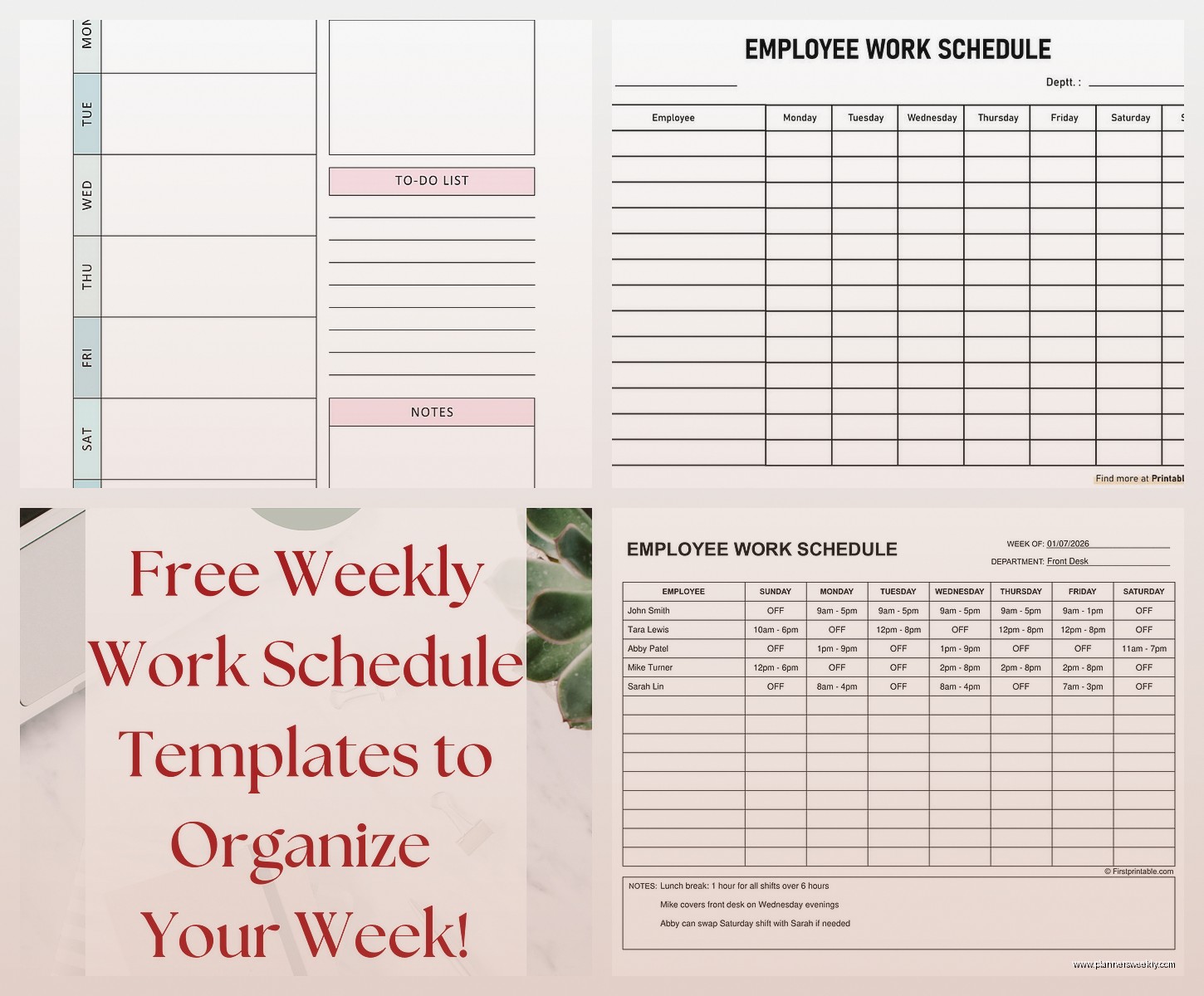
For shift-based scheduling, I like having rows for each employee and columns for each day, then entering shift times in the cells. Like “9am-5pm” or whatever. Some people prefer having morning/afternoon/night as separate rows but I found that got messy fast.
Color Coding That Actually Helps
This is where I got way too into it but also it genuinely helped. I use:
- Blue for regular shifts
- Yellow for training or meetings
- Green for overtime (so I can see it’s approved)
- Red for time off requests
- Gray for unavailable/blocked time
You can do this with conditional formatting or just manually change cell colors. I do it manually because I’m a control freak about these things.
The Mobile Situation
Wait I should mention, none of these work great on mobile for editing. Like you can VIEW them fine on your phone, but actually making schedule changes on a phone screen is annoying. Google Sheets is probably the best for mobile editing but it’s still not ideal.
What I do is make updates on my laptop but keep the Google Sheets app on my phone so I can check the schedule when I’m out. My team does the same thing. If someone needs a schedule change urgently, they text me and I update it when I’m at my computer.
There are actual scheduling apps that are better for mobile but you asked about free templates specifically. Apps like When I Work or Deputy have free tiers but they’re not really templates, they’re whole software systems.
Dealing With Multiple Locations or Departments
Okay so funny story, I was helping a client who has three different locations and we tried using one massive spreadsheet with tabs for each location. Terrible idea. Everyone was getting confused about which tab to look at.
Better solution is separate schedule files (or separate Google Sheets) for each location, but with consistent formatting and naming conventions. So like “Schedule_Location1_Week23” and “Schedule_Location2_Week23”. Then if you need an overview, you can create a master summary sheet that pulls key data from each one.
For departments within one location, tabs work fine. Just name them clearly.
Time Off Request Integration
This was the missing piece for me initially. You make this beautiful schedule and then someone requests time off and you gotta redo everything. What I added to my template is a separate tab called “Time Off Calendar” where everyone can see who’s off when.
It’s just a simple calendar view with names and dates. Before I create next week’s schedule, I check that tab. Sounds obvious but I wasn’t doing it at first and kept accidentally scheduling people who were on vacation.
Some of the fancier templates have this built in already. The Clockify one does, I think. But if yours doesn’t, just add a tab yourself.
Print vs Digital
I’m mostly digital but some of my clients still want paper schedules posted in their break rooms or whatever. If you’re printing, the Excel templates generally format better for printing than Google Sheets in my experience. Google Sheets gets weird with page breaks sometimes.
Pro tip I learned from a restaurant manager I work with: if you’re printing weekly schedules, set your print area to fit exactly one page. Nobody wants to deal with a schedule that’s split across multiple pages. You might have to adjust font sizes or column widths but it’s worth it.
The Backup System You Need
I learned this the hard way when Google Sheets glitched and I thought I lost an entire month of schedules. Always have a backup system. I export my Google Sheets schedule to Excel format at the end of each month and save it to my hard drive. Takes like thirty seconds.
Also use the version history feature in Google Sheets. It’s saved me multiple times when someone accidentally deleted a bunch of stuff. You can restore previous versions from like any point in time. It’s under File > Version History.
Customizing for Your Specific Needs
The templates are starting points, not finished products. I’ve customized mine so much it barely looks like the original anymore. Added columns for certifications (some of my client’s employees need specific certifications for certain shifts), equipment assignments, break times, all kinds of stuff.
Don’t be afraid to just start deleting or adding things. You can’t really break it permanently because you can always download a fresh template and start over. I’ve definitely done that a few times when I messed up formulas beyond repair.
Getting Your Team to Actually Use It
Honestly this was harder than setting up the template itself. People are resistant to new systems. What worked for me was:
- Making sure everyone has edit access (if appropriate) so they feel ownership
- Doing one week where both old and new systems run parallel so there’s no panic
- Having one person be the “champion” who helps others figure it out
- Keeping it simple at first, adding fancy features later once everyone’s comfortable
I also made a super short video tutorial walking through how to read the schedule and how to request changes. Just screen recorded myself clicking through it while talking. Sent it in the team Slack and that answered like 90% of questions.
Common Mistakes I Made So You Don’t Have To
Making the schedule too detailed at first. I had columns for everything imaginable and it was overwhelming. Start simple.
Not locking certain cells or ranges. Someone accidentally deleted all the formulas in my total hours column and I didn’t notice for two weeks. In Google Sheets you can protect ranges under Data > Protected Sheets and Ranges.
Forgetting to account for shift overlap. If you need coverage from 8am to 8pm and you schedule someone 8am-4pm and someone else 4pm-8pm, you actually have a gap if the second person is even slightly late. Build in overlap.
Not standardizing how people enter time. Is it 9am or 9:00 AM or 0900? Pick one format and stick with it or your formulas won’t work right.
When a Template Isn’t Enough
Real talk, if you’re scheduling more than like 25 people or dealing with really complex shift patterns or compliance requirements, you might need actual scheduling software. The free templates work great for small teams and straightforward scheduling but they have limits.
I have one client who tried to use a template for their 50-person warehouse and it was just too much. They ended up going with actual scheduling software. But for my team of five and most of my small business clients, templates work perfectly fine.
The nice thing is you can always start with a free template and upgrade later if you need to. You’re not locked into anything. I’ve been using my Google Sheets template for almost a year now and haven’t needed to upgrade yet, so don’t feel like templates are just temporary solutions.
Anyway that’s basically everything I learned from way too many hours of testing schedule templates. The Google Sheets employee shift schedule is still my top recommendation if you just want something that works and you can start using immediately. But honestly any of these will work fine if you customize it for your specific situation and actually commit to using it consistently.
