Digital Productivity, Online planners, Planners
Google Sheets Weekly Schedule Template: Free Guide
Mar
Okay so I’ve been making Google Sheets weekly schedules for like three years now and honestly once you figure out the basic setup it’s so much better than those pre-made templates everyone downloads and then immediately hates.
Starting With The Actual Blank Sheet
First thing – just open a completely blank Google Sheet. I know there’s that template gallery thing but trust me, starting from scratch takes maybe ten minutes and then you actually understand how it works when you need to change stuff later.
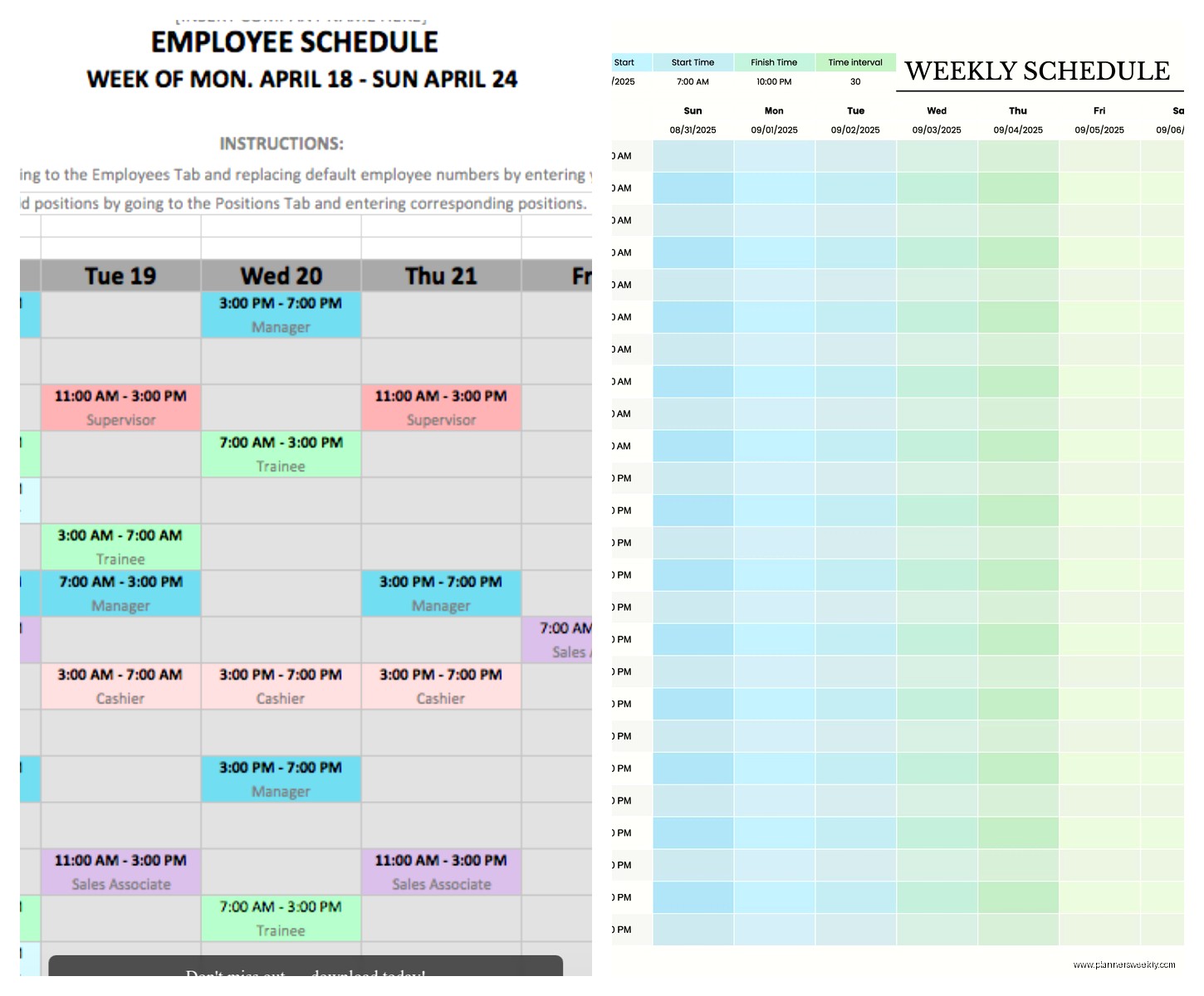
So you’re gonna want to make your first row your days of the week. I put mine starting in Column B because Column A is where I list out the time slots. Like this: A1 stays blank (or I type “Time” but whatever), then B1 is Monday, C1 is Tuesday, and you get it.
The Time Column Setup That Actually Makes Sense
Here’s where people mess up – they try to get fancy with the times right away. Just type them in manually first. I do 30-minute increments starting at 7:00 AM through 9:00 PM because that covers my entire workday plus evening stuff. So A2 is “7:00 AM”, A3 is “7:30 AM” and so on.
Oh and another thing – don’t use the actual time format in Google Sheets at first because it does this weird thing where it converts everything and then your schedule looks like “07:00:00” which is just annoying to read. Just type it as text with the quotation mark trick (type ‘7:00 AM with the apostrophe first) or format the cells as Plain Text before you start.
Making It Not Look Like Garbage
Once you’ve got your basic grid, you gotta make it actually usable. Select your header row (the one with Monday through Sunday) and make it bold. I also freeze it so when you scroll down it stays visible – go to View > Freeze > 1 row.
Then freeze Column A too so your times stay visible when you scroll sideways. View > Freeze > 1 column. Wait actually you need to do both at once – View > Freeze > Up to row 1 AND Up to column A. There’s an option that lets you do both.
I make my header row a light blue usually because my dog jumped on my keyboard once and somehow made it purple and I lived with that for like two months before changing it. The color doesn’t matter but having SOME background color helps your brain process where you are in the schedule.
Cell Sizing Because Default Sizes Are Terrible
The default column width is gonna be too narrow for actually writing tasks. I resize all my day columns to like 150-200 pixels. You can do this by clicking the column letter and dragging the edge, or right-click > Resize column and type the exact number.
Row height I usually leave alone unless I’m putting a lot of text in cells, then I’ll make them taller. You can set it to “Fit to data” which auto-adjusts but sometimes that makes things look uneven.
The Smart Way To Color Code
Okay so funny story – I used to manually color every single cell for different task types and it took forever. Then I discovered conditional formatting and it changed everything.
Here’s what I do now: I have a system where if I type certain keywords, the cell automatically colors itself. Like if I type anything with “meeting” in it, it turns light yellow. “Focus work” turns light green. “Admin” turns light gray.
To set this up go to Format > Conditional formatting. Then under “Format rules” choose “Text contains” and type your keyword. Pick your color. Click Done. Add another rule for each category you want.
This is gonna sound weird but I have like twelve different conditional formatting rules on my schedule template and it sounds like overkill but it means I can just type what I’m doing and it instantly organizes itself visually.
The Categories I Actually Use
- Meetings (light yellow) – anything with other people
- Deep work (light green) – focused project time
- Admin (light gray) – email, invoicing, boring stuff
- Content creation (light blue) – writing, filming, whatever
- Personal (light orange) – gym, appointments, etc
- Buffer time (white) – I literally type “buffer” in slots I want to keep open
You don’t need all these. My client Sarah uses literally three colors and her schedule works fine.
Adding Time Duration Tracking
Wait I forgot to mention – if you want to track how much time you’re spending on different things, you can add a column on the right side that counts cells.
So like in column I (after Sunday), I’ll put “Week Total: Meetings” and then use COUNTIF to count how many cells contain “meeting” across the whole week. The formula looks like: =COUNTIF(B2:H50,”*meeting*”)*0.5
The *0.5 at the end is because each row is 30 minutes, so it converts the count to hours. If you’re using 60-minute blocks, you don’t need that part.
This is super helpful for seeing if you’re spending way too much time in meetings (you probably are, everyone is).
Alternative: Just Use Background Colors And COUNTIF Colors
Actually if you’re not into the text-based conditional formatting, you can manually color cells and then count those instead. The formula is more complicated though – you need to use a script or a workaround because Google Sheets doesn’t have a built-in “count by color” function.
Honestly just use the text method, it’s way easier.
Recurring Tasks Without Losing Your Mind
For stuff that happens every week at the same time – like if you have a Monday morning team meeting forever – I make a separate “template” tab.
So you have your main weekly schedule as Sheet1, then you create Sheet2 and call it “Base Template” or whatever. Put all your recurring stuff in there. Then each week you just duplicate that tab (right-click > Duplicate) and rename it with the week date.
I name mine like “Week of Jan 15” so I can keep multiple weeks in one file and reference back if I need to remember when something happened.
The Copy-Paste Method If You’re Lazy
Or you can just select all your recurring items, copy them, and paste into next week’s schedule. I do this when I’m rushing and don’t wanna deal with duplicating tabs.
Pro tip: use Paste Special > Values only (Ctrl+Shift+V) so you don’t mess up your formatting if you’ve customized stuff.
Mobile Access That Doesn’t Suck
The Google Sheets app is actually pretty good for viewing your schedule on your phone. I have it open constantly throughout the day to check what’s next.
But editing on mobile is annoying with all the small cells, so what I do is I make a separate “Quick Add” section at the bottom of my schedule. Just a simple two-column list where Column 1 is the task and Column 2 is when it needs to go. Then when I’m back at my computer I move stuff to the proper time slots.
This way I can capture tasks while I’m out without trying to tap into tiny cells on my phone screen.
Sharing With Other People
If you need to share your schedule with a team or family, use the Share button and set permissions carefully. “Can view” if they just need to see when you’re busy. “Can edit” if they need to add stuff to your calendar.
I have a shared family schedule with my partner and we both have edit access. The trick is we use different text colors for our tasks – I’m black text, he’s dark blue text. That way we can see at a glance who’s doing what.
You can also use data validation to create dropdown menus if multiple people are adding tasks. Like a dropdown that says “Emma’s task” or “Partner’s task” so there’s no confusion.
The Comment Feature Nobody Uses But Should
Right-click any cell and you can add a comment. I use this for adding context to tasks without cluttering the cell itself. Like if I have “Client meeting” in the cell, I’ll comment with the Zoom link and agenda items.
My client who works in education uses comments to add student names and topics to her tutoring sessions. Works great.
Formulas That Are Actually Useful
Most people don’t need fancy formulas in a weekly schedule but here are the ones I actually use:
For counting total scheduled hours: =COUNTA(B2:H50)*0.5 (this counts non-empty cells and converts to hours if you’re using 30-min blocks)
For highlighting the current day: You can use conditional formatting with a formula that checks if the column header matches TODAY(). The formula is like =B$1=TEXT(TODAY(),”dddd”) but honestly this is more effort than it’s worth unless you’re really into automation.
I mostly just manually look at what day it is because I’m not that fancy.
Print Layout Settings
If you print your schedule (I do sometimes when I want it on my desk), you gotta adjust the print settings. File > Print, then:
- Set to Landscape orientation
- Fit to width: 1 page
- Paper size: Letter or A4
- Margins: Narrow
- Show gridlines (I like them visible when printed)
Oh and remove the cell color backgrounds if you don’t wanna waste ink. Just temporarily change them all to white before printing.
The PDF Export Trick
Instead of printing, I often export as PDF and keep it in my files. Same print settings but choose “Save as PDF” instead of selecting a printer. Then I have a digital copy that looks clean for sharing with clients when they ask about my availability.
Templates I’ve Made That Work
Over time I’ve created a few different versions for different needs:
My standard work schedule has 30-minute blocks from 7 AM to 9 PM. My weekend template only goes 9 AM to 6 PM because I’m not tracking stuff as closely.
I made one for a client who works shifts – it has three columns per day (morning/afternoon/night shift) instead of time blocks, and she just fills in which shift she’s working.
Another variation I use during busy seasons: I add a priority column next to each day where I mark tasks as High/Medium/Low priority using conditional formatting (High = red, Medium = yellow, Low = green).
Common Mistakes I See People Make
Making the time blocks too small. 15-minute increments sounds precise but it’s actually just stressful and makes your schedule look cluttered. Stick with 30 or 60 minutes.
Over-scheduling every single minute. Leave gaps. I try to keep at least 20% of my week unscheduled for unexpected stuff that comes up.
Not updating it. A schedule only works if you actually maintain it. I spend 5 minutes every morning adjusting the day based on what actually needs to happen versus what I planned yesterday.
Using too many colors. More than 5-6 categories and your brain can’t process the color coding anymore. Keep it simple.
Advanced Features If You Want Them
You can link cells to Google Calendar using add-ons but honestly I tried this and it was more complicated than just keeping them separate. The sync was always weird and stuff would duplicate.
Data validation dropdowns are cool if you have standard task types – you can create a dropdown menu in each cell with preset options like “Meeting, Focus Work, Break, Admin” and just select instead of typing. Saves time if you’re filling out the whole week at once.
Protected ranges let you lock certain cells – useful if you’re sharing with people and don’t want them accidentally deleting your time column or headers. Right-click > Protect range.
My Actual Weekly Workflow
Sunday evening: I duplicate last week’s template tab, clear out the old tasks (keep the recurring ones), and rough out the major commitments for the week.
Each morning: I look at the day column and adjust based on reality. Move stuff around if priorities changed.
Throughout the day: I mark tasks as done by either changing the background to dark gray or just deleting them. I like deleting because then I can see how much open time I created.
Friday afternoon: I review what actually happened versus what I planned. This is where those week totals come in handy – I can see if I spent 12 hours in meetings when I only planned for 6.
The whole system takes maybe 15-20 minutes per week to maintain once it’s set up and honestly it’s kept me way more organized than any app I’ve tried because I built it exactly how my brain works.