Digital Productivity, Online planners, Planners
Schedule Maker Template Guide: Free Downloads & Tutorials
Apr
Okay so I spent like three weeks testing schedule maker templates because honestly my paper planner system was becoming a mess and I needed something I could actually share with clients without rewriting everything by hand.
Google Sheets Templates Are Weirdly the Best Starting Point
I know everyone wants the fancy apps but hear me out. Google Sheets has this template gallery that nobody talks about and there’s literally a “Schedule” section with like 15 free options. I tested the “Daily Schedule” one first and it’s super basic but that’s actually good when you’re starting out.
The thing with Google Sheets templates is you can duplicate them endlessly. So I made one master template, color-coded it for different client types (blue for corporate, green for creative freelancers, yellow for students), and now I just copy it whenever I need a new week. Takes maybe 30 seconds.
What I actually do: Open the template, File > Make a Copy, rename it with the date range like “May12-May18” so I can find it later. The search function in Google Drive is honestly better than any planner app I’ve tried.
The Templates I Actually Use
There’s one called “Weekly Schedule” by someone named Template.net that shows up in the gallery. It has time blocks from 6am to 10pm which is way more realistic than those templates that stop at 5pm like anyone actually stops working at 5pm anymore. You can add it to your Drive and then just… keep copying it forever. Free.
Oh and another thing, the “Hourly Schedule” template is better if you do client work because it breaks things into 30-minute chunks. I color-code mine with conditional formatting which sounds complicated but it’s literally just: select cells, Format > Conditional Formatting, pick a color when it contains certain text. I use “client” = blue, “admin” = gray, “break” = green because I gotta visually see when I’m actually resting.
Canva Has Like a Thousand Options But Most Are Too Pretty
So after the Google Sheets phase I went down a Canva rabbit hole. They have this whole section of schedule templates and they’re all gorgeous but here’s the problem: they’re designed to look good, not to actually function.
I downloaded probably 20 different ones. The “Daily Planner Aesthetic” one that everyone pins on Pinterest? Cute but the time slots are too small to actually write in if you print it. The “Weekly Schedule Minimalist” one worked better because it has bigger boxes.
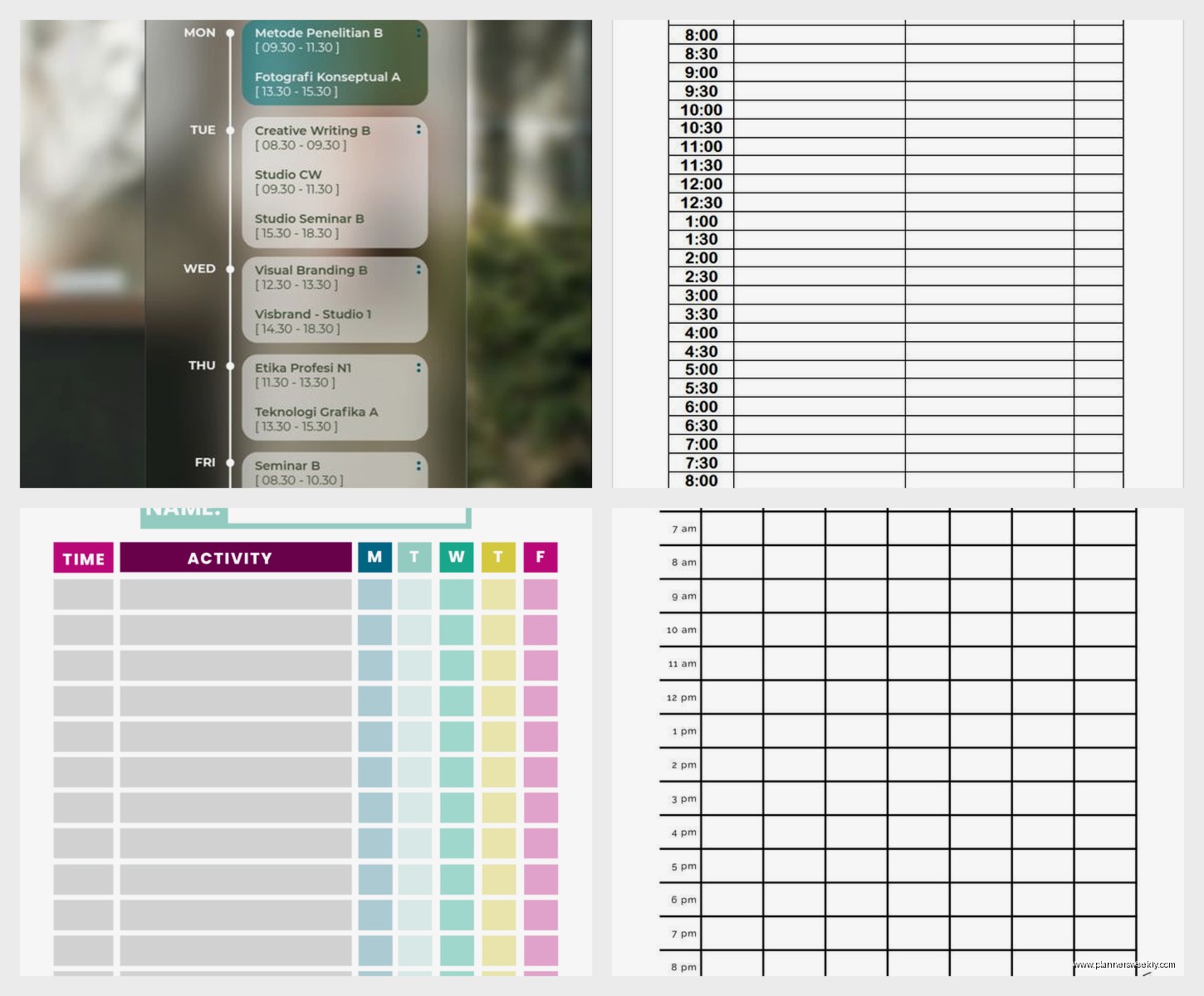
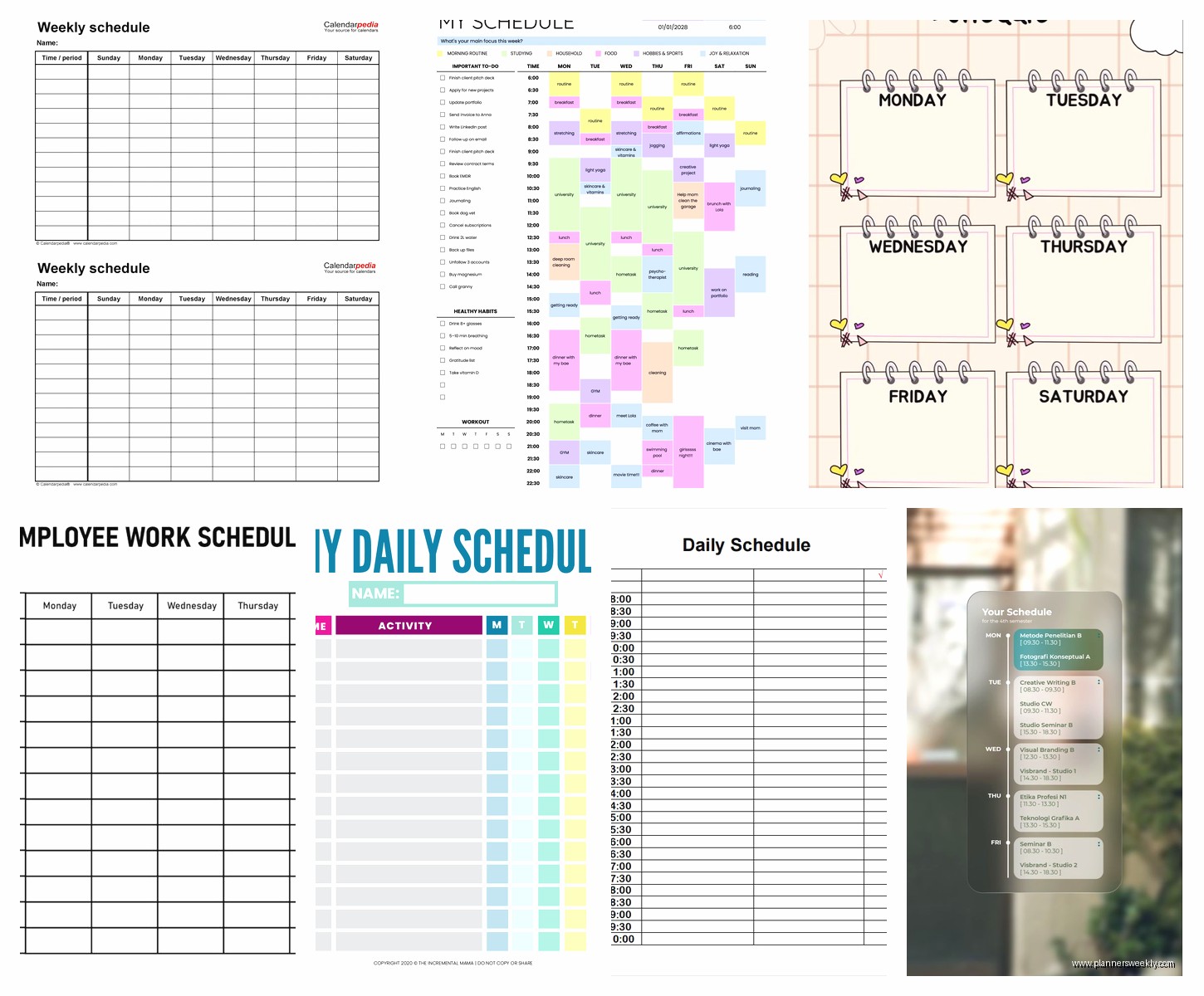
What actually worked: Search “blank schedule template” instead of just “schedule template” in Canva. The blank ones give you the structure without all the decorative stuff that eats up space. There’s one called “Simple Weekly Planner” that’s just a grid with days across the top and hours down the side. That’s it. I added my own headers and printed like 50 copies.
The pro version of Canva lets you save brand kits which means you can set your own colors once and apply them to any template. Worth it if you’re making multiple schedules for different purposes. I have one color scheme for personal stuff and another for client-facing schedules. Makes everything look more professional without actually doing more work.
Printing vs Digital Here
Okay so funny story, I printed a bunch of Canva templates thinking I’d go back to paper planning and then my cat knocked over my coffee on the entire stack. Lost two weeks of planning. Now I save them as PDFs and use the markup tools on my iPad instead.
If you do print though, the letter size templates work better than A4 for American printers obviously, but Canva defaults to A4 sometimes? Check that before you print 30 copies like I did the first time.
Microsoft Excel Templates If You’re Already Paying For It
The Microsoft template library is actually really good and nobody uses it. If you have Office 365 or whatever they’re calling it now, open Excel and search templates for “schedule.” There’s a “Family Weekly Schedule” that I use for personal stuff even though I don’t have a family because it has sections for different people/categories.
The advantage with Excel over Google Sheets is the formatting stays put better. Like when you copy a Google Sheet sometimes the column widths get weird or the colors don’t transfer right. Excel templates maintain their structure better when you duplicate them.
There’s a “Student Daily Schedule” template that’s honestly perfect for anyone doing time-blocking. It has 15-minute increments from 7am to 9pm. I use it for deep work days when I need to account for every chunk of time. Color-code it the same way as Google Sheets: select cells, Conditional Formatting, Highlight Cell Rules, Text that Contains.
The Dropdown Menu Trick
Wait I forgot to mention this earlier but it works in both Excel and Google Sheets. You can add dropdown menus to your schedule templates so instead of typing “client meeting” every time, you just select it from a list.
In Excel: Select the cells where you want the dropdown, Data tab > Data Validation > List, then type your options separated by commas. I use: Meeting, Focus Work, Admin, Break, Email, Client Call.
In Google Sheets: Select cells, Data > Data Validation, Criteria = List of Items, enter your options. Same deal.
This is gonna sound weird but this single feature saved me probably 10 hours last month because I wasn’t retyping the same activities over and over. Plus it makes it easier to see patterns when everything’s labeled consistently.
Notion Templates Are Overhyped But Some Work
Everyone on productivity YouTube is obsessed with Notion templates and honestly most of them are way too complicated. I tested like 30 different schedule templates in Notion and most required too much setup or had databases linked to other databases linked to more databases.
The simple ones work though. There’s a free template called “Weekly Agenda” in Notion’s template gallery that’s just a table with days and time slots. You can duplicate the page each week. The advantage is everything lives in one place if you’re already using Notion for notes or projects.
I use the “Daily Schedule Template” by Marie Poulin (she has a free template library) for days when I have a lot of meetings. It has a timeline view that actually shows your day visually which helps with time awareness. You can add it to your workspace and customize it.
My client canceled last week so I spent like an hour just comparing Notion schedule templates and the main difference is whether they use databases or just simple tables. If you’re new to Notion, start with table-based templates. Database ones are powerful but have a learning curve.
The Mobile Situation
Notion on mobile is kinda clunky for schedule editing though. Like it works but if you’re quickly adding something between meetings, it’s not as fast as just opening a Google Sheet. Just something to consider if you’re on your phone a lot.
Printable PDF Templates From Random Blogs
There are so many blogs that offer free printable schedule templates and the quality is all over the place. I’ve downloaded from probably 50 different sites testing this stuff.
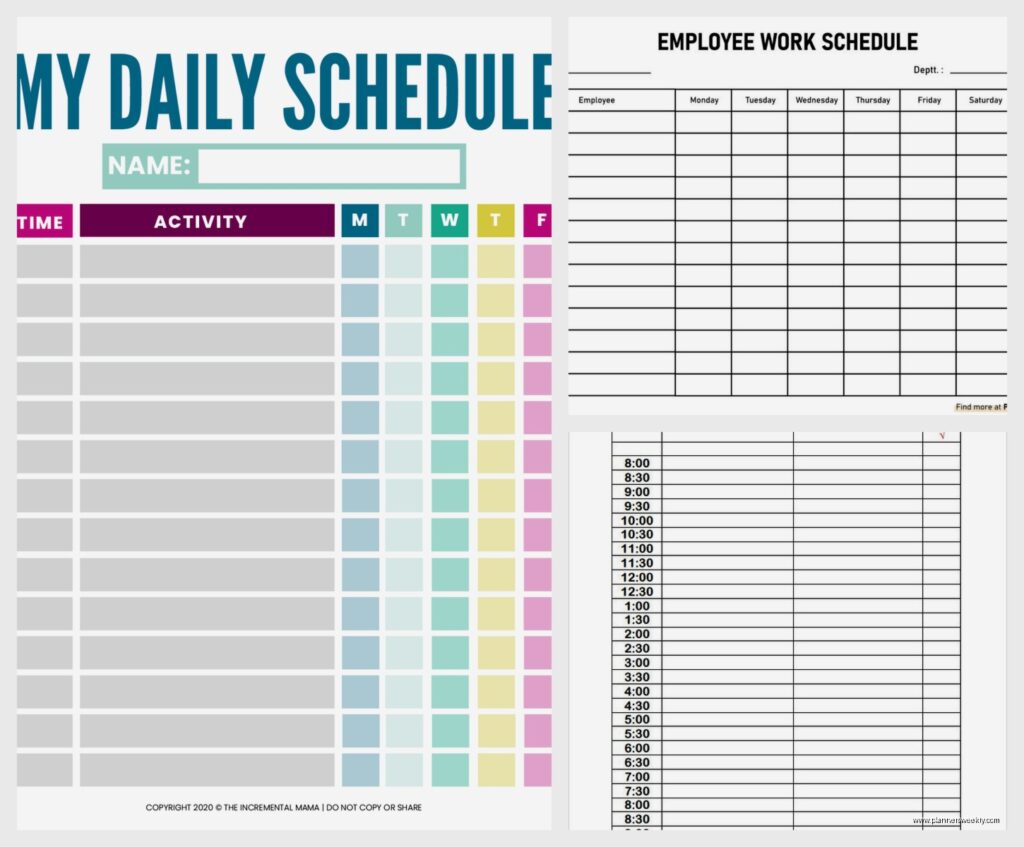
The good ones: Scattered Squirrel has clean minimalist templates that actually print well. The “Hourly Daily Planner” is my go-to for intensive planning days. 101 Planners has a huge variety including some with habit trackers built in.
The problem with PDF templates is you gotta print them or use a PDF editor to fill them in digitally. I use PDF Expert on my iPad which was like $80 but worth it because I can write on PDFs with my Apple Pencil. There are free options like Adobe Fill & Sign but they’re more limited.
What I actually do with PDFs: Download a bunch, test them for a week each, keep the 3-4 that actually work for different purposes. I have one for meeting-heavy days, one for deep work days, one for teaching days when I need to track multiple sessions.
App-Based Schedule Makers Worth Mentioning
Okay so this isn’t exactly templates but if you want something more dynamic than static templates, these apps have built-in schedule makers:
Structured app (iOS only unfortunately) has a daily schedule interface where you drag and drop time blocks. It’s not customizable like a template but it’s fast. Like really fast for just planning your day in 30 seconds.
Sunsama has weekly planning templates built in. It’s pricey at $20/month but if you’re already using it for task management, the schedule feature is solid. You can save your weekly structure as a template and apply it each week.
Sorted³ (also iOS only, sorry Android people) does this automatic scheduling thing where you give it tasks and it fits them into your calendar. Not exactly a template but serves the same purpose.
I keep going back to Google Sheets though because it’s free and works on everything. Like I was watching The Bear last night on my laptop and had my schedule open in another tab and could just quickly move things around between episodes.
How I Actually Use These Daily
My system now: Google Sheets for weekly overview, Canva PDF for daily detail if I need it, Notion for monthly planning. The key is not trying to use one template for everything.
Weekly template lives in Google Sheets. I have a master template with this structure: Days across the top (Monday through Sunday), hours down the left (6am to 10pm in 1-hour blocks), color-coded by activity type. Every Sunday I duplicate last week’s template, clear the specific tasks but keep the recurring stuff, adjust for the new week.
Daily template is a Canva PDF that I only use on heavy meeting days or when I’m time-blocking deep work. It has 30-minute increments and space for notes. I don’t use it every day because that’s too much overhead.
Monthly template in Notion is just a calendar database where I can see the big picture. Helps me notice patterns like “oh I’m scheduling too many meetings on Tuesdays” or whatever.
The Sharing Thing
If you need to share schedules with other people, Google Sheets wins by a mile. You can literally just share the link and set permissions. Canva lets you share but the other person needs a Canva account. Notion same deal. Excel you gotta email the file or use OneDrive.
I share Google Sheet schedules with clients all the time. Make a copy of my template, fill in our meeting times and their deadlines, share with “can view” permissions so they can see it but not mess it up. Works perfectly.
My Actual Template Setup Process
When I make a new template from scratch here’s what I do:
Start with the time range I actually use. For me that’s 6am to 10pm because I’m an early riser and sometimes work at night. Don’t use someone else’s time range if it doesn’t match your life.
Decide on time increments. 1-hour blocks for general planning, 30-minute for detailed days, 15-minute only if you’re doing something really intensive like tracking billable hours.
Add color coding from the start. I waste so much time on templates that I have to go back and add colors to later. Just build it in: meetings one color, focus work another, breaks another, personal stuff another.
Include a notes section somewhere. Even if it’s just a box at the bottom. You’re gonna need to write random stuff down.
Test it for three days before deciding it works. I’ve made so many templates that seemed perfect and then day two I realized the spacing was wrong or I needed an extra column or whatever.
Where to Find More Templates
Besides the places I mentioned, Template.net has a massive collection but you gotta sort through a lot of meh ones to find good stuff. Vertex42 is good for Excel templates specifically. Etsy has paid templates if you want something really specific or aesthetic, usually $3-8.
The subreddit r/productivity shares template links sometimes. Pinterest obviously but you gotta wade through a lot of the same templates reposted 500 times.
Honestly though you probably need like 2-3 good templates max. I have a weekly one, a daily one, and a monthly one. That covers everything. More than that and you’re spending more time managing templates than actually getting stuff done.
The best template is the one you’ll actually use consistently which sounds like generic advice but it’s true. I’ve tried so many elaborate systems and always come back to a simple Google Sheets grid because it loads fast and I can update it in 10 seconds.