
Digital Productivity, Online planners, Planners
Weekly Timetable Maker: Best Free Online Tools
Apr
Okay so I just spent the last three weeks testing basically every free weekly timetable maker out there because honestly my current system was a mess and I needed something better for planning my content calendar. Here’s what actually works.
Canva’s Free Timetable Templates
Starting with Canva because that’s where I went first. They’ve got like hundreds of weekly timetable templates and the free version is honestly pretty solid. You don’t need the Pro subscription unless you want their premium stock photos which… for a timetable, you really don’t.
The drag-and-drop interface is super intuitive. I was literally watching The Bear while setting up my first template and still managed to create something decent. You can customize colors, fonts, add little icons. They have templates for students, work schedules, fitness plans, meal prep, all that stuff.
What I actually use it for: My weekly blog posting schedule and client session planning. I made one template and just duplicate it every week, change the dates, done. Takes maybe five minutes.
The annoying parts though:
- You need an account, which, fine, but it’s one more login to remember
- Download options on the free plan are limited – PNG and JPG mostly, PDF needs Pro
- Sometimes the interface lags if you have too many elements on the page
- The mobile app is kinda clunky for detailed editing
But honestly for something visual that you wanna share on Instagram or print out and stick on your wall, Canva wins. I printed mine at Staples and it looks way more professional than it has any right to be.
Google Sheets (Yes Really)
Okay so this is gonna sound boring but hear me out. Google Sheets is probably the most flexible option and it’s completely free. I know, I know, spreadsheets aren’t sexy, but they’re so customizable.
I actually learned this from a teacher friend who makes her entire lesson plan in Sheets. You can create a basic weekly grid in like two minutes, color-code everything, add formulas if you’re into that, share it with other people who can edit in real-time.
How I Set Mine Up
Seven columns for days of the week, rows for time blocks. Merge cells where you need longer blocks. Use conditional formatting to auto-color certain activities. Done.
The best part is you can access it literally anywhere – phone, tablet, computer, even someone else’s computer if you’re desperate. Everything saves automatically to the cloud so you’re not gonna lose your schedule because your laptop died.
What works really well:
- Collaboration features if you share a schedule with roommates or family
- Can link to other documents or websites in cells
- Easy to copy previous weeks and adjust
- Export to PDF or Excel if needed
- Formulas can calculate total hours spent on activities
The downside is it’s not pretty unless you put in effort. Like, a lot of effort. My first attempt looked like something from 1997. But functionality over aesthetics, right?
Notion’s Weekly Template
Oh and another thing – Notion has completely free weekly planning templates and if you’re already in the Notion ecosystem this is a no-brainer. I switched to Notion last year for my business stuff and their calendar/timeline views are actually perfect for weekly planning.
They have a template gallery with pre-made weekly planners you can just duplicate into your workspace. Some are super minimal, some are elaborate with habit trackers and meal planning and mood tracking all built in.
What’s cool about Notion is the database functionality. You can create a schedule that filters tasks by week, shows everything in a timeline view, then toggle to a table view or calendar view. It’s the same information, just displayed differently depending on what you need.
I use it for tracking my YouTube filming schedule because I can attach notes, scripts, thumbnail ideas all to each time block. Everything’s in one place.
But here’s the learning curve issue:
Notion has a steep learning curve if you’ve never used it. My sister tried it and gave up after twenty minutes because there are too many options. It’s powerful but overwhelming at first. Also the mobile app can be slow to load, which is annoying when you just wanna quickly check what’s next on your schedule.
TimeTable.com (Specifically for Students)
Okay wait I forgot to mention TimeTable.com which is specifically designed for school schedules. If you’re a student or teacher, this is actually the best option I found.
Super simple interface – you just enter your classes, the times, which days they occur, and it generates a color-coded timetable. You can print it, download it as an image, or save it as PDF. The free version has everything you need.
My client’s daughter used this for her college schedule and said it was way better than the official university timetable system, which apparently looks like it was designed in the early 2000s and never updated.
It’s not flexible for non-school stuff though. Like I tried to use it for my work schedule and it just… doesn’t work that way. The structure assumes you have recurring classes, not variable appointments and tasks.
Clockify’s Schedule Planner
This is gonna sound weird but Clockify, which is primarily a time tracking tool, has a really good free schedule planner feature. I stumbled onto this because I use Clockify to track billable hours with clients.
You can create a visual weekly schedule, block out time for specific projects or activities, and then actually track if you stuck to that schedule. It’s like planning and accountability in one tool.
The interface is clean and professional-looking. You can color-code different types of activities, set recurring blocks, and the calendar view shows everything at a glance.
Why I like it for work schedules:
- Integration with time tracking means you can plan AND measure productivity
- Team features on free plan let you see other people’s schedules
- Reports show where your time actually goes vs where you planned it to go
- Browser extension and mobile app both work well
The downside is it’s maybe too focused on productivity tracking? Like if you just want a simple weekly timetable for meal planning or exercise, this is overkill. But for work stuff, it’s genuinely useful.
Vertex42’s Excel Templates
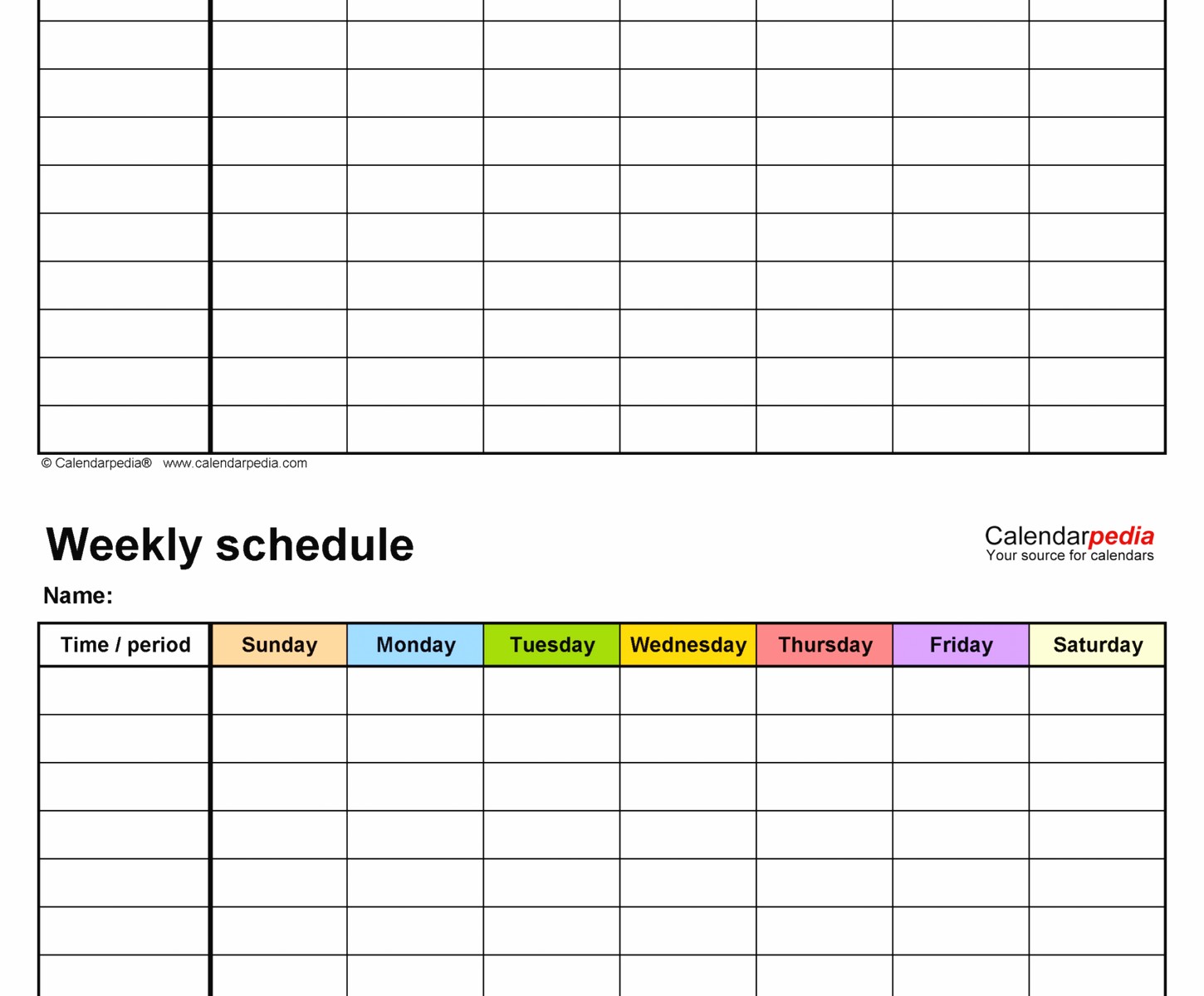
So Vertex42 has these free downloadable Excel and Google Sheets templates that are honestly really well-designed. I found them when searching for “professional weekly schedule template” at like midnight because I couldn’t sleep.
They have different styles – hourly schedules, block schedules, weekly planners with notes sections, family schedules with multiple people, all sorts of variations. You download the file and customize it however you want.
What I appreciate is they’re actually thoughtfully designed. Not just basic grids but templates with smart formatting, print-friendly layouts, instructions included.
I use their weekly schedule with time slots for planning my podcast recording sessions because it breaks the day into 30-minute increments which is perfect for that level of detail.
The obvious limitation is you need Excel or Google Sheets to use them, and they’re static files not cloud-based tools. So if you edit the Excel version on your computer, that’s not automatically synced anywhere else unless you manually save it to Dropbox or Google Drive or whatever.
Microsoft To Do’s “My Day” Feature
Okay this one’s a bit different but Microsoft To Do is completely free and has this “My Day” planning feature that works really well for weekly scheduling if you’re more task-oriented than time-block oriented.
You can create lists for each day of the week, drag tasks between days, set reminders, add notes and subtasks. The interface is super clean and it syncs across all devices.
I use this alongside my visual timetables because sometimes I need to see tasks in list format rather than time blocks. Like Mondays I have “record podcast intro” and “edit blog post” but they don’t need specific time slots, just need to happen that day.
It integrates with Outlook calendar too if you use that, so your appointments and tasks are in one ecosystem.
When to Use Which Tool
Okay so after testing all these here’s what I actually recommend based on what you need:
If you want something visual and shareable: Canva. The templates look good, easy to customize, perfect for printing or posting.
If you need maximum flexibility and collaboration: Google Sheets. Not pretty but incredibly functional and everyone knows how to use spreadsheets.
If you’re already using an all-in-one productivity system: Notion. Steep learning curve but powerful once you get it.
If you’re a student with a class schedule: TimeTable.com, hands down. It’s literally made for that exact purpose.
If you want to track actual time spent vs planned: Clockify. The accountability aspect is really helpful.
If you prefer working offline with downloaded templates: Vertex42’s Excel templates are solid.
If you think in tasks not time blocks: Microsoft To Do works better than traditional timetables.
My Actual Current System
Honestly I use a combination because no single tool does everything perfectly. My weekly timetable lives in Google Sheets because I can access it anywhere and share it with my assistant. But I also have a Canva version that I print each week and stick on my desk because somehow seeing it physically helps me stick to it better.
Then I use Clockify for actually tracking whether I’m following the schedule, which… let’s just say I’m better some weeks than others. Last week my cat knocked over my coffee onto my planner and I spent an hour cleaning instead of doing the client call prep I had scheduled, so you know, life happens.
The task-based stuff goes in Microsoft To Do because I like checking things off and that satisfying little ding sound.
Oh and another thing – whatever tool you pick, the key is actually using it consistently for at least two weeks before deciding if it works. I’ve switched systems so many times because I tried something for three days, it felt weird, moved to something else. That’s just gonna keep you in this cycle of never settling on anything.
Pick one, commit to it for a couple weeks, adjust as needed. None of these tools are perfect but they’re all functional enough to actually help you organize your week if you stick with them.
