
Digital Productivity, Online planners, Planners
Resource Capacity Planning Template: Excel & Free Tools
Mar
Okay so I just spent like three weeks testing different resource capacity planning templates because one of my coaching clients asked me about this and I realized I had NO good answer, which bugged me.
The Excel Template That Actually Works
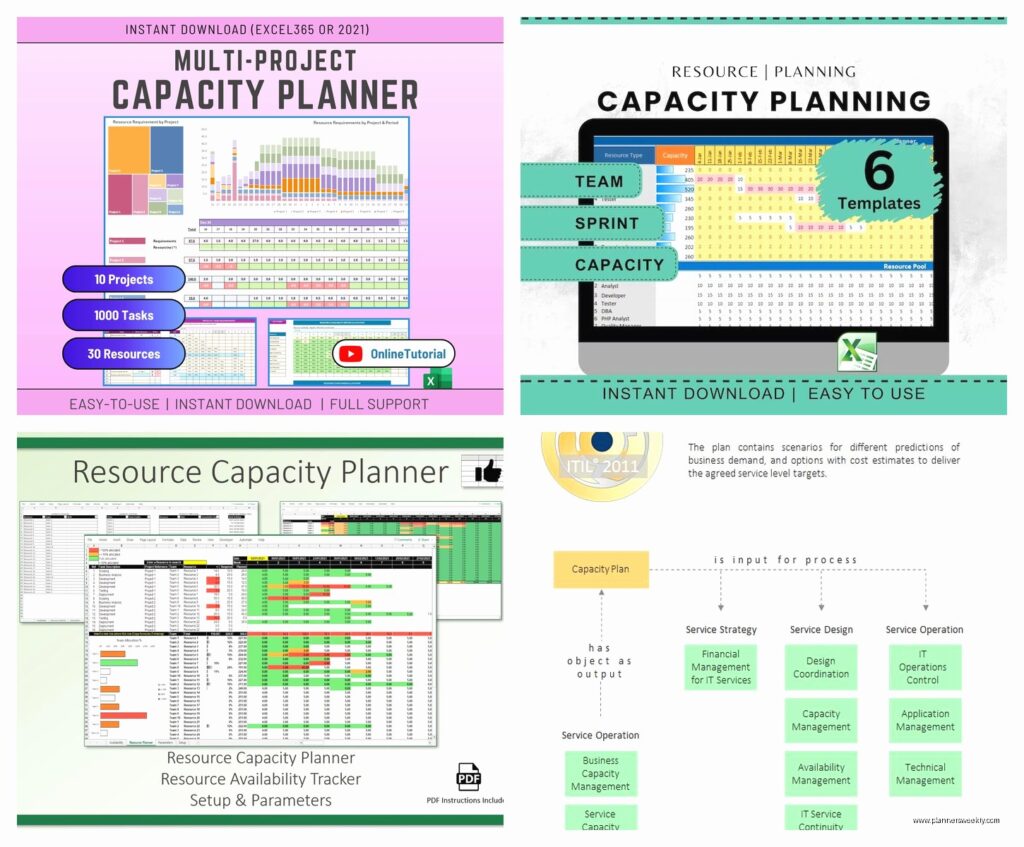
So here’s the deal with resource capacity planning templates in Excel – most of them are either stupidly complicated or so basic they’re useless. I downloaded probably fifteen different ones and the one I keep coming back to is honestly just a modified version of Microsoft’s own template, but hear me out.
You want to start with the basic Project Resource Planning template from Excel’s template library. It’s free, it’s already formatted decently, and you can actually customize it without wanting to throw your laptop across the room. The thing I like about it is that it breaks down resources by hours available versus hours allocated, which sounds obvious but you’d be surprised how many templates skip this.
What I did was add a few columns that the original doesn’t have. You’re gonna want to track:
- Actual capacity (accounting for meetings, admin time, that stuff)
- Current allocation percentage
- Buffer time (this is crucial and nobody talks about it)
- Skill level or certification status if that matters for your team
The buffer time thing – I learned this the hard way when I was managing a team of writers and kept allocating people at 100% capacity and then someone would get sick or a project would run over and everything would fall apart. Now I plan for like 85% max allocation and life is so much better.
Google Sheets Version Because Sometimes You Need Cloud
Wait I forgot to mention – if you need something cloud-based that multiple people can access, Google Sheets is honestly better than Excel for this. I know, I know, Excel people are gonna come for me but listen.
I made a Google Sheets version last month because I had a client who needed their whole leadership team to see resource allocation in real-time. The conditional formatting in Google Sheets is actually easier to set up for this kind of thing. You can make cells turn red when someone’s over-allocated, yellow when they’re getting close to capacity, green when they’ve got availability.
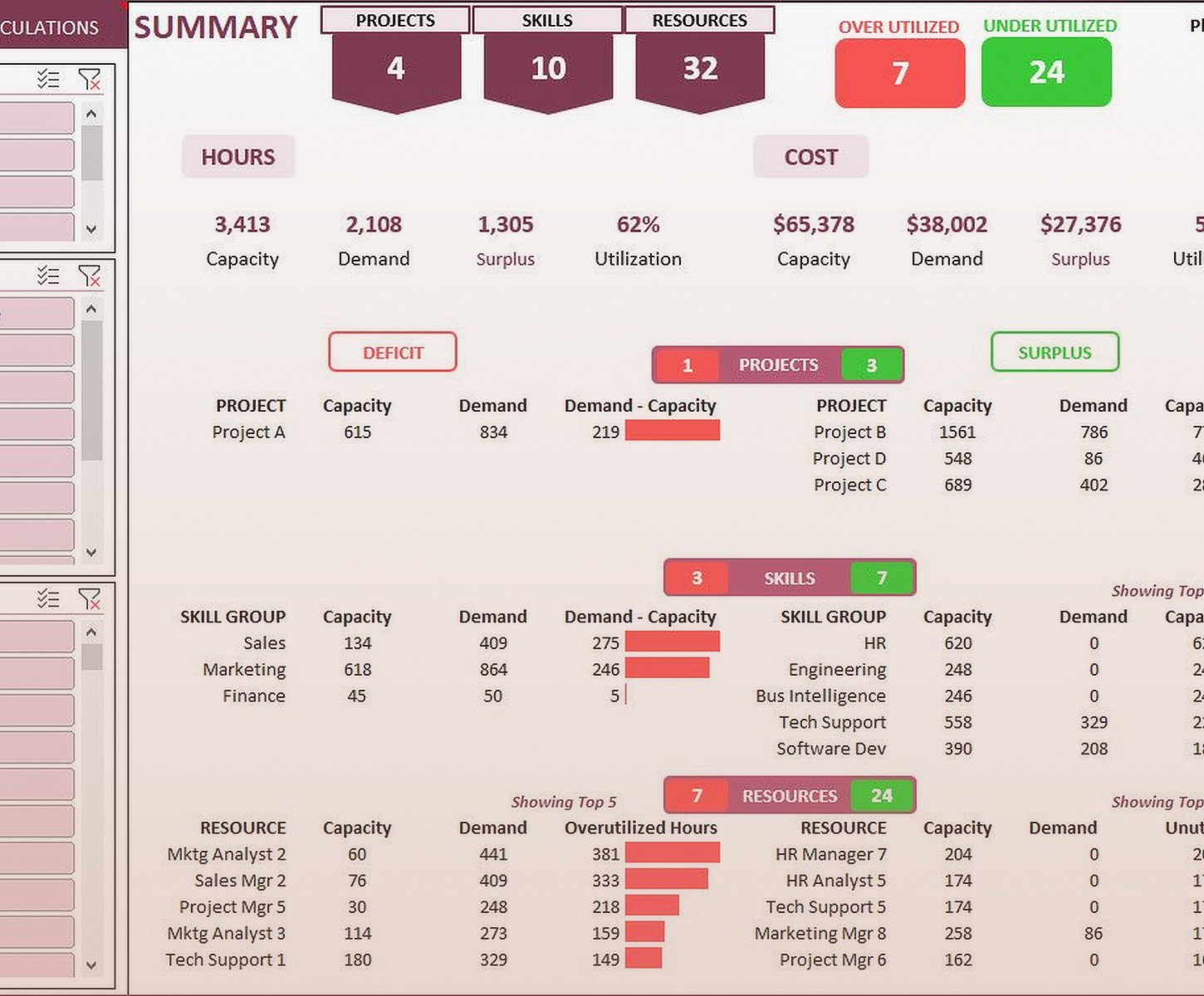
Here’s what I set up:
- One tab for team member directory with their standard hours and roles
- One tab for project list with required hours and skills needed
- One tab that’s the actual capacity planning grid
- One tab for a dashboard view because executives love dashboards
The dashboard tab uses QUERY functions to pull data from the other sheets and it looks way more professional than it actually is. My cat walked across my keyboard while I was setting up the formulas and somehow didn’t break anything which felt like a miracle.
The Formula That Saves Your Life
Okay so funny story – I was watching The Bear while building this template and the main character was having a breakdown about capacity and systems and I was like “wow this is very on-brand for what I’m doing right now.”
The key formula you need is basically: Available Hours minus (Allocated Project Hours plus Meeting Time plus Administrative Time) equals Remaining Capacity. But you want it to calculate across weeks or months depending on your planning timeline.
In Excel it looks like: =B2-(C2+D2+E2) where B2 is total available hours, C2 is project allocation, D2 is meetings, E2 is admin stuff. Then you can drag that formula across however many weeks or months you’re planning for.
Free Tools That Don’t Completely Suck
So beyond Excel and Google Sheets, there are some free tools that are actually worth looking at. I tested a bunch of these in January when I had like three snow days and couldn’t leave my house.
Monday.com Free Tier
The free version of Monday.com lets you have up to 2 users which is pretty limiting BUT if you’re a small team or just planning for yourself and maybe one other person, it’s got some really nice capacity planning views. The timeline view especially – you can see resource allocation across projects visually which my brain likes way better than spreadsheet rows.
The downside is you’re gonna hit those limitations fast. Once you need a third person or want to track more than a couple projects, they really push you toward paid plans. Still worth checking out though.
Trello with Power-Ups
This is gonna sound weird but Trello can actually work for basic resource capacity planning if you use it right. You need to enable the Calendar and Card Repeater power-ups (both free). Create a board where each list is a team member, each card is a project or task, and use labels for capacity levels.
I set this up for a client who was super visual and couldn’t deal with spreadsheets at all. We used color coding – green for “has capacity,” yellow for “almost full,” red for “overallocated.” It’s not as precise as a proper template but for some people it just clicks better.
Asana Free Version
Asana’s free tier actually includes workload management now which is basically capacity planning. You can see who’s got too much on their plate, who’s got availability. The catch is you need everyone on your team to actually update their tasks and time estimates, which… good luck with that honestly.
I use this for my own business because I’m a team of one (well, me and my virtual assistant) and it helps me see when I’m overcommitting to coaching sessions versus content creation time. The timeline view is similar to Monday.com and it syncs with Google Calendar which is clutch.
The Hybrid Approach That I Actually Use
Okay so in reality, here’s what I do and what I recommend to most of my clients: Use Excel or Google Sheets for the actual planning and number crunching, then use a visual tool like Trello or Asana for day-to-day management.
Every Sunday night I spend like 20 minutes updating my capacity planning spreadsheet. I look at the week ahead, see where I’ve got gaps or where I’m overbooked, and adjust. Then I make sure my Asana board reflects that plan. The spreadsheet is my source of truth, Asana is my execution tool.
For teams, I usually recommend they do capacity planning in a shared Google Sheet that managers update weekly, and then individual contributors work in whatever project management tool the team prefers. Trying to do everything in one tool usually means you’re compromising somewhere.
Setting Up Your Template Step by Step
Let me walk you through actually building this because I’ve done it like a dozen times now for different clients and there’s a process that works.
Start with Your People Data
Make a list of everyone who needs to be in the capacity plan. For each person you need:
- Name and role (obvious but gotta say it)
- Standard working hours per week
- Any scheduled time off you know about
- Average meeting time per week – be realistic here
- Average administrative time per week
- Skills or specializations that affect project assignment
That last one matters more than you’d think. I had a client who kept wondering why their capacity planning wasn’t working and it turned out they were assigning people to projects they weren’t qualified for, so tasks took way longer than estimated.
Calculate Actual Available Capacity
This is where most people mess up. They see “40 hours per week” and think that’s what they have to allocate. Nope. Take that 40 hours and subtract:
- Average meeting time (probably 5-10 hours if you’re in a typical office environment)
- Email and communication time (another 2-3 hours realistically)
- Administrative tasks (timesheets, reports, etc – maybe 2 hours)
- Buffer for unexpected stuff (I use 10% of remaining time)
So that 40 hour week? You’ve probably got like 25-28 hours of actual project capacity. Maybe less if your organization is meeting-heavy. I know that sounds depressing but better to plan with reality than pretend everyone has more time than they do.
Map Your Projects and Requirements
Now list out all your active and upcoming projects. For each one:
- Total estimated hours needed
- Timeline or deadline
- Required skills or certifications
- Priority level
- How those hours break down week by week or month by month
I usually plan in two-week sprints because anything longer than that and estimates get too fuzzy, anything shorter and you’re constantly replanning.
The Actual Allocation Part
Now you match people to projects based on skills, availability, and priority. This is where the visual part really helps. In your spreadsheet, create a grid where rows are people and columns are time periods (weeks, months, whatever).
Fill in allocated hours for each person in each time period. Your formulas should automatically calculate remaining capacity. Use conditional formatting so cells turn red when someone’s over 90% allocated (or whatever threshold makes sense for you).
Oh and another thing – include a notes column where you can add context. Like “Sarah overallocated this week but it’s a one-time thing for the product launch” or whatever. Future you will thank present you for those notes.
Common Mistakes I See All The Time
Planning at 100% capacity is the biggest one. Just don’t do it. Things will go wrong, people will get sick, projects will take longer than expected. Build in buffer.
Not accounting for partial availability – if someone’s only on a project 50% time, you can’t just plug in 20 hours and call it done. They’re probably less efficient working across multiple projects due to context switching.
Forgetting to update the template regularly. I set a recurring reminder every Sunday evening to review and update mine. It’s like 15-20 minutes and it saves me from overbooking myself constantly.
Making the template too complicated – I’ve seen templates with like 30 columns and formulas that would make a data scientist cry. Keep it simple enough that you’ll actually maintain it.
When to Upgrade to Paid Tools
Look, if you’re managing like 3-4 people and a handful of projects, Excel or Google Sheets is totally fine. Once you get past 10 people or like 15+ concurrent projects, you’re probably gonna want something more robust.
Signs you’ve outgrown free tools: you’re spending more than an hour a week just updating the template, you need real-time collaboration with lots of people, you need integration with other systems like time tracking or payroll, or you just really need those fancy resource histograms and reports for executives.
At that point, look at tools like Resource Guru, Float, or Forecast. They’re not free but they’re not stupidly expensive either, and they’ll save you so much time. I use Float for some of my bigger coaching clients and it’s worth the money once you hit that scale.
But honestly for most people reading this? Start with a good Excel or Google Sheets template. Master the basics of capacity planning before you worry about fancy software. I’ve seen too many teams buy expensive tools and then not use them properly because they never learned the fundamentals.
