
Digital Productivity, Online planners, Planners
GoodNotes Planner Guide: Templates Tips & Best Practices

Mar
Okay so I’ve been living in GoodNotes for like three months now and honestly the planner situation is way more complicated than it needs to be but also kind of brilliant once you figure out what actually works.
The Template Thing Everyone Gets Wrong
First thing – don’t buy a template pack until you know what you’re actually gonna use. I wasted $15 on this gorgeous minimalist bundle and used maybe two pages because turns out I don’t need a mood tracker or whatever. The free templates in GoodNotes are actually decent for testing what layout style works for your brain.
Here’s what I do now: I keep one main planner file and then separate notebooks for projects. The planner is weekly spreads because daily pages stressed me out – like I’d miss a day and feel behind. Weekly lets you be a little messy with your schedule without that guilt thing happening.
Setting Up Your First Planner
Go to the GoodNotes template gallery first. Seriously. They have:
- Basic weekly spreads that are honestly good enough
- Monthly calendars that actually link properly
- Dot grid pages for when you wanna freestyle
- Cornell notes style if you’re into that
The linking thing is huge and nobody explains it right. When you set up a planner, you want hyperlinks on every month tab so you can jump around. I spent like two hours manually adding links to my first planner because I didn’t realize you could duplicate a template page that already has them set up.
The Tabs Setup That Actually Saves Time
Okay so this is gonna sound excessive but I have tabs for: Current Month, Next Month, Notes Dump, Project Pages, and Resources. The Notes Dump tab is where everything goes when I’m in a meeting or whatever and can’t organize properly. Then once a week I sort through it.
My dog knocked over my coffee while I was setting this up the first time and I lost like 20 minutes of work because I hadn’t turned on auto-backup yet – go to settings and turn that on immediately. It saves to iCloud every time you close the app.
How I Use Templates Without Feeling Boxed In
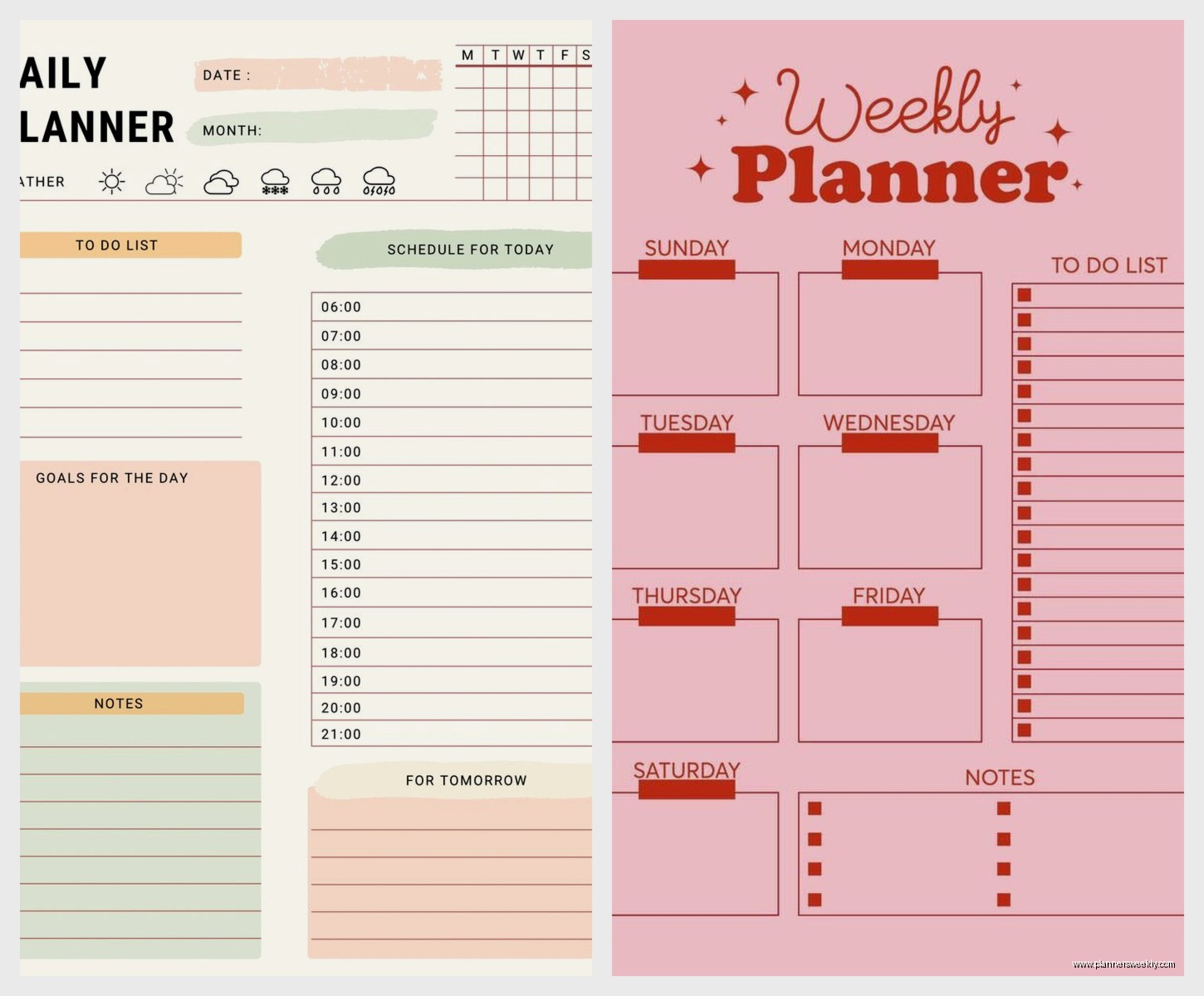
The rigid planner people stress me out. Like yes structure is good but some weeks are chaotic and your planner should flex with that. I keep three template types saved:
- Standard weekly for normal weeks
- Time-blocked daily for crazy busy weeks
- Blank dot grid for planning sessions or brainstorming
You can drag and drop these into your main planner file whenever. Just duplicate the page, drag it where you need it, done. Way better than committing to one format for the whole year.
Color Coding That Doesn’t Become a Part-Time Job
I see people with these elaborate color systems and like… when do you have time for that? I use three colors max:
- Blue for work stuff
- Red for urgent/deadlines
- Green for personal
That’s it. Sometimes I throw in purple for creative projects but honestly three is enough. The pen tool in GoodNotes has this favorites bar at the bottom – set up your three colors there with different thickness options and you’re good.
Oh and another thing about the pen tool – the fountain pen looks nice but it’s slower to write with on iPad. The ballpoint is way more responsive if you’re taking notes quickly. I switch between them depending on if I’m planning (fountain pen, looks pretty) or capturing meeting notes (ballpoint, faster).
Stickers and Elements Without Going Overboard
The sticker situation in the planner community is wild. You don’t need 500 sticker packs. Here’s what actually gets used:
- Simple checkboxes (make these yourself with the shape tool honestly)
- Priority stars or flags
- Maybe some basic dividers
- Icons for recurring tasks if that’s your thing
I made a mistakes buying animated stickers – they’re cute but they make your file size huge and then syncing takes forever. Stick with static PNG files under 1MB each.
The Weekly Review Process Nobody Talks About
Okay so funny story – I was watching The Bear while doing my weekly review and totally forgot this step matters more than the pretty setup. Every Sunday I spend 15 minutes:
- Looking at last week’s tasks and migrating undone stuff
- Checking my calendar for the week ahead
- Writing down 3 priority projects
- Clearing out my Notes Dump tab
This is where GoodNotes beats paper – you can copy/paste tasks instead of rewriting them. The lasso tool is your friend here. Circle what needs to move, copy it, paste it on the new week. Done in seconds.
Linking Between Pages for Project Management
Wait I forgot to mention – the linking feature is actually incredible for projects. Say you’re planning an event or managing a client project. Create a project page, then add links from your weekly spreads directly to that page.
To do this: tap the pen tool, pick any color, draw a circle or box around text, tap it, choose “Add Link,” select “Page in this document,” choose your project page. Now that text is clickable. I use this for recurring meetings too – my Monday team meeting note links to a running agenda document.
Templates Worth Buying vs Making Your Own
Real talk – most paid templates are overpriced. But some are worth it if they save you hours of setup. I bought one teacher planner template for $12 that had student tracking pages already set up and that saved me probably 3 hours of formatting.
Make your own if you need:
- Basic weekly or monthly spreads
- Simple habit trackers
- Blank project pages
- Meeting note templates
Buy templates if you want:
- Complex linked systems (budget planners, course planners)
- Specialized layouts for specific professions
- Really specific aesthetic styles you can’t recreate
The Etsy planner template market is huge but read reviews carefully. Some sellers just repackage free templates with different colors. Look for ones that mention hyperlinks, working tabs, and include multiple layout options.
Handwriting vs Typing in Your Planner
This is gonna sound weird but I do both and it’s actually better that way. Quick tasks and appointments get typed because it’s faster and searchable. Reflections, brainstorming, and creative planning stuff gets handwritten because that’s when I need to slow down and think.
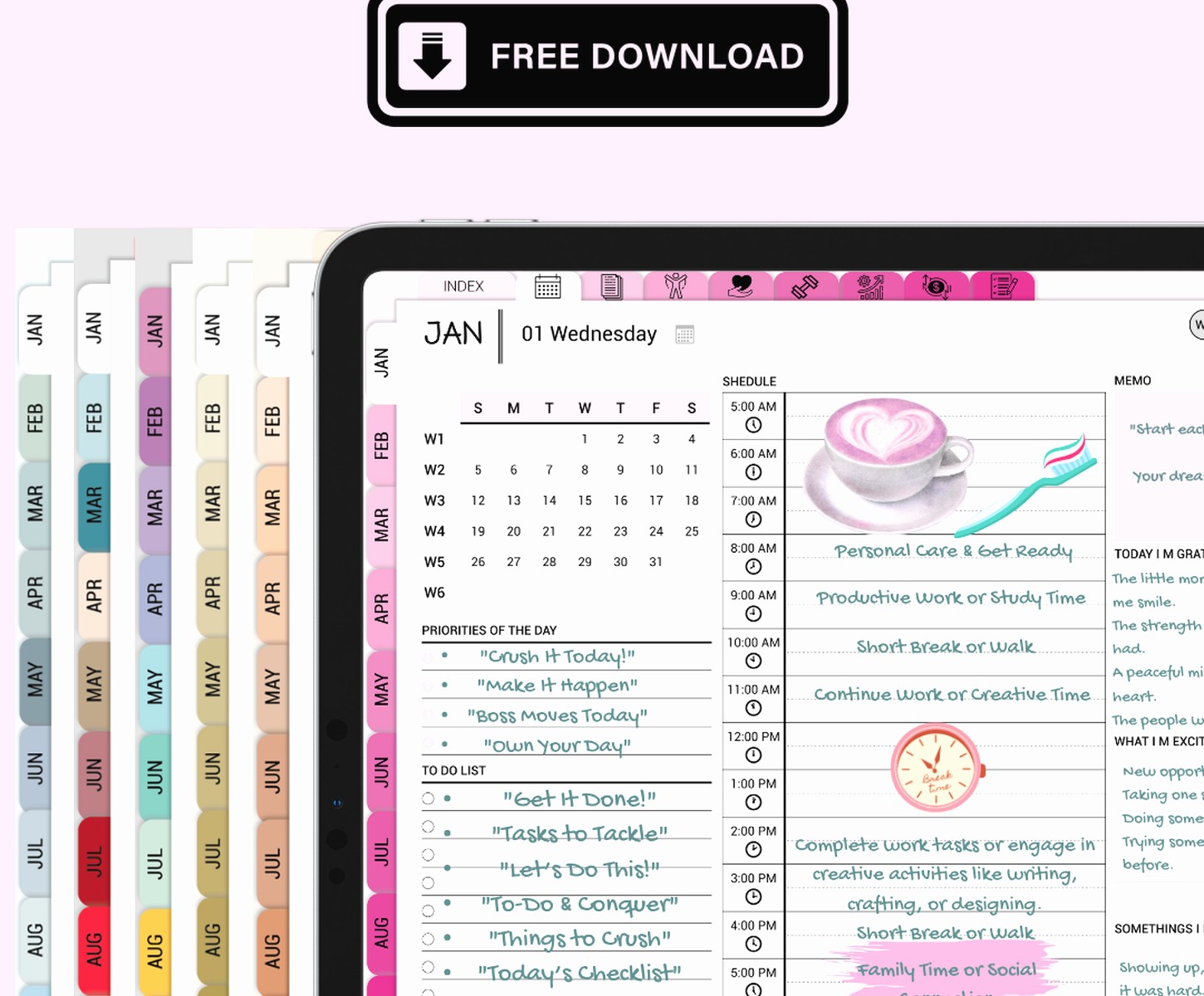
The text tool in GoodNotes is pretty good now – you can change fonts, sizes, colors. I keep a text box template saved that’s already formatted how I like it. Just duplicate and type. Way faster than handwriting a long list of tasks.
For handwriting, I got a cheap screen protector with a paper texture and it makes a massive difference. The default iPad glass is too slippery for extended writing. Cost like $8 on Amazon and my handwriting improved immediately.
Search Function That Saves Your Life
The search feature in GoodNotes is honestly the killer feature nobody uses enough. It recognizes handwriting if your writing isn’t completely chaotic. I search for client names, project titles, or that random idea I wrote down three weeks ago.
To make search work better: write clearly when noting important info, use consistent keywords (I always write CLIENT: before client names), and occasionally use typed text for critical stuff you know you’ll need to find later.
Backup and Organization Strategies
My client canceled last week so I spent an hour organizing my GoodNotes folders properly and wow it matters. I have folders for:
- Active Planner (current year)
- Archive (previous planners)
- Templates (blank templates I reuse)
- Projects (one subfolder per active project)
- Reference (PDFs, saved articles, etc)
The Archive folder is important – don’t delete old planners. I reference them surprisingly often for “when did we decide that?” type questions. They don’t take up much space and you can search across all notebooks at once.
Export important pages as PDFs occasionally. I do this monthly with my project plans just in case. GoodNotes is reliable but I’m paranoid about losing work. Export quality is high – you can print them if needed and they look professional.
Sharing and Collaboration Features
You can share individual pages or whole notebooks. I share meeting agendas with my team by exporting as PDF and emailing, but if everyone has GoodNotes you can actually share the editable file. It’s not real-time collaboration like Notion but it works for async stuff.
For client presentations I export pages as images (high quality setting) and drop them into slides. Way better than screenshotting because the resolution stays crisp.
Customizing the Interface for Your Workflow
The toolbar customization thing took me forever to figure out. You can rearrange tools and add your most-used features. I keep lasso tool, pen tool, highlighter, and eraser in my main toolbar. Everything else is in the menu because I rarely use it.
Favorites bar at the bottom – set this up properly and you’ll save so much time. I have three pen colors in different widths, two highlighter colors, and a white pen for corrections. That covers 90% of what I need without menu diving.
Page template defaults: when you add a new page, it defaults to whatever you last used. So if you mostly use weekly spreads, add one, then every new page will be that template until you change it. Tiny thing but it adds up.
Troubleshooting Common Issues
Lag happens when your file gets too big. My planner was lagging terrible until I realized I had like 400 pages in one file. Split it up – one file per quarter or per month if you use tons of pages. Your iPad will thank you.
Syncing issues usually mean you need to check iCloud storage. GoodNotes files can get big, especially if you use lots of images or stickers. I pay for the $1/month iCloud tier and it’s worth it for peace of mind.
If your handwriting isn’t being recognized in search, check your language settings. GoodNotes needs to know what language you’re writing in. Also some handwriting styles just don’t convert well – I print instead of using cursive for anything I need to search later.
Best Practices That Actually Stick
Keep it simple at first. I see people set up these elaborate systems on day one and then abandon them by week three. Start with a basic weekly spread and add complexity only when you feel limited by what you have.
Name your notebooks clearly – “Planner 2024” not “Untitled Notebook 7”. Future you will appreciate this when searching.
Use the bookmark feature for pages you reference constantly. I have my project overview page, my goals page, and my someday/maybe list bookmarked. Little ribbon icon at the top right.
Don’t feel pressure to fill every page. Some weeks are slow. That’s fine. Blank space isn’t failure, it’s just reality. The planner police aren’t gonna come for you.
Experiment with different Apple Pencil techniques – double-tap to switch tools is way faster than tapping the screen. Palm rejection usually works great but if you’re having issues, adjust the settings or try writing with your hand at a different angle.
The zoom window feature is clutch for small handwriting. Turn it on in settings and you get a zoomed box when writing, then it shrinks to normal size on the page. Great for fitting more info without sacrificing readability.
