
Digital Productivity, Online planners, Planners
Notion Weekly Planner: Setup Guide & Templates
Mar
Okay so I just spent the entire weekend rebuilding my Notion weekly planner because my old system was a mess and honestly I think I finally figured out what actually works. Let me walk you through this because I’ve tested like seven different template setups.
Starting With The Basic Database Structure
First thing you gotta do is create a new page in Notion and add a database. I know everyone says to use a table view but honestly the calendar view is where it’s at for weekly planning. Click the little three dots and add both views because you’ll switch between them constantly.
The properties you actually need (not the seventeen properties those aesthetic Notion templates try to sell you):
- Task name (obviously that’s your title)
- Date property (make it a date range so you can track tasks that span multiple days)
- Status (select property with options like To Do, In Progress, Done, Pushed to Next Week)
- Priority (I use High, Medium, Low but sometimes I just use emojis like 🔥 for urgent)
- Category (Work, Personal, Health, Admin stuff)
- Time estimate (number property, helps me not overload my days)
Don’t add more properties right away. You won’t use them and they just make everything cluttered. My dog knocked over my coffee while I was setting this up last week and honestly it was a good reminder that simple is better.
Setting Up Your Weekly View
So here’s where it gets good. Create a filter that shows you only the current week. Go to Filter, then add a condition where Date is within “This week” or if you want Monday to Sunday specifically you’ll need to use “Relative to today” and set it up manually. I change mine every Sunday night which takes like thirty seconds.
Actually wait I forgot to mention you should create a template button for recurring weekly tasks. Click the dropdown arrow next to “New” in your database and create a template. Mine has stuff like:
- Weekly review (every Sunday)
- Content planning (Monday mornings)
- Client check-ins (Wednesdays)
- Expense tracking (Fridays)
When Sunday rolls around I just click that template button and boom, all my recurring stuff populates. Changed my life honestly because I kept forgetting the same tasks every single week.
The Layout That Actually Makes Sense
Okay so funny story, I tried doing the whole “aesthetic notion setup” thing with linked databases and boards everywhere and I literally never opened it. Too complicated. What works is this simple structure:
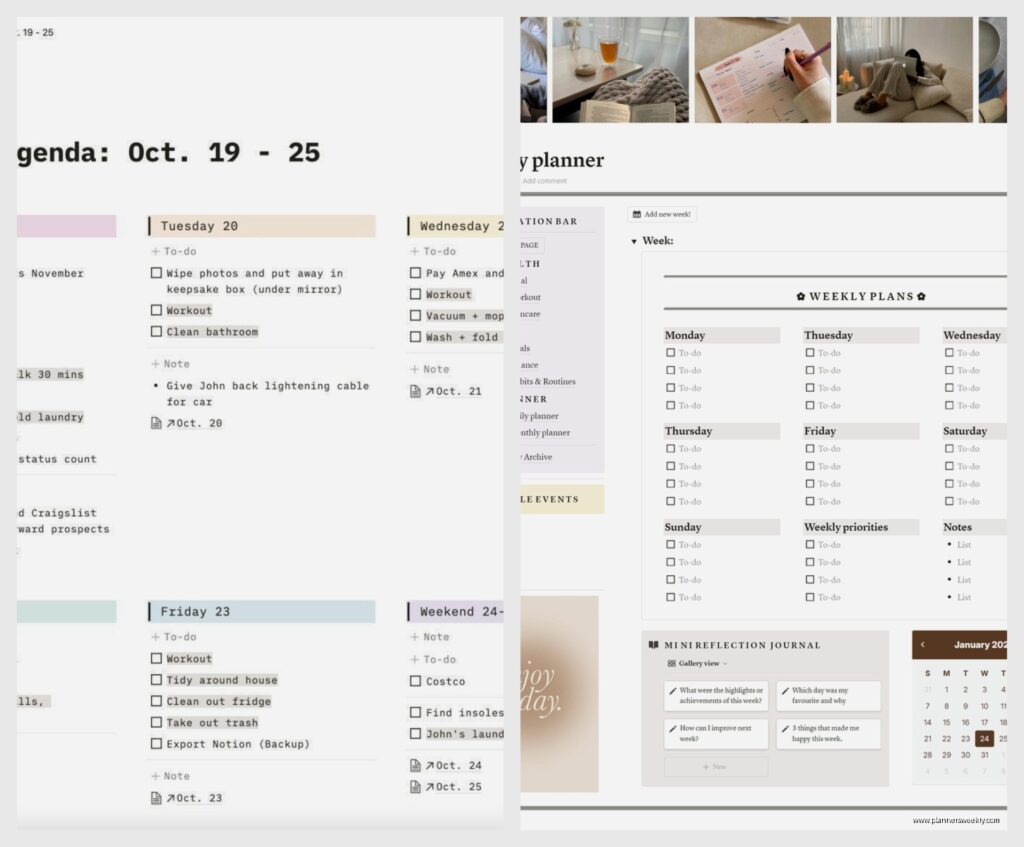
Create a main weekly dashboard page. At the top put your current week database (filtered view). Below that add three sections using toggle headings:
- This Week’s Focus (just a text block where I write my top 3 priorities)
- Quick Capture (an empty database for brain dumps that I sort later)
- Next Week Preview (linked database showing next week’s already-scheduled stuff)
The quick capture thing is clutch because when I’m in a meeting and someone mentions something I need to do, I don’t wanna navigate through seventeen notion pages. I just dump it there and process it during my Sunday review.
Board View For Visual People
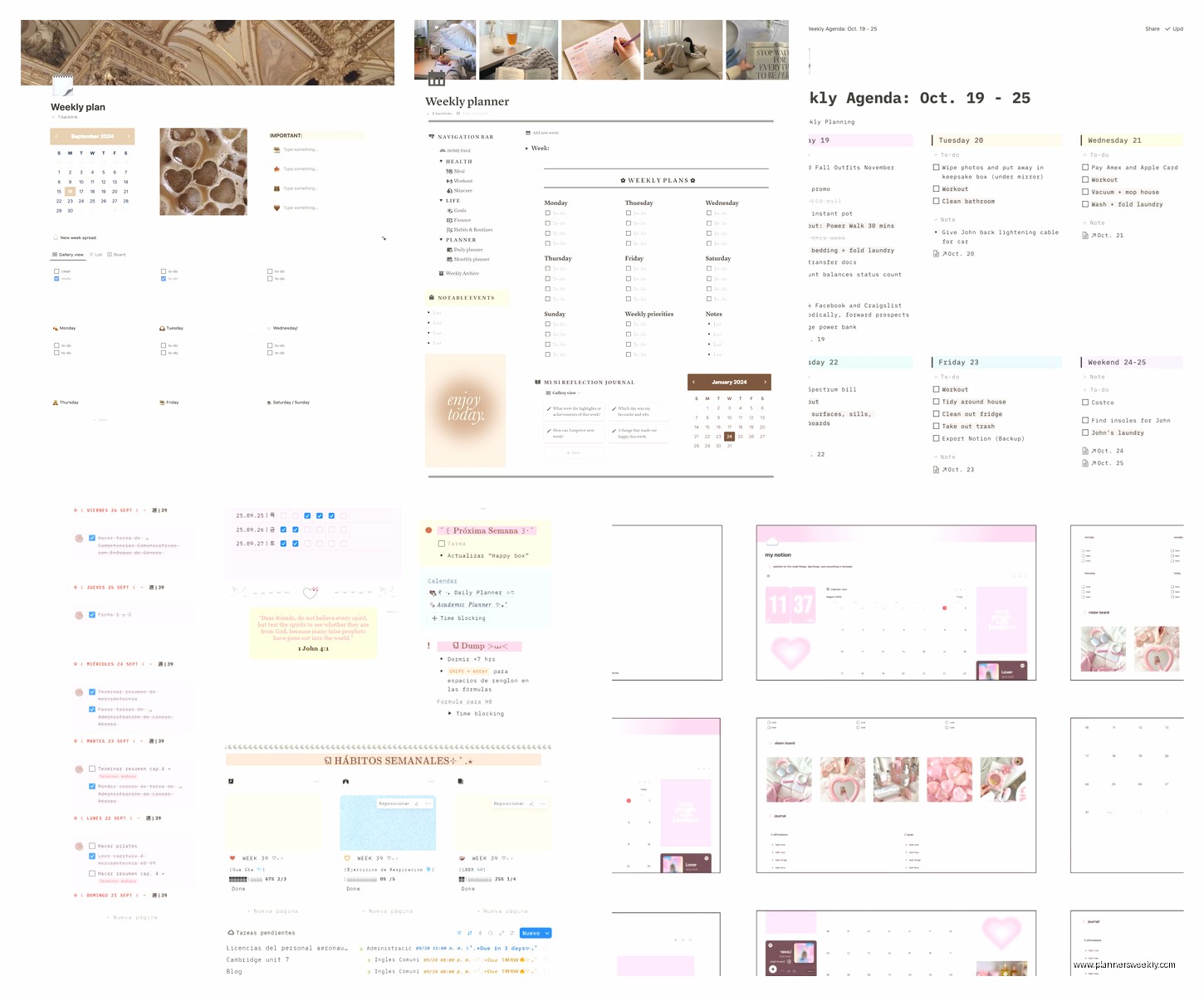
If you’re visual like me you’re gonna want a board view grouped by day of the week. Add another view to your database, choose Board, and group by Date. It’s not perfect because Notion groups by the full date not the day name but it works well enough. I name each column like “Mon 1/13” and just update them weekly.
This is where I drag tasks around when my day inevitably falls apart. Client canceled last Tuesday so I spent an hour just moving everything around and it was so satisfying.
Time Blocking Integration
Here’s something I tested that actually stuck. Add a formula property called “Time Block” that combines your time estimate with the date. The formula looks like this:
formatDate(prop(“Date”), “ddd”) + ” – ” + format(prop(“Time Estimate”)) + “h”
Now you can see at a glance that you’ve got like 12 hours of tasks scheduled on a Tuesday and maybe that’s not realistic. I color code by time estimate too… tasks over 2 hours get red, 1-2 hours yellow, under 1 hour green. Helps me not stack all the monster projects on one day.
Templates You Can Actually Use
I’ve tried probably twenty Notion weekly planner templates and most are garbage. Either too complicated or too basic. The ones worth looking at:
The William Nutt weekly planner template is solid if you want something pre-built. It’s got that quick capture inbox I mentioned and decent filtering. It’s free which is nice.
For something more robust the Gridfiti planner system is what I modified to create mine. They have this concept of “energy levels” for tasks which sounds woo-woo but actually helps. Like I know I can’t do deep focused work after 3pm so I tag those tasks with “High Energy” and only schedule them for mornings.
Notion’s official weekly agenda template is… fine. It’s very basic but if you’re just starting out it’s a decent foundation. You’ll outgrow it in like two weeks though.
Building Your Own Template
Honestly just start with a blank database and add stuff as you realize you need it. That’s what I should have done instead of spending three weeks trying to make someone else’s system work for my brain.
Create a template for different task types. I have:
- Standard task template (just the basics)
- Meeting template (includes agenda, attendees, notes section)
- Content creation template (has stages like Research, Draft, Edit, Publish)
- Deep work block (automatically sets 2-3 hour time estimate and High Energy tag)
You access these through that dropdown next to New in your database. Saves so much time not having to fill out the same properties over and over.
The Sunday Review System
This is gonna sound weird but the actual planning system matters less than having a consistent review habit. Every Sunday night (usually while watching whatever show I’m binging, currently rewatching The Bear) I spend 20 minutes doing this:
- Archive or delete anything from last week that didn’t happen and isn’t important
- Move unfinished important tasks to this week
- Add my template button tasks for recurring stuff
- Check my calendar and add any meetings or appointments
- Write my top 3 focus areas in that text block
- Make sure no single day has more than 6 hours of estimated work
That last one is key because I used to schedule like 10 hours of tasks per day and then feel like garbage when I didn’t finish. Now I’m realistic and actually complete my weekly plans.
Mobile Workflow Considerations
The Notion mobile app is honestly not great for complex databases but for weekly planning it’s fine. I keep my weekly view as a favorite (star icon) so it’s accessible from the home screen. The quick capture section is what I use most on mobile.
One trick… create a widget on your phone home screen that links directly to your weekly planner page. Makes it way more likely you’ll actually check it instead of just living in your email inbox all day.
Connecting Other Notion Databases
If you’ve got other systems in Notion like a project tracker or habit tracker, you can link them to your weekly planner with relations. I have a Projects database and each task can be linked to a project. Then I created a rollup that shows all tasks related to each project.
This is useful when I’m doing my Sunday review and realize I haven’t touched a client project all week. The relation property shows up as a link you can click to jump to the full project page.
Wait I forgot to mention the habit tracking integration. I tried embedding my habit tracker in the weekly planner page but it made everything load slower. Instead I just put a link at the top that opens it in a side peek window. Works better.
Calendar Sync Situation
Notion still doesn’t have great two-way calendar sync which is super annoying. I use a workaround where I embed my Google Calendar at the bottom of my weekly planner page. Not perfect but at least I can see my meetings and my tasks in one place.
There’s third-party tools like Zapier that can sync stuff but honestly that’s overkill for a weekly planner. Just manually add your important meetings as tasks with the meeting template.
Automation Stuff That’s Actually Worth It
Notion’s built-in automations are limited but useful. I have one that automatically changes the status to “In Progress” when I edit a task. Another one that sends me a Slack notification (yeah I know, notifications) when something tagged High Priority is due tomorrow.
The automation menu is hidden under that lightning bolt icon in your database. You can set triggers like “When property changes” or “When date is reached.” I spent way too long trying to make complex automations work and most weren’t worth the setup time.
What Doesn’t Work
Let me save you some time by listing stuff I tried that flopped:
- Separate databases for each day of the week (way too much clicking between pages)
- Using the timeline view for weekly planning (looks cool, totally impractical)
- Linking to individual day pages (just adds unnecessary hierarchy)
- Color coding by category instead of priority (couldn’t scan my week quickly)
- Adding a “notes” property to every task (I never used it, just cluttered the view)
- Trying to plan more than one week at a time in the same view (information overload)
Also those super aesthetic templates with custom icons and covers? They’re pretty but they don’t make you more productive. I wasted a whole afternoon customizing icons and then never looked at my planner because it felt too precious to actually use.
Adapting For Different Work Styles
If you’re more deadline-driven than task-driven, swap the board view for a timeline view and focus on due dates. Group by status instead of by day. Your main properties would be Due Date, Status, and maybe Priority.
For people who work on a lot of collaborative projects, add a Person property to track who’s responsible. Then you can filter to show only your tasks or see what your team is working on. I don’t use this much since I work solo but my clients who manage teams find it essential.
The Actual Daily Workflow
Morning: Open Notion, check today’s tasks, drag them into priority order. Takes like two minutes. Sometimes I realize I scheduled too much and push stuff to tomorrow right away.
During the day: Check off tasks as I complete them. Add new stuff to quick capture if things come up. I try not to add tasks directly to today unless they’re genuinely urgent.
End of day: Quick scan of tomorrow to make sure nothing’s gonna blindside me. Move anything I didn’t finish to tomorrow or later in the week. This takes like sixty seconds.
That’s it. No complicated workflows or seventeen-step processes. Just a simple database with good filtering and regular check-ins.
The biggest thing I learned after testing all these setups is that your weekly planner should feel effortless to maintain. If you’re spending more than 30 minutes a week managing the system itself, it’s too complex. Strip it back to just what you actually use every single day and you’ll actually stick with it.
