
Digital Productivity, Online planners, Planners
Best Digital Planners for iPad: Apps Templates & Tips
Mar
Okay so I’ve been testing iPad planners for like three months now and here’s what actually matters
GoodNotes 5 is probably where you should start if you’re new to this whole thing. I know everyone says that but they’re right for once. It’s $7.99 and honestly I use it more than the $15 ones because it just works. The handwriting recognition is solid and you can search your actual handwriting which sounds gimmicky until you’re trying to find that note from two weeks ago about the dentist appointment.
The thing with GoodNotes is you can import literally any PDF planner template and it becomes interactive. I bought this pack from Etsy for like $12 that had 47 different layouts and I still use maybe three of them but whatever. The hyperlinks work, you can duplicate pages without the app freaking out, and it doesn’t drain your battery like some other apps I’ll complain about in a minute.
What you actually need to know about choosing the app first
So there’s basically three main players and then some weird ones. GoodNotes, Notability, and Noteshelf. Then there’s Zinnia which is newer and trying really hard.
Notability is $14.99 now with a subscription option which kinda annoyed people but I get it. The audio recording feature is actually useful if you’re in meetings or lectures. It syncs your handwriting with the audio timeline so you can tap on notes and hear what was being said when you wrote it. I used this during a workshop last month and it saved me because I basically doodled through half of it but the audio was there.
The downside is Notability can be glitchy with large files. Like if you import a 200-page planner template it might lag. I’ve had it crash twice on me mid-planning session which is rage-inducing when you haven’t saved.
Noteshelf is the one I wanted to love because it’s pretty but it’s just okay? It’s $11.99 and has nice paper textures and the pen customization is really detailed. You can adjust the pen weight and opacity in ways the others don’t let you. But the file organization is annoying and I always forget where I saved things.
Wait I should mention the Apple Pencil situation
You’re gonna need one obviously. The first gen works fine honestly. Everyone acts like you need the second gen but unless you really want the double-tap tool switching (which is admittedly convenient), save the money. I used a first gen for a year and only upgraded because I dropped it in a parking lot.
There are those cheaper styluses on Amazon for like $30 but they’re not great for actual planning. The palm rejection is bad and you’ll end up with random marks everywhere. Maybe okay for casual doodling but not for daily planner use.
The template rabbit hole you’re about to fall into
Okay so funny story, I spent $80 on planner templates in my first month before I realized most of them are the same. Here’s what you actually need to know before you start buying things on Etsy at midnight.
There are dated and undated planners. Undated seems better because you can start anytime and not waste pages but honestly the dated ones keep me more accountable. Something about seeing the actual date makes it real? I currently use a hybrid system that’s probably too complicated but works for me.
The most popular templates are from these shops: Casually Productive, The Bliss Bean, and Planner Kate. I’ve tried all three. Casually Productive has the most minimalist aesthetic if that’s your thing. Very clean lines, lots of white space, functional but not exciting. Their weekly layout is my favorite though because it has a priorities section at the top that actually makes me think about what matters instead of just listing every tiny task.
The Bliss Bean is more decorative with floral headers and color coding systems built in. It’s pretty but sometimes I find it distracting? Like I spend more time making it look nice than actually planning. But if you’re into that aesthetic planning thing it’s gorgeous.
The free templates you should try first
Before you spend money just search “free GoodNotes planner templates” and download a few. There’s a creator called Digital Planner Girl who has free samples that are actually usable. Not just like one page samples but full weekly spreads you can test.
I also found decent free ones on Gumroad if you search around. The quality varies wildly but you’ll figure out what layout style works for your brain without spending anything.
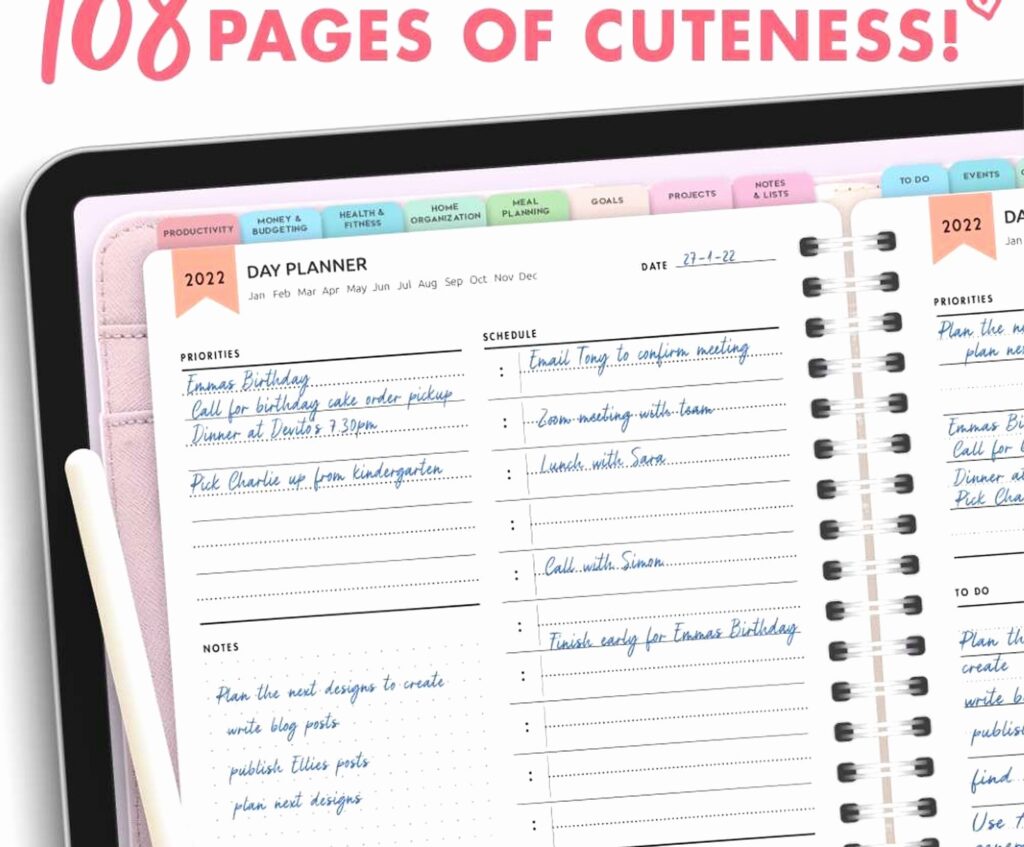
Oh and another thing, pay attention to whether templates have hyperlinks. The good ones have clickable tabs to jump between months and sections. The cheap or free ones often don’t and you’re just scrolling forever trying to find the right page. It gets old fast.
Actual planning systems that work on iPad
This is gonna sound weird but the iPad actually changed how I plan because the flexibility is different than paper. You can’t really do some things and other things are way easier.
I use a modified bullet journal system now. The original bullet journal method works great digitally because it’s modular. I have my daily log, monthly log, and then collections for different projects. The lasso tool in GoodNotes lets you move stuff around which you obviously can’t do on paper.
Time blocking works better on iPad than paper for me because I can actually move the blocks around when things inevitably change. I use colored boxes for different activity types and just drag them with the lasso tool. Takes two seconds versus erasing and rewriting or scratching things out.
The one thing that’s harder is the overview feeling. Like with a paper planner you can flip through and see everything at a glance. Digital planners require more navigation even with hyperlinks. I solve this by keeping my monthly spread really simple with just key events and deadlines, then getting detailed in the weekly spreads.
My actual current setup that I’m using right now
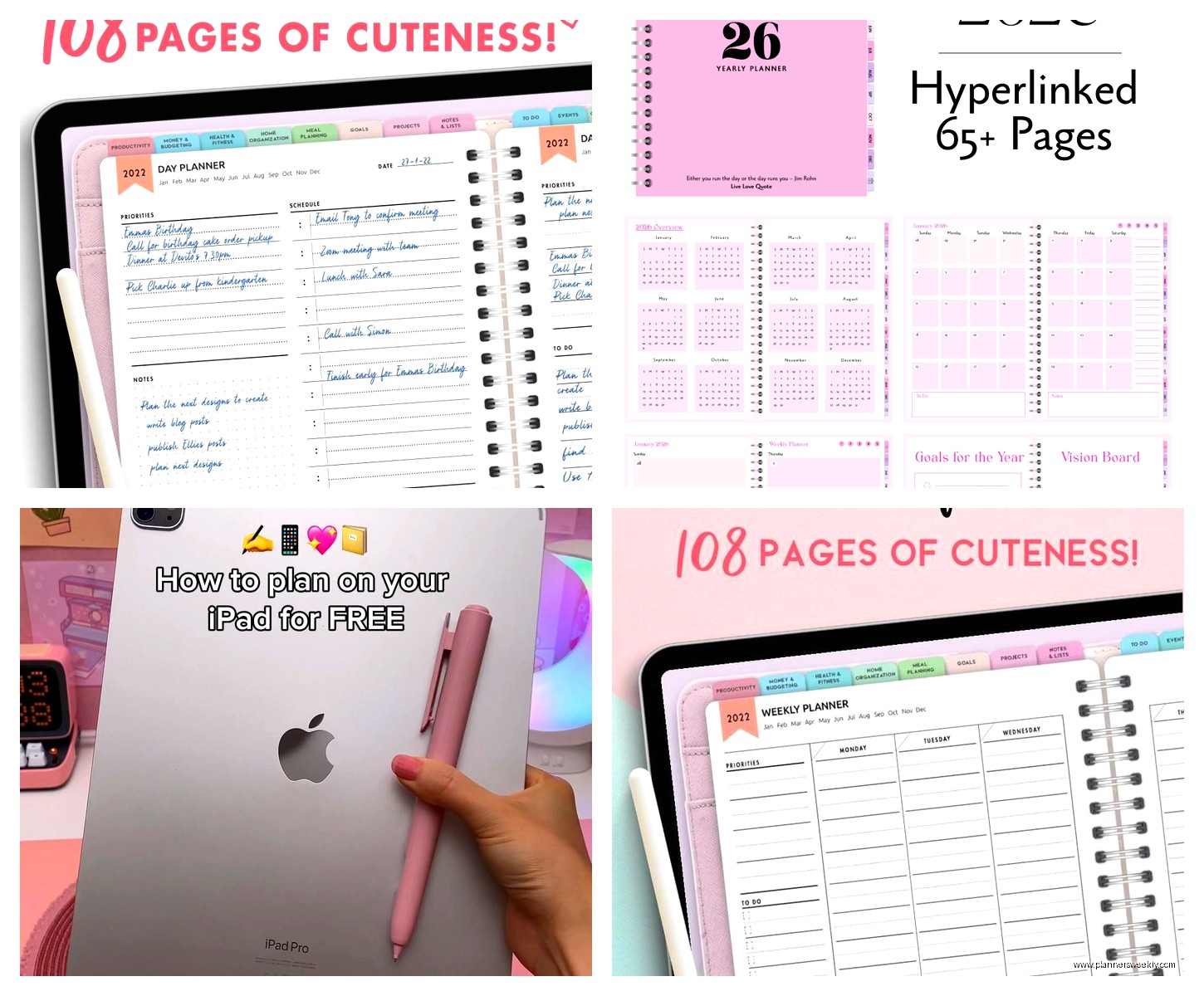
GoodNotes 5 with a customized template I made myself after buying like six different ones. I took the monthly layout from one, the weekly from another, and added my own habit tracker page. You can do this by taking screenshots of the pages you like and combining them in a PDF editor. I use PDF Expert for this which is another $10 but worth it.
I have five main notebooks in GoodNotes: personal planner, work planner, meeting notes, project planning, and random notes. The planner notebooks use templates with hyperlinks. Everything else is just blank dot grid pages.
For colors I stick to like four pens maximum. Black for regular tasks, blue for work stuff, red for urgent things, and green for completed items. I used to have this whole color coding system with like eight colors and it was too much cognitive load to remember what each one meant.
Wait I forgot to mention Zinnia
So Zinnia is this newer app that’s trying to be the all-in-one solution. It’s free with premium features at $2.99/month. The thing that’s interesting about Zinnia is it has built-in planner templates that are actually good. You don’t need to buy separate templates.
They have daily, weekly, and monthly views that are clean and functional. The handwriting feel is smooth and the tool switching is intuitive. It also has a web app which is unique, so you can access your planner from your computer.
The downside is it’s less flexible than GoodNotes. You’re kinda stuck with their system and template options. And the free version limits how many pages you can have which fills up fast if you’re a heavy planner user.
I tested it for about three weeks and it’s good for someone who wants simplicity and doesn’t want to deal with buying templates separately. But I switched back to GoodNotes because I missed the customization options.
Tips nobody tells you about digital planning
The zoom feature is your friend. You can write really small in the actual template and zoom in to write, then zoom out and it looks neat. This lets you fit way more on a page than you could with paper planning. I write my detailed task lists zoomed in at like 200% and it’s totally legible when zoomed out.
Use layers if your app supports them. GoodNotes doesn’t really but Notability does. You can have a template layer that’s locked and then write on top of it. Means you can reuse templates easier.
Screen protector makes a huge difference. I got a matte one that feels like paper and it’s so much better for writing. The glass surface is too slippery otherwise. I use the Paperlike brand which is expensive at like $40 but I’ve tried cheaper ones and they’re not the same.
Battery management is real. Planning apps drain battery faster than you’d think especially if you’re using an older iPad. I keep mine at like 50% brightness when planning and that helps. Also close other apps because having a bunch running in the background makes everything lag.
My cat keeps walking across the screen and making random marks which is why I now lock my iPad when I take breaks. Just a heads up if you have pets.
The templates I actually use every day
My daily page has time blocking from 6am to 10pm in 30-minute increments on the left side. Right side has a brain dump section, top three priorities, and a notes area. Bottom has a habit tracker for like six habits. That’s it. Nothing fancy.
Weekly spread is a vertical layout with each day in a column. I prefer this over horizontal because it fits better on the iPad screen without zooming. Each day has space for about 8-10 tasks plus a small schedule section.
Monthly is a standard calendar grid with small boxes for each day. I only write appointments and deadlines here, not tasks. Tasks go in the weekly view. This took me forever to figure out but separating appointments from tasks made everything clearer.
I also have a master task list page that’s just an ongoing brain dump of everything I need to do eventually. Not dated, not organized, just captured. Then I pull from this into my weekly planning. This prevents me from cluttering up my daily pages with stuff that’s not actually timely.
Widgets and shortcuts that make it easier
You can add a GoodNotes widget to your iPad home screen that opens directly to a specific notebook. I have mine set to open my daily planner page. Saves like three taps which adds up.
There’s also a Siri shortcut you can make to create a new planner page with the date as the title. I set this up and use it every morning. You just say “hey Siri, new planner page” and it’s done. Took me like 20 minutes to set up in the Shortcuts app but now it’s automatic.
Split screen is underrated. I often have my planner open on one side and Safari or email on the other when I’m planning my day based on what’s actually in my inbox. Makes the planning more realistic instead of just aspirational.
When digital planning doesn’t work
Gonna be honest, some things are still better on paper for me. Quick capture in the moment is faster with paper. Like if I’m in the middle of something and need to jot a note, grabbing my phone or iPad and opening the app and finding the right page takes too long. I keep a small paper notebook for that stuff and transfer it later.
Also brainstorming and mind mapping feels constrained on iPad even with the infinite canvas features some apps have. The screen size limits your spatial thinking somehow. For big picture planning sessions I still use a big paper pad.
But for daily planning, weekly reviews, and structured task management, digital is way better for me now. The ability to search, rearrange, and duplicate is too useful to give up.
Oh and if you’re worried about screen time, valid concern. I try to do my planning in the morning before I start doom scrolling so the iPad time gets used productively first. Doesn’t always work but that’s the theory.
The main thing is just pick an app, pick a simple template, and use it for like two weeks before changing anything. Everyone wants to optimize their system immediately but you gotta actually use it first to know what you need. I wasted so much time finding the perfect setup before I’d even established a planning habit.
