
Digital Productivity, Online planners, Planners
Daily Task Planner Template: Free Productivity Downloads

Mar
Okay so I’ve been testing like fifteen different daily task planner templates over the past month because honestly my system was falling apart and I needed something that actually worked. You know when you download something that looks gorgeous on Pinterest but then you try to use it and it’s just… not it? Yeah, that was my entire February.
The first thing you gotta know is that free templates fall into basically three categories and knowing which one matches how your brain works is gonna save you so much time. There’s the minimalist single-page ones, the detailed time-blocking templates, and then these hybrid things that try to do everything which honestly usually means they do nothing well but sometimes you find a gem.
I started with the minimalist ones because I was like, maybe I’m overcomplicating everything. Downloaded this clean template from Canva that had three sections: top priorities, other tasks, and notes. Used it for exactly two days before I realized I had no idea WHEN I was supposed to do anything. Like cool, I have six top priorities but I also have back-to-back client calls from 10 to 3, so when exactly am I writing that blog post? The template didn’t care. It just sat there looking pretty while I stressed out.
But here’s the thing – my friend Sarah absolutely swears by that style. She’s a designer and her days are more project-based than time-based, so she just needs to see what needs doing and she figures out the when part naturally. So if your work is like that, the minimalist single-page templates are actually perfect. The best free one I found for this style is from Productivity Spot – it’s a PDF you can print or use on your iPad, has nice spacing, and doesn’t try to be something it’s not.
Time-Blocking Templates Are Where I Actually Found Success
Oh and another thing – I moved to time-blocking templates next and this is where things got real. These have your day broken into time slots, usually 30-minute or 1-hour increments. I downloaded one from Vertex42 that goes from 6am to 10pm and honestly it changed everything for me.
The specific one I use now has the time slots on the left, then a wider column for tasks, then a narrow column for checkboxes and priorities. What makes it work is that I can see my entire day at a glance and I’m forced to be realistic about time. Like I can’t pretend I’m gonna do eight hours of deep work when I have three meetings scheduled. The template makes me confront reality which is uncomfortable but necessary.
Wait I forgot to mention – when you’re downloading these, check if they come in different formats. The good free ones usually offer PDF, Excel, and sometimes Google Sheets versions. I personally use the Google Sheets version because I can access it from my phone when I’m out and need to check what’s next. My cat knocked over my coffee on my printed planner once and that was the end of that experiment.
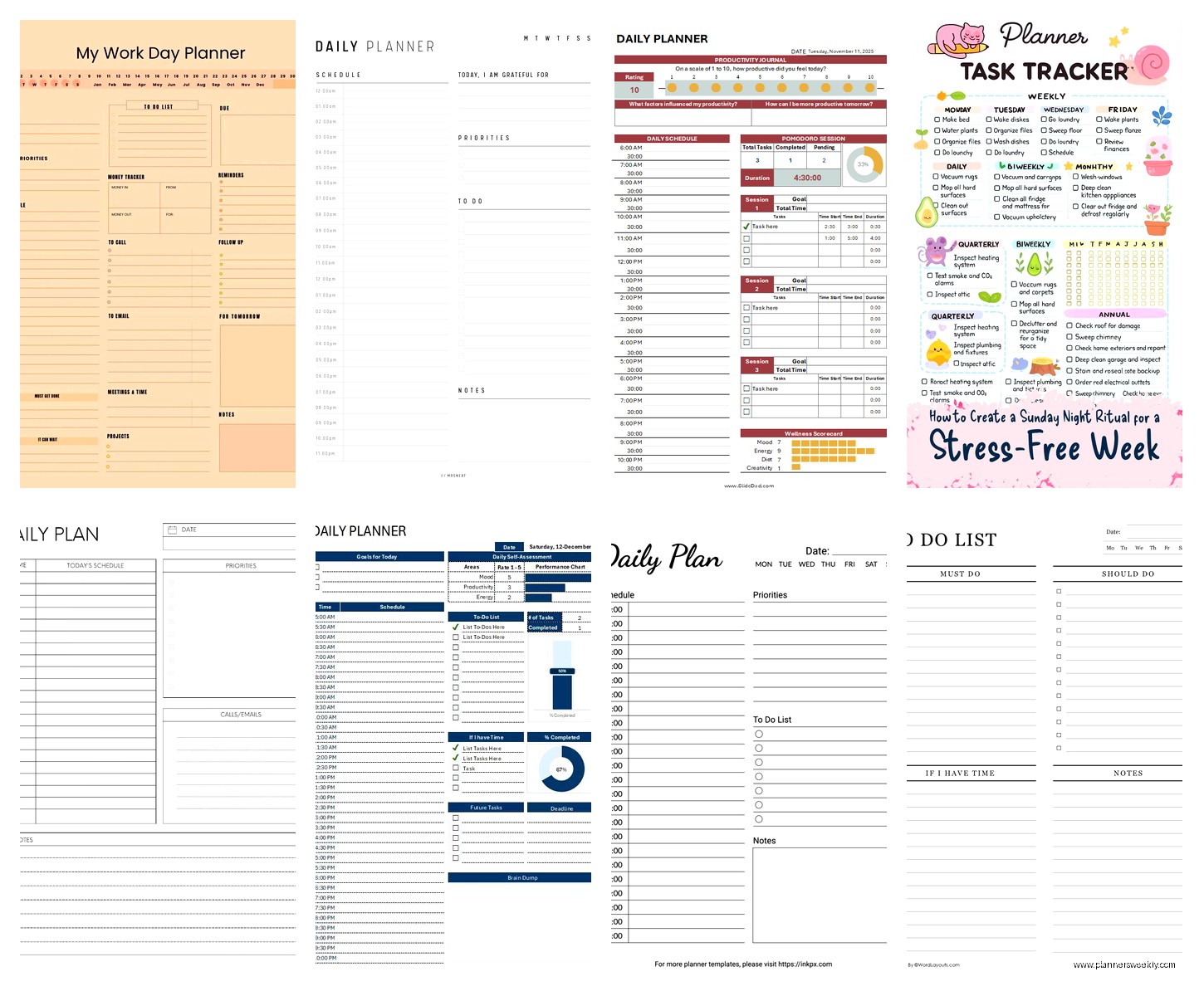
The Excel and Google Sheets versions also let you customize stuff which is huge. Like the Vertex42 template has conditional formatting you can turn on so completed tasks turn green automatically. Sounds stupid but it’s weirdly motivating to see your day turning green as you go.
The Hybrid Templates That Actually Don’t Suck
This is gonna sound weird but the best hybrid template I found came from a random blog I discovered at like midnight one night when I couldn’t sleep. It’s called the Daily Dashboard and it has time slots BUT ALSO sections for goals, water intake, and a small habit tracker on the side. Normally I’d be like “too much” but the layout is really smart – the extra stuff doesn’t crowd the main planning area.
I’ve been using it for three weeks now and the habit tracker section is actually keeping me honest about taking breaks. I put little things there like “stood up and stretched” or “ate lunch away from desk” and checking those off throughout the day breaks up the work tasks nicely. My client actually commented that I seem less frazzled on our calls lately and I think it’s because I’m literally scheduling in breathing room.
The Daily Dashboard template comes in both dated and undated versions which is clutch because some weeks I print a bunch at once and other weeks I just use the digital version. You can find it on Template.net – they make you sign up for a free account but they don’t spam you which I appreciated.
Digital vs Printed: My Messy Reality
So here’s where I’m probably gonna contradict myself because even though I just praised digital versions, I actually print my planner like 60% of the time. There’s something about physically writing tasks that makes them stick in my brain better. But then I also need my phone to ping me for time-sensitive stuff, so I end up using both.
My current system which is working but definitely not Instagram-worthy: I print the weekly overview template from Canva (they have a free weekly one that shows all seven days on two pages), then I use the daily digital time-blocking template on my tablet for the actual day-to-day stuff. Is it redundant? Maybe. Does it work for my weird brain? Absolutely.
If you’re gonna print templates regularly, invest in a hole punch that matches your binder situation. I wasted so many printed pages trying to make them fit into my existing planner before I just bought a $12 three-hole punch and called it a day. Also print in grayscale unless the template specifically needs color – you’ll save so much ink.
Features That Actually Matter vs Features That Look Cool
Okay so funny story – I downloaded this gorgeous watercolor template with flowers and inspirational quotes and it was absolutely useless. The decorative elements took up like 40% of the page and I could barely fit my actual tasks. It would make a lovely background for photos but terrible for actual productivity.
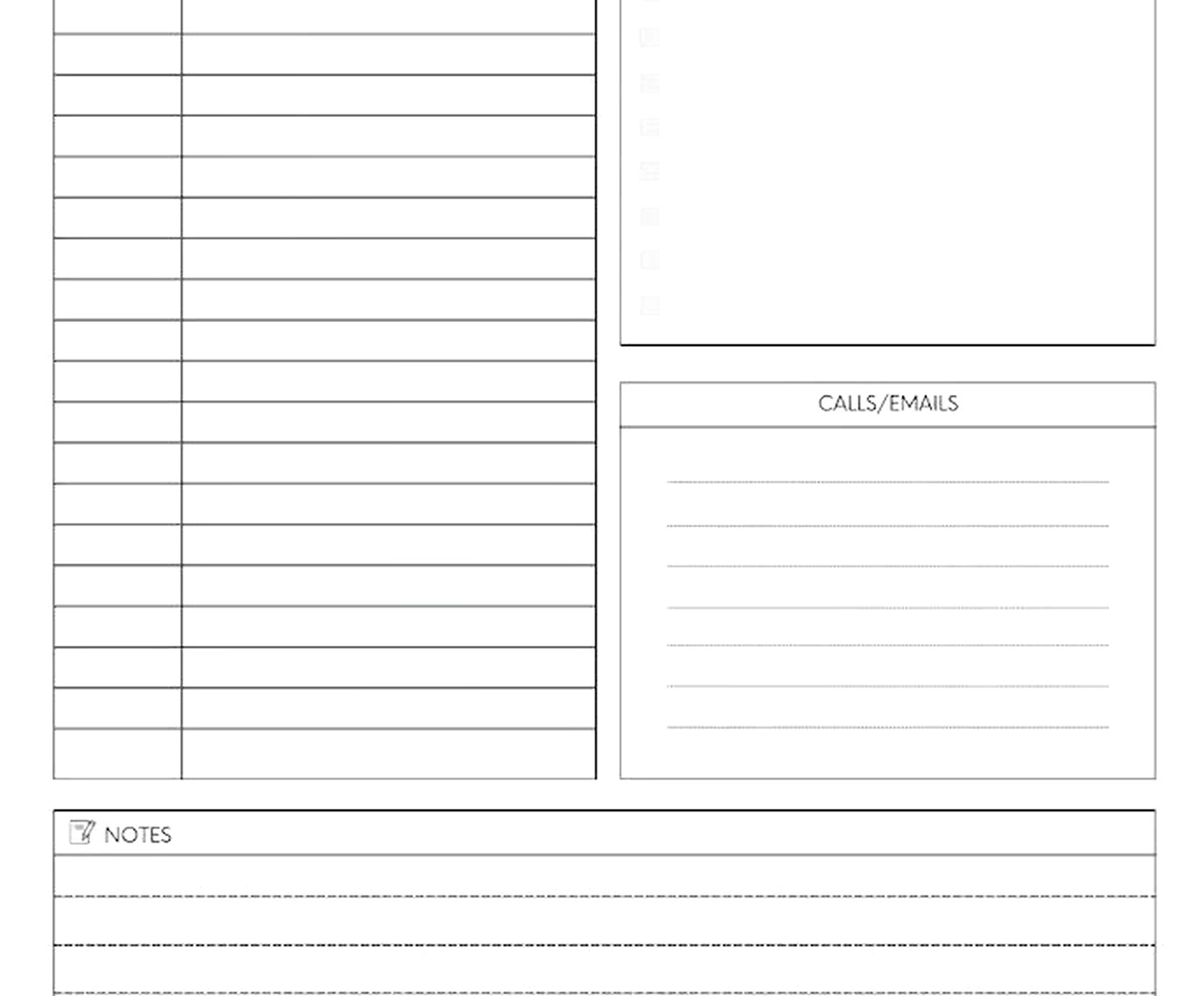
What actually matters in a daily planner template:
- Enough writing space for real tasks not just “finish project” but like actual detailed tasks
- Clear visual hierarchy so you can scan it quickly
- Checkboxes or some completion indicator because our brains like that dopamine hit
- Some kind of priority system even if it’s just star symbols or numbers
- A notes section because random thoughts happen and you need somewhere to dump them
What doesn’t matter as much as you think:
- Fancy fonts – actually decorative fonts can make it harder to read your own handwriting
- Too many color options – you’ll spend time deciding which color code to use instead of just doing the task
- Motivational quotes – they’re nice for like a day then you stop seeing them
- Weather tracking or moon phases unless that’s specifically relevant to your work
Templates for Different Work Styles
Wait I should probably break this down by actual use cases because that’s what you’re really asking right?
If you’re a freelancer or entrepreneur with unpredictable days: Get a template with flexible time blocks. The one from 101 Planners has 15-minute increments which sounds excessive but when you’re juggling client calls and admin tasks and creative work, that granularity helps. You can also block out multiple slots for one big task which I do for deep work sessions.
If you’re in a traditional office job with set hours: The simple time-blocked templates work great. You probably know your meeting schedule already, so you just need to fill in the gaps. The Microsoft Office template collection has several free ones that look professional if you’re printing them for work. They’re kinda boring aesthetically but they get the job done.
If you’re a student: Honestly the academic planner templates with period/class blocks are your friend. Even if your schedule changes semester to semester, the structure of having distinct blocks for different subjects helps. Scattered Squirrel has free student daily planners that include assignment tracking and study session planning.
If you have ADHD or similar executive function stuff: I’ve heard really good things about templates that incorporate body doubling cues or visual timers. There’s a free template from How to ADHD that has check-in prompts throughout the day like “are you still doing what you planned?” which sounds annoying but apparently really helps with task-switching issues.
Customizing Without Starting From Scratch
This is where using Canva or Google Sheets templates becomes super valuable because you can tweak them. Like I took a basic time-blocking template and added a small section at the top for my three non-negotiables for the day. Those are the things that if I do nothing else, the day was still successful. Game changer for my anxiety honestly.
You can also combine elements from different templates. I straight up copied the habit tracker sidebar from one template and pasted it into my main daily planner template in Google Sheets. Took like ten minutes and now I have exactly what I need. The beauty of free templates is you can experiment without feeling like you wasted money.
Oh and if you’re using PDF templates, Adobe Acrobat Reader (the free version) lets you add text boxes and checkboxes to PDFs. So you can type directly into printed templates if you want that digital flexibility. I do this when I’m traveling and don’t want to carry physical planners.
Where to Actually Find Good Free Templates
I’ve downloaded from like twenty different sites at this point so let me save you the trouble. Canva has the biggest selection and they’re all customizable which is huge. The free account gives you access to tons of templates – you don’t need Canva Pro for basic planners.
Vertex42 is ugly as a website but their Excel templates are incredibly functional and you can tell they were made by people who actually use spreadsheets for planning. Everything has formulas built in if you want them but you can also just ignore that stuff.
Template.net requires a free account but their collection is massive and they have both simple and complex options. The search function actually works which sounds basic but you’d be surprised how many template sites have terrible search.
101 Planners is good for printable PDFs specifically. They’re designed to print well which not all templates are. Some templates look great on screen but print all wonky – these don’t have that problem.
Pinterest is actually useful here but you gotta be careful. Search “daily planner template free download” and you’ll find tons, but click through to make sure they’re actually free and not just leading to paid products. I’ve been burned by that before where the “free” template is just a sample page.
Making It Actually Work Long-Term
The real issue with any planner template isn’t finding it, it’s actually using it consistently. I’m gonna be honest – I’ve abandoned more planners than I’ve stuck with. What’s helped me recently is keeping the barrier to entry super low.
I have my template open in a browser tab that I never close. It’s just there. First thing in the morning, I duplicate yesterday’s sheet (in Google Sheets) and adjust for today. Takes maybe five minutes. If I had to open a file, find the template, create a new copy, etc., I wouldn’t do it. The easier you make it to access, the more likely you’ll actually use it.
Also don’t feel like you have to fill in every section every day. Some days I skip the habit tracker because I’m traveling or whatever. Some days I don’t time-block every single hour because I know it’s gonna be chaotic anyway. The template is a tool, not a test you can fail.
I keep old completed planners in a folder (digital and physical) and sometimes I look back at them when I’m feeling unproductive. It’s actually really motivating to see how much I’ve done over time. Plus it helps me notice patterns like “oh I always crash on Thursday afternoons, maybe I should stop scheduling important stuff then.”
One last thing – don’t be afraid to switch templates if something isn’t working. I probably tried eight different ones before landing on my current system. What works for someone else might not work for you and that’s totally fine. The best template is the one you’ll actually use, not the one that looks the prettiest or has the most features.
