Digital Productivity, Online planners, Planners
Editable Daily Schedule Template: Customizable Downloads
May
Okay so I’ve been testing daily schedule templates for like three weeks now because honestly my own planner system was a mess and I figured if I’m gonna recommend these to clients I should actually know what works.
The Formats That Actually Matter
First thing – you need to figure out if you want PDF or Excel or Google Sheets. I know that sounds basic but here’s the deal. PDFs are great if you’re printing everything, but you’re stuck with whatever layout they give you. Excel and Google Sheets though? You can move stuff around, change colors, add rows when you inevitably realize you need more space for that project that’s taking over your life.
I tested about fifteen different templates last week and honestly most of them are trying too hard. Like they’ve got sections for gratitude journaling and habit tracking and meal planning all on one page and it’s just… too much. You’re not gonna fill that out every single day. You’re just not.
Time Block Layouts vs Task Lists
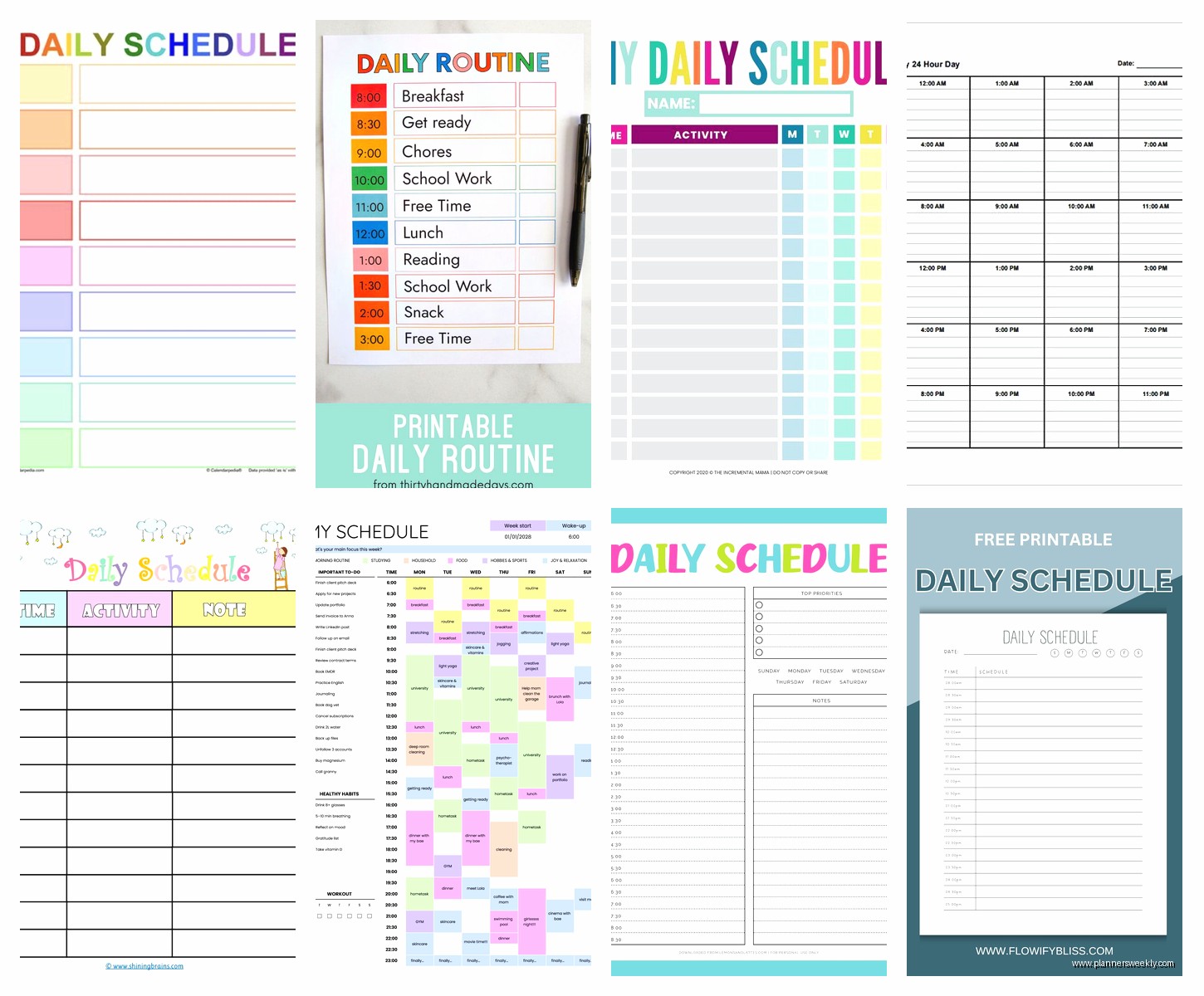
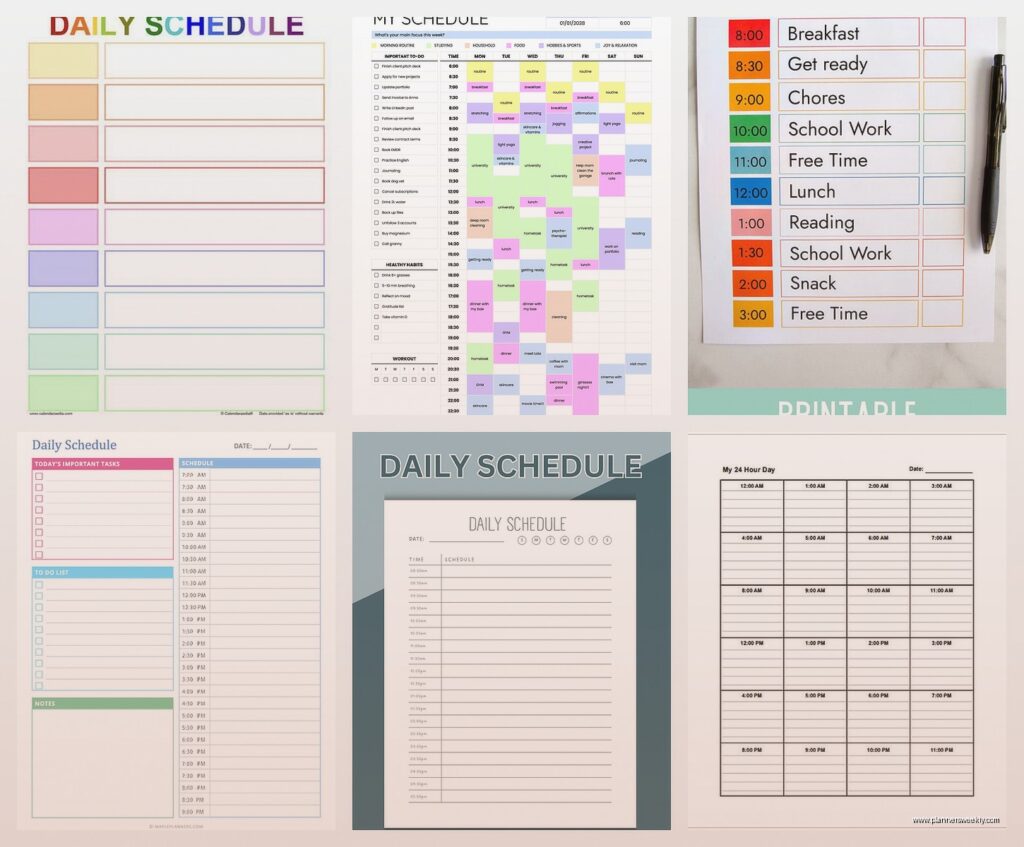
This is where it gets interesting because people are really divided on this. Time block templates show you hourly slots – usually starting at like 6am or 7am and going until 9pm or 10pm. Task list templates just give you blank lines or checkboxes to write what you need to do.
I’m personally a time block person but that’s because I work with clients at specific times. If you’re in an office doing project work where things don’t have strict deadlines during the day, task lists might work better. Actually wait – I found this one template that does both and it’s been my favorite so far. It’s got hourly blocks on the left side (from 7am to 7pm) and then a task list column on the right for stuff that doesn’t have a specific time attached.
What Makes a Time Block Template Actually Usable
The spacing matters SO much. I downloaded one that had 30-minute increments and the boxes were tiny – like I couldn’t fit more than three words in each slot. Completely useless. You want either hourly blocks with enough room to write a few sentences, or 30-minute blocks if they’re designed with actual writing space.
Oh and another thing – some templates have the times pre-printed and some leave them blank so you can fill in your own schedule. The blank ones are more flexible if you’re not a 9-to-5 person. My friend Jake works nights and he was complaining that every template assumes you’re awake during normal human hours, so blank time slots fixed that for him.
The Sections You’ll Actually Use
Most templates have these standard sections: priorities, schedule/time blocks, notes, and sometimes a to-do list. Here’s what I’ve found after testing them with my actual work schedule.
Top priorities section – this needs to be at the top and it should only have space for like 3-5 things max. Any template that gives you room for ten priorities is lying to you about how priorities work. I use this for my MIT (most important tasks) and it helps me figure out where those things fit in my time blocks.
Appointments or time blocks – the main section, obviously. Needs to be big enough that it’s the focus of the page.
Notes section – honestly I use this more than I thought I would. It’s where I dump random thoughts during the day or track interruptions. My cat knocked over my coffee yesterday right in the middle of a client session and I just scribbled “buy better mug” in the notes section so I’d remember.
Tomorrow’s prep – okay this is gonna sound weird but templates with a small section at the bottom for tomorrow are actually super helpful. Like right before I close my laptop I can jot down three things I need to tackle the next day and then I’m not lying in bed at 11pm thinking about work.
Customization Features That Matter
If you’re going with Excel or Google Sheets (which again, I recommend), here’s what you should be able to edit easily:
The time increments – you should be able to add or remove rows without the whole thing breaking. I learned this the hard way with a template that had all these merged cells and formulas and when I tried to add an extra hour slot everything shifted weird.
Colors – sounds superficial but color coding different types of tasks actually helps. I do blue for client work, green for admin stuff, yellow for personal appointments. Takes two seconds to set up and then you can see at a glance what your day looks like.
Font size – especially if you’re printing these. Some templates use 10pt font and it’s just hard to read when you’re rushing. I bumped mine up to 12pt and it’s way better.
The Print vs Digital Decision
I thought I’d be all-digital with these but turns out I print mine most days. There’s something about having it on my desk where I can physically cross things off. But here’s the thing – if you’re printing, you need to check how it looks in print preview first.
Downloaded this really pretty template two weeks ago with a mint green background and gray text… looked terrible printed. Wasted so much ink and you could barely read anything. Now I test everything in grayscale print preview before I commit.
For digital use, PDF annotation apps work great. I use GoodNotes on my iPad sometimes and you can write directly on the template with an Apple Pencil. But honestly? Google Sheets on my phone is faster when I need to check my schedule or add something quickly.
Templates for Different Work Styles
Okay so funny story – I recommended the same template to three different clients last month and only one of them actually used it. Turns out the template that works for me doesn’t work for everyone (shocking, I know).
If you have lots of meetings – you need a time block template with 30-minute or even 15-minute increments. Hourly blocks are too chunky when you’ve got back-to-back calls.
If you do project-based work – those templates with sections for different projects work better than time blocks. Like one section for Project A, one for Project B, with tasks under each. I tested one that had four project boxes and it was perfect for my client who’s a freelance designer juggling multiple clients.
If you’re easily overwhelmed – minimalist templates are your friend. Just time blocks and maybe a small notes section. That’s it. No habit trackers, no water intake logs, no motivational quotes. Sometimes less really is more.
Where to Actually Find Good Templates
I’ve downloaded templates from Etsy, Creative Market, Canva, and just random productivity blogs. Here’s the honest breakdown:
Etsy templates are usually pretty and well-designed but they’re hit or miss on functionality. Read the reviews before buying. I got one that looked gorgeous in the preview but it was locked in Canva and I couldn’t edit the text fields properly.
Google Sheets templates are everywhere for free and honestly some of the free ones are better than the paid ones. Search for “daily schedule template Google Sheets” and you’ll find tons. Just make sure they’re actually editable and not just view-only.
Wait I forgot to mention – Microsoft also has a template library built into Excel and Word. Some of them are actually decent? I found a simple daily planner there that’s been my backup when my main template isn’t working for whatever reason.
Red Flags in Templates
Too much decoration – if there are floral borders and watercolor splashes everywhere, there’s probably not enough actual space for planning.
Weird fonts – script fonts might look nice but they’re hard to read when you’re rushing through your day. Stick with clean sans-serif fonts.
Too many sections – if you’re scrolling to see the whole day, it’s not gonna work. A daily template should fit on one page or one screen.
No flexibility – if you can’t add rows or change sections, you’ll outgrow it fast.
My Current Setup
Since you’re probably wondering what I actually use after all this testing… I’ve got a Google Sheets template that I customized from a free template I found. It’s got hourly blocks from 7am to 6pm (I don’t schedule anything after 6pm anymore, that’s a whole other conversation), a top three priorities box, a running task list on the right side, and a notes section at the bottom.
I color code it – client sessions in blue, content creation in purple, admin work in gray. At the end of each day I spend like five minutes reviewing what actually happened versus what I planned, and I’ve gotten way better at estimating how long things take.
The template lives in my Google Drive and I duplicate it each week, then fill in recurring appointments first, then slot in project work around those. Takes maybe ten minutes on Sunday evening while I’m watching TV.
Making the Template Actually Work
Downloading a template is the easy part. Using it consistently is where everyone struggles, including me. Here’s what’s helped:
Keep it visible – whether that’s printed on your desk or pinned as a browser tab, you need to see it. I tried keeping mine in a folder and I’d just forget it existed.
Fill it out the night before when possible – I know everyone says this but it’s true. Starting the day with a blank template means you’re already behind.
Be realistic about time – this is where I mess up constantly. I’ll block out one hour for something that actually takes two hours and then my whole schedule falls apart. Build in buffer time between tasks.
Don’t guilt yourself for not following it perfectly – some days everything goes sideways and that’s fine. The template is a guide, not a prison.
Update it as you go – if something takes longer than expected or you get interrupted, adjust the template. Otherwise you’re just staring at this schedule that doesn’t match reality and that’s stressful.
Actually you know what, I’m testing a new approach this week where I’m only time-blocking my morning and leaving my afternoons more flexible with just a task list. Because most of my interruptions happen after lunch and trying to stick to strict time blocks was making me frustrated. Two days in and it’s working better already.
The template that works is the one you’ll actually use, which I know sounds like unhelpful advice but it’s true. Start with something simple, use it for a week, then add or remove sections based on what you actually need. Don’t try to build the perfect system on day one because you don’t know what you need yet.