
Digital Productivity, Online planners, Planners
Excel Capacity Planning Template: Free Downloads

Mar
Okay so I’ve been neck-deep in Excel capacity planning templates for the past three weeks because honestly my team planning was a mess and I needed something that actually worked, not just looked pretty in a screenshot.
The Basic Free Template That Actually Works
Started with Microsoft’s own free capacity planning template and you know what? It’s not terrible. Like it’s genuinely functional if you’ve got a small team. I tested it with my coaching clients first – around 8 people, basic project tracking needs. The thing calculates resource allocation as percentages which sounds boring but it’s actually super helpful when you’re trying to figure out if Sarah can take on another project or if she’s already at 110%.
The template has these columns for employee names, their availability hours, assigned projects, and then it does the math automatically. My cat knocked over my coffee while I was setting this up the first time and I lost like 20 minutes of data entry because I forgot to save, so learn from my mistake – hit Ctrl+S obsessively.
You can grab it from the Microsoft template library, just search “capacity planning” and it’s the one that looks kinda boring but functional. That’s the one you want. Not the colorful ones, those are usually overcomplicated.
When You Need Something More Complex
Oh and another thing – if you’ve got multiple departments or like, different skill sets to track, the basic Microsoft one falls apart fast. I learned this the hard way when trying to plan content creation across writers, designers, and video editors. Everyone has different capacities and skillsets and the simple template just… doesn’t handle that well.
Found this template from Vertex42 that’s actually designed for multi-department tracking. It’s still free but you gotta give them your email which is annoying but whatever, we all have spam folders. This one lets you set up different worksheets for each department and then rolls everything up into a master view.
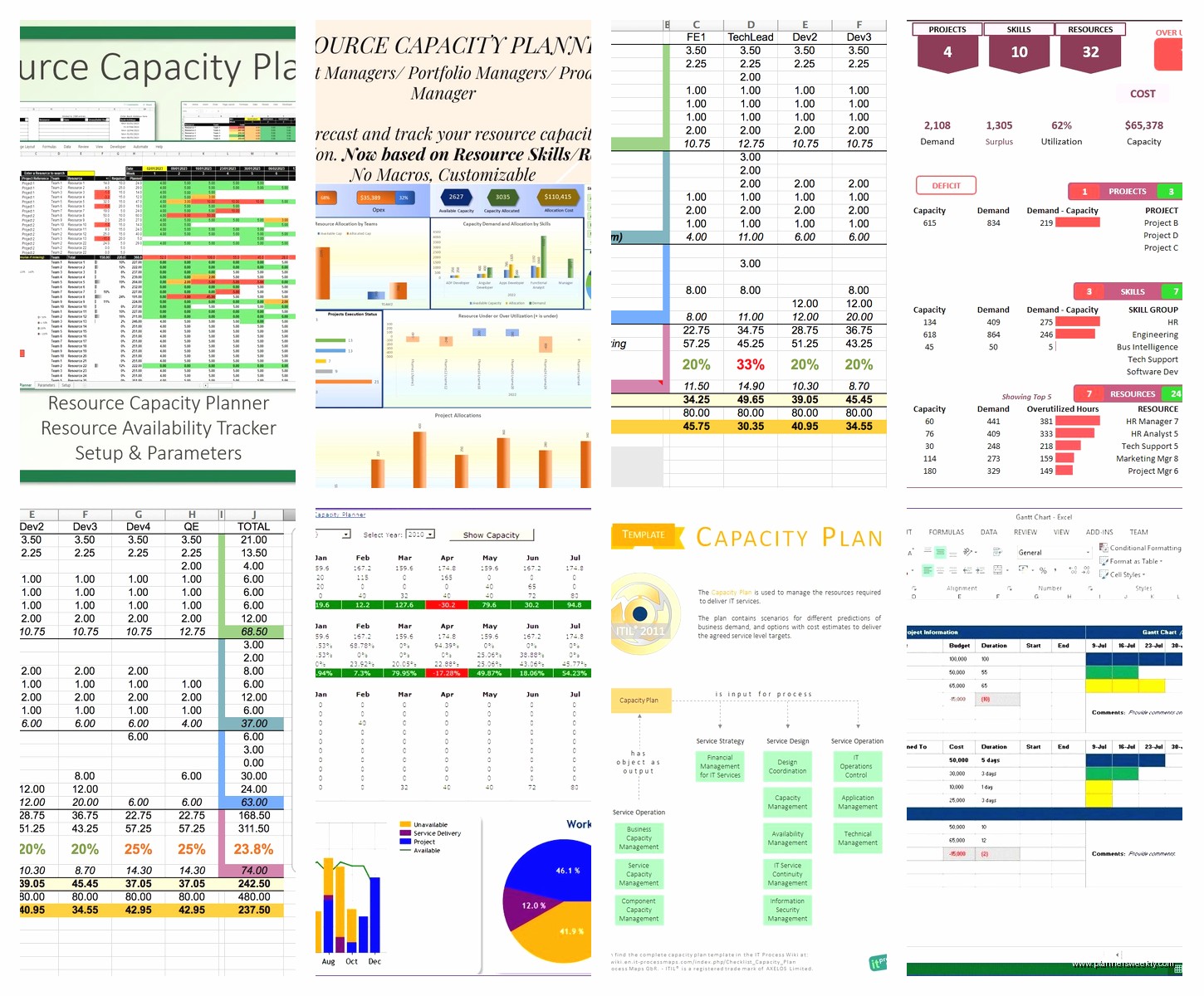
The setup took me maybe 45 minutes? I was watching that new Netflix show about the chess prodigy while doing it so I wasn’t timing exactly. But it’s not quick. You need to input your team structure, define working hours, add holidays – all that stuff that seems tedious but actually matters when you’re planning six months out.
Setting It Up Without Losing Your Mind
Start with just one small team or department. Seriously. I tried to do my entire client roster at once and wanted to throw my laptop out the window. Pick like 5-10 people, get that working perfectly, then copy the structure for other teams.
The formulas can look scary but they’re mostly just SUMIF and basic multiplication. If you can do a budget spreadsheet, you can handle this. The Vertex42 one has instructions built in which helped because I’m not gonna lie, I haven’t touched Excel formulas in like two years before this.
The Color-Coded Situation
Wait I forgot to mention – conditional formatting is your best friend here. Both templates I mentioned let you set up color coding so overallocated resources show up in red, underutilized in yellow, properly allocated in green. Sounds basic but when you’re looking at 30 people across 15 projects, those colors are the only thing keeping you sane.
I set mine up so anything over 100% capacity goes red, 80-100% is green (that’s the sweet spot), and under 80% is yellow because that means I’m either under-planning or someone’s about to quit from boredom.
My colleague told me she uses blue for “pending approval” work and grey for “blocked” tasks which is actually genius and I stole that immediately.
The Template That Surprised Me
This is gonna sound weird but the best template I found wasn’t marketed as a capacity planning tool at all. It’s this resource management template from Smartsheet – they have a free Excel version you can download without signing up for their paid service. Found it randomly at like 11pm when I couldn’t sleep and was just googling variations of “team capacity tracker free.”
What makes it different is it has this timeline view built in. So instead of just seeing “John is at 95% capacity” you can see WHEN he’s overloaded. Like maybe he’s fine for three weeks then absolutely slammed for two weeks then back to normal. The basic templates don’t show that temporal element and it matters so much.
Setting this one up is more involved though. You need to input project start dates, end dates, estimated hours per task. It’s basically project management meets capacity planning. Took me a full morning to get it configured but now I use it for literally everything.
Real Talk About Formulas
The formulas in this one are more complex. Like there’s some INDEX MATCH stuff happening that I had to Google. But here’s the thing – once it’s set up, you basically never touch the formulas again. You just update the data in the input columns and everything else calculates automatically.
I did break it once by accidentally deleting a column that had hidden formulas. There was a moment of panic where I thought I’d have to rebuild everything, but Ctrl+Z saved my life. Back up your template once it’s working. Save it with a different filename. Trust me.
For Agencies or Client Work
If you’re tracking capacity across multiple clients or projects with different billing rates, you need something with financial tracking built in. Found a template on Template.net (free tier, no credit card) that includes budget columns alongside capacity metrics.
So you can see not just “Is Emma overbooked?” but also “Is Emma spending 40% of her time on a project that’s only 15% of our revenue?” That second question is actually more important for business sustainability but most capacity planners ignore it completely.
This template has columns for hourly rates, estimated project value, actual time spent, and it calculates both capacity utilization AND revenue per hour. It’s honestly changed how I think about project allocation. Some projects seemed fine from a capacity standpoint but were absolute money pits.

The Weekly Review System
Okay so funny story – I had all these templates set up perfectly and then just… didn’t use them. They sat in my Downloads folder for like three weeks. Because here’s the thing nobody tells you: the template is only useful if you actually review and update it regularly.
I finally got in the habit by blocking 30 minutes every Friday afternoon. Make tea, open the template, update actual hours worked, adjust upcoming allocations. That’s it. If you try to do this daily it becomes a chore and you’ll stop. Weekly is the sweet spot.
During that Friday review, I’m looking at:
- Who’s overallocated next week and needs help
- Upcoming project deadlines and whether we have capacity
- Anyone consistently under-allocated who might need more work or might be job hunting
- Projects that are dragging on way longer than estimated
The Dashboard Tab Trick
Most templates bury the useful info in rows and rows of data. Create a separate “Dashboard” worksheet at the front with just the critical metrics. I use sparklines (those tiny charts in cells) to show capacity trends over time. Takes like 10 minutes to set up and then your weekly review becomes way faster because you’re not scrolling through endless data.
My dashboard shows: total team capacity percentage, number of people overallocated, number of people underallocated, upcoming deadline count, and a little chart of capacity trends over the past 8 weeks. That’s it. Everything I need to know in one glance.
Common Mistakes I Made So You Don’t Have To
Don’t count every single work hour as available capacity. People need time for emails, meetings, admin stuff. I learned this when my “perfectly planned” schedule had people booked at 100% and everyone was stressed because they had no breathing room. Now I plan for about 75-80% allocation max and suddenly everyone’s way happier and more productive.
Also don’t forget to account for PTO and holidays. I built this beautiful three-month plan and then realized I hadn’t marked anyone’s vacation time. Had to redo basically everything. Most templates have a holidays tab – actually use it.
Oh and another thing – skills matter more than hours sometimes. Just because someone has 10 hours available doesn’t mean they can do any task. I started adding a skills column to track who can actually do what. Otherwise you end up allocating video editing work to someone who’s never touched Premiere Pro just because they have capacity.
Mobile Access Workaround
This is gonna sound old school but Excel on mobile is terrible for anything complex. I tried to do my weekly review from my phone once while traveling and it was a nightmare. What works better: save your template to OneDrive or Google Drive, use the desktop version when you need to do real work, but create a simple summary view that’s mobile-friendly.
I have a separate “Mobile View” tab that’s just names, current week allocation, and next week allocation. That’s all I can effectively see on my phone anyway. If I need to make real changes, I wait until I’m at my laptop.
Integrating With Other Tools
Most project management tools export to Excel which is actually super useful. I pull data from Asana weekly and import it into my capacity template. It’s not automatic but it’s not hard either – just copy paste the relevant columns.
There are fancier tools that do real-time integration but they cost money and honestly for most small to medium teams, a weekly manual update is totally fine. Don’t overcomplicate it trying to automate everything.
When to Upgrade Beyond Free Templates
Look, I love free tools and I’ve made these templates work for teams up to about 25 people. But if you’re bigger than that, or if you’ve got really complex dependencies between projects, or if multiple people need to update the template simultaneously – that’s when you probably need actual software.
I held out for way too long trying to make Excel work for everything. Sometimes the paid tools are worth it. But start with free templates to figure out exactly what you need before spending money. You’ll make better software decisions after you’ve lived with a template for a few months and know what’s missing.
The template from Smartsheet I mentioned earlier? That’s actually their gateway to getting you to try their paid product. And honestly it worked on me for one client project because I needed the collaboration features. But for my own business and most clients, the free Excel version does everything I need.
Customization Tips
Every template I’ve mentioned can be customized but don’t go crazy at first. Use it as-is for at least two weeks so you understand how it works. Then start tweaking.
Common customizations I’ve done: added a “priority” column to sort projects by importance, added a “status” column with dropdown options, created separate tabs for active vs upcoming vs completed projects. None of this is hard, it’s just adding columns and maybe some basic conditional formatting.
The formulas though – be careful messing with those unless you really know what you’re doing. I’ve broken templates by accidentally changing a cell reference in a formula. If you’re gonna experiment, save a backup first.
My dog just started barking at nothing which means it’s probably time to wrap this up but honestly these templates have saved me so many headaches. That feeling when someone asks if you can take on a new project and instead of vaguely guessing you can actually look at your capacity plan and give a real answer? That’s worth the setup time right there.
